Online@JSU This Week | 11.11.26

Honoring Our Veterans


Today, we recognize and honor the men and women who have served in the United States Armed Forces. Their dedication, courage, and sacrifices have helped shape our nation and protect the freedoms we enjoy.


To all veterans in the Jax State community, including our faculty, staff, and students, thank you for your service. We are grateful for you!


Happy Veterans Day from Online@JSU!

In Case You Missed It: Spring 2027 Canvas Course Shells Are Ready!


Getting ready for Spring 2027? Your Canvas course shells are now available! 🎉


Faculty can go ahead and start preparing for the upcoming semester by importing course content, updating materials, and getting everything ready for students.


Here's a quick reminder to get started:

  1. Log in to Canvas and select Courses → All Courses.
  2. Find your Spring 2027 course shell(s).
  3. Review and update your syllabus, due dates, and announcements. Be sure to verify your JaxBooks configurations before publishing your course.


Need help or missing a course shell? Contact Online@JSU at online@jsu.edu for assistance.

Reminder!


BEFORE You Copy a Course OR

Request a Course Copy


As you begin preparing your summer courses, please take a moment to complete one important step before copying content into your course shell.


🔍 Check Your Blueprint Association First

All Canvas courses are connected to a Blueprint, which controls:

  • Course content
  • Settings
  • Navigation menu

Confirming your Blueprint association before copying a course helps prevent content conflicts or overwritten materials.


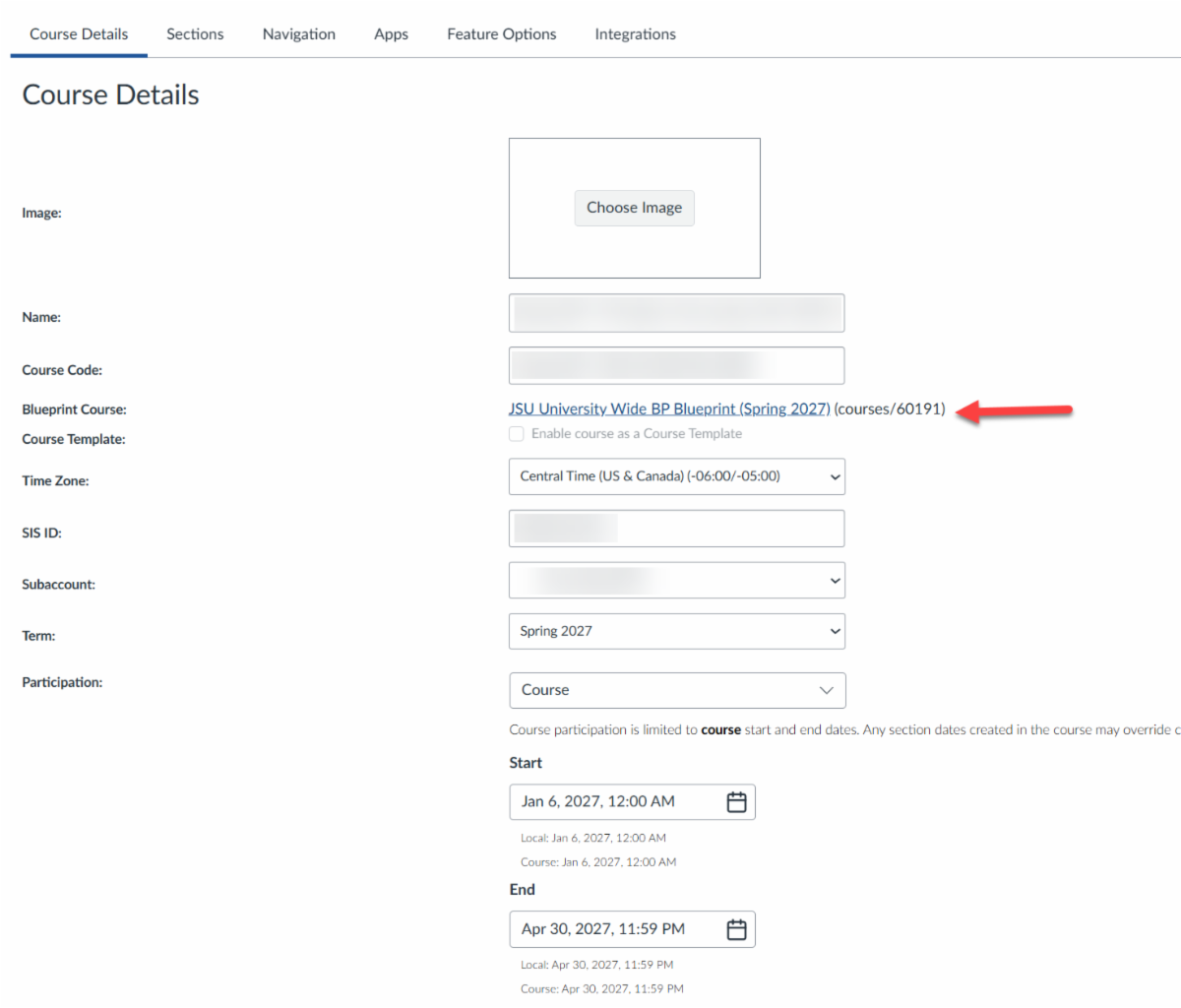
✅ How to Check Your Blueprint

  1. Open your course in Canvas
  2. Click Settings in the course navigation menu
  3. On the Course Details page, locate “Blueprint Course”
  4. Ensure a Blueprint is listed (the name may vary by term or course)


Once you’ve confirmed that your course is associated with a Blueprint, you’re ready to move forward with your course copy or submit a copy request.

Canvas Classic Quizzes Transition: Your End-of-Semester Checklist 


We're getting closer to the end of Fall 2026 and the retirement of Canvas Classic Quizzes. If you use Canvas quizzes or exams, now is a good time to review your courses and make sure you're prepared. 


New Quizzes Transition Checklist 

Before Spring 2027: 

  • Identify the Classic Quizzes you plan to reuse. 
  • Convert needed Classic Quizzes to New Quizzes. 
  • Review converted questions and quiz settings. 
  • Review your question banks and determine what needs to become an Item Bank. 
  • Verify dates, time limits, attempts, and other assessment settings. 
  • Review accommodations and moderation settings where applicable. 
  • If you use online proctoring, verify your New Quizzes work with Honorlock. 
  • Preview or test important assessments before students take them. 


Classic Quizzes will be turned off at the end of Fall 2026. 

Please don't wait until your first Spring 2027 exam to discover that an assessment still needs attention. 

Course Copy Requests, Merge Requests, and Other Key Information


Course Copy: Course copies can be completed by instructors, or by Online@JSU by request.

  • Request a Course Copy from Online@JSU
  • Faculty Tutorial for Completing a Course Copy. Please review all instructions, which include modified procedures in consideration of the current functionality and impact. These instructions may be modified again for future terms as technology changes and new evaluations are conducted. Faculty will be notified of new recommendations as those become relevant.
  • Before you copy a course, please review the "Converting Classic Quizzes to New Quizzes" guide, especially the following sections which are relevant to conducting complete course copies:
  • Import Course Content - All content
  • Import Course Content - Select specific content
  • Note: If you don't use Classic or New Quizzes, it is still important to review these sections for changes and important information when performing a Course Copy to avoid issues.


Course Enrollment Merge Requests:

  • Requests must be submitted at least three business days before the first day of class per JSU's Academic Calendar.
  • Enrollment merges transfer to a parent course only course enrollments (faculty and students) but do not transfer content, assignments, student submissions, or student grades.
  • Warning: Merging after student submissions have been submitted and graded will erase all submissions and grades in the child course(s).
  • Request a Course Merge from Online@JSU.


Important Reminders:

  • Remember to Publish Your Course
  • Courses should be published by the first day of the semester according to JSU's Academic Calendar.
  • Optional - Prior to the term, view-only mode may be configured for early student view-only access.
  • Verify JaxBooks Configuration - If you or your students experience any issues accessing your eTextbook in the JaxBooks course navigation menu or through a courseware link in Modules, please contact the JaxState Campus Bookstore for assistance. Information about the JaxBooks course navigation link and publisher courseware is also available within the Textbooks accordion on the Faculty Tutorials and Guides page.
  • Course Navigation Menu Links - Academic Policies, Academic Support, and Tutor.com should not be removed from your course navigation menu in Canvas. These links support university initiatives. Depending on your approach to importing content from one course to another, you may need to remove duplicates of these links as well as duplicated template content in the course, as described in the Faculty Course Copy tutorial referenced above.

Need a Few More Quiz Questions? Let IgniteAI Help!


As you work through the final weeks of the semester, creating or updating quizzes can take extra time. IgniteAI Question Authoring in Canvas New Quizzes can help you get started by generating quiz questions from your existing course materials.


How does it work?

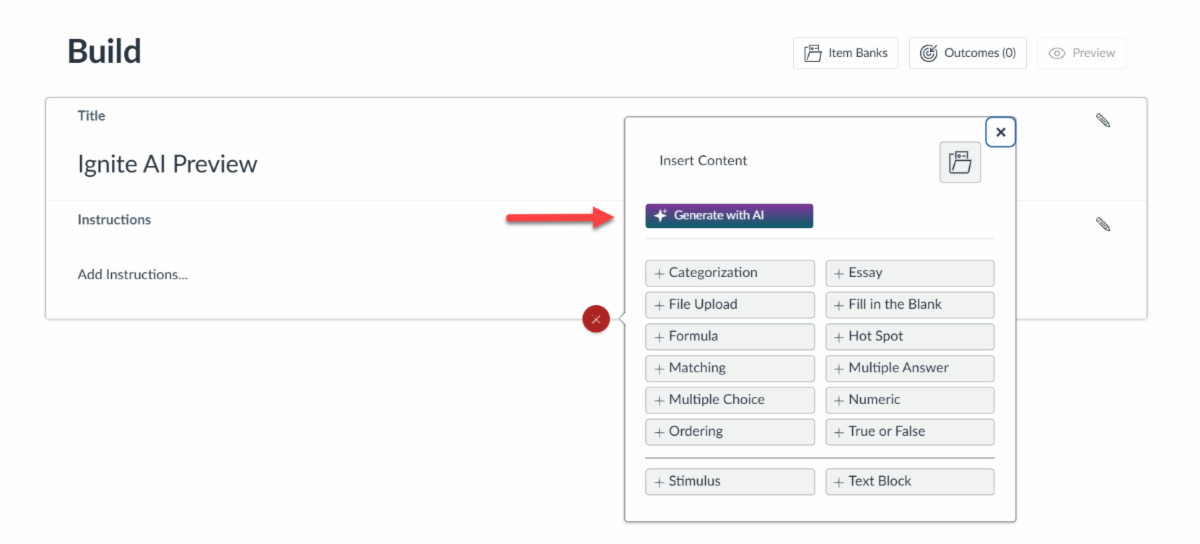
  1. Open a quiz in New Quizzes and select Build.
  2. Click the + icon to add a question.
  3. Select Generate with AI.
  4. Choose existing course content, enter text, or upload a file.
  5. Add a topic focus or adjust options such as learning outcomes, depth of knowledge, and language.
  6. Select your preferred question type and generate questions.


The tool is optional, and instructors can review and edit generated questions before adding them to a quiz.

Want to give it a try?


Tip: Try using IgniteAI to create a few practice questions from your final exam review materials. It's a quick way to build in additional opportunities for students to review key concepts before finals!

❓ Canvas FAQ Corner


Quick answers to common Canvas questions from faculty like you!


📌 Q1: Can I schedule Canvas announcements to post while I'm away for Thanksgiving break?

A: Yes! You can create an announcement ahead of time and select a future date and time for it to post. This is a great way to remind students about upcoming deadlines, assignments, or anything they need to complete while you're away.


📌 Q2: What happens if I change an assignment due date after students have already submitted it?

A: Changing an assignment's due date does not erase existing submissions or grades. However, it may affect how Canvas identifies late submissions, so it's a good idea to review the assignment's submission details after making changes.


📌 Q3: How can I quickly see which students have missing assignments before Thanksgiving break?

A: The Canvas Gradebook allows you to identify missing assignments using the status indicators and filters. You can also use the Missing Submission policy and gradebook views to help identify students who may need a reminder before the break.


📌 Q4: Can I use Canvas to give students extra time on an assignment without changing the due date for everyone?

A: Yes! Use the Assign To section within the assignment to give an individual student or specific group a different due date or availability window. This allows you to provide flexibility without changing the original deadline for the entire class.


📌 Q5: Can I prevent students from submitting an assignment after the deadline?

A: Yes! When creating or editing an assignment, you can set an Until date. After that date and time, Canvas will no longer accept submissions. Keep in mind that this is different from the regular due date, which marks submissions as late but does not automatically close the assignment.

Online@JSU office logo

Helpful

Resources and Links from Online@JSU


Questions or Comments?


Visit our website, email us at online@jsu.edu, or call us at 256-782-8172.


We look forward to hearing from you!