One Cool Tip Newsletter

March 17, 2026

Your daily dose of tech-savvy brilliance!

😀Greetings! ☘️Happy St. Patrick's Day Tuesday, Cool Tipper!


Get ready to streamline your digital life with simple, actionable tips delivered straight to your inbox.


Cool Tip Theme: PDF Save to Google Drive


New here? Subscribe to the One Cool Tip Newsletter for daily updates. It's FREE!

3️⃣

If you enjoy the One Cool Tip newsletter, please forward this newsletter to THREE friends or colleagues or share it on social media using the links below.


Leave a Tip!


Share this One Cool Tip Newsletter!

X Share This Email
LinkedIn Share This Email
Pinterest Share This Email

🚨World Cup Scam Alert: What Fans Need to Know🚨


The FTC says scammers are taking advantage of the rush for World Cup tickets across the U.S., Mexico, and Canada.


Fake ticket sites, fraudulent visa services, and sellers offering screenshots or paper tickets are some of the biggest red flags.


Most legitimate tickets will be delivered only through the FIFA app, so anything else should raise suspicion.


How to Stay Safe


  • Buy only from FIFA.com/tickets or the FIFA app (iOS / Android). Remaining tickets and official resales appear there first.
  • Avoid screenshots or paper tickets. Scammers often sell the same “seat” to multiple people.
  • Watch for lookalike websites. Fraudsters use ads and social posts to mimic FIFA or government pages.
  • Check travel documents on official government sites. Fake visa services charge high fees for forms that are free.
  • Report scams at ReportFraud.ftc.gov..


A scam free match starts with buying smart. Stay alert, stick to official channels, and enjoy the tournament.


And in Other News...


  • 🚚 Amazon Launches 1-Hour and 3-Hour Delivery in Thousands of U.S. Cities


Amazon just rolled out ultra-fast delivery options for over 90,000 items, including household essentials, health products, and electronics.


Prime members get discounted fees: $9.99 for 1-hour delivery and $4.99 for 3-hour delivery. Non-members pay $19.99 and $14.99 respectively.


You’ll see “In 1 hour” or “In 3 hours” next to eligible products, and you can filter by speed or visit amazon.com/getitfast to check local availability.


Available seven days a week, powered by Amazon’s Same-Day Delivery sites and predictive inventory tech. Fast just got faster.

Cool Deals of the Day

Help support One Cool Tip. Use this Amazon link when you shop online.


Check out these Cool Deals:


⌨️ Logitech K380 Bluetooth Keyboard: Perfect for managing Drive files across your laptop and tablet. $29.99 Check it out on Amazon!


📱 Google Pixel Tablet: The best way to view your "Saved from Chrome" folder on the go. $368.17 Check it out on Amazon!


📁 Amazon Basics External Hard Drive 2TB: Affordable backup option for storing large numbers of downloaded files. $294.49 Check it out on Amazon!


*Prices accurate when originally published.

One Cool Tip may earn a commission from qualifying purchases.

Fuel Your Adventure

Try Big Mike's Jerky!


bigmikesjerky.com


Now on TikTok!


Today's Cool Tip

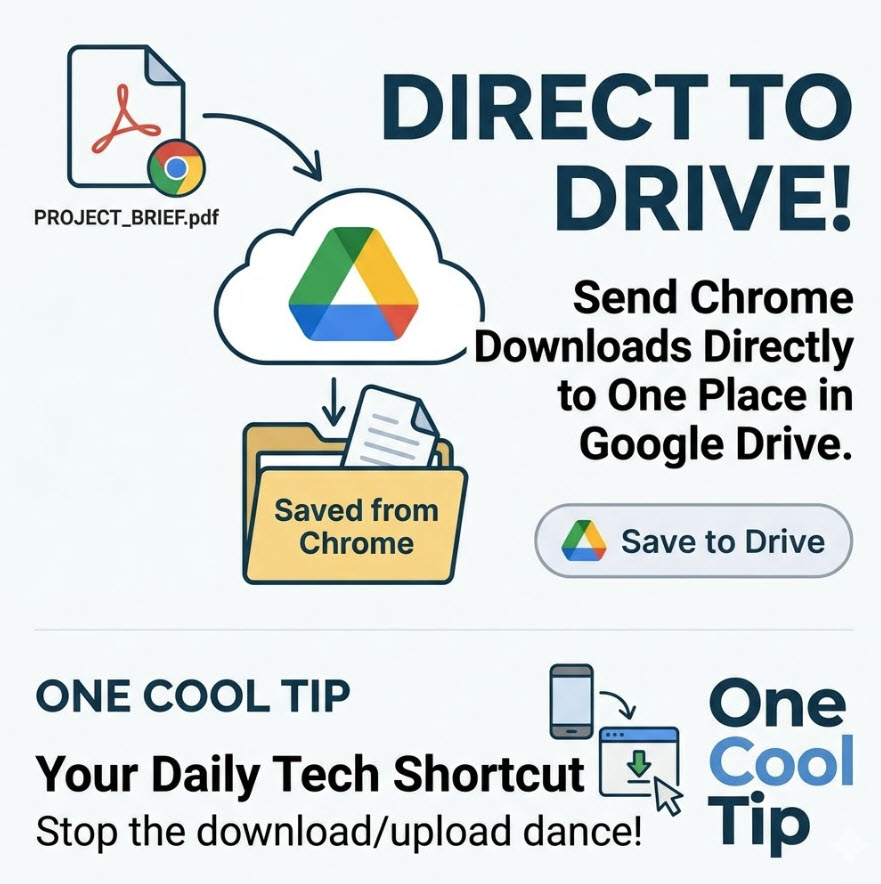
Direct to Drive: How to Send Chrome Downloads to One Place


Stop the manual upload cycle and sync your web saves directly to a dedicated, searchable folder in the cloud.


Have you ever downloaded a critical project brief only to have it vanish into the digital abyss of your local folders? 


We have all been there. 


You find an important PDF, download it, and then immediately forget where it went or which device it is on. 


Here's a Cool Tip:  Use Save to Google Drive.


Google is solving this specific headache by removing the middleman. 


With the Save to Google Drive feature, 


Chrome now allows you to bypass your hard drive entirely. 


This update turns your browser into a direct portal to your cloud storage, ensuring your files are backed up and organized before you even have time to lose them.


Feature Explanation


The Save to Google Drive integration is a productivity bridge between the Chrome browser and your cloud storage. 


Instead of the traditional "download, find, and re-upload" workflow, Chrome can now send PDFs and other files directly to a specific destination in the cloud. 


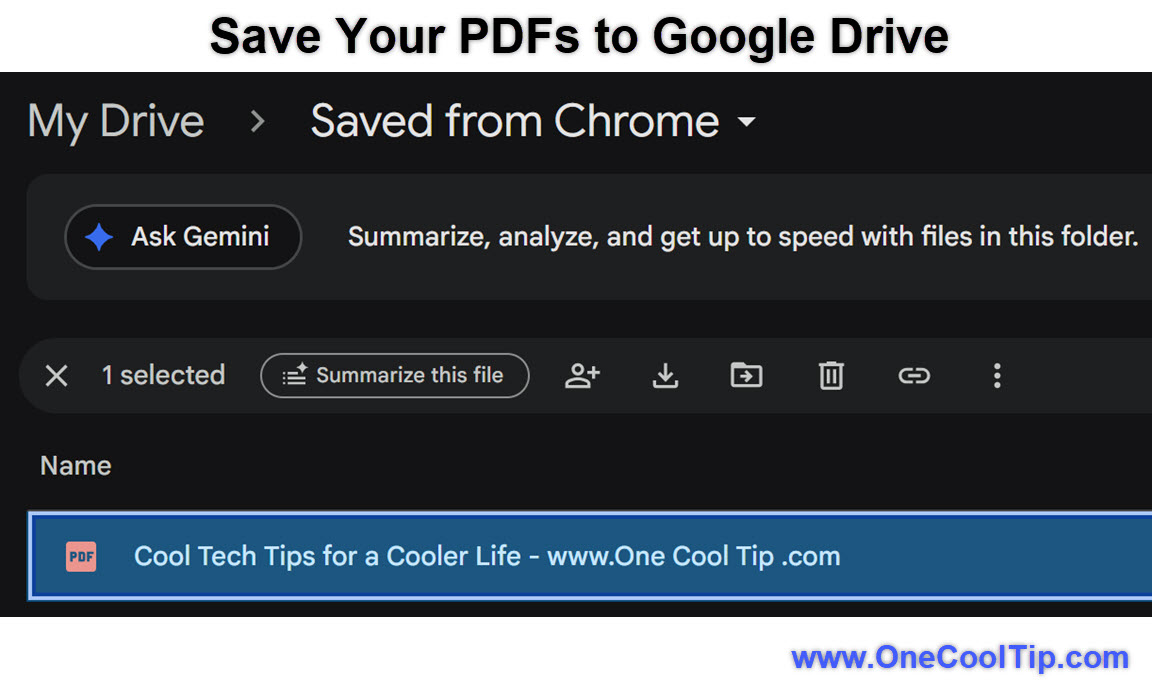
When activated, the browser automatically creates and manages a dedicated folder titled “Saved from Chrome” within your Google Drive. 


This is not just a shortcut; it is a fundamental shift in how the browser handles data. 


It ensures that any PDF you save is immediately available across all your synced devices, from your office desktop to your phone.


What You’ll Gain


  • Instant Backup: Files go straight to the cloud, protecting them from local hardware failure.
  • Automatic Organization: Chrome creates a "Saved from Chrome" folder so you never have to hunt for a file again.
  • Cross-Device Access: Start a download on your laptop and open it seconds later on your tablet or phone.


Step-by-Step Instructions


Here's how to do it.


Web/Desktop


  1. Open Chrome and navigate to the PDF you wish to save.
  2. Click the Save to Google Drive icon in the PDF viewer.
  3. Ensure you are in the correct Google account, click Save.
  4. Verify that the file is being directed to the Saved from Chrome folder.


fig. 1 - Save Your PDFs to Google Drive

Pros and Cons


Pros:


  • Eliminates the clutter of the local "Downloads" folder on your physical machine.
  • Makes every downloaded file instantly searchable via Google Drive’s powerful OCR and search tools.


Cons:


  • Requires an active internet connection to complete the save process to the cloud.
  • Large files may count against your total Google One storage quota quickly.


Feature Access


The "Save to Google Drive" functionality is part of a broader rollout of Chrome productivity improvements. 


It is currently rolling out to users on the latest stable versions of Chrome across Desktop.


Score

Criterion | Score (0–10) | Justification
Value | 10
Completely removes the "lost file" problem for cloud users.
Usability | 9
Highly intuitive once the "Saved from Chrome" folder is established.
Wow Factor | 8
The seamless transition from web to cloud feels like magic.
Total: 27/30 |  🌟 Excellent
This is the most significant workflow improvement for Chrome in years, effectively turning the web into a local drive.


Key Takeaways


Saving downloads directly to Google Drive ends the cycle of downloading and re-uploading files. 


By utilizing the "Saved from Chrome" folder, you ensure your important documents are always backed up, organized, and accessible from any device.


Cool Tip Snapshot


  • Feature Name: Save to Drive
  • Platform(s): Web
  • Quick Benefit: Automatic cloud organization for web downloads.
  • Access Type: Free (Requires Google Account)


Try It Yourself


Find a PDF online right now and use the "Save to Drive" option instead of saving it to your desktop. 


Check your Google Drive for the new "Saved from Chrome" folder and see how much easier it is to find. 


Share this tip with your family, friends, and team to help them clean up their cluttered download folders!


READ MORE


Read the Cool Tip on OneCoolTip.com.

Check out these Cool Tips & Tricks.


  • Instant Search: Find files fast. Type "type:pdf" in the Drive search bar to find your Chrome saves.


  • Offline Access: Work without web. Right click your "Saved from Chrome" folder and toggle "Available offline."


  • Quick Move: File organization. Drag files out of the "Saved from Chrome" folder into specific project folders immediately.


  • Share Links: Collaborative saving. Right click a file in Drive to get a shareable link instead of emailing an attachment.


  • OCR Power: Search inside images. Search for text found within a saved image file in your Drive.


  • Mobile Scan: Physical to cloud. Use the Drive app on your phone to scan paper docs into the same folder.


  • Version History: Track changes. Right click a file in Drive to see previous versions of a downloaded document.


  • Space Saver: Monitor your quota. Check your Google One storage regularly to ensure you have room for new saves.


  • Starred Files: Priority access. Star the "Saved from Chrome" folder for one tap access in your Drive sidebar.

ICYMI - In Case You Missed It ...

Never Miss Important News Again: How to Create Google Alerts in Minutes


Track topics, competitors, and your own name automatically with Google Alerts. This free tool turns Google into your personal research assistant. Google Alerts automatically monitors the web for new content about topics you choose and sends notifications directly to your inbox. It is one of the simplest and most powerful ways to stay informed without constantly searching.


Read the Full Cool Tip.


Read the Newsletter Version.

Looking for your next adventure?


Call Denise at Travel For You.

314.660.3039


Sign Up for the Monthly Newsletter


http://www.travelforyouvacations.com/


https://www.facebook.com/TRAVEL.FOR.U/


See You Tomorrow

Tomorrow's Cool Tip is waiting to amaze you.


Until then, go forth and conquer the tech world with your newfound knowledge!


Be sure to visit www.OneCoolTip.com for Cool Tech Tips for a Cooler Life!


And if you Like One Cool Tip, please support with TipJar!


Enjoy!


Rodger

Chief Cool Tipper

onecooltip.com@gmail.com


What Do You Think?

What do you think of today's OneCoolTip newsletter?
Positive        Neutral        Negative
X Share This Email
LinkedIn Share This Email

Connect with One Cool Tip!!

Facebook  X  Instagram  Web  Pinterest  YouTube  LinkedIn
 

As an Amazon Associate, One Cool Tip may earn a small commission from qualifying purchases.


Our media content is intended solely for informational purposes only. Please do not construe anything here as legal, tax, investment, financial, marital or other advice.


Copyright © 2026 | www.OneCoolTip.com | All Rights Reserved