One Cool Tip Newsletter

October 8, 2026

Your daily dose of tech-savvy brilliance!

😀 Greetings! Happy Apple Thursday, Cool Tipper!


Get ready to streamline your digital life with simple, actionable tips delivered straight to your inbox.


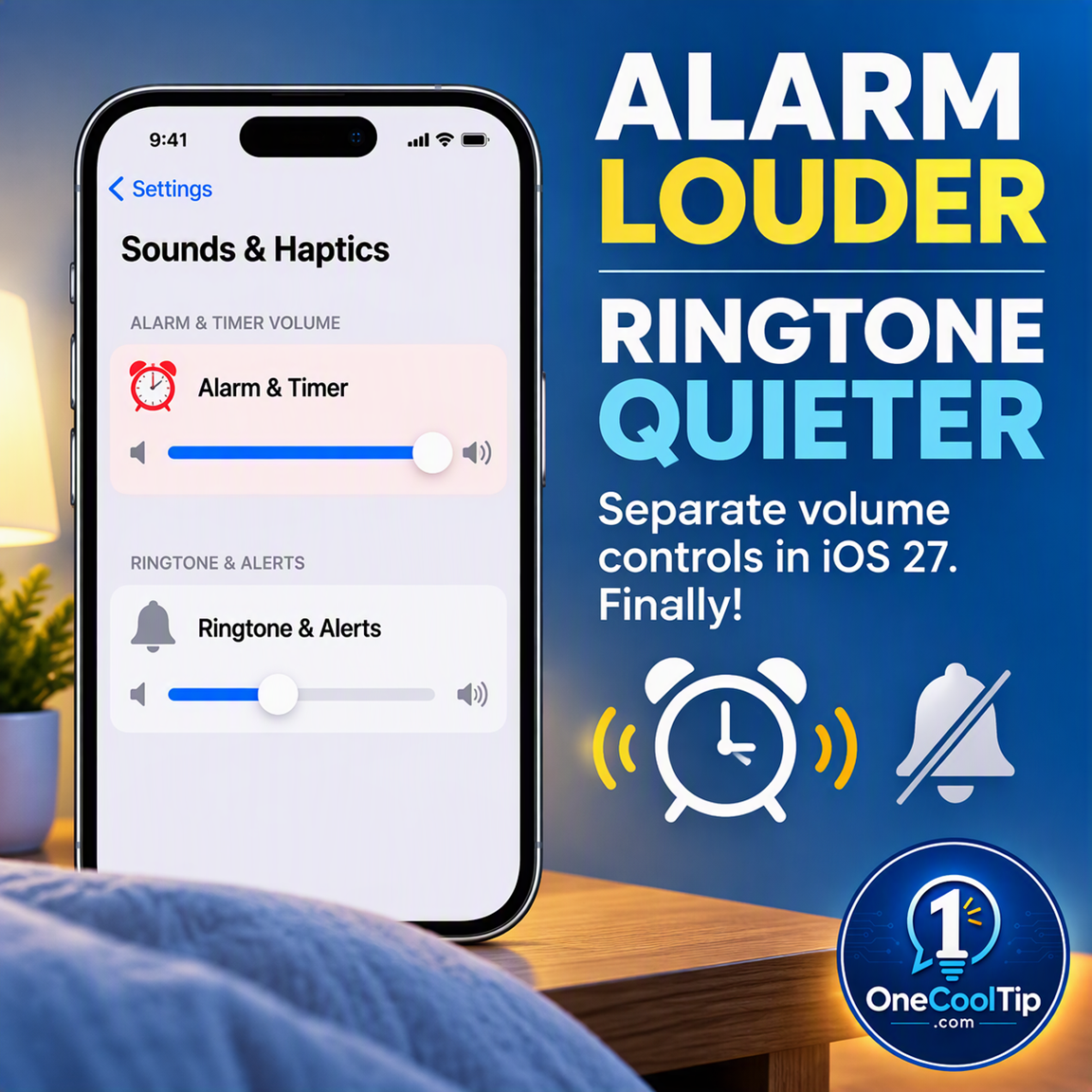
Cool Tip Theme: iPhone Alarm and Timer Volume Separate from Ringtone


Learn how to change iPhone alarm volume in iOS 27 without changing your ringtone. Set a separate level for alarms and timers, plus check your Wake Up alarm.


New here? Subscribe to the One Cool Tip Newsletter for daily updates. It's FREE!

3️⃣

If you enjoy the One Cool Tip newsletter, please forward this newsletter to THREE friends or colleagues or share it on social media using the links below.


Leave a $$$ Tip!


Share this One Cool Tip Newsletter!

X Share This Email
LinkedIn Share This Email
Pinterest Share This Email

🚨 🎃 Don’t Let a Halloween Scam Haunt You 🎃🚨


Halloween shopping can be scary for more reasons than one.


Check return policies before buying from seasonal stores and confirm whether pop-up shops will still be around after Halloween.


When shopping online, look for HTTPS and a lock symbol, and check that the seller provides clear contact information.


Pay by credit card rather than debit card because credit cards can offer additional protections and make fraudulent charges easier to dispute.


Before buying tickets to haunted houses or other Halloween events, research the company.


A few minutes of checking before you buy can help keep the tricks out of your Halloween shopping.


And in Other News...


  • Too Much Screen Time? Apple Has a New Plan for Families


Apple and the American Academy of Pediatrics have teamed up on a new guide designed to help families build healthier digital habits.


The guide encourages parents to talk with kids about screen time and create routines that balance devices with sleep, exercise, schoolwork, and time with family and friends.


It also explains how parents can use Apple tools to review new apps and websites, schedule device use, and manage who children can communicate with.


Rather than setting one rule for every child, the guidance encourages families to adjust their approach as children grow.


New Screen Time features are available with iOS 27, iPadOS 27, and macOS 27, although availability can vary by region, language, and device.


Cool Tip:


Use parental controls as the starting point for a family conversation, not as a substitute for one.

Cool Tip Poll

🤔 How would you set your iPhone alarm volume?

Cool Deals of the Day

Help support One Cool Tip. Use this Amazon link when you shop online.


Check out these Cool Deals:

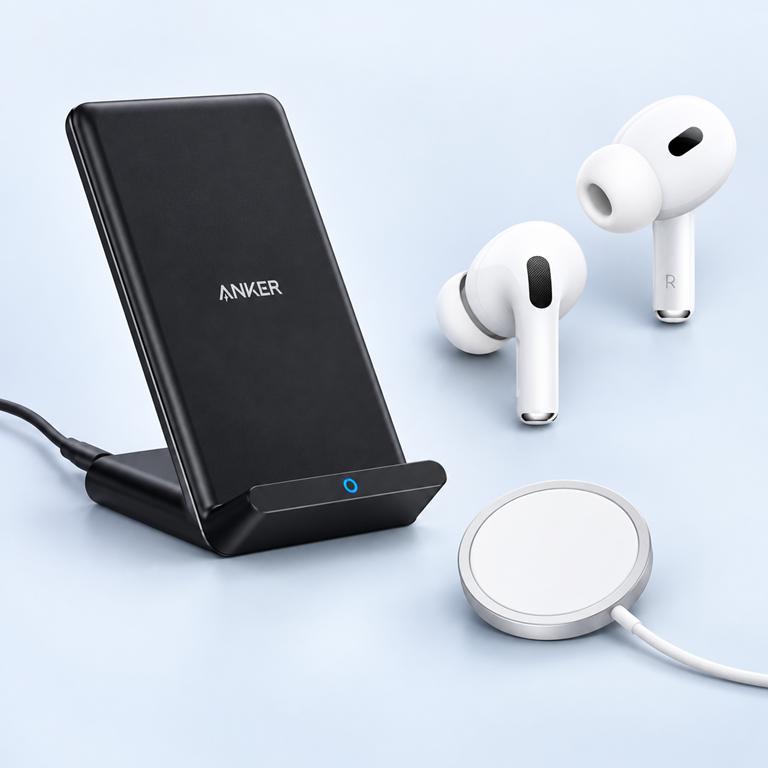
🎧 Apple AirPods Pro 2: Block out morning noise and enjoy personalized spatial audio.

Save 5%. Now $249.99. 4.6 Stars. Check it out on Amazon!


🔌 Anker 313 Wireless Charger Stand: Keep your iPhone upright on your nightstand so you can easily hit snooze.

Save 22%. Now $19.99. 4.5 Stars. Check it out on Amazon!


🔋 Apple MagSafe Charger: Ensure your phone is fully charged overnight without fumbling for cables in the dark.

Save 21%. Now $30.99. 4.6 Stars. Check it out on Amazon!


*Prices accurate when originally published.

One Cool Tip may earn a commission from qualifying purchases.

Fuel Your Adventure

Try Big Mike's Jerky!


bigmikesjerky.com


Today's Cool Tip

Change iPhone Alarm Volume Without Changing Your Ringtone in iOS 27

Keep your ringtone quiet while giving your iPhone alarms the volume they need.


Set a shared volume for alarms and timers that is separate from your ringtone, and check the dedicated control for your Sleep schedule’s Wake Up alarm.

By Rodger Mansfield, Technology Editor

October 8, 2026

Subscribe


You lower your iPhone’s ringtone before a meeting. 


Later, while setting tomorrow’s alarm, you wonder whether that quieter setting also means a quieter wake-up call.


Calls and alarms serve different purposes. 


A comfortable ringtone during the day may be too quiet for an early start.


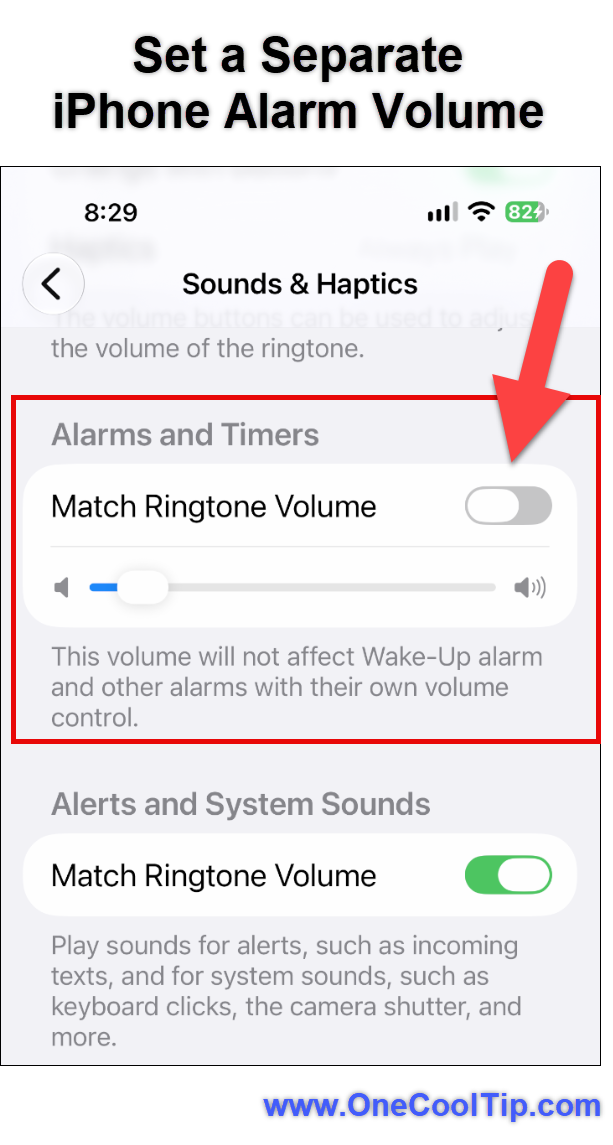
Here’s a Cool Tip: Turn off Match Ringtone Volume for alarms and timers.


In iOS 27, Apple now provides a way to give alarms and timers their own sound level. 


Feature Explanation


The setting separates the loudness of regular Clock alarms and timers from your incoming-call ringtone. 


It does not change which alarm sound you selected.


Your familiar alarm tone stays the same; you choose a more useful sound level.


What You’ll Gain


  • Keep calls quieter while making alarms easier to hear.
  • Choose sound levels that fit your daily routine.
  • Spend less time second-guessing your bedtime setup.


Step-by-Step Instructions


Here's how to do it.


iPhone:


  1. Open Settings.
  2. Tap Sounds & Haptics.
  3. Find Alarms and Timers.
  4. Turn off Match Ringtone Volume.
  5. Adjust the volume slider that becomes available.

fig. 1 - Set a Separate iPhone Alarm Volume

Pros and Cons


Pros:


  • Helps business users tailor calls and wake-up alerts to different needs.
  • Helps students set a morning alarm without making calls louder.
  • Makes a shared household’s sound preferences easier to manage.
  • Requires only a short visit to Settings.


Cons:


  • Alarms and timers remain grouped together. 
  • The control is easy to miss if you look only inside Clock.
  • The Sleep schedule’s Wake Up alarm uses its own volume control. 


Feature Access


This audio separation feature is available to all users who update to the latest supported iOS version on a compatible iPhone. 


It is free to use and requires no special subscriptions or Apple Account tiers. 


The rollout is standard across all global regions and languages. 


Because this is a core system setting, family accounts and enterprise profiles have equal access to it.


Score

Criterion |  Score (0–10) |  Justification
Value |  8
Solves a familiar annoyance and helps users choose sound levels intentionally.
Usability |  9
Easy to adjust once you know where to look.
Wow Factor |  6
A useful refinement rather than a dramatic new capability.
Total: 23/30 | 👍 Good
A small setting change with a worthwhile everyday payoff.
Compared with the Wake Up alarm’s dedicated slider, this setting offers a broader place to manage regular alarms and timers. 


Key Takeaways


Choose your alarm level around your routine, then confirm it with an actual alarm. 


If you use the Sleep schedule’s Wake Up alarm, check its dedicated slider and save the change for the intended schedule. 


Cool Tip Snapshot


  • Feature Name: Alarm and timer volume separate from ringtone.
  • Platform(s): iPhone, iOS 27.
  • Quick Benefit: Adjust alarms without changing ringtone loudness.
  • Best For: Travelers, students, families, and business users.
  • Access Type: Free system setting; no separate purchase listed.
  • Difficulty: Easy.


Try It Yourself


Set your preferred alarm volume and try a test alarm today. 


Comment with your experience, subscribe to the One Cool Tip newsletter for FREE, and share this Cool Tip with family, friends, and coworkers.


READ MORE


Read the Full Cool Tip!

Check Out These Cool Tips & Tricks


  • Separate Volume: Give regular alarms a different sound level from calls. In Settings → Sounds & Haptics → Alarms and Timers, turn off Match Ringtone Volume and adjust the slider.


  • Quiet Alerts: Choose a separate loudness for notifications and system sounds. Under Alerts and System Sounds in Sounds & Haptics, turn off Match Ringtone Volume and set the slider.


  • Wake Up: Review the Sleep schedule alarm’s dedicated volume setting. Open Clock → Alarms → Change for Wake Up, adjust Alarm volume under Alarm Options, tap Done, and choose whether to change the next alarm or the schedule.


  • Button Control: Reduce accidental alert-volume changes from the side buttons. Open Settings → Sounds & Haptics and turn off Change with Buttons.


  • Clear Labels: Give each alarm a name that explains its purpose. Open a Clock alarm and edit its Label, such as “Airport transfer.”


  • Repeat Days: Reuse an alarm for recurring commitments. Open its settings in Clock and choose the relevant days under Repeat.


  • Sound Choice: Pick an alarm tone you can recognize easily. Open the alarm in Clock, tap Sound, and choose your preferred tone.


  • Snooze Length: Tailor the pause after snoozing an alarm. Open the alarm in Clock and choose Snooze Duration.


  • Pause Alarm: Disable an alarm without removing it. Open Clock → Alarms and turn off the switch beside that alarm.


  • Volume Test: Confirm your setup from the place you normally sleep. Create a temporary Clock alarm, listen from your usual position, and remove the test afterward.

ICYMI - In Case You Missed It ...

Build and Publish a Website With ChatGPT Sites


ChatGPT Sites can turn a written description into a hosted website, dashboard, web app, or game without requiring a separate deployment service. You can preview the result, request changes in plain language, control who can see it, and publish it from ChatGPT.


Read the Full Version.


Read the Newsletter Version.

Looking for your next adventure?


Call Denise at Travel For You.

314.660.3039


Sign Up for the Monthly Newsletter


http://www.travelforyouvacations.com/


https://www.facebook.com/TRAVEL.FOR.U/


See You Tomorrow

Tomorrow's Cool Tip is waiting to amaze you.


Until then, go forth and conquer the tech world with your newfound knowledge!


Be sure to visit www.OneCoolTip.com for Cool Tech Tips for a Cooler Life!


And if you Like One Cool Tip, please support with TipJar!


Enjoy!


Rodger

Chief Cool Tipper

onecooltip.com@gmail.com


What Do You Think?

What do you think of today's OneCoolTip newsletter?
Positive        Neutral        Negative
X Share This Email
LinkedIn Share This Email

Connect with One Cool Tip!

Facebook  X  Instagram  Web  Pinterest  YouTube  LinkedIn
 

As an Amazon Associate, One Cool Tip may earn a small commission from qualifying purchases.


Our media content is intended solely for informational purposes. Please do not construe anything here as legal, tax, investment, financial, marital or other advice.


Copyright © 2026 | www.OneCoolTip.com | All Rights Reserved