|
Master Your Documents with Chrome PDF Annotations
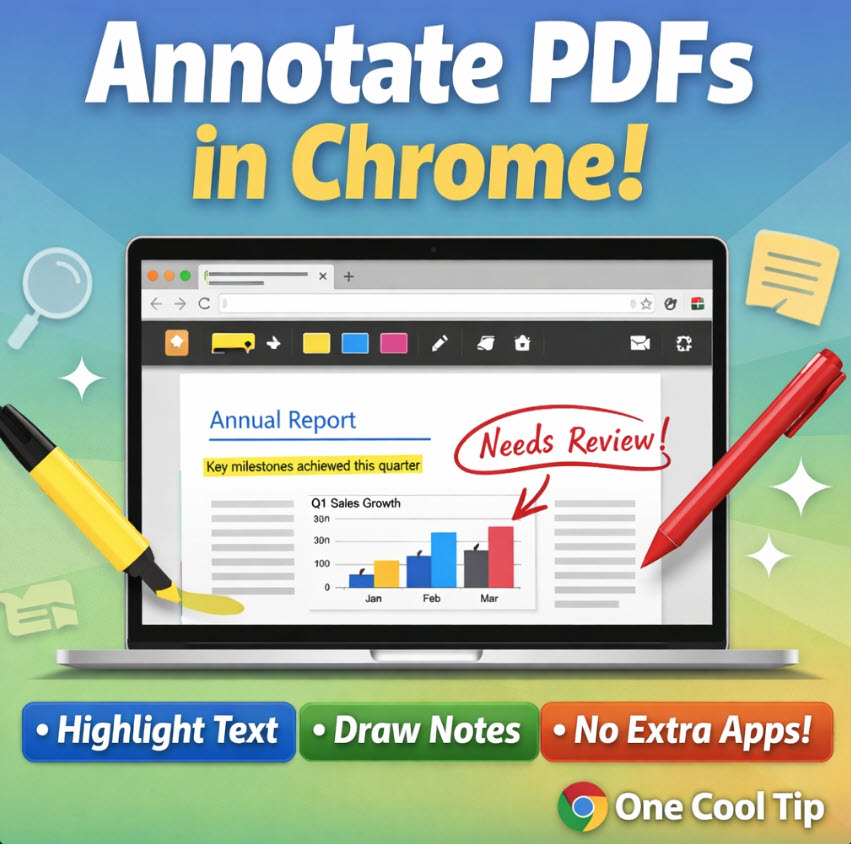
Stop searching for third party editors and start marking up your files directly in the browser you already use. Google Chrome now includes robust tools to draw, highlight, and save notes directly onto PDF documents. This update transforms the browser into a powerful productivity workstation for anyone handling digital paperwork.
How many times have you downloaded a PDF just to sign it, highlight a single sentence, or jot down a quick note?
For years, this simple task required heavy software or clunky third-party web converters that often compromised your privacy.
Most users are unaware that the solution to this daily friction is already sitting in their taskbar.
Here's a Cool Tip: Use the new PDF Annotation Tools in Google Chrome.
Chrome has quietly evolved from a simple window to the internet into a functional document editor.
Whether you are a student highlighting a research paper or a manager reviewing a contract, the ability to annotate files without leaving your tab is a game changer for your workflow.
Feature Explanation
The Chrome PDF annotation feature is a built-in toolkit that appears whenever you open a PDF file within the browser.
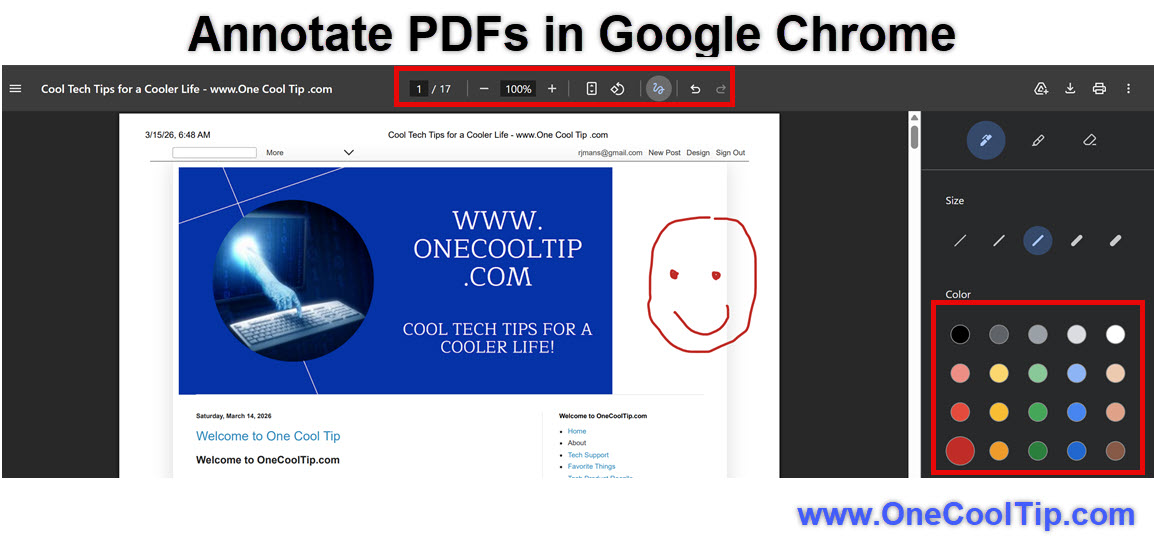
Instead of just viewing a static page, you gain access to a toolbar featuring highlighters, pens, and eraser tools.
When you click the draw icon, the interface shifts into editing mode.
It works by overlaying a digital ink layer onto the document.
The most critical part of this feature is the "Save" functionality.
You can choose to save the original file or a version that includes your new edits, ensuring that your notes stay attached to the document when you email it to a colleague or upload it to a portal.
What You’ll Gain
-
Zero Friction: Eliminate the need to download, edit, and re-upload files.
-
Cost Savings: Replace expensive PDF editing subscriptions for basic markup needs.
Step-by-Step Instructions
Here's how to do it.
Microsoft Web/Desktop
-
Right click any PDF file on your computer and select 'Open with' then choose Google Chrome.
-
Look for the Draw Icon in the top menu bar of the PDF viewer.
-
Select the Pen or Highlighter tool to begin marking the text.
-
Adjust the thickness and color by clicking the arrow next to the tool icons.
-
Click the Download icon and select Edited to save your changes to your local drive.
|