|
One Cool Tip Newsletter
May 26, 2026
| Your daily dose of tech-savvy brilliance! | |
😀Greetings! Happy Tuesday, Cool Tipper!
Get ready to streamline your digital life with simple, actionable tips delivered straight to your inbox.
Cool Tip Theme: Create and Edit Google Gemini Omni Videos
New here? Subscribe to the One Cool Tip Newsletter for daily updates. It's FREE!
| |
3️⃣
If you enjoy the One Cool Tip newsletter, please forward this newsletter to THREE friends or colleagues or share it on social media using the links below.
Leave a $$$ Tip!
Share this One Cool Tip Newsletter!
| | |
🚨Scammers Are Reaching Out More Than Ever🚨
Scammers are getting bolder and they’re using every channel they can to reach you.
According to the FTC, “scams often start with a text, call, or an ad or message on social media”.
If you have a phone or use social platforms, chances are you’ve already been targeted.
Text messages are now the top way scammers make first contact.
Many pretend to be delivery companies, lenders, or even government agencies.
The FTC notes that scammers “love sending texts” and often impersonate businesses or officials with fake notices about packages, loans, or unpaid tolls.
Phone scams are still common too.
Fraudsters call claiming you’ve won a prize or insisting you must “move your money to protect it.”
And while texts and calls are widespread, the biggest financial losses last year came from scams that started on social media, including fake job offers, bogus investments, and romance‑based schemes.
How to Protect Yourself
- Report and delete scam texts. Use your phone’s “report junk” option or forward messages to 7726 (SPAM).
- Report scam calls. If you didn’t lose money, go to DoNotCall.gov. If you did, report it at ReportFraud.ftc.gov.
- Be skeptical of social media messages. Job offers, “guaranteed” investment returns, or sudden romantic interest are major red flags.
Staying alert is your best defense.
A few seconds of caution can save you from a costly scam.
And in Other News...
- New Papal Letter Warns About AI, Misinformation, and Digital Harm
Pope Leo XIV has issued a new encyclical highlighting growing risks from artificial intelligence, misinformation, and online manipulation.
The letter urges governments, tech companies, and everyday users to take digital threats seriously, especially as AI tools become more powerful and harder to detect.
According to the report, the Pope warns that AI systems can distort truth, amplify falsehoods, and influence people without their awareness.
He also raises concerns about how digital platforms shape public opinion, noting that vulnerable groups are often the first to be harmed by deceptive content and algorithmic bias.
The encyclical calls for greater transparency, stronger protections for children, and clearer accountability for companies that deploy AI at scale.
It also encourages individuals to slow down, verify information, and avoid sharing content that plays on fear or outrage.
What Consumers Should Do:
-
Be skeptical of viral claims. Check multiple reputable sources before sharing.
-
Watch for emotional manipulation. Scammers and propagandists often use fear, urgency, or moral outrage.
-
Use platform safety tools. Enable fact‑checking labels, limit data sharing, and review privacy settings.
-
Talk with family members. Older adults and teens are frequent targets of misinformation campaigns.
| | |
Help support One Cool Tip. Use this Amazon link when you shop online.
Check out these Cool Deals:
📱 PopSockets Phone Grip: Keep your smartphone steady while capturing stable reference videos for AI editing. Save 20% $7.99 Check it out on Amazon!
💡 Lume Cube Edge Light: Ensure your face has clear, consistent lighting before uploading custom avatar clips. $59.99 Check it out on Amazon!
🎙️ Wireless Mini Microphone: Capture pristine vocal tracks to accompany your high-quality AI video productions. $24.99 Check it out on Amazon!
*Prices accurate when originally published.
One Cool Tip may earn a commission from qualifying purchases.
| | |
Create and Edit AI Videos Conversationally Using Google Gemini Omni
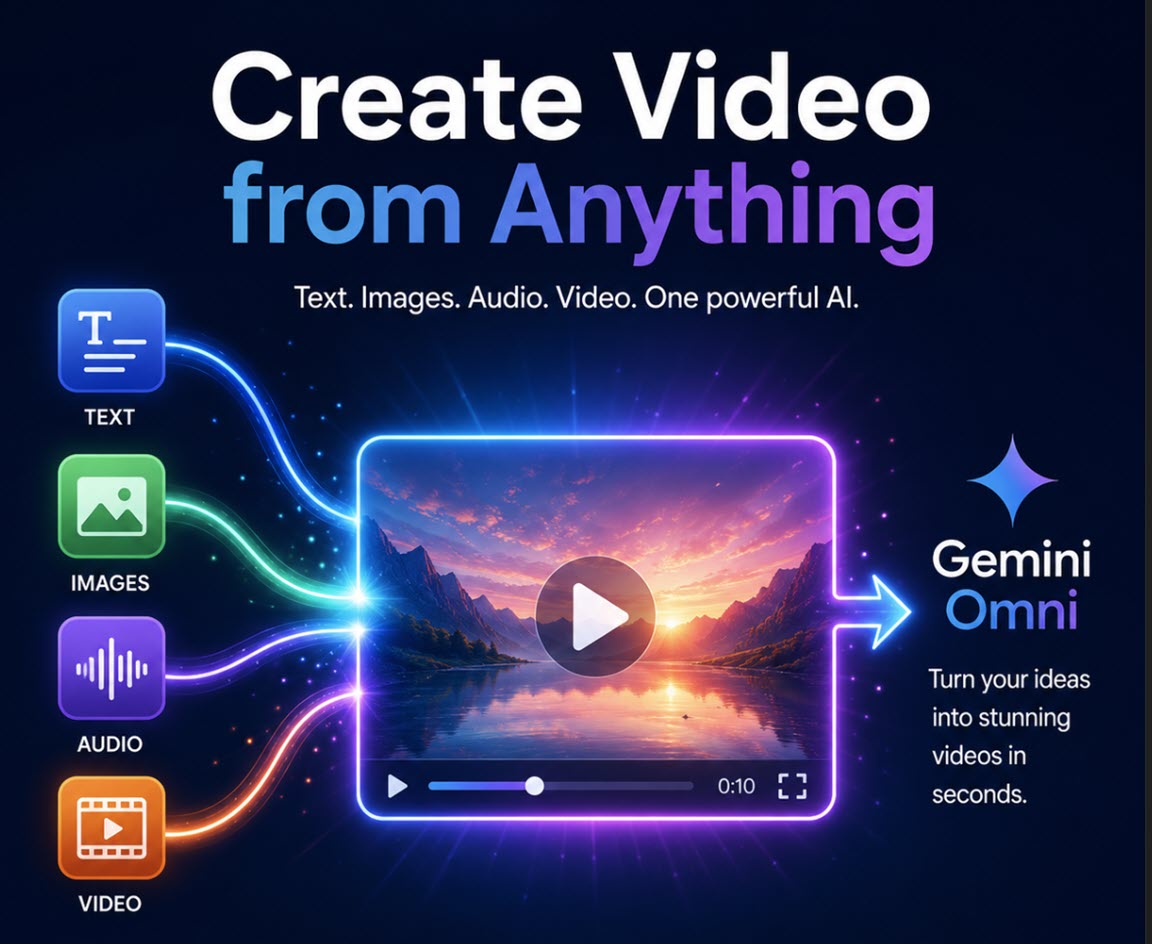
Google recently introduced Gemini Omni, a brand new AI model family designed to generate and modify video clips using conversational prompts. Discover how this tool mixes text, photos, and video references to fix details, switch styles, and keep characters consistent across scenes.
Creating and editing video often feels like a chore if you lack expensive software or technical expertise.
A simple adjustment like changing a background or fixing a pacing mistake usually forces you to restart your project from scratch.
Here's a Cool Tip: Use Google Gemini Omni.
Google announced its new model family at Google I/O in May 2026, and showed off a fresh way to build or edit cinematic content without needing complex timelines.
Feature Explanation
Gemini Omni is Google's latest multimodal AI model architecture where reasoning meets media creation.
Instead of merely generating a standalone video clip from a single text prompt, Omni functions as an ongoing conversational editor.
You can upload an image, text instruction, audio file, or an existing video snippet, and the model turns those varied references into a unified output.
The first variant rolling out to users is called Gemini Omni Flash, which focuses heavily on video production.
What makes this model unique is its deep understanding of real-world physics, context, and consistency.
When you ask Omni to alter a scene, it remembers what happened in previous turns.
The physics of kinetic movement, fluid dynamics, and gravity remain accurate, and your characters retain their distinct visual identity and voice from one shot to the next.
It bridges the gap between chaotic AI generation and controlled, professional digital storytelling.
What You’ll Gain
- Save time by revising video backgrounds, lighting, and camera angles using chat prompts instead of complex desktop editing software.
- Reduce confusion when building complex video concepts by combining a variety of file types, including audio tracks and photos, into a single project.
- Improve character consistency across multiple scenes by letting the model track faces, styles, and voices automatically.
- Make daily work easier for social media or presentations by applying fast, conversational templates to raw camera roll clips.
Step-By-Step Instructions
Gemini Omni Flash is rolling out to Google AI Plus, Pro, and Ultra subscribers worldwide on web and mobile platforms as of May 2026.
Here's how to do it.
Web/Desktop:
-
Open your desktop web browser and go to gemini.google.com.
- Log in using your Google account that carries an active Google AI subscription.
- Locate the video generation and input tab within the main chat interface.
- Click the upload button to select an initial video clip or an image reference from your local files.
- Type an explicit instruction in the prompt box, such as "Create a video of the sun rising, white puffy clouds and a cruise ship sailing across from the left to right"
- Press enter to generate the initial video clip.
- Review the generated video asset, then type a follow-up request.
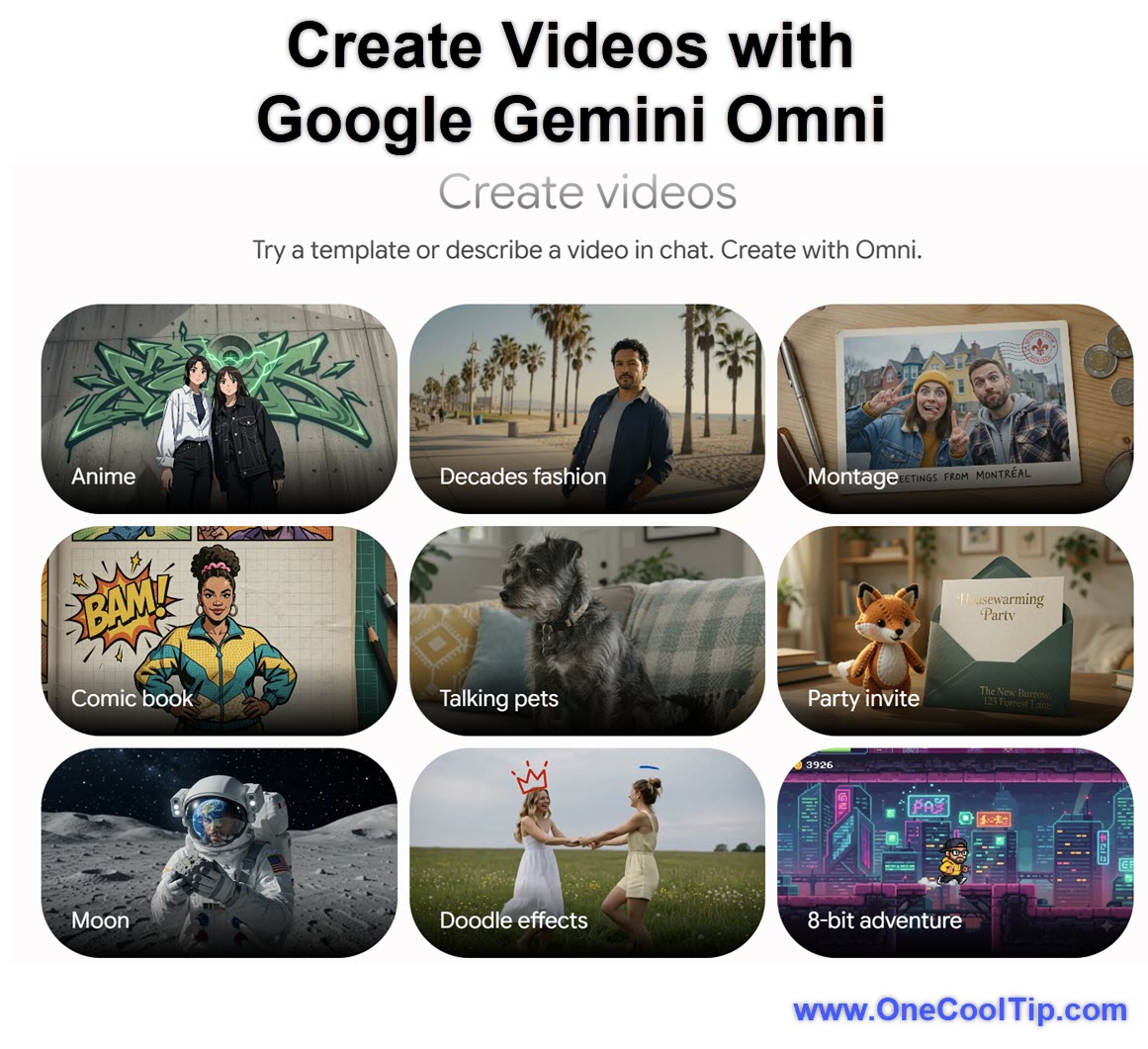
| | fig. 1 - Google Gemini Omni Videos | | fig. 2 - Google Gemini Omni Video Example (YouTube) | | |
iPhone/iPad:
-
Launch the official Gemini application on your iOS device.
- Ensure you are signed into your premium Google AI subscription profile.
- Tap the input bar at the bottom of the screen and select the clip icon to access your camera roll.
- Choose a short video clip or a reference photo to bring into the app.
- Enter your conversational text direction or tap one of the built-in video templates.
- Tap the send button to process the clip.
Android:
-
Open the Gemini app on your Android smartphone or tablet.
- Confirm your status as an active Google AI subscriber to access the latest Omni model features.
- Tap the media attachment symbol to pick a video file directly from your local storage.
- Write your creative prompt, detailing the visual adjustments or thematic shifts you want to see.
- Tap the submission arrow to generate your new video clip.
- Use the conversational interface to refine details, alter camera movements, or swap characters over multiple chat turns.
Pros and Cons
Pros:
- Conversational video editing allows users to build upon prior modifications without starting over.
- Outstanding character and vocal consistency keeps individuals recognizable across different scenes.
- Multimodal inputs let you mix text instructions with real-world audio, imagery, and pre-recorded clips.
- Built-in physics understanding reduces unnatural visual distortions and odd movements.
Cons:
- Requires a paid monthly subscription to Google AI premium tiers for full access.
- Public rollout is limited to the lighter Flash model variant, while higher-end capabilities remain in testing.
- Heavy computational processing can consume large amounts of daily account resource credits quickly.
- Initial audio inputs are restricted to voice references, with other audio file types arriving later.
Who Should Skip This?
Casual users who only ask basic text questions or look up search facts will find little use for this feature.
If you do not have an active Google AI subscription or do not regularly create short-form video assets, the added cost is unnecessary.
Professional video editors who require frame-by-frame precision timeline tools, advanced color-grading panels, and complete manual control over every pixel will still prefer local, traditional editing suites.
Feature Access
Gemini Omni Flash began rolling out globally on May 19, 2026.
The initial release is specifically designed for Google AI Plus, Pro, and Ultra subscribers across 230 countries and territories.
It operates inside the web application, the official Android app, and the iOS application wrapper.
Enterprise or educational accounts managed by workspace administrators may experience delayed access or total feature blocks based on specific organization privacy policies.
Score
Criterion | Score (0–10) | Justification
Value | 8
It significantly reduces the technical barrier to video editing by using everyday conversational phrasing.
Usability | 9
The chat interface makes it easy to apply complex changes without learning timeline editing software.
Wow Factor | 8
The capacity to preserve character consistency and realistic physics over multiple turns is highly impressive.
Total: 25/30 🌟 Excellent
Gemini Omni offers an excellent, intuitive platform for individuals looking to create cohesive short-form videos through simple conversation.
Key Takeaways
- Gemini Omni merges deep reasoning with media generation, letting you edit video clips using natural language.
- The model excels at tracking visual details, ensuring that characters and physics remain consistent across multiple adjustments.
- Access is live for premium Google AI subscribers on the web, Android, and iOS app platforms.
Cool Tip Snapshot
-
Feature Name: Gemini Omni Flash Video Editing
-
Platform(s): Web, Android, iOS
-
Quick Benefit: Modifies video elements conversationally without manual editing software.
-
Best For: Social media creators, small business owners, and digital storytellers.
-
Access Type: Subscription (Google AI Plus, Pro, Ultra)
-
Difficulty: Easy
Try It Yourself
Open your premium Gemini app today, upload a clip from your camera roll, and try changing the background using a simple text chat command.
If you found this tip helpful, share this article with your family, friends, and coworkers.
READ MORE
Read the Cool Tip on OneCoolTip.com.
| | |
Check out these Cool Tips & Tricks.
-
Multi-Turn Adjustments: Build upon your previous video edits by issuing consecutive chat prompts instead of rewriting everything. Simply add new instructions in the chat box after the first video generates.
-
Maintain Visual Consistency: Use high-quality reference images of individuals to preserve character faces across different scenes. Upload the person's photo alongside your structural text prompt.
-
Apply Fast Templates: Save creative energy by selecting built-in style templates directly from the mobile application interface. Tap the template icon next to the media upload clip.
-
Verify Subscription Status: Ensure you are signed into a premium profile to use advanced media creation. Check your Google One panel to confirm your active membership tier.
-
Utilize Vocal References: Guide track pacing conversationally by submitting clear voice clips to the model interface. Use the microphone symbol to record your prompt directions out loud.
-
Monitor Credit Usage: Track your daily generation activity closely to avoid running out of premium model points. Keep video experiments short to preserve your account allowance.
-
Enhance Lighting Context: Provide clear environmental descriptions to help the system calculate accurate shadow movements. Specify the position of light sources directly in your text lines.
-
Keep Movements Natural: Rely on the built-in physics engine to handle kinetic energy and fluid dynamics realistically. Avoid adding conflicting movement commands in a single prompt turn.
-
Mobile Production Flexibility: Take your creative projects on the go by using the dedicated mobile applications for fast video iterations. Download the official app on your phone to edit from your camera roll.
| | ICYMI - In Case You Missed It ... | | | | |
Save Your Best Ideas for Later with Bluesky Drafts
Bluesky now lets you save drafts so you never lose a great idea before you’re ready to post. It’s a small feature with a big productivity payoff for creators, professionals, and everyday users.
Read the Full Cool Tip.
Read the Newsletter Version.
| | |
Tomorrow's Cool Tip is waiting to amaze you.
Until then, go forth and conquer the tech world with your newfound knowledge!
Be sure to visit www.OneCoolTip.com for Cool Tech Tips for a Cooler Life!
And if you Like One Cool Tip, please support with TipJar!
Enjoy!
Rodger
Chief Cool Tipper
onecooltip.com@gmail.com
| |
| What do you think of today's OneCoolTip newsletter?
| | | | Connect with One Cool Tip!! | | |
|
As an Amazon Associate, One Cool Tip may earn a small commission from qualifying purchases.
Our media content is intended solely for informational purposes only. Please do not construe anything here as legal, tax, investment, financial, marital or other advice.
Copyright © 2026 | www.OneCoolTip.com | All Rights Reserved
|
| | | |