TODAY'S TECH TIP
Why restart or turn-off your iPhone/iPad?
Many users report that their iPhones run smoother and quicker after powering down, "turning off" your device. That includes general performance, as well as animation and app loading times.

Presumably, this is because restarting an iPhone will refresh the device’s memory and clear its cache. While iOS does a great job at managing memory on its own, a simple refresh could help give it a cleaner slate to work from.

While the jury is out on how often you’ll want to power down your iPhone, giving it a quick refresh once a week has proven to be effective for many user

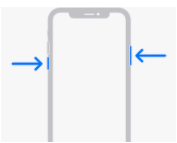
How to TURN OFF your iPhone X and later: No Home Button
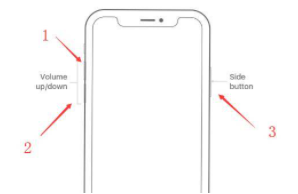
  • Turning off the iPhone X is a little tricky. That's because the Side button (formerly known as the Sleep/Wake button) was re-assigned to activate Siri, Apple Pay, and the Emergency SOS feature. Here are the steps to turn off an iPhone X which involve pressing 2 buttons to turn off your iPhone.
  1. Press and hold the Side and either Volume button at the same time.
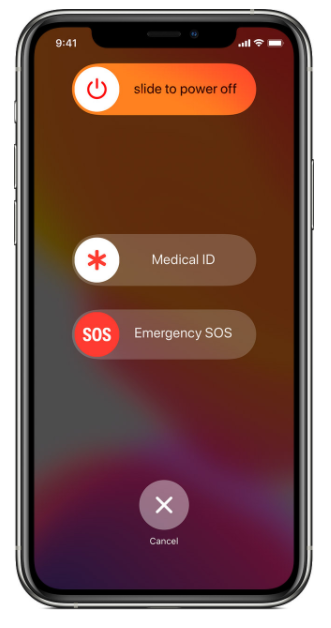
  2. Wait for the power-off slider to appear along with the medical ID and Emergency SOS options. To avoid dialing the police by accident - see below.*
  3. Drag the slider from left-to-right to shut down the phone. It can take up to 30 seconds for your iPhone to power down.
  4. Press and hold the right side button to turn the iPhone back on. You can lift your finger from the button once the Apple Logo appears.
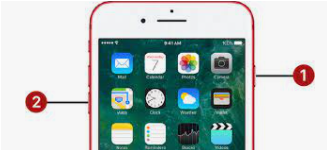
How to TURN OFF your iPhone with a Home Button (e.g. iPhone 8)
  • Press and hold either volume button and the side button until the power off slider appears.
  • Drag the slider, then wait 30 seconds for your device to turn off.
  • To turn your device back on, press and hold the side button (on the right side of your iPhone) until you see the Apple logo.
Use the Settings Menu to Turn Off Your iPhone & iPad:
  • Navigate to Settings > General
  • Scroll down and tap "Shut Down". It's all the way at the bottom of the menu. After a second or so, a slider will appear.
  • Drag the slider to the right to power down your iPhone
Emergency SOS Options:
  • Clicking your side button five times will activate your Emergency SOS, not take you to OZ, which dials the local police. -or-
  • Press and hold the side button and either volume button on the sides of your iPhone.
  • Your phone will now automatically start a countdown and then call emergency services.
  • Not the intended action? Don't panic!*You end the Emergency SOS call by tapping Cancel! "X" You'll then be asked to confirm that you want to end the call.
How to Hard Reset Your iPhone:
When your iPhone is locked up because of some glitch or error, the normal shutdown process may not work. In that case, try a technique called a hard reset. This should only be used when other attempts have failed, but sometimes it's just what you need. You do not lose data when performing a hard reset.
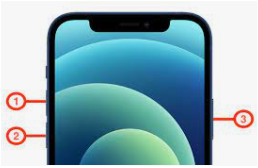
  • iPhone X and later:
  1. Press and release the Volume Up​ button.
  2. Press and release the Volume Down button.
  3. Then, press and hold the power button until you see the Apple logo—this should be the only button you're holding.
  4. Once the Apple logo appears, release the button and wait for the device to reboot.
  • iPhone 8/8 Plus:
  1. Press and release the volume up button,
  2. Then press and release the volume down button.
  3. Press and hold the power button until you see the Apple logo appear.
  4. Once that happens, release the power button and wait for the device to reboot.
  • Phone 7/7 Plus:
  1. Press and hold the volume down and power buttons down together until you see the Apple logo.
  2. Once the Apple logo appears, release both buttons and wait for the device to reboot.
  • iPhone with physical home button:
  1. For iPhones with a physical home button, including the iPhone 6, 6s, and SE (Gen 1), you may force restart by pressing the home button and power button at the same time.
  2. Keep them pressed down together until the Apple logo appears.
  3. Once the logo appears, immediately release both buttons and wait for the device to reboot.
NOTE > The hard reset feature is not the same thing as restoring a phone to its factory default settings. The word restore is sometimes called reset but has nothing to do with restarting a phone.
How to Hard Reset your iPad:
How to Hard Reset Your iPad Pro and iPad Air 4 - no Home button
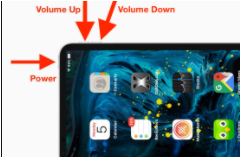
  1. Press and hold the Top button on the device.
  2. While still holding the Top button, press and hold either of the volume buttons until the power off slider appears on the screen.
  3. Drag the slider from left to right to turn your device off.
  4. To turn your device back on, hold the Top button again until you see the Apple logo appear.

How to Hard Reset iPad with a Home button
  1. Press and hold the Top (or Side) button on the device until the power-off slider appears on the screen.
  2. Drag the slider from left to right to turn your device off.
  3. To turn your device back on, hold the Top (or Side) button again until you see the Apple logo appears.