|
One Cool Tip Newsletter
July 20, 2026
| Your daily dose of tech-savvy brilliance! | | |
😀Greetings!, Happy Back-to-Work Monday, Cool Tipper!
Get ready to streamline your digital life with simple, actionable tips delivered straight to your inbox.
Today's Cool Tip Theme: ChatGPT Work
IN THIS ISSUE
- 🛡️ Protect Your Small Business With Free FTC Resources.
- 🔎 ChatGPT Search Gets Smarter.
- 📸 Try This Cool AI Professional Headshot Prompt.
- 🧰 Turn Big Projects Into Finished Work With ChatGPT.
- 🗂️ Find Your Creations in the ChatGPT Library.
- 🎓 Learn AI for Free With OpenAI Academy.
- 🔐 Know What to Share With AI.
New here? Subscribe to the One Cool Tip Newsletter for daily updates. It's FREE!
-
😂 Laugh with Us! Enjoy our Tech Joke of the Day, Haiku and Cool Tip Comics.
-
🌐 Stay Informed! Check out ICYMI, and our One Cool Tip Video.
| | |
3️⃣
If you enjoy the One Cool Tip newsletter, please forward this newsletter to THREE friends or colleagues or share it on social media using the links below.
Leave a $$$ Tip!
Share this One Cool Tip Newsletter!
| | |
Today's Tech Trivia
Which company featured the first widely used spreadsheet program for personal computers?
A) Microsoft
B) Lotus
C) Adobe
D) Apple
Answer at the end of this newsletter.
| | |
⚠️Free FTC Resources Can Help Protect Your Small Business⚠️
The FTC is encouraging veteran-owned small businesses to take advantage of free resources designed to help defend against scams and cyber threats.
The agency highlights practical guidance on recognizing common business scams, strengthening cybersecurity, and training employees to spot suspicious activity.
The alert also encourages businesses to create data breach response plans and stay informed about emerging threats.
For veteran entrepreneurs, a little preparation can go a long way in protecting employees, customers, and business operations.
And in Other News...
ChatGPT Search Gets Smarter
ChatGPT Search is rolling out new improvements designed to make finding information faster and more useful.
Users can expect richer search results, better source integration, and a more streamlined experience when looking up information directly within ChatGPT.
The update continues OpenAI’s push to blend conversational AI with real-time web search, helping users get answers without constantly jumping between tabs.
If you use ChatGPT for research, shopping, or everyday questions, this enhancement could save you time and make results easier to trust.
| | |
Try this Cool AI prompt. Copy and paste to ChatGPT, Gemini, Claude or Copilot.
- Turn this selfie into a professional corporate headshot. Studio lighting, business attire, neutral background, realistic skin texture.
- Upload an image of yourself.
| | |
Turn Big Projects Into Finished Work With ChatGPT
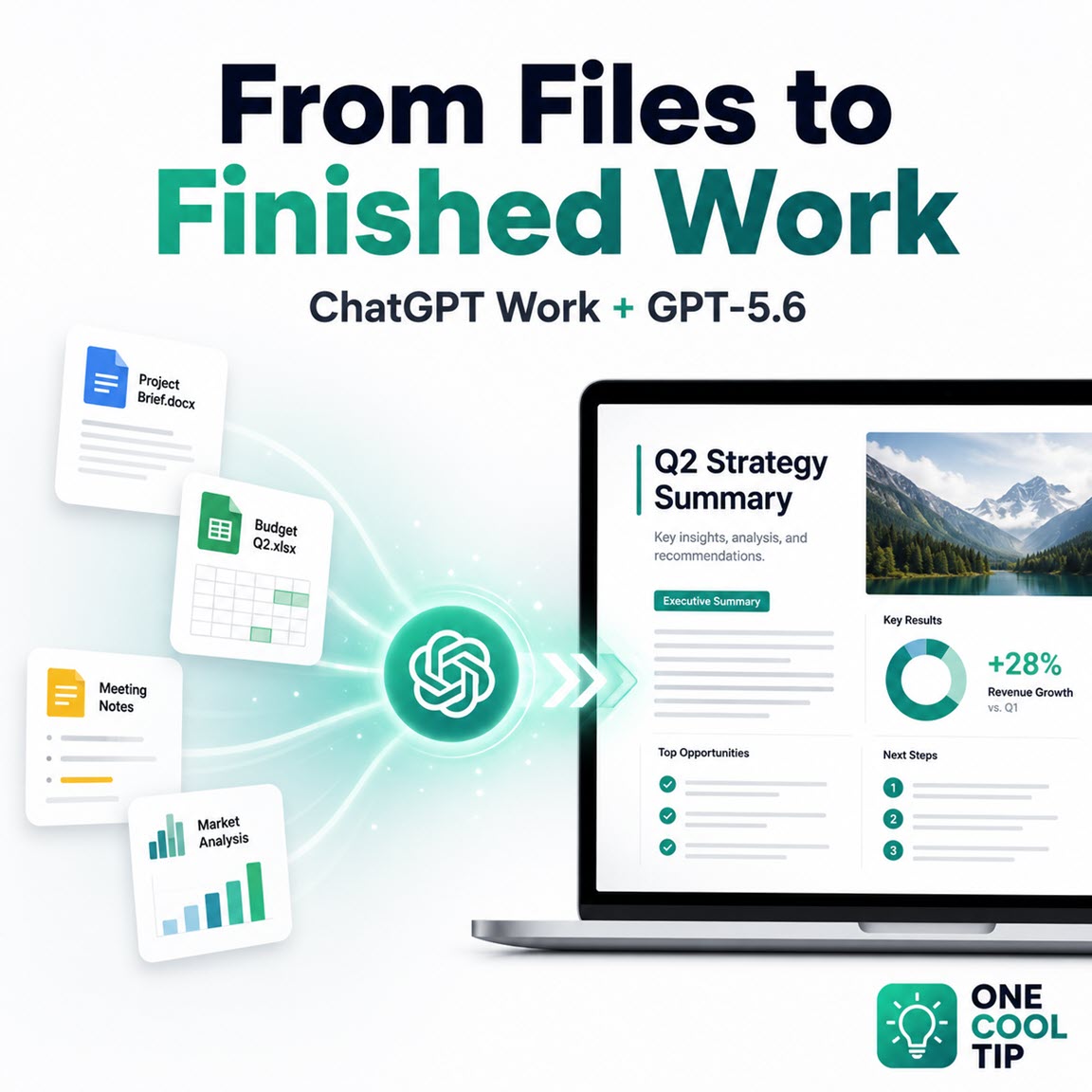
ChatGPT Work gives complicated assignments a dedicated workspace where source files, research, instructions, and revisions remain connected. Powered by the GPT-5.6 model family on eligible plans, it can help produce documents, spreadsheets, presentations, reports, analyses, and, on supported web and desktop experiences, interactive Sites.
A regular ChatGPT conversation works well when you need an answer, an explanation, or a quick draft.
The experience becomes less efficient when an assignment involves several files, multiple research steps, a required template, outside services, revisions, and a finished document that must be ready to share.
Here’s a Cool Tip: Use ChatGPT Work.
ChatGPT Work is designed for those larger assignments.
Instead of treating every request as another conversational response, Work can research a topic, analyze information, create editable files, follow reference material, and move through a multi-step workflow while you review its progress.
Users can answer questions, redirect the assignment, and approve important actions while Work proceeds.
It can also handle scheduled or recurring tasks when those capabilities are available to the account.
Feature Explanation
ChatGPT now offers three distinct experiences:
-
Chat handles questions, searches, brainstorming, and quick conversational assistance.
-
Work handles longer research, analysis, and finished deliverables.
-
Codex focuses on software development, repositories, terminals, testing, and other technical workflows.
ChatGPT Work is powered by the GPT-5.6 model family on supported plans.
GPT-5.6 Sol is designed for complex knowledge work, research, coding, science, computer use, and design.
Terra balances capability, speed, and cost, while Luna is the fastest and least expensive member of the GPT-5.6 family.
In standard ChatGPT conversations, eligible users generally select a reasoning level rather than choosing Sol by name:
-
Medium: Standard GPT-5.6 Sol reasoning.
-
High: Extended GPT-5.6 Sol reasoning.
-
Extra High: The highest available Sol reasoning effort.
-
Pro: GPT-5.6 Sol Pro for difficult or longer-running work.
The available choices depend on the user’s plan and workspace settings.
GPT-5.5 Instant remains the default for quick, everyday responses.
Work differs from a normal chat because it is organized around an outcome.
You can provide source documents, templates, spreadsheets, links, constraints, and review criteria, then ask Work to create a finished file or complete a larger workflow.
What You’ll Gain
- Turn scattered notes and files into a finished deliverable.
- Reduce repeated prompting during longer assignments.
- Reuse templates while preserving formulas, branding, layout, or slide order.
- Review progress and approve consequential actions before they occur.
Step-by-Step Instructions
Here's how to do it.
Web
-
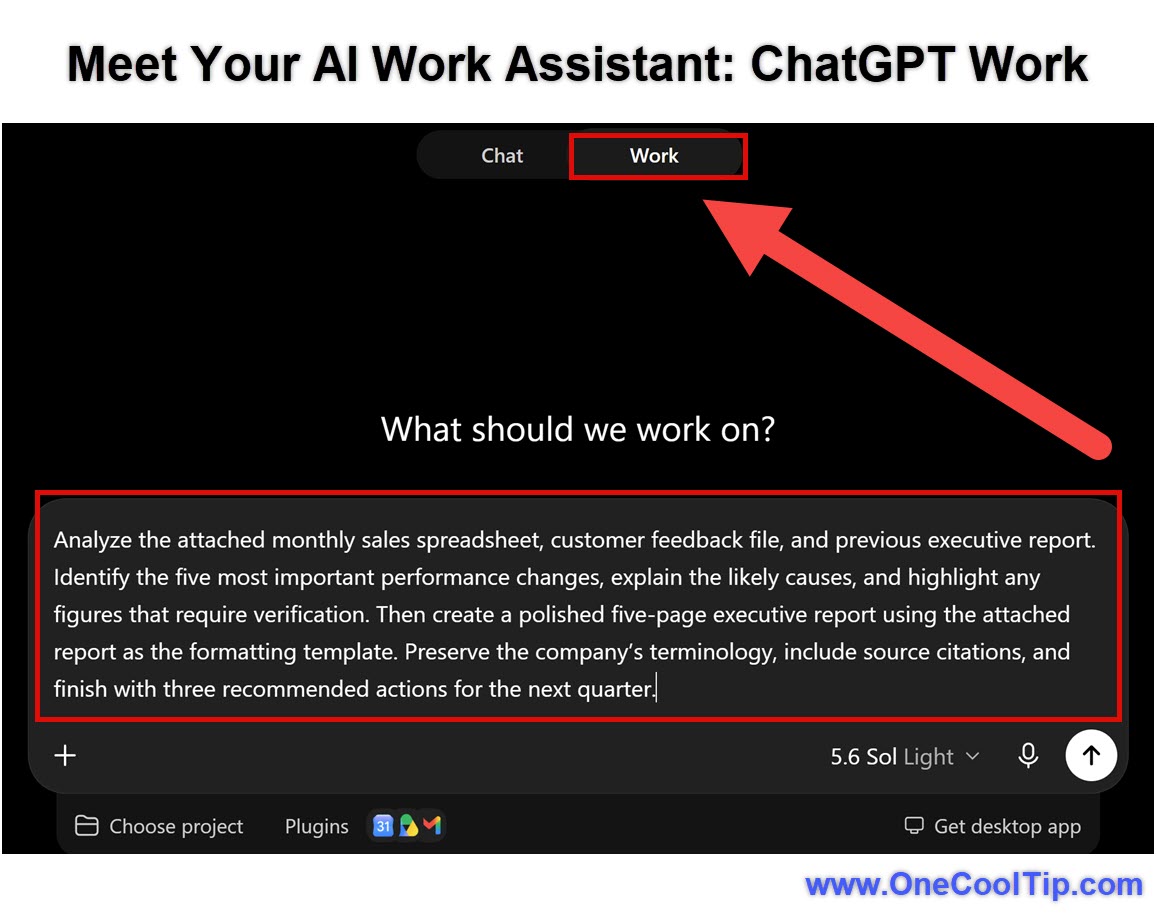
Sign in to ChatGPT and select Work.
-
Start a new conversation or open an existing project.
-
Attach the files and source material ChatGPT should use.
-
Describe the finished result you need and how it will be used.
-
Specify the output format and where the file should be created.
-
Identify anything that must remain unchanged, such as formulas, branding, layout, tone, slide order, or table structure.
-
Review the result and request corrections before sharing or relying on it.
| | fig. 1 - Meet Your AI Work Assistant: ChatGPT Work | |
Windows and macOS Desktop
-
Install or update the new ChatGPT desktop application.
-
Sign in with your ChatGPT account.
-
Start a new chat, open an existing Project, or open a local folder.
-
Select ChatGPT from the upper-left menu, then select Work from the Chat/Work toggle at the top of the page.
-
Describe the outcome and add the files, constraints, and review criteria Work should use.
-
Grant access only to the local files or applications needed for the assignment.
-
Review the output and request revisions in the same conversation.
Cool Notes:
- The new app may install alongside an older application called ChatGPT Classic.
- ChatGPT Classic continues to receive model updates, security patches, and bug fixes, but newer features such as Work and Codex may require the new application.
iPhone, iPad, and Android
-
Update the official ChatGPT mobile app.
-
Open the dropdown at the top of the screen.
-
Select Work.
-
Start a new conversation or open an existing project.
-
Attach supported files and describe the deliverable.
-
Review progress, answer questions, and approve actions when prompted.
Work on web and mobile runs in the cloud. Cloud Work conversations sync across supported web, mobile, and desktop experiences.
Local desktop chats and files remain on that computer unless you explicitly move or share them.
Google Workspace
-
Connect the relevant Google Workspace app through ChatGPT’s Plugins Directory or app settings.
-
Open Work and ask ChatGPT to create or edit a Google Doc, Sheet, or Slide.
-
Select the Google account or file when prompted.
-
Review the proposed action and approve it.
-
Open the finished file in Google Workspace.
-
Verify the content, formulas, permissions, sharing settings, and formatting.
Available actions depend on the file type, plan, connected app, user role, and workspace settings.
Microsoft Excel
ChatGPT for Excel can work directly inside an Excel workbook through its spreadsheet sidebar.
For the ChatGPT Work desktop workflow, users need to open Codex in the desktop app and connect it to the open workbook through the ChatGPT for Excel add-in.
Direct control of an open Excel workbook uses Codex in the ChatGPT desktop app with the ChatGPT for Excel add-in.
-
Install ChatGPT for Excel and sign in.
-
Open an existing workbook or create a new one.
-
Open the ChatGPT desktop app.
-
Select Codex.
-
Mention `@Microsoft Excel` or ask Codex to work with the open workbook.
-
Review formulas, values, formatting, charts, and changed cells before saving.
Microsoft PowerPoint
ChatGPT for PowerPoint is a separate PowerPoint add-in. It is not part of the direct Work-to-desktop-app flow described for Excel.
-
Open PowerPoint.
-
Select Home > Add-ins.
-
Search for ChatGPT.
-
Add the ChatGPT for PowerPoint add-in.
-
Open ChatGPT from the PowerPoint ribbon.
-
Sign in with an account that has access.
-
Use the sidebar to create, revise, understand, or polish the presentation.
Pros and Cons
Pros:
-
Handles larger assignments: Work is suited to projects involving several files, research stages, and review points.
-
Produces editable deliverables: It can create documents, spreadsheets, presentations, reports, analyses, and Sites.
-
Follows reference material: Users can supply an existing spreadsheet, master deck, report, or reusable template.
-
Connects with outside tools: Supported apps can provide context or perform approved actions.
-
Keeps users involved: You can monitor progress, answer questions, redirect the assignment, and approve important actions.
Cons:
-
Access is still rolling out: Eligible users may not see Work or GPT-5.6 immediately.
-
Platform behavior differs: Cloud Work, desktop Work, Codex, and Microsoft add-ins do not share every capability.
-
Usage varies by task: Longer assignments may consume more included usage or credits.
-
Human review remains essential: Formulas, citations, calculations, sharing permissions, and final files can still contain mistakes.
Feature Access
ChatGPT Work is available on macOS and Windows desktop across all plans, according to OpenAI’s Work product page.
On web and mobile, OpenAI lists access for Plus, Pro, Business, Enterprise, and Edu. The rollout remains gradual, so an eligible account may not receive access immediately.
There is an important distinction between Work access and GPT-5.6 access.
- Plus includes Medium and High.
- Pro includes Medium, High, Extra High, and Pro.
- Business includes Medium, High, Extra High, and Pro.
- Enterprise includes Medium, High, Extra High, and Pro.
- Free and Go do not include GPT-5.6 Sol in standard ChatGPT conversations. GPT-5.6 availability inside Work differs by plan.
Availability may vary by account, plan, workspace policy, region, device, application version, and rollout stage.
Score
Criterion | Score (0–10) | Justification
Value | 9
Work addresses a real limitation of ordinary AI chats by organizing longer assignments around finished deliverables.
Usability | 7
The basic workflow is understandable, but rollout differences and the separation between cloud Work, desktop Work, Codex, and Microsoft add-ins add complexity.
Wow Factor | 8
Creating structured documents, spreadsheets, presentations, and analyses from source files and templates is a meaningful step beyond ordinary chat responses.
Total: 24/30 | 👍 18–24 Good
ChatGPT Work is a strong productivity upgrade, but its staged rollout and inconsistent platform behavior keep it just below the Excellent tier.
Compared with standard Chat, Work is better for assignments involving multiple stages, source files, templates, external services, and a defined final deliverable.
Key Takeaways
ChatGPT Work shifts ChatGPT from a question-and-answer tool toward a project-oriented production environment.
Its greatest value comes from combining a clearly defined outcome with reliable source material, a reusable template, and explicit review criteria.
The feature is still rolling out, and Work access does not always mean the same GPT-5.6 models are available on every plan.
Cool Tip Snapshot
-
Feature Name: ChatGPT Work
-
Platform(s): Windows, macOS, Web, iPhone, iPad, Android, Google Workspace, Microsoft Excel, and Microsoft PowerPoint
-
Quick Benefit: Turns source material and instructions into finished work products
-
Best For: Research, analysis, reports, spreadsheets, presentations, and repeatable workflows
-
Access Type: Subscription, Enterprise, and Rolling Out
-
Difficulty: Moderate
Try It Yourself
Give ChatGPT Work an assignment you already understand, attach a reference file, and include a short review checklist.
Share your experience in the comments, and send this Cool Tip to family, friends, and coworkers who manage complicated projects.
READ MORE
Read the Cool Tip on One Cool Tip.com.
| | Help support One Cool Tip. Use this Amazon link when you shop online. | |
🖱️ Logitech MX Master 3S Wireless Performance Mouse: Navigate through your newly generated documents and dashboards with precision.
Save 20% Now $79.99. 4.6 Stars. Check it out on Amazon!
🎧 Sony WH-1000XM5 Wireless Noise Canceling Headphones: Block out distractions while you set up your new automated workflows.
Save 38% Now $248. 4.2 Stars. Check it out on Amazon!
⌨️ Logitech MX Keys Advanced Wireless Keyboard: Type out your complex AI prompts comfortably and efficiently.
Now $129.99. 4.4 Stars. Check it out on Amazon!
Prices accurate at time of publication
One Cool Tip may earn a commission from qualifying purchases.
| | |
🆒Tell Me More
-
Work has a different purpose: Chat is designed for questions and quick assistance, while Work focuses on longer assignments and finished deliverables.
-
You stay involved: You can follow the assignment, answer questions, redirect the work, and approve important actions.
-
Projects can travel with you: The OpenAI desktop update, released July 16, adds cloud Work synchronization across supported web, mobile, and desktop experiences.
-
GPT-5.6 choices vary: Sol powers higher-reasoning options in standard ChatGPT conversations, while Terra and Luna are available in selected Work, Codex, and API experiences.
-
Work can use existing context: The desktop app can start a Work thread inside an existing ChatGPT Project and use its project context.
⏩Quick Tips
-
🎯 Define Success: Tell Work what the finished result should contain and who will use it. Include the required format, audience, purpose, and deadline in your opening request.
-
📎 Attach Sources: Give ChatGPT the documents, spreadsheets, notes, and templates it should trust. State which file is authoritative when sources conflict.
-
🔒 Protect Details: List anything that must not change, including formulas, branding, terminology, column order, or slide structure. Put these restrictions near the beginning of the request.
-
✅ Set Review Gates: Ask Work to stop before sending messages, sharing files, changing permissions, or publishing anything. Review each proposed action before approving it.
-
🧩 Break Up Projects: Large assignments improve when you establish milestones. Ask for an outline or analysis first, then approve the direction before Work creates the final deliverable.
| | ✅ More Must-Read Tech Tips | | |
👀 How Do I Use the ChatGPT Library?
Have you ever wished for a centralized space to view and manage all the AI-generated images you've created with ChatGPT?
OpenAI has introduced a new Image Library, a feature designed to streamline your creative workflow.
And now even files are included.
Here's how to do it.
On Web:
-
Log in to your ChatGPT account at ChatGPT.com.
-
Locate the sidebar on the left-hand side of the interface.
-
Click on the "Library" section to view your AI-generated images.
On iOS and Android:
- Open the ChatGPT app on your mobile device.
-
Tap the menu icon to open the sidebar.
-
Select the "Library" option to access your image collection.
The introduction of the Library in ChatGPT marks a significant step forward in managing AI-generated content.
By providing a centralized, user-friendly platform for accessing and organizing images and files, OpenAI empowers users to maximize their creative potential.
Discover more HERE.
| | |
🤔 Have You Ever Wondered How to Learn AI?
The OpenAI Academy is designed to make artificial intelligence education accessible to everyone, regardless of location, income, or background.
With free courses, resources, and community support, OpenAI Academy is reimagining what global tech empowerment looks like.
Here's how to do it.
-
Go to academy.openai.com
-
Click “Sign Up” to create a free account.
-
Browse available courses and webinars.
-
Join community forums and discussions.
By putting world-class AI tools and training in the hands of everyday people, OpenAI is helping build a future where innovation is driven by diversity, equity, and opportunity.
Find out more HERE.
| | |
🙋♂️ Here are 5 Things to Never Tell an AI. And 5 Things You Should
Are you saying too much to your AI?
As artificial intelligence becomes more integrated into our daily lives, helping us write emails, generate travel itineraries, and even manage finances, it’s easy to forget we’re speaking to a machine.
Here’s how to be smart about what you never say, and what you should.
🚫 5 Things You Should NEVER Tell an AI
1. Personal Identifiable Information (PII).
2. Financial Credentials.
3. Confidential Work Documents.
4. Legal Issues or Sensitive Health Concerns.
5. False Information to “Test” the AI.
✅ 5 Things You SHOULD Tell an AI
1. Clear Context for Better Results.
2. Preferences and Style.
3. Feedback on Output Quality.
4. Use Case and Target Audience.
5. Secure, Anonymized Practice Data.
AI can be a powerful partner, but only when you use it thoughtfully.
Protect your data, clarify your needs, and shape your AI to become a productive tool, without turning it into a liability.
Learn more HERE.
| | |
❓Did you share this newsletter with three friends yet?
😎 Cool Facts
-
3: The GPT-5.6 family includes Sol, OpenAI’s flagship model; Terra, a balanced model for everyday work; and Luna, its fastest and most affordable model. Source.
-
5 million: OpenAI reported that more than 5 million people use Codex every week. Source.
-
1 million: OpenAI said more than 1 million people use Codex for work outside software development. ChatGPT Work incorporates Codex technology to support a broader range of research, analysis, file, and productivity tasks. Source.
⌨️Today's Cool Shortcuts
-
Ctrl+L (Cmd+L on Mac): Jump directly to the address bar.
-
Ctrl+Shift+T: Reopen the last closed browser tab.
-
Ctrl+F (Cmd+F): Find text within long AI responses.
-
Ctrl+C / Ctrl+V (Cmd+C / Cmd+V): Quickly reuse successful prompts.
-
Alt+Tab: Switch between ChatGPT and supporting apps without using the mouse.
😜 Tech Joke of the Day 😅
Why did the AI cross the road?
To optimize the pedestrian traffic flow on the other side.
🔎 Do you have a Cool Tip or tech question? Email us at onecooltip.com@gmail.com.
| | |
Data streams flow fast
Agent builds the final draft
Time belongs to you
| |
| 🤔 What would you give ChatGPT Work first? | | | | Did You See These Cool Tips This Week? | | | | Watch YouTube With Fewer Ads | |
DuckDuckGo’s free browser can now block most advertisements that play before and during YouTube videos. You can continue using the familiar YouTube website without installing a separate ad-blocking extension or paying for a subscription.
Read the Newsletter Version.
| | | | Make Your Drive Quieter and Smarter With New Waze AI Features | |
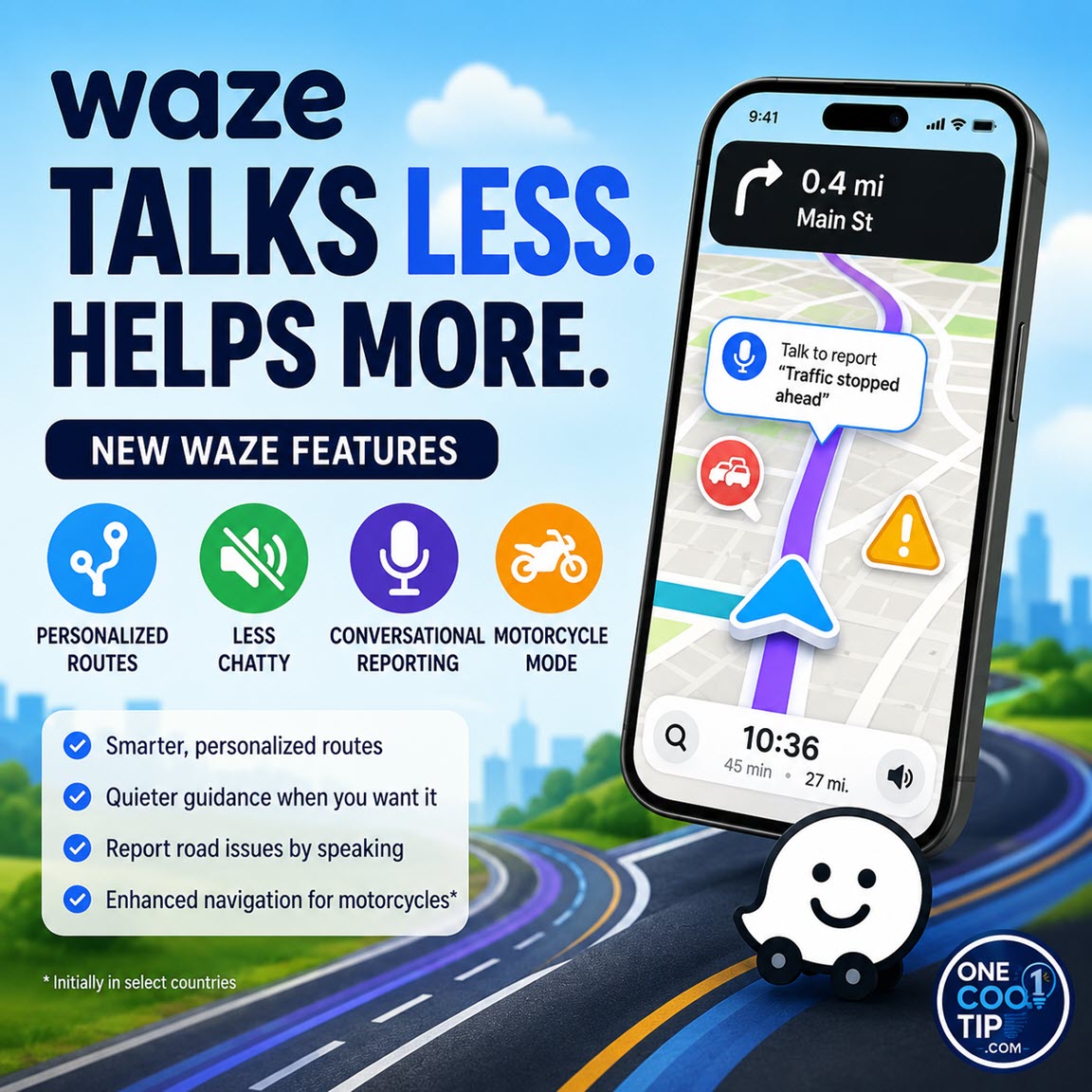
Waze is adding powerful Gemini AI capabilities to customize your commute, minimize interruptions, and improve route accuracy. Learn how to activate these new features for a calmer, smarter driving experience.
Read the Newsletter Version.
| |
ICYMI - In Case You Missed It ...
| | | | Make ChatGPT Remind You Before You Forget | |
ChatGPT Scheduled Tasks lets you turn useful prompts into reminders, recurring updates, and monitoring alerts. Instead of remembering to ask ChatGPT later, you can tell it what to do, when to do it, and when to notify you.
Read the Newsletter Version.
| | Finally achieved work-life balance. The work works, the life lives. | | |
Trivia Answer: D) Apple
VisiCalc, released in 1979 for the Apple II, is widely considered the first spreadsheet application that helped make personal computers useful for business users.
VisiCalc was created by Software Arts (founded by Dan Bricklin and Bob Frankston) and published by Personal Software for the Apple II.
Many historians credit VisiCalc with driving sales of the Apple II because people bought computers specifically to run the software.
Before spreadsheets, financial modeling often required manual calculations on paper.
VisiCalc showed how software could dramatically reduce repetitive work, a goal shared by many modern AI productivity tools.
----------
Tomorrow's Cool Tip is waiting to amaze you.
Until then, go forth and conquer the tech world with your newfound knowledge!
Be sure to visit www.OneCoolTip.com for Cool Tech Tips for a Cooler Life!
And if you like One Cool Tip, please support with TipJar!
Enjoy!
Rodger
Chief Cool Tipper
onecooltip.com@gmail.com
| |
| What do you think of today's OneCoolTip newsletter? | | | |
Please Share the One Cool Tip Newsletter!
You asked for it. You got it. There is now a One Cool Tip Newsletter archive. Did you delete a newsletter and want to read it again? Check it out HERE.
Want to help One Cool Tip grow? Please forward this email using the link above. And if you see an OCT social media post, please LIKE, COMMENT and SHARE!
Have you subscribed to the One Cool Tip YouTube channel? Subscribe HERE.
| | Connect with One Cool Tip!! | | |
|
As an Amazon Associate, One Cool Tip may earn a small commission from qualifying purchases.
Our media content is intended solely for informational purposes only. Please do not construe anything here as legal, tax, investment, financial, marital or other advice.
Copyright © 2026 | www.OneCoolTip.com | All Rights Reserved
|
| | | |