Welcome to ITS Powertivity eNews | January 2026

Florida Gulf Coast University log on Powertivity Tips banner
 

We're here to help you SOAR!

Today's newsletter is 1423 words... a 5.4-minute read.

Important Note: In this issue, we cover the top-rated topics YOU deemed necessary when starting a new term and year (based on your view and click rates).

Before we start, don't forget an important reminder...


What to do if you receive a questionable email that looks "phishy"


You just received an email that seems questionable, but you're not sure if it's safe or harmful. What do you do?


Threats in the form of phishing attempts are a harsh reality in today's digital world. How do you protect yourself? Everyone needs increased awareness.


Access the What to Do If Hacked or Suspect You Were Knowledge Base article to learn what to look for and how to protect yourself.


Whenever in doubt, contact the University Help Desk at the below contact information.

What to do when it's time for a password reset?


When conducting a password reset at any time, you MUST sign out and sign back into ALL your devices running the MS Teams app:


1) Physical Desktop Phone - Log out of the phone BEFORE performing the password reset. Once the password reset is finished, complete the login/registration steps 1-7 on the first page of the FGCU Desktop Phone Quick Start Guide. 


2) Computer/Laptop - Within MS Teams, click on your profile picture > select Sign out. Then sign back in.


3) Mobile Device - Following the password reset, the MS Outlook app will require you to sign back into the app. When this step is completed, MS Outlook is integrated with the MS Teams app, which will automatically update (reboot) for you. 


Note: This question is also covered in the MS Teams Calling FAQ section of the Knowledge Base.

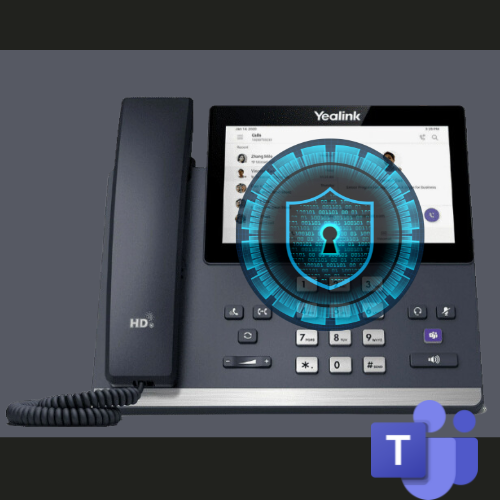
Yearlink MP56 phone with a security lock on top of it and the MS Teams logo.

Handy resources at your fingertips...

Microsoft Outlook logo

Download the Outlook app for mobile!


The official Microsoft Outlook app provides the best email/calendaring experience for iOS/Android devices. Download the Outlook app to your mobile device from your device's app store for a more consistent and smoother experience.

Microsoft Office 365 logo

Office 365 Quick Guide


We've got you covered. The Microsoft Office 365 Quick Reference Guide overviews elements of Microsoft 365 that are applicable across the most common Office apps.


Access O365 Overview Knowledge Base site for all Quick Guides.

 
Copilot rainbow logo

Microsoft Copilot Chat


Curious about Copilot Chat or ready to level up your prompts? We've got you covered! Find valuable resources to boost your efficiency from the Tech How To app in Microsoft Teams.


  • FGCU Prompt Gallery
  • Microsoft Scenario Library
  • Copilot Prompt Gallery
  • Videos tutorials and more!


Want to get your team involved? Departmental training is also available. Click here to inquire.

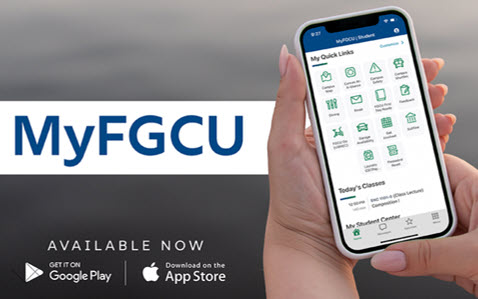
MyFGCU mobile app on a device held in a woman's hands showing text that it's available now on google play and the apple app store

MyFGCU - Your app for everything FGCU!


Don't forget the MyFGCU mobile app and desktop version - your all-in-one resource for Florida Gulf Coast University.


New tools and features continue to be added, including:


  • Events module
  • Water School Sensor module


Visit the MyFGCU Mobile App FAQ Knowledge Base site to learn more.

Using FGCU's OneDrive to store and share files securely!

 
OneDrive logo

Why use OneDrive:

At FGCU, OneDrive is a secure place to store files and share files (seamless collaboration) with peace of mind knowing it's backed up nightly. Never lose your files again (they can be restored)!

Use OneDrive to sync files between your computer and the Cloud, to get to your files from anywhere - your desktop computer via the desktop client, your mobile device via the OneDrive app, or even by logging into Webmail - enabling you to store and share needed files.


How is OneDrive set up:

Click ITS KB > Share Folders and Network Storage at FGCU to learn more.


How to use OneDrive:

Click ITS KB > Sync Files with OneDrive on Windows or Mac to learn more.


Click ITS KB > Upload and Save Files and Folders to OneDrive Web to learn more.


How to access:

Access the OneDrive Sign-in using your "work or school account".


*Note: Do not store Restricted Data on OneDrive. 

Microsoft Outlook integration with MS Teams Calling!

 
Application integration wheels showing Outlook and Teams logos.

The problem: You're about to leave the office for a couple of weeks. Where do you need to turn ON out-of-office notifications?


The solution: Keep it simple and focus on the Outlook Automatic Replies (Out of Office) feature which can also be tied to MS Teams Calling.


Note: Turn this feature ON just before you leave the office.


The Integration Tip: When the Outlook Automatic Replies alert is turned ON, this feature can also be connected to your MS Teams Calling out-of-office voicemail. This way you only need to worry about turning on the Outlook out-of-office feature before leaving (click the above link to learn how).


Note: This feature can be turned ON anytime and remains turned on as a permanent setting.

"Phew!" ~ Just in Time Tips!

Are you a recent new hire or have an MS Teams Calling question?


We've got your back! Visit the MS Teams Overview site to review FAQs, troubleshooting tips, support documentation, and quick reference guides for all things MS Teams and MS Teams Calling.

 
Thumbnail of the virtual backgrounds located in Photoshelter

FGCU Virtual Backgrounds


Click to access the virtual backgrounds


Click for instructions


ITS Employee Spotlight

Profile picture of Desiree Kittle

Introducing IT Business Analyst (BA) ll | IT Project Management, Desiree Kittle.


How long have you been with FGCU, and what brought you here?

It doesn't seem possible that I joined FGCU just over 4 years ago. Time has gone by so quickly! Everything clicked for me with FGCU because I'd been coming to this part of Southwest Florida on vacation for many years and always pictured myself living here. When the opportunity came, and I talked and interacted with the team in ITS, I knew this was home in more ways than one. I left my role at the University of Wisconsin - Green Bay for FGCU as a Business Analyst and have enjoyed the professional growth with FGCU.  


Can you describe your role in IT in a way that someone outside of technology would understand?

I ask questions for a living, and I use the answers to help people solve problems. I learn how people, processes, and programs work, then partner with teams to clarify what's really going on and what "good" should look like. Sometimes that means being a second set of ears. Other times, it means mapping what teams already do and showing how it connects to a larger system. I've collaborated across many areas at FGCU, and love guiding amazing people from "we think" to "we know" to "we did."


What part of your job do you find most rewarding when it comes to helping FGCU students, faculty, or staff?

I love helping teams identify and solve the right problem. I enjoy turning fuzzy "this is what we think" requests into clear goals with practical options and defined outcomes. The most rewarding part is watching a confusing situation click into focus for people and helping them find a solution that produces better results. It's kind of addictive once you build momentum.  

3D plastic looking yellow and blue megaphone

What's something surprising or little-known about your work in IT?

The behind-the-scenes work that happens is a lot of collaborative "glue work" to keep everyone marching toward the right goal. We always want to make sure everyone who is impacted is included, translate what each one needs, and surface gaps or any mismatches early so everyone is on the same page and with clear expectations.


What's one piece of advice or insight you'd share with other FGCU employees about working with IT?

Bring us in early and we'll help you connect the dots, you can tell us what success looks like or what's prompting the request, and we can walk through next steps together. Don't worry if your ask isn't polished or clear, BA's and others in ITS exist to help you with exactly that.  


What do you enjoy doing outside of work?

I love spending time with family and friends. Anything involving the beach, yoga, and CrossFit is also a passion of mine.  


Is there a project or achievement you're especially proud of at FGCU?

I'm most proud of the long-haul projects where I can help people come together. Even when it's hard, I help keep everyone moving toward the same goal. A big part of that is building shared understanding and trust across stakeholders, helping teams make clear decisions and translating their needs into requirements we can actually build and test. One of my biggest wins is joining a new project, working with new people, and demonstrating the tools and techniques we have to help teams succeed.


Thanks for helping FGCU run smoothly behind the scenes, Desiree! Your work keeps our campus connected, supported, and ready for success.

Like to see a specific powertivity topic covered?

Send your suggestion to: itschange@fgcu.edu

How beneficial are the Powertivity tips to you? (1 sec. click)
1-star        2-stars        3-stars        4-stars        5-stars

Need to Report an Issue or Have a Question?

Contact the University Help Desk:


helpdesk@fgcu.edu or 239.590.1188


Be your own help desk, click to visit the Knowledge Base

 
FGCU ITS Logo image
 

Empowering the University Community to achieve new digital possibilities