|
🆒Tell Me More
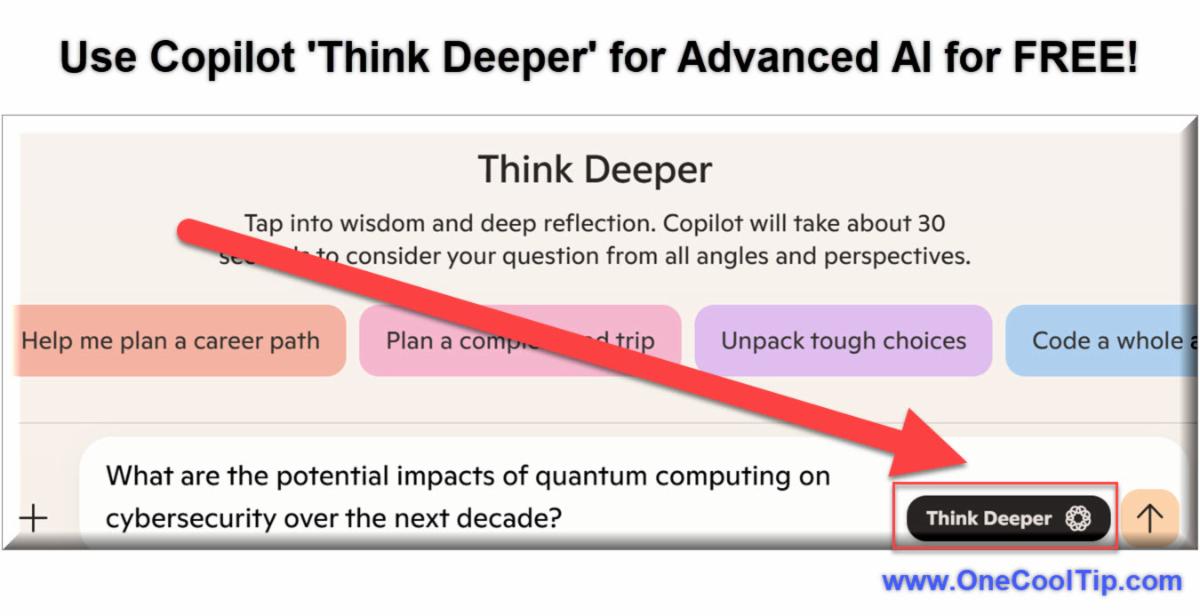
The "Think Deeper" feature in Microsoft Copilot is quite exciting!
It leverages OpenAI's o1 reasoning model, which is known for its advanced reasoning capabilities.
Here are some key points about it:
-
Enhanced Reasoning: The o1 model is designed to "think before it speaks," meaning it takes a bit longer (around 30 seconds) to process queries but provides more thoughtful and detailed responses.
-
Complex Problem Solving: It's especially useful for tasks that require deep reasoning, such as coding, advanced math problems, and in-depth planning.
-
Improved Memory: Unlike standard models, Think Deeper can keep track of the context throughout your conversation, making it better at remembering previous parts of the discussion.
-
Free Access: Previously available only to Copilot Pro subscribers, Microsoft has now made Think Deeper free for all users.
-
No Internet Access: Currently, the model doesn't have access to real-time information from the internet, but Microsoft is working on it.
To use Think Deeper, simply sign into Copilot with your Microsoft account and click the "Think Deeper" button next to the text box before submitting your request.
🔢 By the Numbers
-
30 seconds: The approximate time "Think Deeper" takes to process complex queries.
-
100,000+: The number of users who have already accessed the Think Deeper feature since its launch.
-
5: The number of new advanced reasoning models being tested by Microsoft for future updates.
✅ More Must-Read Tech Tips.
👀 How Do I Use Copilot's Voice Feature?
Have you ever wished you could simply talk to your AI assistant and have it understand and execute your commands flawlessly?
Here's a Cool Tip: Use the Copilot voice feature.
This groundbreaking update promises to transform the way we interact with technology, making it more natural and efficient.
But what exactly does this feature offer, and how can you make the most of it?
The new voice feature in Copilot allows users to interact with the AI using natural language voice commands.
It's a must-have for iOS and Android users.
This means you can now ask Copilot to perform tasks, answer questions, and provide assistance without typing a single word.
This feature is particularly important as it enhances accessibility, making technology more inclusive for users with disabilities or those who prefer voice interaction over typing.
Here's how to do it.
-
Ensure you have the latest version of Copilot installed on your device. This feature is part of the recent updates.
-
Press the Microphone icon to enter voice mode.
-
Select in settings from the available voice options to personalize your experience. There are four voice options to choose from.
-
Simply start speaking to Copilot. You can ask questions, give commands, or have a conversation. The AI is designed to handle interruptions and redirect the conversation smoothly.
-
Take advantage of the “Copilot Daily” feature, which provides a personalized daily briefing including news, weather, and other relevant information.
-
This new voice feature aims to make interactions more natural and fluid, enhancing your overall experience with Copilot.
By enabling users to communicate with their AI assistant through natural language, it not only enhances accessibility but also boosts productivity.
Embrace this innovative feature to make your daily tasks more seamless and efficient.
Discover more HERE.
🤔 Have You Ever Wondered How to Summarize Longer Word Documents?
Have you ever faced the daunting task of sifting through a lengthy Word document, trying to extract the essential information buried within?
Whether you’re dealing with a research paper, legal brief, or project report, you’ve likely faced this challenge.
Here's a Cool Tip. Use the updated Microsoft Word 365 with Copilot.
The latest update to Word, powered by Copilot, introduces an intelligent summarization feature that streamlines this process for even longer documents.
Here's how to do it.
- Launch Microsoft Word.
-
Open the document you want to summarize.
- Click the Copilot button on the Home tab.
- In the Copilot panel, enter "Summarize this doc" in the chat box.
- Review the summary and edit or refine it as needed.
You can summarize a document that contains approximately up to 80,000 words (depending on language), about 4 times more than Copilot was previously able to summarize.
A paid subscription for Copilot Pro is required for this to work within Microsoft Word 365.
As a workaround, copy the document and paste it into the free version of Copilot at http://copilot.microsoft.com.
In a world where information overload is the norm, Copilot’s Word summarization feature is a beacon of efficiency.
Embrace it, streamline your workflow, and conquer those wordy documents. Your productivity will thank you!
Learn more HERE.
🙋♂️ Here's How To Summarize Videos Quickly with Microsoft Edge’s Copilot.
Have you ever found yourself overwhelmed by the sheer volume of information available online?
Do you wish there was a way to consume content more efficiently?
What if you could get the gist of an hour-long video in just a few minutes?
Here's a Cool Tip. Use Microsoft Edge and Copilot to create a video summary.
Microsoft Edge, known for its security and speed, now teams up with Copilot, an AI that simplifies your digital life
Microsoft Edge is the proprietary cross-platform web browser created by Microsoft.
Copilot, on the other hand, is an AI-powered feature within Microsoft Edge that enhances the browsing experience by performing tasks such as summarizing content, answering questions, and comparing products right in the sidebar of the browser.
Working together, they can create a summary of a video.
Here's how to do it.
-
Open Microsoft Edge and navigate to the video you want to summarize.
-
Click on the Copilot icon in the browser’s menubar.
-
Type “summarize this video” into the chat box.
-
Copilot analyzes the video content and provides a concise summary.
Copilot creates an accurate summary of the video.
Why do this?
- Quickly grasp the main points without watching the entire video.
- This technique is ideal for students and professionals who need to digest information rapidly.
- And it makes learning more accessible for those with time constraints.
Embracing Copilot in Microsoft Edge can transform your approach to online learning and information gathering.
By leveraging AI to summarize video content, you can save time, enhance productivity, and focus on what truly matters.
Find more HERE.
❓Did you share this newsletter with three friends yet?
⌨️Today's Cool Keyboard Shortcuts
-
Ctrl + Shift + C: Copies the selected text to the clipboard.
-
Ctrl + Shift + V: Pastes the clipboard content.
-
Ctrl + Z: Undoes the last action.
-
Ctrl + Y: Redoes the last undone action.
✍️Today's Haiku
Copilot at hand,
Tasks flow like a seamless stream,
Efficiency blooms.
🔎 Do you have a Cool Tip or tech question? Email us at onecooltip.com@gmail.com
😜 Tech Joke of the Day 😅
What do you call an AI that tells jokes?
A "laugh"tificial intelligence!
|