Computer technology made easy with SeniorNet!


FSL SeniorNet is a program of Family Service League. Since 1999 FSL SeniorNet has been educating Long Island adults, fifty and over, in the use of technology: smartphones, tablets, laptops, and desktop computers.

For your convenience, here is a link for you to print out our Fall Class Schedule at our various locations.


Fall 2025 Class Schedule

TECH TIP: Share Your WI-FI on iPhone, iPad, Mac

Having friends and family over for the holidays and you need to share your Wi-Fi password.


Here's how to be able to just share it instead of reading out a long string of capitalized and non-capitalized letters and numbers over and over again to multiple people is a much better, not to mention quicker, option.


Important Note: For this to work, make sure all of the following apply:


  • Wi-Fi & Bluetooth are turned on. (Settings)
  • All parties are signed into iCloud with their Apple ID.
  • All parties' email addresses connected to their iCloud accounts are saved in all parties' Contacts.
  • All parties' devices are nearby, within Bluetooth and Wi-Fi range (30 feet)


Once you've confirmed you meet all of the above stipulations, here is how to share your Wi-Fi password with your friends:


  1. To start, the recipient needs to open the Settings > tap Wi-Fi.
  2. They will then tap your Wi-Fi network.
  3. Bring the two devices close together.
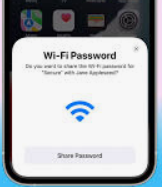
  4. On your iPhone, you will receive a notification asking if you’d like to share the Wi-Fi password. Simply tap Share Password.
  5. Tap Done. You can do this as many times as you need to until all parties have access to the internet!


Thanx to iPhone Life.


TECH TIP: Share Your WI-FI on Android

You can use Nearby Share (or Quick Share), available on Android 12 devices and later, to share a Wi-Fi password with another Android device. 


  •   Open Settings > Connections > Wi-Fi. 
  •   Tap the cog icon next to the connected Wi-Fi network. 
  •   Tap Nearby Share below the generated QR code. You’ll be prompted to turn on Nearby Sharing if you haven’t done so. 
  •   When the other Android device appears in the list, tap its name to share your Wi-Fi password. 
  •   Tap Accept in the pop-up. 
  •   The other device should automatically connect to your Wi-Fi network. 


Use a QR Code on our Android


Android phones have a built-in Wi-Fi QR code generator that works with your network credentials. Here's how to do it:


  •   Make sure you're connected to the Wi-Fi network you want to share.
  •   Tap Settings > Connections > Wi-Fi or Settings > Network & internet > Internet, then tap the gear to the right of your network.
  •   Tap QR code. If this is not an option, tap the Share button on the right (you may need to use your PIN or fingerprint to confirm it's you). This will generate a QR code with your Wi-Fi name and password.
  • Once you have your QR code, all your guests have to do is point their mobile device's camera at the code, tap to confirm when asked if they want to join the network, and poof, they're online.
  •   Take a screenshot of the code image if you want to save it for future use. You can also regenerate it anytime.


More on Wi-Fi passwords in our Tech Connect Library

FALL CLASSES ARE STILL GOING STRONG.

FALL SEMESTER

Back to School

with SeniorNet


Fall Semester Overview

for Classes at


Huntington Lab

Bay Shore Annex

Blue Point Cottage

Yaphank Longwood

HUNTINGTON LAB CLASSES

FSL SeniorNet at Family Service League, Olsten Family Center

790 Park Avenue, Huntington, NY 11743 1-631-470-6757

INTRODUCTORY CLASSES

  • Windows 11: An Introduction starts on Dec 4

THE COMPUTER

  • Exploring Files and Folders with Windows 11 starts Nov 10
  • PC Computing Basics 2 starts on Nov 18
  • Windows 11: Advanced starts on Dec 15

MEDIA

  • Photoshop Elements: Photo Editing & Project Creating starts on Dec 1

THE INTERNET

  • Artificial Intelligence: Hands On starts on Dec 3


BAY SHORE ANNEX

FSL SeniorNet at Family Service League, South Shore Iovino Family Center

1444 Fifth Avenue, Bay Shore, NY 11706 1-631-647-3100

INTRODUCTORY CLASSES

  • PC Computing Basics starts on Nov 26


BLUE POINT COTTAGE

9 Montauk Highway, Blue Point, NY 11715

Call: 631-470-6757

THE INTERNET

  • Google Docs: Beginners starts on Nov 10


YAPHANK - LONGWOOD

210 Meadows Blvd. West, Yaphank, NY 11980

Call: 631-470-6757

INTRODUCTORY CLASSES

  • Chromebook: Basics and More starts on Nov 11

THE COMPUTER

  • PC Computing Basics 2 starts on Nov 11


FREE WEBINARS

  • Buying a New TV on Nov 13
  • Google: More than a Search Engine on Nov 18
  • Traveling with Your Smartphone on Nov 25
Facebook  Email  Web