|
One Cool Tip Newsletter
March 20, 2026
| Your daily dose of tech-savvy brilliance! | | |
😀Greetings!, Happy Friday Funday, Cool Tipper!
Get ready to streamline your digital life with simple, actionable tips delivered straight to your inbox.
Today's Cool Tip Theme: Channel Surfer
IN THIS ISSUE
- ✨ AI Video Remixing: Transform a single frame into a fresh eight-second clip with YouTube's new "Reimagine" tool.
- ⚽ World Cup Partnership: Catch the first 10 minutes of every 2026 FIFA match live on YouTube through a major new FIFA partnership.
- 🤖 Custom Lineup Prompt: Use our AI Prompt of the Day to generate a personalized "Channel Surfer" TV schedule tailored to your interests.
- 📺 Lean-Back Viewing: Rediscover the simplicity of flipping channels with the "Channel Surfer" web tool for YouTube.
- 🎮 YouTube Playables: Take a break with "Playables," a library of arcade and puzzle games accessible directly in your browser or app.
- 🕵️ Incognito Watching: Learn how to use YouTube Incognito mode to research topics or share devices without affecting your history.
- 🎶 Gemini Music Magic: Use the Gemini YouTube extension to act as your personal AI DJ for hands-free music discovery.
New here? Subscribe to the One Cool Tip Newsletter for daily updates. It's FREE!
-
😂 Laugh with Us! Enjoy our Tech Joke of the Day, Haiku and Cool Tip Comics.
-
🌐 Stay Informed! Check out ICYMI, and our One Cool Tip Video.
| | |
3️⃣
If you enjoy the One Cool Tip newsletter, please forward this newsletter to THREE friends or colleagues or share it on social media using the links below.
Leave a Tip!
Share this One Cool Tip Newsletter!
| | |
Today's Tech Trivia
Which company produced the first wireless remote control for television in 1955?
A) Sony
B) Zenith
C) RCA
D) Magnavox
Answer at the end of this newsletter.
| | |
⚠️ Try YouTube’s New AI Remix Button for Shorts⚠️
YouTube just introduced Reimagine, a new AI remix tool that turns a single frame from any eligible
Short into a fresh eight second video clip.
It is powered by Google’s Veo video model and designed to feel playful, fast, and accessible for everyday creators.
You can drop in a selfie, a pet photo, or a product shot, then choose a suggested prompt or write your own idea.
The AI rebuilds the moment into a new scene while keeping the original energy.
Why it is useful
Reimagine removes the pressure of editing from scratch. You can participate in trends, create quick visual ideas, or add yourself to a moment with almost no effort. Every remix links back to the original Short, which helps both creators grow.
How to try it
- Open any eligible YouTube Short using the mobile app.
- Tap Remix.
- Choose Reimagine.
- Pick a single frame to build from.
- Add up to two reference images or use none at all.
- Select a suggested prompt or type your own.
-
Generate your new eight second clip and publish.
The feature is rolling out now to more creators in the United States, with wider availability planned.
And in Other News...
- YouTube Becomes a Preferred Platform for the 2026 FIFA World Cup
YouTube just announced a major partnership with FIFA that will bring more World Cup content to fans than ever before.
The platform is now an official Preferred Platform for the 2026 tournament, giving viewers new ways to watch highlights, behind‑the‑scenes footage, creator coverage, and even portions of live matches.
What’s New
-
First 10 minutes of every match streamed live by official media partners on YouTube. This is the first time in World Cup history that early match action will be available on the platform.
-
Select full matches will be streamed on partner channels, depending on rights agreements.
-
Extended highlights, Shorts, behind‑the‑scenes access, and creator coverage will appear across YouTube, including FIFA’s official channel.
-
FIFA’s digital archive will open up, offering classic full‑length matches and iconic moments.
Why It Matters
This partnership gives fans a more flexible way to follow the tournament across Canada, Mexico, and the United States from June 11 to July 19, 2026.
It also expands access for creators, who will have unprecedented behind‑the‑scenes visibility and new ways to cover the event.
The Bottom Line
YouTube will not replace official broadcasters, but it will become the easiest place to catch early match action, highlights, creator breakdowns, and historic games.
If you want a richer World Cup experience without juggling apps, this is a big win.
| | |
Try this Cool AI prompt. Copy and paste to ChatGPT, Gemini or Copilot.
Create a personalized Channel Surfer lineup for me based on my interests.
Suggest 10 themed channels I would enjoy, list the types of videos they should include, and explain why each channel fits my viewing habits.
| | |
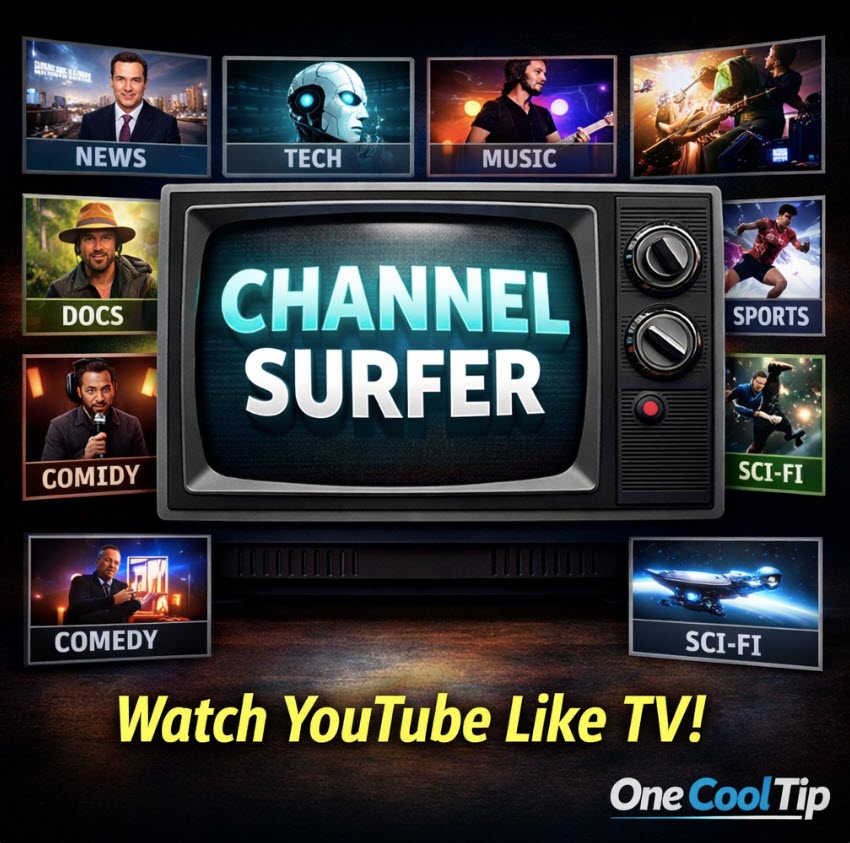
Channel Surfer Turns YouTube Into a Lean-Back TV Experience
Flip through live-style channels built from YouTube and rediscover content without endless searching. Channel Surfer gives you a cable-like viewing experience using YouTube videos, organized into channels you can browse. If you miss the simplicity of flipping channels instead of scrolling feeds, this tool delivers a surprisingly engaging alternative.
Do you ever open YouTube intending to watch one video and end up spending more time searching than actually watching?
The paradox of choice has turned streaming into work.
Here's a Cool Tip: Watch Channel Surfer.
Instead of forcing you to decide, Channel Surfer lets you browse like traditional television, with curated streams that just play.
Feature Explanation
Channel Surfer is a web-based tool that transforms YouTube into a channel-based experience.
Instead of selecting individual videos, you “tune in” to themed channels that continuously play curated YouTube content.
Here is how it works:
- It aggregates YouTube videos into genre-based channels such as news, tech, documentaries, music, and more.
- Videos play continuously, creating a passive viewing experience similar to traditional TV.
- You can switch channels instantly, recreating the familiar “channel surfing” behavior.
Why it matters:
- Reduces decision fatigue
- Encourages discovery of content you would not normally search for
- Provides a lean-back experience that modern streaming platforms largely lack
- This is particularly useful for background viewing, casual browsing, or when you simply want something interesting without overthinking it.
What You’ll Gain
- Discover content without searching
- Recreate a classic TV browsing experience
- Reduce time spent deciding what to watch
- Turn YouTube into passive entertainment
Step-by-Step Instructions
Here's how to do it.
Microsoft Web/Desktop (Windows 11, macOS, Chrome, Edge)
-
Open your browser and go to channelsurfer.tv/.
-
Browse available channels on the main screen.
-
Click a channel to start playback.
-
Video begins automatically.
-
Use arrow keys or on-screen controls to switch channels.
-
Let it run in the background or fullscreen for a TV-like experience.
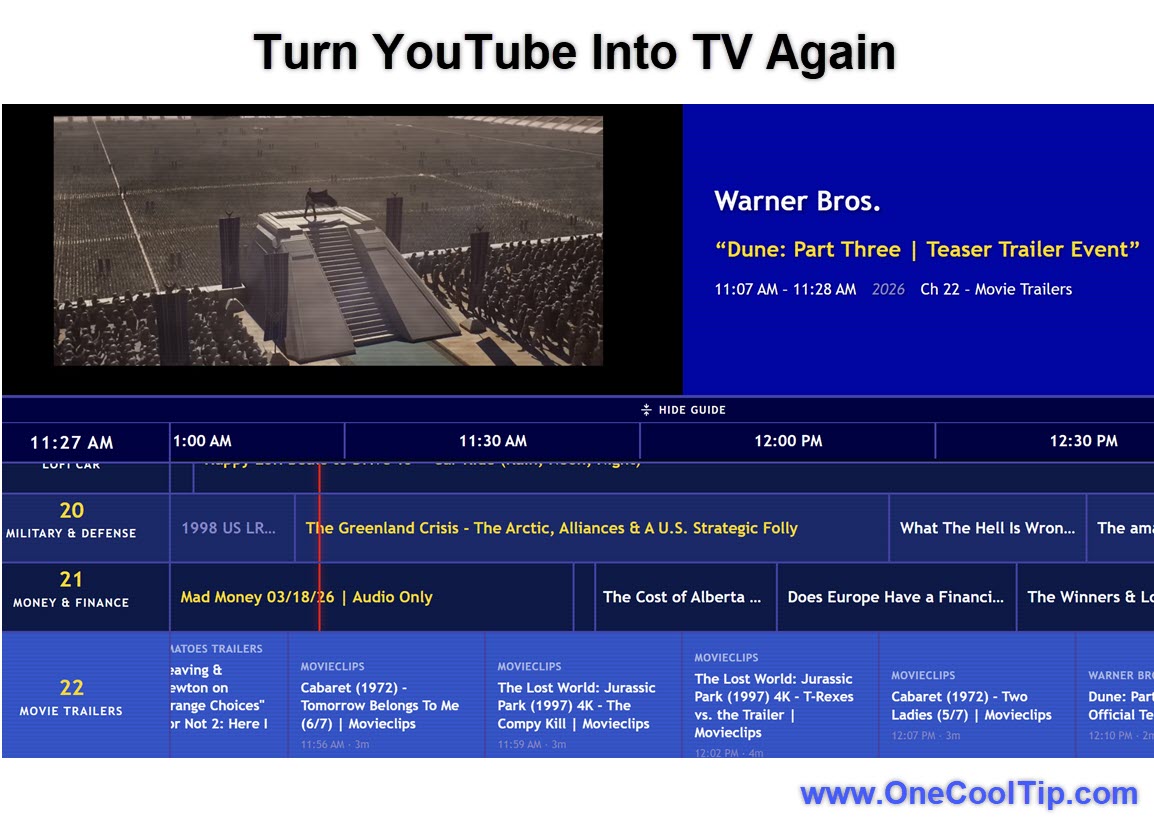
| | fig. 1 - Turn YouTube into TV Again | |
iOS
- Open Safari or Chrome.
-
Navigate to channelsurfer.tv/.
- Tap a channel to begin playback.
- Rotate to landscape for a better viewing experience.
- Use touch gestures to switch channels.
Android
- Open Chrome or your preferred browser.
-
Go to channelsurfer.tv/.
- Tap a category or channel.
- Use swipe or tap controls to browse channels.
- Enable fullscreen for a TV-style feel.
Pros and Cons
Pros
- Simple interface with no learning curve.
- Encourages content discovery.
- No login required.
- Works across devices.
Cons
- Limited control over specific video selection.
- Dependent on YouTube availability.
- No advanced personalization yet.
- Ads may appear depending on YouTube content.
Feature Access
-
Platform: Web-based.
-
Cost: Free.
-
Availability: Publicly accessible.
-
Requirements: Internet connection and browser.
-
Channel Surfer is currently available as a web tool without subscription tiers or premium features.
Score
Criterion | Score (0–10) | Justification
Value | 8
Strong for casual viewing and discovery, especially for users overwhelmed by choices.
Usability | 9
Extremely intuitive, no setup required, works instantly across devices.
Wow Factor | 7
Not revolutionary, but the execution of a retro concept feels fresh in today’s streaming landscape.
Total: 24/30 | 👍 Good
A clever reinvention of channel surfing that competes with YouTube autoplay but offers a more intentional browsing experience.
Key Takeaways
Channel Surfer removes the friction from YouTube by replacing search with discovery.
It is ideal for users who want content to come to them rather than constantly choosing what to watch.
The simplicity is the feature.
Cool Tip Snapshot
-
Feature Name: Channel Surfer.
-
Platform(s): Web (Desktop, iOS, Android browsers).
-
Quick Benefit: Watch curated YouTube streams without searching.
-
Access Type: Free.
Try It Yourself
Visit Channel Surfer today and try watching without searching for anything.
Pass this tip along to someone who spends too much time deciding what to watch.
READ MORE
Read the Cool Tip on One Cool Tip.com.
| | Help support One Cool Tip. Use this Amazon link when you shop online. | |
📺 Amazon Fire TV Stick 4K Plus: A streaming stick makes it easier to enjoy browser-based video on a bigger screen, especially if you like the lean-back TV feel that Channel Surfer is trying to recreate. Save 50% Now $24.99 Check it out on Amazon!
🔊 Anker Soundcore Bluetooth Speaker: A good speaker improves the experience when you are bouncing between music, documentaries, and tech channels. It is especially handy if you use Channel Surfer on a tablet or laptop. Save 33% Now $29.99 Check it out on Amazon!
📱 Lamicall Adjustable Phone Stand: If you watch on iPhone or Android, a solid stand turns casual viewing into a more comfortable setup at your desk, kitchen counter, or bedside table. Save 13% Now $12.99 Check it out on Amazon!
Prices accurate at time of publication
One Cool Tip may earn a commission from qualifying purchases.
| | |
🆒Tell Me More
- Channel Surfer presents YouTube videos in a retro TV-guide style interface instead of a search-and-thumbnail grid.
- At launch, there are 40+ custom-built channels covering topics like news, politics, sports, lifestyle, AI, code, space, retro tech, and gaming.
- The guide shows upcoming programming and lets users look ahead roughly 24 hours, which adds to the cable-TV illusion.
- Users can import their own YouTube subscriptions through a bookmarklet-based process if they subscribe to the creator’s newsletter.
- The creator built it partly as a reaction against algorithm fatigue and indecision overload.
⏩Quick Tips
-
🎯 Start broad: Begin with a category like Tech, News, or Music before you get picky. That makes Channel Surfer feel more like actual television.
-
🔄 Use it for discovery: Instead of searching for one exact video, let a channel run for a few minutes and see what surfaces. That is where the format shines.
-
📱 Try landscape mode: On phones and tablets, rotate the screen for a more TV-like layout. It is a small change that makes browsing more enjoyable.
-
🖥️ Cast or mirror when possible: If you like the retro-TV concept, it works best on a larger screen with speakers or a soundbar.
-
⭐ Pair it with your subscriptions: If you are a heavy YouTube user, imported subscriptions can make the experience feel much more personal. Import support is available through the creator’s newsletter workflow.
| | ✅ More Must-Read Tech Tips | | |
👀 How Do I Play Games on YouTube?
Need a few minutes away from your boring Excel and Word documents?
Here's a Cool Tip. Play games on YouTube.
Yes, you read that right!
YouTube has quietly introduced a new feature called "Playables" that transforms the video platform into a casual gaming hub.
Games are available on both mobile and the web.
Here's how to do it.
-
On the YouTube website, you'll usually find a section called "Playables" or go to: https://www.youtube.com/playables .
-
On mobile, look for Playables in the left-hand menu.
-
Browse the available Playables and click on the game you want to try.
- The selection ranges from arcade classics to puzzle games, so there's likely something for everyone.
-
Start Playing! Most Playables load quickly and seamlessly within the YouTube interface, so you'll be in the action in no time.
- Controls are usually intuitive and tailored for touchscreens or keyboards.
Current games include:
- Cut the Rope
- Amaze
- State.io
- Stack Bounce
- Draw Climber
- Knock'em All
While it might not replace your dedicated gaming console or PC, it offers a unique blend of video content and interactive entertainment, all within a platform you're likely already familiar with.
Discover more HERE.
| | |
🤔 Have You Ever Wondered How to Use YouTube Incognito Mode?
Ever find yourself wanting to watch a YouTube video without leaving a trace in your history or influencing your recommendations?
Perhaps you're sharing a device and don't want to mix up viewing preferences, or maybe you're simply researching a sensitive topic.
Here's a Cool Tip. Use YouTube's Incognito mode.
Here's how to do it.
-
Open the YouTube app on your smartphone or tablet.
-
Tap on your profile picture in the top right corner.
-
Select the option labeled "Turn on Incognito."
-
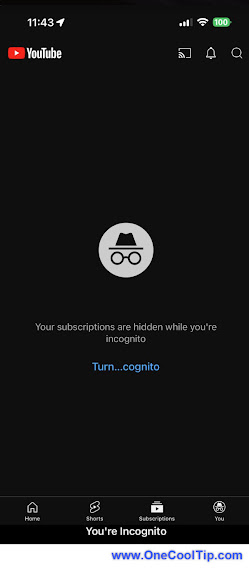
You're Incognito! You'll see a confirmation message and an Incognito mode icon (hat and glasses) in the top right corner.
-
To exit Incognito mode, simply tap the Incognito icon in the top right corner and select "Turn off Incognito."
Your searches and watched videos won't appear in your YouTube history while in Incognito mode and your usual recommendations won't be impacted by your Incognito activity.
It's important to note that Incognito mode doesn't make your activity entirely invisible.
Your internet service provider, school, or employer might still be able to see your browsing activity.
Incognito mode is perfect for when you're using someone else's phone or a public device.
Find out more HERE.
| | |
🙋♂️ Here's How to Use the Gemini YouTube Extension.
Tired of endless scrolling to find the perfect song?
Here's a Cool Tip. Use the new Google Gemini YouTube Extension.
Google Gemini is stepping up the music game with its groundbreaking YouTube Music extension.
Imagine a DJ that knows your taste better than you do, crafting playlists on the fly and responding to your voice commands.
Sounds like science fiction?
Welcome to the future of music discovery.
Here's how to do it.
-
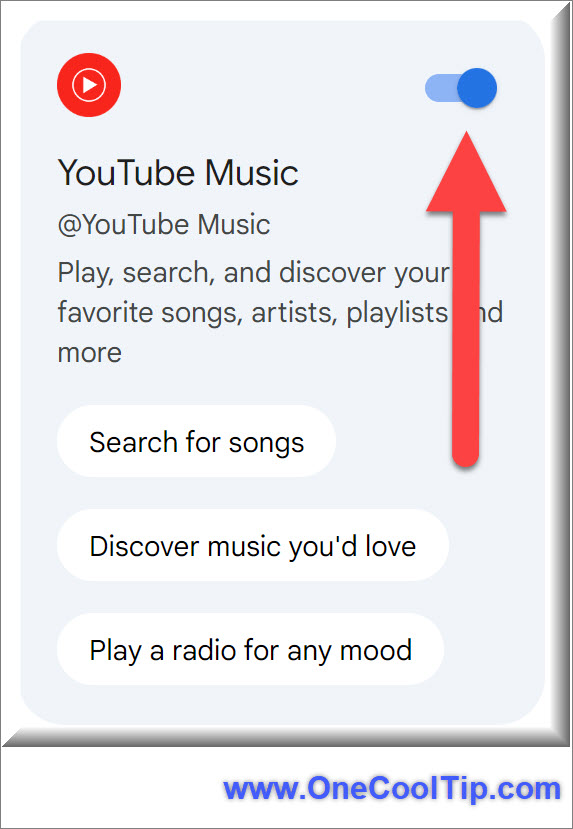
Visit gemini.google.com/extensions or the Gemini app's settings.
-
Link your YouTube account.
- Use natural language prompts:
- "Play some relaxing music for studying."
- "Find songs similar to [song title]."
- "Start a radio based on [artist name]."
- "Play my Discover Weekly playlist."
- "Add this song to my favorites."
Tip: Background play requires a YouTube Music Premium subscription.
Gemini learns your preferences over time and AI suggests songs you'll love.
By blending the power of AI with the vastness of YouTube Music's library, Gemini delivers a truly personalized and intuitive music experience.
Learn more HERE.
| | |
❓Did you share this newsletter with three friends yet?
😎 Cool Facts
-
35,000: The average person makes about 35,000 remotely conscious decisions a day. Tools that automate choice, like Channel Surfer, help preserve "cognitive bandwidth" for more important tasks. Psychology Today.
-
500: As of 2024, creators upload more than 500 hours of video to YouTube every single minute. That is roughly 82 years of new content every single day. Statista.
-
1.5x: Research shows that when viewers are in a "lean-forward" mode—actively choosing or navigating content—they are 1.5x more likely to pay attention than when they are in a purely passive "lean-back" mode. Source.
⌨️Today's Cool Shortcuts
-
Windows / Chrome / Edge: Ctrl + L: Jump straight to the address bar if you want to quickly reopen Channel Surfer or paste another link.
-
Windows / Chrome / Edge: F11: Toggle fullscreen mode for a more TV-like experience.
-
macOS / Chrome / Safari: Command + L: Highlight the address bar instantly.
-
Chrome / Edge: Ctrl + Shift + T: Reopen the last closed tab if you accidentally close Channel Surfer.
😜 Tech Joke of the Day 😅
I opened YouTube for one quick clip.
Three hours later, I am an expert on abandoned malls and deep-sea squid.
🔎 Do you have a Cool Tip or tech question? Email us at onecooltip.com@gmail.com.
| | |
Infinite scroll ends,
Channels flip with quiet ease,
Peace in the picture.
| |
| 🤔 How do you usually decide what to watch online? | | | | Did You See These Cool Tips This Week? | | | | Apple Background Security Improvements: A Smarter Way to Patch Your iPhone and Mac Between Updates | |
Apple’s Background Security Improvements allow your iPhone and Mac to receive lightweight security fixes automatically between major updates. This reduces your exposure to threats without requiring manual action.
Read the Newsletter Version.
| | | | A Faster Way to Search Images in Windows 11 With the Edge Search Bar | |
The Edge Search Bar in Windows 11 now includes a simple way to search the web using any image. This quick tip shows how to use the new "Search images" option to identify objects, find similar photos, and explore visual matches without opening a full browser window.
Read the Newsletter Version.
| |
ICYMI - In Case You Missed It ...
| | | | Go Fishing (Without Leaving Your Desk) With Fishing Frenzy | |
FishingFrenzy.co turns quick breaks into a cozy, competitive fishing loop you can play on the web. If you like games that reward consistency, smart upgrades, and event timing, this one is built to hook you fast.
Read the Newsletter Version.
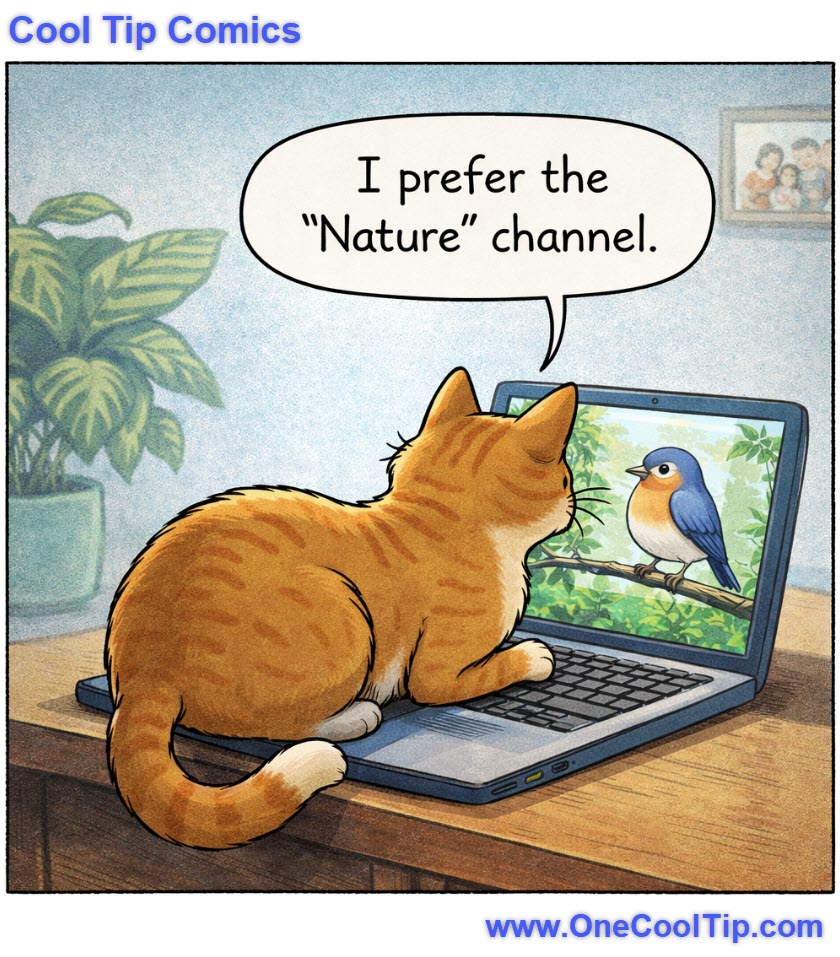
| | Streaming feathered drama, live from the keyboard! | | |
Trivia Answer: B) Zenith
The "Flash-Matic," developed by Eugene Polley for Zenith, was the first wireless TV remote.
It worked by shining a beam of light at photo cells in the corners of the TV screen.
While revolutionary, it had a major flaw: sunlight hitting the TV could accidentally change the channels!
Zenith later improved this with the "Space Command" remote in 1956, which used high-frequency ultrasonic clicks (the reason many people still call the remote a "clicker").
----------
Tomorrow's Cool Tip is waiting to amaze you.
Until then, go forth and conquer the tech world with your newfound knowledge!
Be sure to visit www.OneCoolTip.com for Cool Tech Tips for a Cooler Life!
And if you Like One Cool Tip, please support with TipJar!
Enjoy!
Rodger
Chief Cool Tipper
onecooltip.com@gmail.com
| |
| What do you think of today's OneCoolTip newsletter? | | | |
Please Share the One Cool Tip Newsletter!
You asked for it. You got it. There is now a One Cool Tip Newsletter archive. Did you delete a newsletter and want to read it again? Check it out HERE.
Want to help One Cool Tip grow? Please forward this email using the link above. And if you see an OCT social media post, please LIKE, COMMENT and SHARE!
Have you subscribed to the One Cool Tip YouTube channel? Subscribe HERE.
| | Connect with One Cool Tip!! | | |
|
As an Amazon Associate, One Cool Tip may earn a small commission from qualifying purchases.
Our media content is intended solely for informational purposes only. Please do not construe anything here as legal, tax, investment, financial, marital or other advice.
Copyright © 2026 | www.OneCoolTip.com | All Rights Reserved
|
| | | |