One Cool Tip Newsletter

November 10, 2025

Your daily dose of tech-savvy brilliance!

😀Greetings!, Happy Back-to-Work Monday, Cool Tipper!


Get ready to streamline your digital life with simple, actionable tips delivered straight to your inbox.


Today's Cool Tip Theme: Text-to-Image Coloring Book Page


IN THIS ISSUE


  • 🚨 Software Breach Hits Washington Post.
  • ✈️ Flight Delays.
  • 🚀 Make It a Great Week: AI Productivity Prompt.
  • 🖼️ Cool ChatGPT AI Prompt of the Day.
  • 💻 Copilot on Windows Can Now Export Office Docs.
  • 📝 Summarize a Word Document with Copilot.
  • 🧹 Clean Data with Copilot.
  • 🔒 5 Things to Never Tell an AI and 5 Things You Should.


New here? Subscribe to the One Cool Tip Newsletter for daily updates. It's FREE!


  • 😂 Laugh with Us! Enjoy our Tech Joke of the Day, Haiku and Cool Tip Comics.


  • 🌐 Stay Informed! Check out ICYMI, and our One Cool Tip Video.


🔔 Is your email provider (Gmail, Yahoo, Outlook...) not delivering the newsletter? 


Check the Junk folder - Move the newsletter to your Inbox. And reply to this email with a “Hey, Rodger” or “I got it.” That tells your mail service you want this newsletter!


Today's Tech Trivia


Answer at the end of this newsletter.

Which Microsoft Office app was the first to feature built-in AI assistance before Copilot?

3️⃣

If you enjoy the One Cool Tip newsletter, please forward this newsletter to THREE friends or colleagues or share it on social media using the links below.


Leave a Tip!


Share this One Cool Tip Newsletter!

X Share This Email
LinkedIn Share This Email
Pinterest Share This Email

🔥Hot Topics 🔥

🚨Software Breach Hits Washington Post🚨


The Washington Post says it was targeted in a cyberattack linked to Oracle software vulnerabilities. The breach, disclosed in early November, affected third-party systems used by major organizations, raising fresh concerns about supply chain security.


What Happened


  • Attackers exploited flaws in Oracle’s cloud-based tools used by vendors.
  • Internal data at The Washington Post was accessed.
  • Other companies may also be impacted as investigations continue.


What Can You Do?


  • Stay alert for phishing attempts tied to this breach.


And in Other News...


  • Flight Delays? Check the MiseryMap First


Before heading to the airport, check FlightAware’s MiseryMap, a live dashboard showing delays and cancellations across major U.S. airports.


What It Shows


  • Real-time airport delays and cancellations
  • Color-coded maps of affected hubs
  • Hour-by-hour breakdowns of disruption


Why It Matters


  • Spot trouble zones before you travel
  • Reroute or rebook proactively
  • Avoid getting stranded at the gate


🚀 Make It a Great Week!


Copy/Paste this AI-powered prompt. Use with your favorite assistant: Gemini, Copilot, Grok, DuckAI, Meta and ChatGPT


Kick off your Monday by turning chaos into clarity.


Use this prompt to build your personal productivity plan before your first cup of coffee is gone.


💬 Prompt to Try:

“You are my Monday productivity coach. Review my top three work priorities (list here) for today and create a focused action plan with realistic time blocks, one online tool suggestion for each task, and a digital shortcut I can use to finish faster.”

🕒 Cool Tip:


Run it every Monday morning; it helps reset focus, reduce digital clutter, and align your work goals for the week ahead.


🖼️ Cool ChatGPT AI Prompt of the Day


Create a minimalist digital illustration of a person working at their desk surrounded by subtle symbols of gratitude: a coffee mug that says ‘Thanks,’ a fall leaf by the keyboard, warm afternoon light, and a note that reads ‘Be thankful for progress.’ Use soft autumn colors and clean modern lines.”

Today's Cool Tip

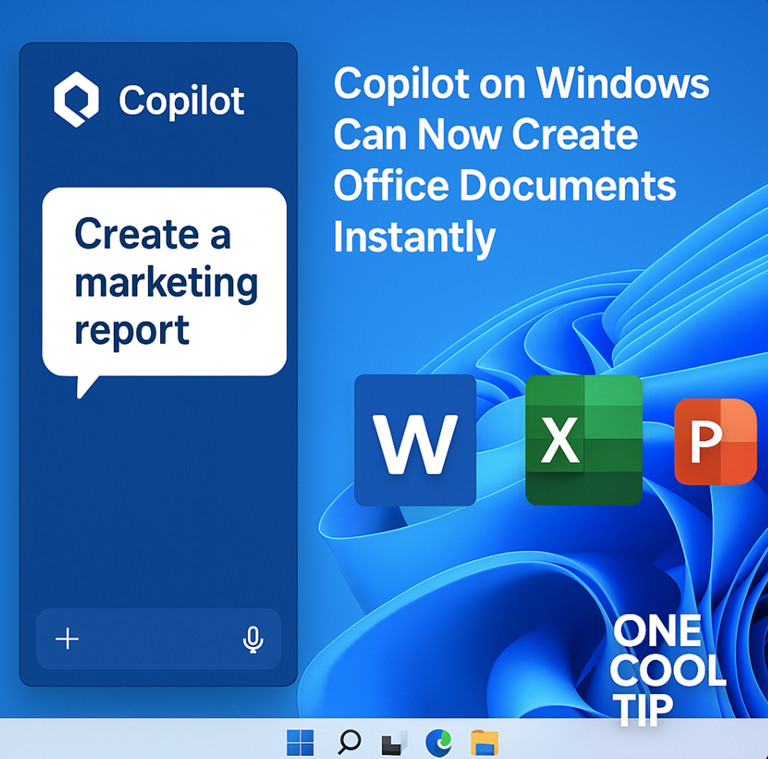
Copilot on Windows Can Now Export Office Docs


Create Word, Excel, PowerPoint, or PDF files right from your desktop using a simple prompt.


Need to draft a document but don’t want to open Word or Excel? 


Here's a Cool Tip:  Use Copilot for Windows to Export Office Docs.


With the latest update to Copilot on Windows, you can now generate full Office files using plain language, all without launching a single app.


This new feature is built for speed and simplicity.


Feature Explanation


Microsoft has added a new export option to the Copilot app on Windows 11. 


When you type a prompt like “Create a budget spreadsheet for Q4,” Copilot generates a response. 


If the response is long enough, typically around 600 characters or more, you’ll see an export button. 


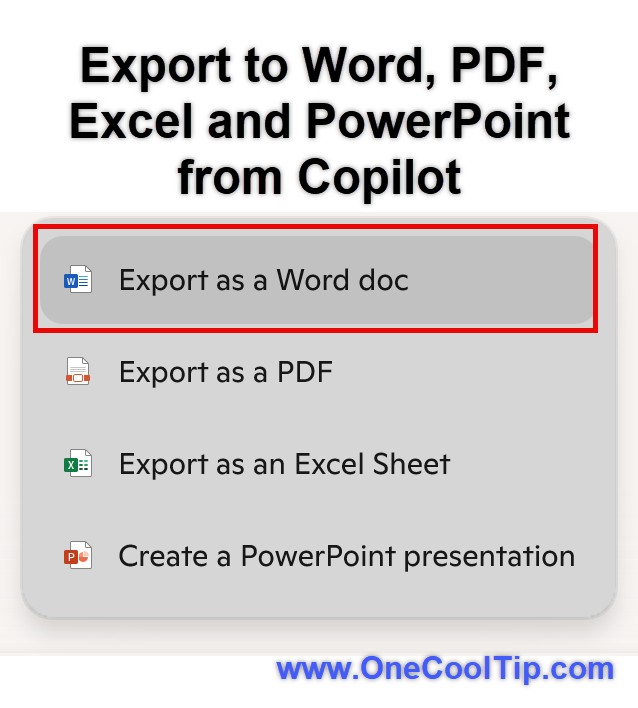
From there, you can save the content as a Word, Excel, PowerPoint, or PDF file.


This feature is only available in the Windows Copilot app (version 1.25095.161.0 or newer). 


It does not work in the web version of Copilot and you’ll need a Microsoft 365 subscription to use it.


What You’ll Gain


  • Quick file creation: Generate and save documents in Word, Excel, PowerPoint, or PDF.
  • No formatting required: Just describe what you need in plain language.
  • One-click export: Save locally or to OneDrive without opening Office apps.


Step-by-Step Instructions


Here's how to do it.


Downloading the Copilot App for Windows (if not installed already).


  1. Open the Microsoft Store on your Windows 11 device.
  2. Search for “Copilot”.
  3. Select Microsoft Copilot from the results.
  4. Click Install.
  5. Once installed, launch Copilot from the taskbar or press Win + C.


Using the Export Feature


  1. Open Copilot from the taskbar or shortcut.
  2. Type a prompt like “Create a one-page summary of our Q3 sales”.
  3. Review the generated content.
  4. If the response is long enough, click the export icon.
  5. Choose Word, Excel, PowerPoint, or PDF.
  6. Save the file or open it in the matching Office app.

fig. 1 - Export to Word, PDF, Excel and PowerPoint from Copilot

Pros and Cons


Pros


  • Fast document creation for common tasks.
  • No need to open Word, Excel, or PowerPoint.
  • Supports multiple formats including PDF.


Cons


  • Only works in the Windows Copilot app.
  • Requires Microsoft 365.
  • Export button only appears for longer responses.


Feature Access


  • This feature is currently rolling out to Windows 11 users with Copilot app version 1.25095.161.0 or newer.
  • Requires a Microsoft 365 subscription.
  • Not available on the web, mobile, or older Windows versions.
  • Export button appears only for longer responses.


Score

Criterion | Score (0–10) | Justification
Value 8
Saves time and simplifies file creation for Office users.
Usability 7
Easy to use, but limited to longer responses and Windows only.
Wow Factor 8
Turning a prompt into a ready-to-save file is genuinely useful.
Total: 23/30 Tier: 👍 Good.
A practical upgrade for Windows users who rely on Office, though not yet available everywhere.


Key Takeaways


Copilot’s new export feature lets Windows users create and save Office files from a simple prompt. 


It’s fast, intuitive, and ideal for quick drafts. 


Just keep in mind it only works in the Windows Copilot app.


Cool Tip Snapshot


  • Feature Name: Copilot Document Export
  • Platform(s): Windows 11 (Copilot app only)
  • Quick Benefit: Create and save Word, Excel, PowerPoint, or PDF files from a prompt
  • Access Type: Subscription (Microsoft 365), Rolling Out


Try It Yourself


Download the Copilot app from the Microsoft Store, open it, and ask it to “create a weekly planner in Excel.” 


If the response is long enough, export it with one click. 


Share this article with your team, family, or friends.


READ MORE


Read the Full Cool Tip

Cool Products

Help support One Cool Tip. Use this Amazon link when you shop online.


Look at these Cool Products:

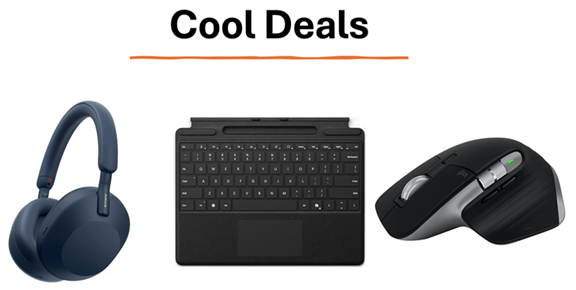
  • 🖱 Logitech MX Master 3S Mouse: Ultra-precise scrolling and multi-device switching for Windows and Office apps. Save 17% $99.99 Check it out on Amazon!


  • ⌨️ Microsoft Surface Keyboard: Quiet typing and Bluetooth reliability for Copilot power users. Save 42% $104.99 Check it out on Amazon!


  • 🎧 Sony WH-1000XM5 Headphones: Block distractions and dictate commands to Copilot with clear voice input. Save 18% $328 Check it out on Amazon!


Prices accurate at time of publication

Cool Thoughts

🆒Tell Me More


  • Copilot export only works in Windows app, not web or mobile.


  • Export button appears for longer responses (600+ characters).


  • Supports Word, Excel, PowerPoint, and PDF formats.


  • Requires Microsoft 365 subscription.


⏩Quick Tips


  • 🪟 Open Copilot with Win + C


  • 📝 Use prompts like “Create a budget spreadsheet for Q4”


  • 📤 Click the export icon for Word, Excel, PowerPoint, or PDF


  • 📁 Save to OneDrive or open in Office

✅ More Must-Read Tech Tips

👀 How Do I Summarize a Word Document with Copilot?


Have you ever faced the daunting task of sifting through a lengthy Word document, trying to extract the essential information buried within? 


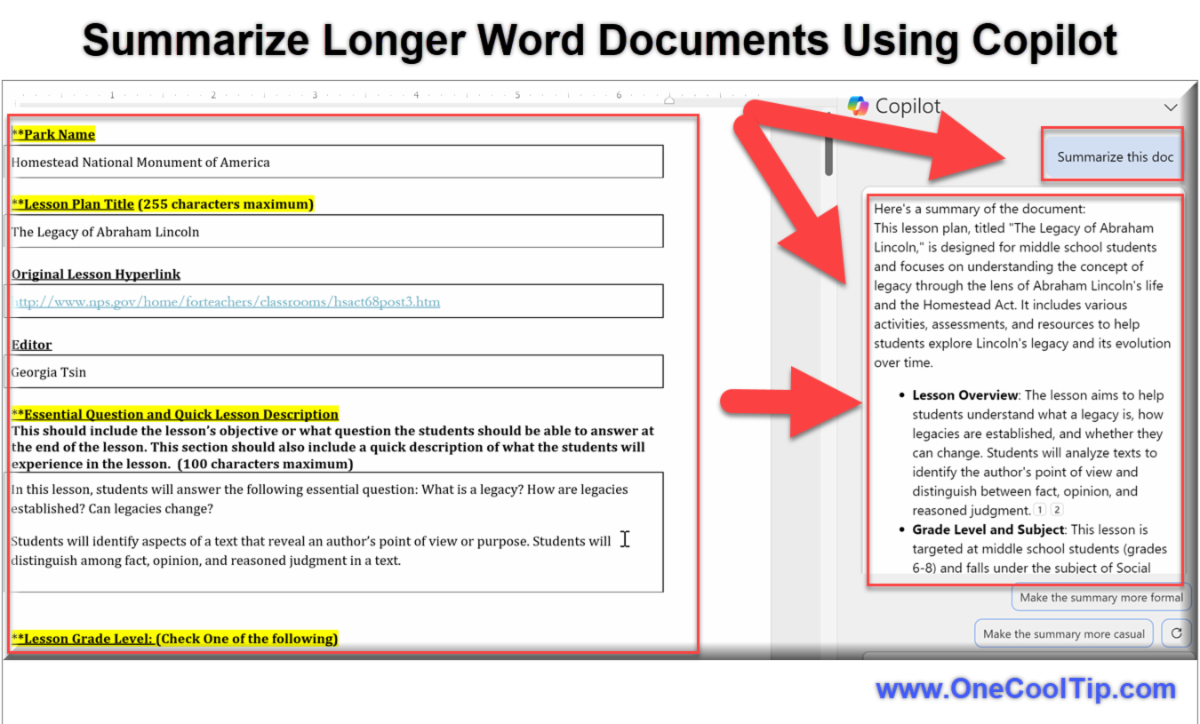
Word, powered by Copilot, introduces an intelligent summarization feature that streamlines this process for even longer documents.


Here's how to do it.


  1. Launch desktop Microsoft Word or Word for the Web.
  2. Open the document you want to summarize.
  3. Click the Copilot button on the Home tab.
  4. In the Copilot panel, enter "Summarize this doc" in the chat box. 
  5. Review the summary and edit or refine it as needed.


You can summarize a document that contains approximately up to 80,000 words (depending on language), about 4 times more than Copilot was previously able to summarize. 


A paid subscription for Copilot Pro is required for this to work within Microsoft Word 365.


As a workaround, copy the document and paste it into the free version of Copilot at http://copilot.microsoft.com. (however, there is a much smaller word count limit).


In a world where information overload is the norm, Copilot’s Word summarization feature is a beacon of efficiency. 


Discover more HERE. 

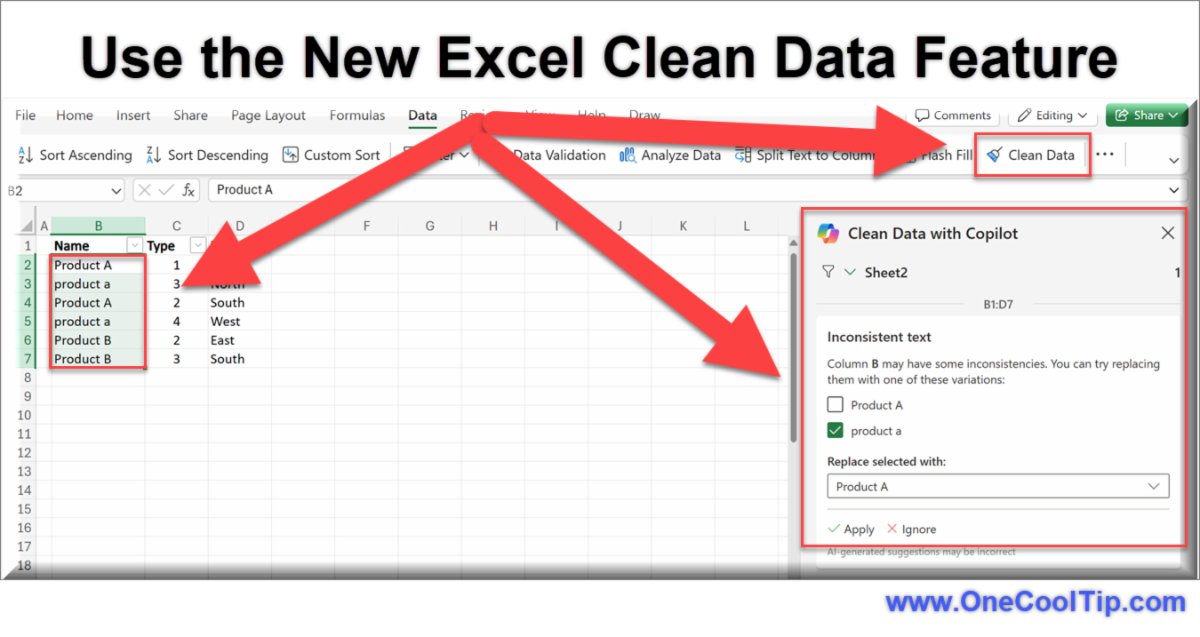
🤔 Have You Ever Wondered How to Clean Data with Copilot in Excel?


Are you tired of spending hours manually correcting data inconsistencies in your Excel sheets? 


 Copilot in Excel is your new best friend for data cleaning!


Data inconsistencies, such as text variations, number format issues, and extra spaces, can lead to incorrect calculations and messy workbooks.


Copilot's Clean Data feature detects and resolves these common issues with just a click, saving you time and effort while improving the reliability of your data.


Here's how to do it.


  1. Launch Microsoft Excel for the Web or the desktop version of Excel and open your workbook.
  2. Highlight the data you want to clean.
  3. Go to the Data tab on the ribbon.
  4. Select the Clean Data option.
  5. Copilot detects inconsistencies and offers solutions. 
  6. Review the suggestions and apply the changes as needed.
  7. For best results, format your data as an Excel table by selecting Home > Tables > Format as Table.


This new feature automates the data cleaning process, freeing up time for more important tasks.


With Copilot in Excel, cleaning your data has never been easier. 


Find more HERE. 

🙋‍♂️ Here are 5 Things to Never Tell an AI and 5 Things You Should


Are you saying too much to your AI?


Unlike your closest confidant, an AI doesn't forget, and it may not always be as secure as you'd think. 


Whether you're using ChatGPT, Google Gemini, Microsoft Copilot, or any number of AI-powered tools, your prompts matter. 


🚫 5 Things You Should NEVER Tell an AI


1. Personal Identifiable Information (PII)

Avoid: Full names, addresses, phone numbers, social security numbers, birthdates.

Why: Even in supposedly private conversations, these data points could be stored, mishandled, or inadvertently exposed. No AI tool guarantees permanent data deletion across all logs.


2. Financial Credentials

Avoid: Credit card numbers, bank account information, PINs, or passwords.

Why: AI tools are not payment processors or password vaults. Sharing this information puts you at risk of fraud and identity theft.


3. Confidential Work Documents

Avoid: Internal memos, trade secrets, client data, source code, unreleased products.

Why: Many AI platforms (especially free versions) train on user input. That means your company's secrets might help improve a model used by your competitors.


4. Legal Issues or Sensitive Health Concerns

Avoid: Ongoing legal cases, private medical diagnoses, or treatment plans.

Why: AI doesn’t offer legally or medically accurate advice. You risk misdiagnosis or misguided actions without professional oversight.


5. False Information to “Test” the AI

Avoid: Fake scenarios, misleading questions, or lies.

Why: AI learns from interaction. Misinforming it can degrade its responses for you and potentially for others downstream.


✅ 5 Things You SHOULD Tell an AI


1. Clear Context for Better Results

Do: Share the goal of your task or request.

Example: Instead of “Write a paragraph,” try “Write a 100-word introduction to a blog post about cybersecurity for small businesses.”


2. Preferences and Style

Do: Specify tone, length, or formatting.

Example: “Make it sound like The Verge, under 600 words, and include bullet points.”


3. Feedback on Output Quality

Do: Say what you liked or disliked.

Example: “This was too formal—can you make it more casual?”

Why: Many AI platforms are tuned to your feedback, especially within a single chat session.


4. Use Case and Target Audience

Do: Share who you're writing for, their knowledge level, and your intended platform.

Example: “This tip is for a beginner Excel user reading a newsletter.”


5. Secure, Anonymized Practice Data

Do: Test AI features using fake or anonymized data sets.

Example: Dummy names, generic company names, or open-source sample files.


AI can be a powerful partner, but only when you use it thoughtfully. 


Learn more HERE. 

❓Did you share this newsletter with three friends yet?


😎 Cool Facts


  • 56%: Studies suggest that knowledge workers spend up to 56% of their day on communication and research, areas where generative AI tools like Copilot are specifically designed to reduce time spent. Source.


  • 70%: Microsoft states that users who regularly use Copilot in Microsoft 365 report a 70% improvement in productivity when summarizing documents and emails. Source.


  • Adoption Rate: Over 90% of early Copilot for Microsoft 365 users report that they would prefer to continue using the tool, highlighting its utility in daily document tasks. Source.


⌨️Today's Cool Keyboard Shortcuts


  • 🪟 Windows: Win + C: Open Copilot
  • 📄 Word: Ctrl + S: Save document
  • 📊 Excel: Ctrl + T: Create table
  • 📽️ PowerPoint: Ctrl + M: New slide
  • 🌐 Edge: Ctrl + Shift + N: New InPrivate window


😜 Tech Joke of the Day 😅


What is a computer’s favorite type of music?


Algorithm and blues


🔎 Do you have a Cool Tip or tech question? Email us at onecooltip.com@gmail.com.

Haiku

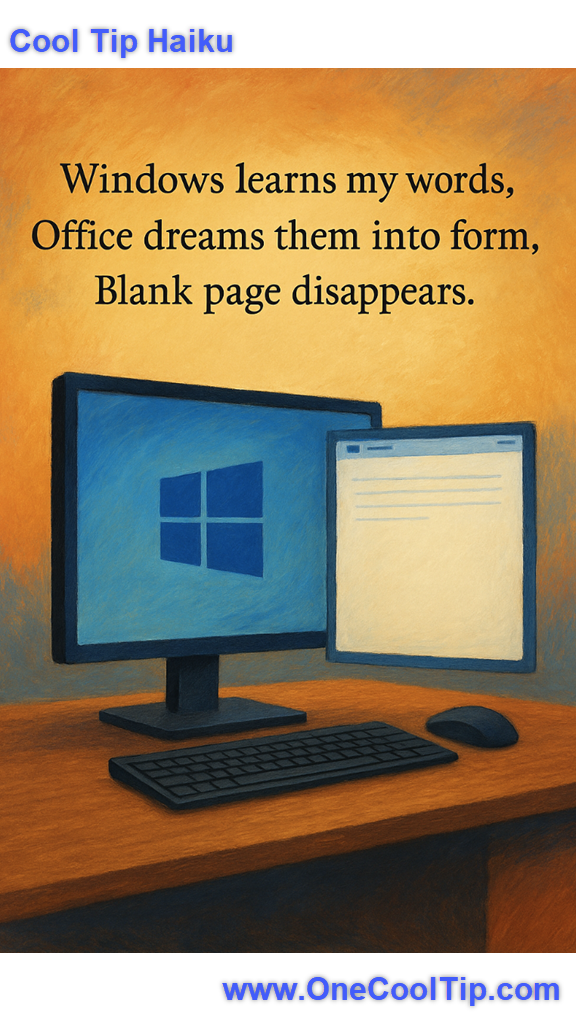
Windows learns my words,

Office dreams them into form,

Blank page disappears.

Cool Tip Pulse

🤔 How do you use Copilot most often?


Fuel Your Adventure

Try Big Mike's Jerky!


bigmikesjerky.com


Now on TikTok!


Did You See These Cool Tips This Week?

Amazon's AI Shopping Assistant Ends Your Product Paralysis

Stop endlessly comparing products. Amazon's Help Me Decide feature uses generative AI to instantly summarize and contrast your options, making buying decisions simpler and faster.

Personalize Your Chat in NotebookLM with Custom Goals

Set a clear goal for your chat in NotebookLM and watch how the AI adapts to behave like a strategist, researcher or storyteller. The latest upgrade unlocks deeper context, longer memory and smarter responses tied to your defined intent.


Find Your Adventure

Looking for your next adventure?


Call Denise at Travel For You.

314.660.3039


Sign Up for the Monthly Newsletter - Deals and Specials


http://www.travelforyouvacations.com/


https://www.facebook.com/TRAVEL.FOR.U/


ICYMI - In Case You Missed It ...

Watch Digital Water Flow

Turn your screen into a living work of art with this interactive fluid simulation. Move your mouse or finger to create ripples, colors, and mesmerizing swirls that react in real time.


One Cool Tip Video

How to Use Copilot Pro in Microsoft 365 Word to Create and Edit Documents More Efficiently


Are you tired of spending hours creating and editing documents? 


Do you want to streamline your workflow and boost your productivity? 


Watch


Cool Tip Comics

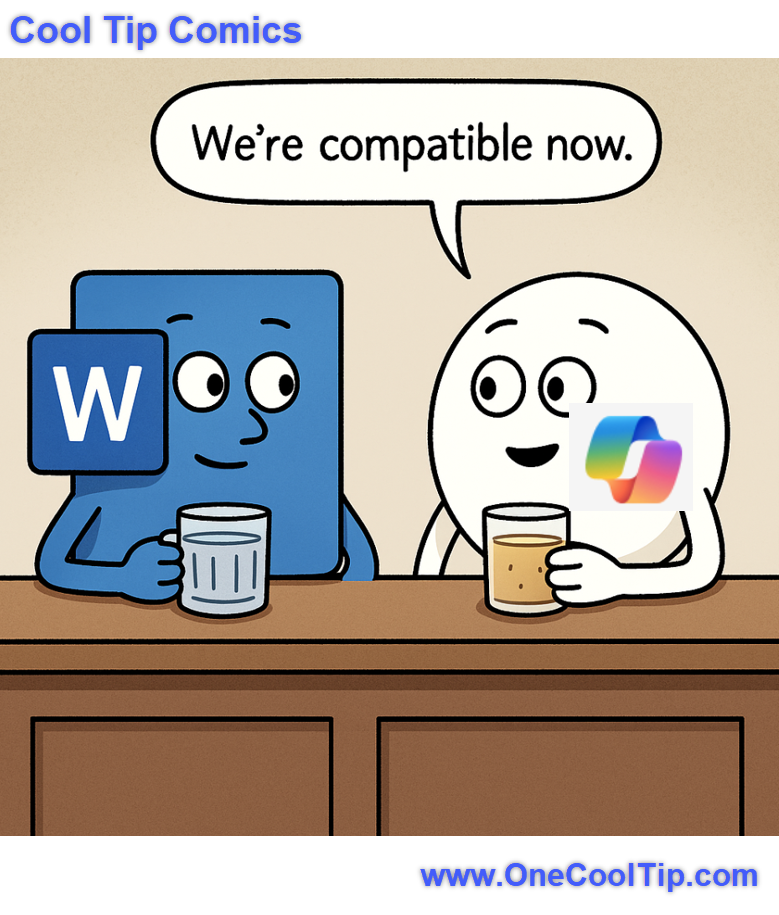
Copilot and Word walk into a bar… and finally agree on formatting. 🍸 “We’re compatible now”, the punchline every IT department dreams of.


See You Tomorrow

Trivia Answer: C) Excel


Excel introduced the Ideas feature (originally called Insights) in Excel 2016 powered by machine learning to analyze data patterns and suggest visualizations automatically.


This laid the groundwork for later AI integrations like Copilot across the Microsoft 365 suite.


Note: PowerPoint also had an early AI feature with Designer, but Excel Ideas provided a more analytical capability in Excel.


----------


Tomorrow's Cool Tip is waiting to amaze you.


Until then, go forth and conquer the tech world with your newfound knowledge!


Be sure to visit www.OneCoolTip.com for Cool Tech Tips for a Cooler Life!


And if you Like One Cool Tip, please support with TipJar!


Enjoy!


Rodger

Chief Cool Tipper

onecooltip.com@gmail.com


What Do You Think?

What do you think of today's OneCoolTip newsletter?
Positive        Neutral        Negative

Please Share the One Cool Tip Newsletter!


You asked for it. You got it. There is now a One Cool Tip Newsletter archive. Did you delete a newsletter and want to read it again? Check it out HERE.


Want to help One Cool Tip grow? Please forward this email using the link above. And if you see an OCT social media post, please LIKE, COMMENT and SHARE!


Have you subscribed to the One Cool Tip YouTube channel? Subscribe HERE.

X Share This Email
LinkedIn Share This Email

Connect with One Cool Tip!!

Facebook  X  Instagram  Web  Pinterest  YouTube  LinkedIn
 

As an Amazon Associate, One Cool Tip may earn a small commission from qualifying purchases.


Our media content is intended solely for informational purposes only. Please do not construe anything here as legal, tax, investment, financial, marital or other advice.


Copyright © 2025 | www.OneCoolTip.com | All Rights Reserved