One Cool Tip Newsletter

June 30, 2025

Your daily dose of tech-savvy brilliance!

😀Hello Rodger, Happy Monday, Cool Tipper!


Get ready to streamline your digital life with simple, actionable tips delivered straight to your inbox.


Today's Cool Tip Theme: PowerPoint GIF


IN THIS ISSUE


  • 🚨 Urgent PayPal Alert.
  • ⚠️ Brother Printer Security Flaw.
  • 🚀 Boost Your Productivity.
  • 🎨 Image to Coloring Book.
  • 💡 PowerPoint to GIF Made Easy.
  • 🎯 Master the Presentation Pointer.
  • 🎬 Edit Videos in PowerPoint.
  • 🖨️ Print to PDF in Windows.


New here? Subscribe to the One Cool Tip Newsletter for daily updates. It's FREE!


  • 😂 Laugh with Us! Enjoy our Tech Joke of the Day, Haiku and Cool Tip Comics.


  • 🌐 Stay Informed! Check out ICYMI, and our One Cool Tip Video.


🔔 Is your email provider (Gmail, Yahoo, Outlook...) not delivering the newsletter? 


Check the Junk folder - Move the newsletter to your Inbox. And reply to this email with a “Hey, Rodger” or “I got it.” That tells your mail service you want this newsletter!


Today's Tech Trivia


What year did the GIF format originally debut?


A) 1980

B) 1987

C) 1993

D) 1999


Answer at the end of this newsletter.

3️⃣

If you enjoy the One Cool Tip newsletter, please forward this newsletter to THREE friends or colleagues or share it on social media using the links below.


Share this One Cool Tip Newsletter!

X Share This Email
LinkedIn Share This Email
Pinterest Share This Email


🔥Hot Topics 🔥

🚨PayPal Scam Uses Real Emails to Trick You🚨


Watch out for a new PayPal scam that’s alarmingly convincing.


Scammers are abusing PayPal’s own system to send legit-looking emails from service@paypal.com—no typos, no sketchy links.


You might get a message saying you added a new address or authorized a large payment.


The catch? You didn’t.


These emails often include a phone number instead of a link.


If you call, you’ll be connected to a fake “PayPal rep” who may ask you to install remote access software, giving them full control of your device.


🛡️ Stay Safe:


  • Never call numbers from unexpected emails.
  • Don’t install software from unsolicited sources.
  • Always verify activity by logging into PayPal directly at paypal.com.


And in Other News...


  • Critical Brother Printer Flaw Can’t Be Patched


A major security flaw (CVE-2024-51978) affects 689 Brother printer models, allowing attackers to remotely take control—without a password. The issue? A factory-set password system based on each printer’s serial number, which hackers can reverse-engineer. Worse yet, this can’t be fixed with a firmware update.


🛡️ What You Should Do:


  • Change the default admin password immediately via the printer’s web interface.
  • Check for firmware updates on Brother’s official support page.
  • Segment printers on your network and restrict external access.


Printers are often overlooked in security plans—but this one deserves your full attention


  • 🚀 Make It a Great Week!


End the work week with motivation. Try this AI prompt!


Copy/Paste this AI-powered prompt. Use with your favorite AI assistant: Gemini, Copilot, Grok, DuckAI, Meta and ChatGPT.


"Help me plan a productive week. Ask me for my top 3 priorities, daily commitments, and any personal goals. Then create a simple, balanced schedule with time blocks, breaks, and reminders to stay on track."

  • Try THIS!


🖼️ Cool ChatGPT AI Prompt of the Day:


Try this prompt:


  1. Upload an image to ChatGPT
  2. "I’d like to create a coloring book page from this image.
  3. Please turn my uploaded photo into a black-and-white line drawing with clean outlines, removing backgrounds and adding simple details to make it suitable for coloring."


Today's Cool Tip

Turn PowerPoint Slides into Animated GIFs


Ever tried emailing a PowerPoint presentation only to find the file size ballooned with animations? 


Or wished your team could preview a deck in Slack without downloading a file? 


Here's a Cool Tip:  Turn PowerPoint slides into Animated GIFs.


Enter the humble .GIF, not just for memes anymore, but a surprisingly practical format for sharing visual summaries of your slides.


Microsoft has baked a GIF export feature right into PowerPoint. 


And it’s more than a gimmick: it’s a slick shortcut for turning presentations into lightweight, looping visuals that work almost anywhere.


What You'll Gain


  • Quick-share presentations as animated GIFs
  • Bypass large video files and bulky email attachments 
  • Bring motion to newsletters, social posts, and training content


What It Does and Why It Matters


The “Export as Animated GIF” feature transforms your PowerPoint deck into a self-playing, looping animation. 


It preserves slide timings and transitions, and it's compatible with a wide range of apps from Microsoft Teams chats to Instagram Stories.


Use it to:


  • Share a quick visual guide with your remote team.
  • Animate onboarding steps in an email campaign.
  • Post a dynamic teaser for your next webinar or product feature.
  • No special software or plug-ins. Just PowerPoint.


Step-by-Step Instructions


Here's how to do it.


On Windows/Mac (PowerPoint Desktop App)


  1. Open your slide deck.
  2. Click File > Export.
  3. Select Create an Animated GIF.
  4. Choose the size (Small, Medium, Large, or Extra Large).
  5. Decide whether to use recorded timings and narrations.
  6. Click Create GIF, choose a destination, and save.


Pros and Cons


Pros


  • Instant animation, no video editing needed.
  • Great for previews, training loops, or social media teasers.
  • Tiny file sizes compared to video exports.


Cons


  • No audio support in GIFs.
  • Limited to visual slide content—interactive elements won’t work.
  • Not suitable for long or complex presentations.


Still, for simple, self-running visuals, it’s hard to beat. Imagine HR sharing employee values on digital signage or a teacher creating quick GIF guides to post in Google Classroom. 


It’s visual communication without the production overhead.


Who Can Use This


Available to: Microsoft 365 subscribers on Windows and macOS desktop apps.


This feature is not currently supported on PowerPoint Web, iOS, or Android.


Score

Criteria Score Justification
Value 9
Speeds up visual communication, no need for external tools.
Usability 8
Easy access in desktop PowerPoint, but mobile/web limitations are notable.
Wow Factor 7
Clever way to repurpose slides—simple, but surprisingly effective.
Total Score: 24/30 👍 Good – A worthy feature in PowerPoint.


Key Takeaways


PowerPoint’s animated GIF export is a clever time-saver for sharing slide content across platforms. 


It eliminates video-editing hassles, reduces file sizes, and adds motion to otherwise static decks. 


For business users, educators, and marketers, it unlocks new ways to communicate without reinventing the wheel.


Try It Yourself


Turn your next slide deck into a GIF and share it with your team or audience. 


Experiment with formats, timing, and messaging then share what works! 


Have thoughts or tips? 


Drop us a comment or subscribe to the newsletter at OneCoolTip.com.


READ MORE


Read the Full Cool Tip


Cool Products

Help support One Cool Tip. Use this Amazon link when you shop online.


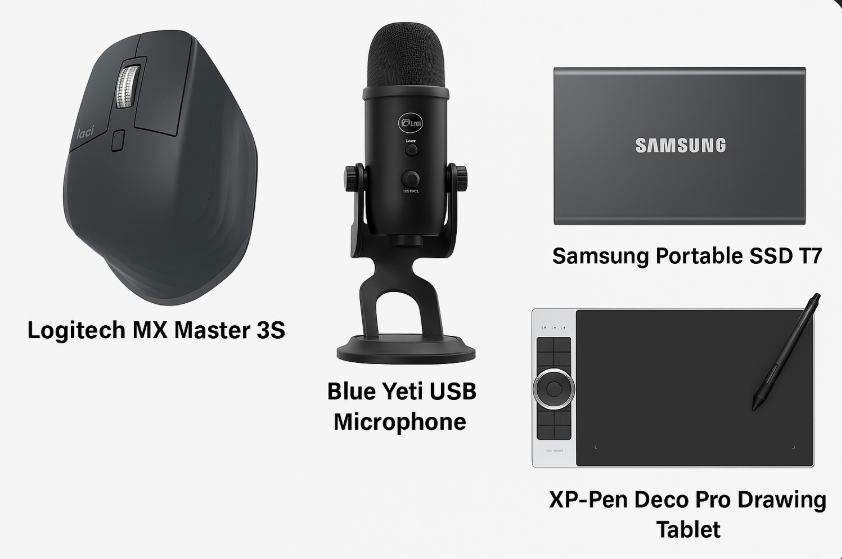
Look at these Cool Products:


  • 🖱️ Logitech MX Master 3S Mouse: Precise scrolling and customizable buttons, perfect for design-heavy slides. Save 8% $119.99 Check it out on Amazon!


  • 🎙️ Blue Yeti USB Microphone: Record crisp narration for your presentations or videos. Save 25% $104.79 Check it out on Amazon!


  • 💻 Samsung Portable SSD T7: Store your presentations securely and transfer files super fast. Save 23% $99.99 Check it out on Amazon!


  • 🖼️ XP-Pen Deco Pro Drawing Tablet: Add handwritten flair to your slides and GIFs. $169.99 Check it out on Amazon!

Cool Thoughts

🆒Tell Me More


  • GIFs are limited to 256 colors, which is why they sometimes look a bit grainy.


  • PowerPoint’s GIF export preserves slide transitions and timings.


  • GIFs loop endlessly by default, making them great for eye-catching teasers.


  • A well-optimized GIF is often 80–90% smaller than a video file


⏩Quick Tips


  • 🎯 Set slide timings carefully - Use the “Seconds spent on each slide” option to match your audience’s reading speed.


  • 💡 Test before sharing - Preview your GIF to check animations and transitions.


  • 📏 Watch resolution - Higher-quality GIFs (HD or 4K) look better but create bigger files.


  • 📲 Mobile limitations - iOS/Android PowerPoint can’t export GIFs directly yet.


  • 🚀 Keep it short - The longer your deck, the heavier your GIF.

✅ More Must-Read Tech Tips


👀 How Do I Use the Presentation Pointer in Microsoft PowerPoint?


Are you tired of fumbling around with your mouse during presentations? Do you want to make your presentations more engaging and interactive? 


If so, you’re in luck! 


There's a Cool Tip on how to use the presentation pointer in Microsoft PowerPoint to make your presentations more dynamic and engaging.


Here's how to do it:


To use your mouse as a laser pointer:


  1. Go into Slide Show mode.
  2. Press the Slide Show icon at the bottom right corner
  3. Press and hold the Ctrl key then Left-Click the mouse mouse.
  4. A red dot appears on the screen
  5. Move the red dot around the screen with the mouse to highlight key points on your slide


That's it.


Discover more HERE. 

🤔 Have You Ever Wondered How to Edit Videos in PowerPoint?


Have you ever found yourself wishing for a simple way to edit videos for your presentations? 


Are you tired of switching between multiple software options to get that perfect clip? 


Here's a Cool Tip.  Use PowerPoint, your go-to for slide shows, to edit videos.


Microsoft PowerPoint is a widely-used presentation program that allows users to create dynamic, slide-based presentations. 


Here's how to do it.


  1. Create a new PowerPoint or open an existing file.
  2. Add your video to the desired slide.
  3. Insert from Device.
  4. Insert from Stock.
  5. Insert from Online.
  6. Use the built-in trim feature to cut out any unnecessary parts.
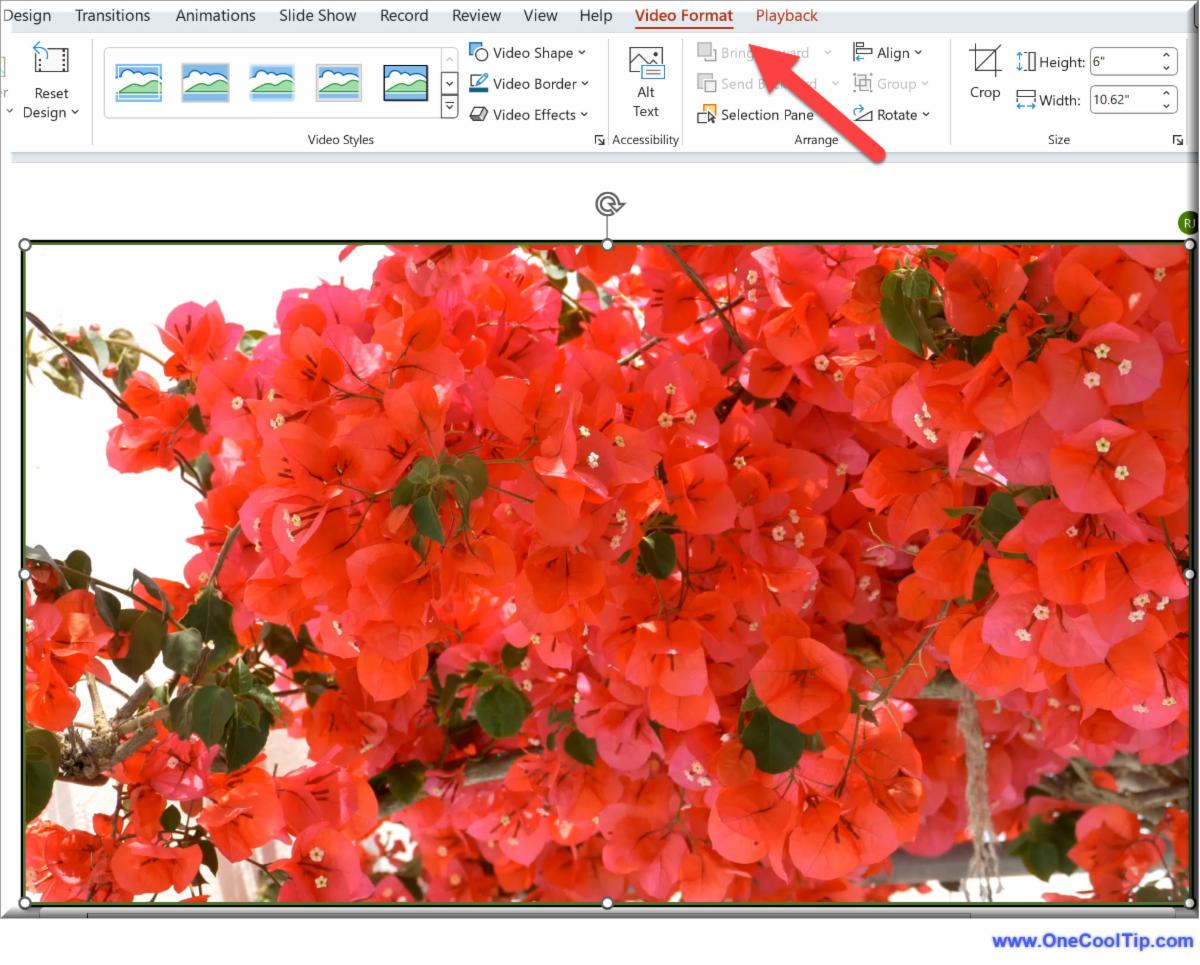
  7. Apply video styles, borders, and effects to match your presentation’s theme.
  8. Customize how your video plays during the presentation, like setting it to loop or play full-screen.
  9. Overlay text or shapes to provide additional context or highlight key points.


Using video editing in PowerPoint allows editing without leaving PowerPoint.


Seamlessly blend videos into your presentations and tailor video playback to suit your needs.


While PowerPoint offers basic editing, it doesn’t match specialized video editing software and high-quality videos can increase your presentation’s file size significantly.


  • To trim a video, select it and click on ‘Trim Video’ under the Playback tab.
  • To add effects, select ‘Video Effects’ under the Video Tools Format tab.


PowerPoint is more than just slides and bullet points. 


By mastering video editing within PowerPoint, you can create dynamic, engaging presentations that captivate your audience. 


Embrace the simplicity and power of PowerPoint’s video editing capabilities and take your presentations to the next level.


Have you tried editing video in PowerPoint?


Find more HERE. 

🙋‍♂️ Here's How to Print Documents to PDF format in Windows.


Have you ever needed to share a document that looks the same on any device and platform? 


Have you wondered how to secure your documents for distribution? 


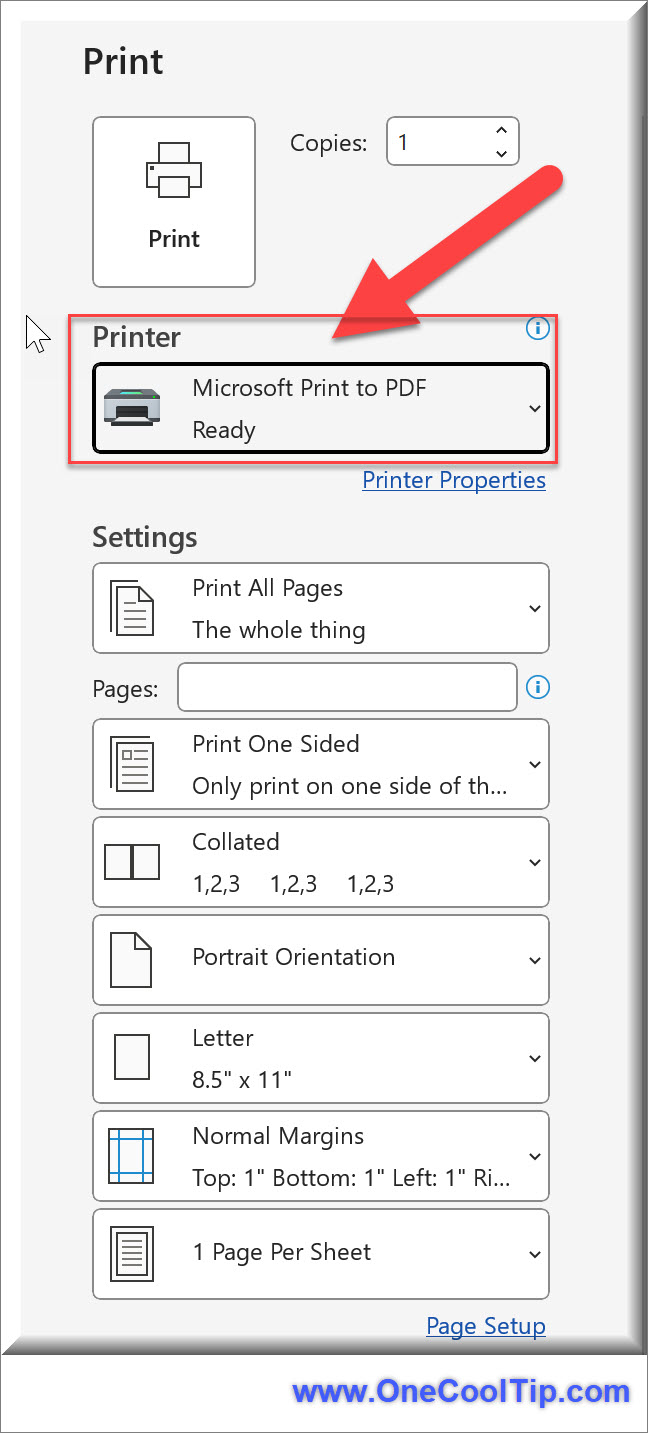
Here's a Cool Tip.  Use Microsoft Print to PDF in Windows.


Microsoft Print to PDF is a feature built into Windows that allows you to convert documents into PDF (Portable Document Format) files without the need for third-party software. 


This virtual printer enables you to create a PDF file from any application that has a print option.


The Microsoft Print to PDF feature first became available with the release of Windows 10. 


It was introduced as a built-in feature that allowed users to save documents as PDF files directly from the print dialog in any application that supported printing. 


This feature eliminated the need for third-party PDF printing software and has been a standard part of Windows 10 since its initial release.


Here's how to do it.


  1. Open the document you wish to convert in its native application (e.g., Microsoft Word).
  2. Click on ‘File’ and select ‘Print’.
  3. In the Printer dropdown menu, choose ‘Microsoft Print to PDF’.
  4. Click ‘Print’, and you’ll be prompted to choose a location to save your new PDF.
  5. Name your file and click ‘Save’ to complete the process.


PDFs are universally compatible across platforms and preserves the formatting of your original document.


Printing it to PDF ensures that it arrives intact, without any changes in layout or design.


Printing to PDF in Windows is a powerful tool for anyone needing to share documents widely. 


It’s a simple process that offers security and consistency, making it an essential skill for professionals and casual users alike.


Learn more HERE. 

❓Did you share this newsletter with three friends yet?


😎 Cool Facts with Numbers


  • 700: Around 700 million GIFs are shared daily across social platforms


  • 4K: PowerPoint supports GIF exports up to 4K resolution.


  • 37: GIFs date back 37 years (since 1987).


  • 256: Typical GIF colors are capped at 256 — compared to millions in video formats


⌨️Today's Cool Keyboard Shortcuts


Cool PowerPoint Keyboard shortcuts:


💻 Windows


  • Ctrl + M: Insert a new slide.
  • Ctrl + Shift + C: Copy formatting.
  • F5: Start the slideshow from the beginning.


🍏 Mac


  • Command + Shift + G: Group objects.
  • Command + Option + P: Print the current slide.


✍️Today's Haiku


Slides loop and replay

Animations come alive

GIF tells your story


🔎 Do you have a Cool Tip or tech question? Email us at onecooltip.com@gmail.com.


😜 Tech Joke of the Day 😅


Why did the PowerPoint presentation break up with the GIF?


Because it said, "You're too repetitive!"


Cool Tip Pulse

🤔 Where would you most use a PowerPoint-made GIF?


Fuel Your Adventure

Try Big Mike's Jerky!


bigmikesjerky.com


Did You See These Cool Tips This Week?

Unleash Your Inner Storyteller: A Deep Dive into Google Labs Portraits with Matt Dicks

Google Labs Portraits, featuring AI trained by experts like Matt Dicks, offer a groundbreaking way to access specialized knowledge. This innovative tool provides on-demand guidance for enhancing storytelling and communication skills, making expert insights accessible to everyone looking to craft more compelling narratives.

Take Back Control: How to Reset Suggested Content on Instagram (and Why You Should)

Tired of seeing irrelevant or repetitive posts? Learn how to reset your Instagram suggested content to get a fresh, tailored feed that better fits your interests.


Find Your Adventure

Looking for your next adventure?


Call Denise at Travel For You.

314.660.3039


Sign Up for the Monthly Newsletter - Deals and Specials


http://www.travelforyouvacations.com/


https://www.facebook.com/TRAVEL.FOR.U/


ICYMI - In Case You Missed It ...

Watch Rattlesnakes Like Never Before!

Curious about what hundreds of rattlesnakes do when no one’s watching? RattleCam.org brings you face-to-fang with nature’s most misunderstood reptiles—live from a hidden MegaDen. Perfect for educators, wildlife fans, and curious minds alike.


One Cool Tip Video

Unlock the Power of PowerPoint: How to Merge Shapes


Have you ever wanted to create a unique shape in PowerPoint, but couldn’t find the right one in the built-in library? 


Did you know that you can merge existing shapes to create new, custom shapes?


Watch


Cool Tip Comics

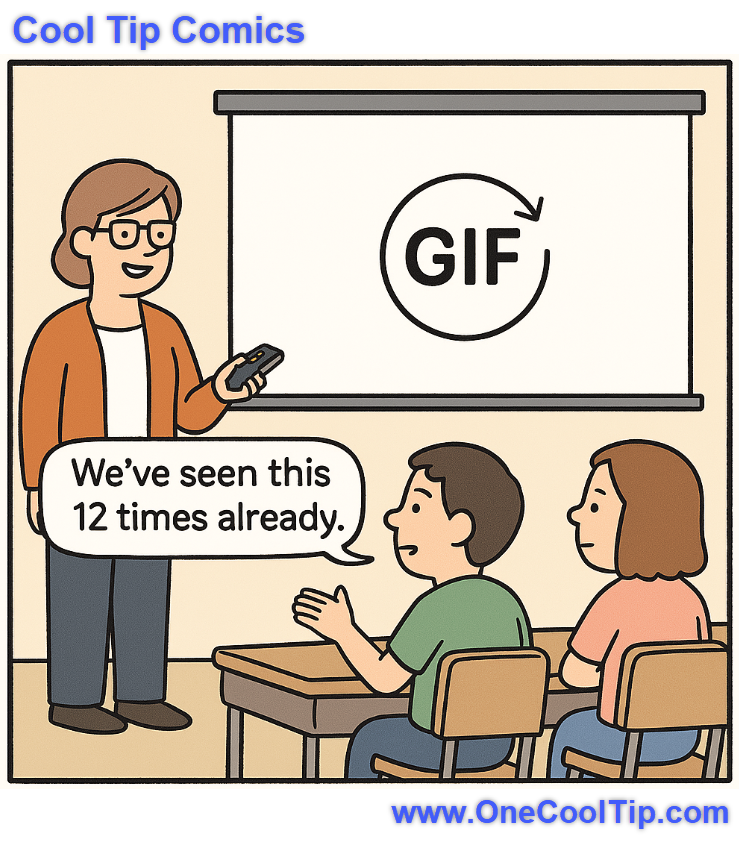
Educational déjà vu: when your lesson plan loops harder than the GIF itself.


See You Tomorrow

Trivia Answer: B) 1987


The Graphics Interchange Format (GIF) was created by CompuServe in 1987 as a lightweight format for sharing color images over slow network connections.


Its support for animation, although primitive by today’s standards, made it a cultural icon decades later from dancing bananas to professional PowerPoint exports.


----------


Tomorrow's Cool Tip is waiting to amaze you.


Until then, go forth and conquer the tech world with your newfound knowledge!


And be sure to visit www.OneCoolTip.com for Cool Tech Tips for a Cooler Life!


Enjoy!


Rodger

Chief Cool Tipper

onecooltip.com@gmail.com


What Do You Think?

What do you think of today's OneCoolTip newsletter?

Please Share the One Cool Tip Newsletter!


You asked for it. You got it. There is now a One Cool Tip Newsletter archive. Did you delete a newsletter and want to read it again? Check it out HERE.


Want to help One Cool Tip grow? Please forward this email using the link above. And if you see an OCT social media post, please LIKE, COMMENT and SHARE!


Have you subscribed to the One Cool Tip YouTube channel? Subscribe HERE.

X Share This Email
LinkedIn Share This Email

Connect with One Cool Tip!!

Facebook  X  Instagram  Web  Pinterest  YouTube  LinkedIn
 

As an Amazon Associate, One Cool Tip may earn a small commission from qualifying purchases.


Our media content is intended solely for informational purposes only. Please do not construe anything here as legal, tax, investment, financial, marital or other advice.


Copyright © 2025 | www.OneCoolTip.com | All Rights Reserved