One Cool Tip Newsletter

July 26, 2026

Your daily dose of tech-savvy brilliance!

😀Greetings! Happy Sunday Cool Tipper!


Get ready to streamline your digital life with simple, actionable tips delivered straight to your inbox.


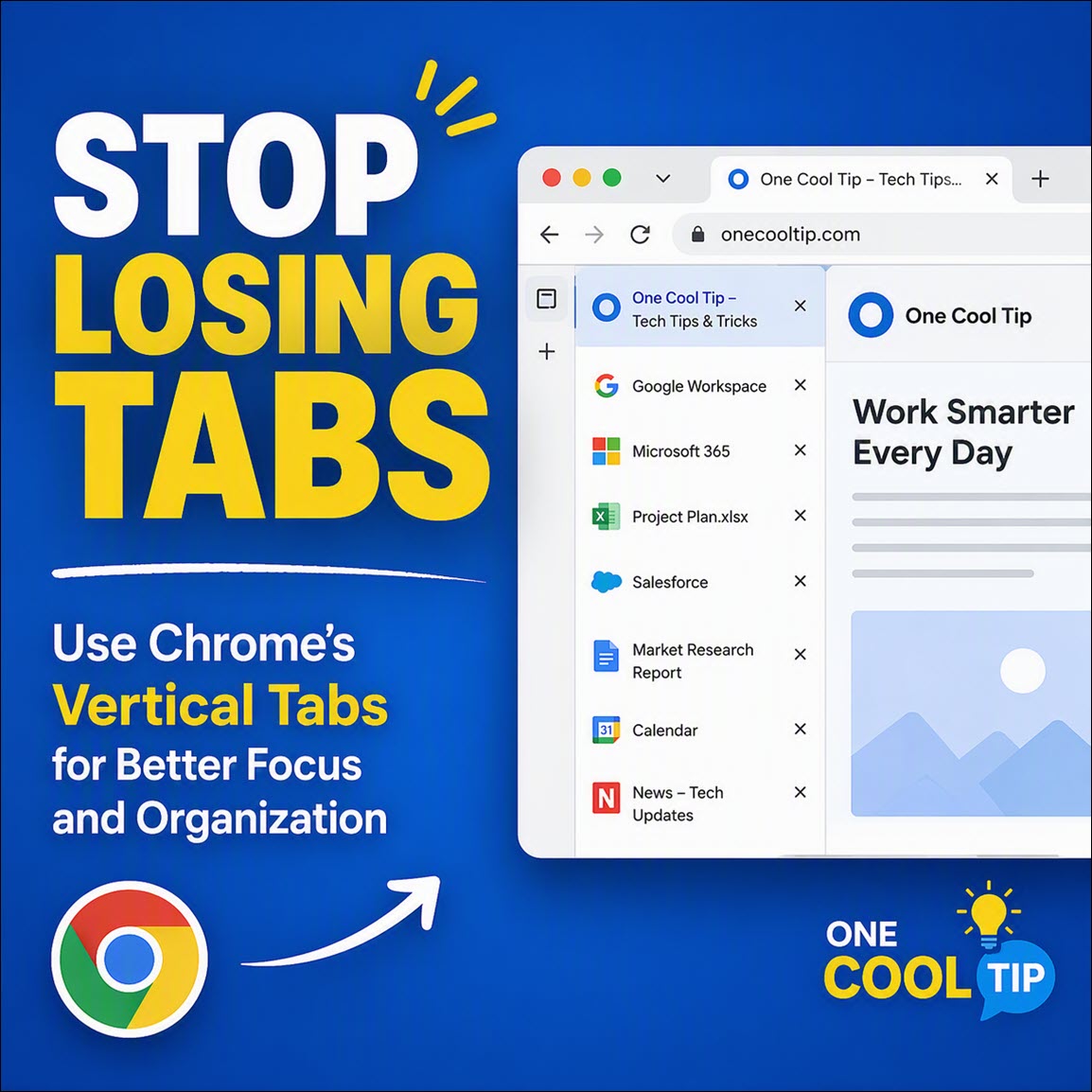
Cool Tip Theme: Chrome Vertical Tabs.


New here? Subscribe to the One Cool Tip Newsletter for daily updates. It's FREE!

3️⃣

If you enjoy the One Cool Tip newsletter, please forward this newsletter to THREE friends or colleagues or share it on social media using the links below.


Leave a $$$ Tip!


Share this One Cool Tip Newsletter!

X Share This Email
LinkedIn Share This Email
Pinterest Share This Email

🚨 Watch Out for Fake X Security Emails🚨


Scammers are targeting X users with convincing phishing emails that look like legitimate security alerts from the platform.


These messages often claim there was a suspicious login attempt and urge you to click a link to secure your account.


Official emails only come from @x.com or @e.x.com, and the company will never ask for your password in an email.


Before taking any action, check the sender's email address and avoid clicking links or opening attachments in unexpected messages.


If you are concerned about your account, log in directly through the X app or website instead of using links in the email.


Staying cautious can help protect your account and prevent scammers from stealing your information.


And in Other News...


Google Hit With $1 Billion EU Fine


European regulators have fined Google €890 million (about $1 billion) under the Digital Markets Act, a law designed to increase competition among major technology companies.


Regulators say Google gave its own services, including shopping and hotel results, more prominent placement in search results than competing services.


The EU also found that Google limited how app developers could direct customers to alternative offers outside the Google Play Store.


Google is reviewing the decision and may appeal, while regulators have ordered the company to make changes to comply with the law.


User Insight

🤔 How many tabs do you normally keep open at once?

Cool Deals of the Day

Help support One Cool Tip. Use this Amazon link when you shop online.


Check out these Cool Deals:

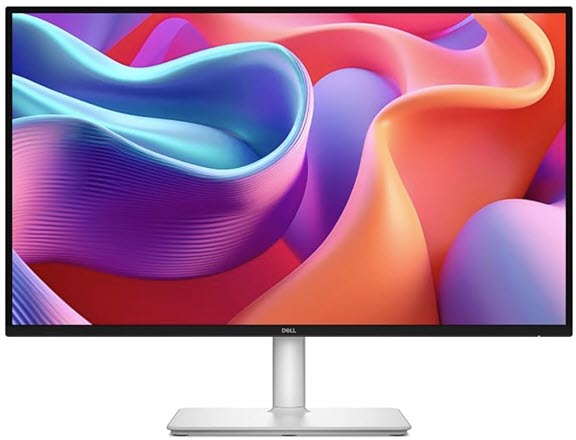
🖥️ Dell 27 Plus QHD USB-C Monitor: Excellent color accuracy and screen real estate to comfortably view vertical browser tabs alongside your main work apps.

Save 5%. $246.17. 4.8 Stars. Check it out on Amazon!


🖱️ Logitech MX Master 3S Wireless Mouse: Features an ultra-fast side thumb wheel that makes scrolling through long lists of vertical tabs effortless.

Save 20%. $79.99. 4.6 Stars. Check it out on Amazon!


⌨️ Logitech MX Keys S Wireless Keyboard: Quiet, comfortable low-profile typing with dedicated shortcut keys to manage browser windows and desktop navigation.

Save 8%. $119.99. 4.4 Stars. Check it out on Amazon!


*Prices accurate when originally published.

One Cool Tip may earn a commission from qualifying purchases.

Fuel Your Adventure

Try Big Mike's Jerky!


bigmikesjerky.com


Now on TikTok!


Today's Cool Tip

How to Organize Your Web Browser with Chrome Vertical Tabs


Google Chrome now lets you arrange open tabs along the side of your screen instead of crowding them across the top. Moving your tabs vertically keeps full page titles visible and helps you manage large research projects without losing your place.


Opening dozens of browser tabs during a busy workday used to turn your tab bar into a row of tiny, unreadable icons. 


Squinting at tiny favicons to figure out which page holds your spreadsheet or research document drains focus and slows down your momentum. 


Modern widescreen monitors offer plenty of side-to-side space, yet traditional browser layouts compress tabs horizontally until the title text disappears completely.


Here’s a Cool Tip: Switch Chrome to Vertical Tabs.


Google introduced native vertical tabs to help solve this daily workspace clutter. 


By shifting your tab layout to a vertical column on the side of your window, you can read full page titles, organize tab groups, and reclaim vertical screen space for reading websites.


Feature Explanation


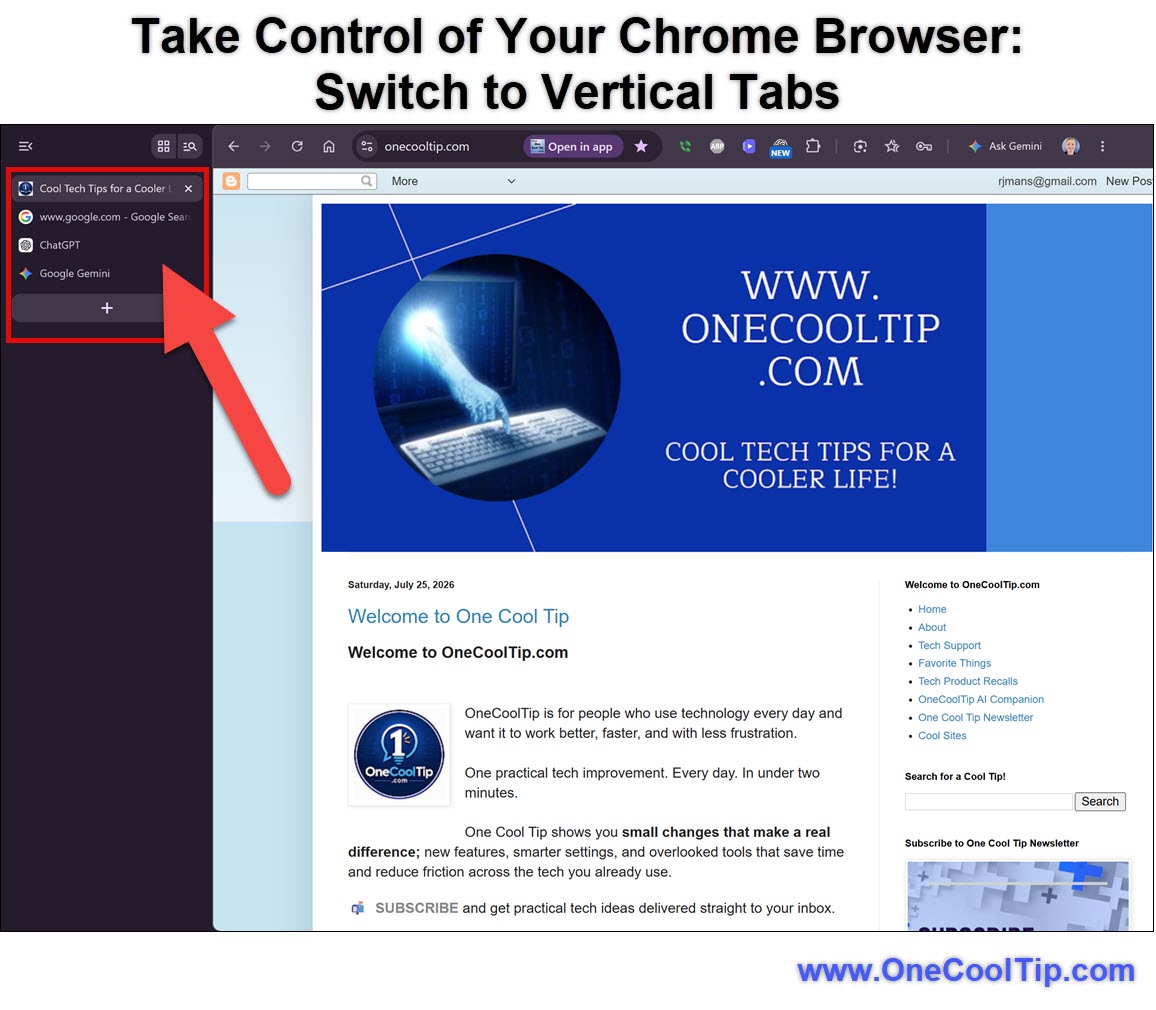
Chrome vertical tabs move your open web pages from the top of the browser window into a sidebar running down the left side of your screen.


When tabs are arranged horizontally, opening more than 10 or 15 pages causes the browser to shrink each tab. 


The text cuts off, leaving you with identical icons. 


Vertical tabs stack each page in a scrollable list. 


This layout leaves enough room to read page titles, view status icons, and see custom tab group labels regardless of how many pages you keep open.


The feature also includes a collapse control. 


With one click, you can collapse the vertical sidebar so it shows only the site favicons. 


This gives you maximum room on screen for reading articles or working in web apps while maintaining quick access to your open pages. 


If you organize your tabs into color-coded groups, those groups display vertically, creating clean visual sections for different tasks.


This update addresses a long-standing request from users who multitask across multiple web applications, write research papers, or compare products online.


What You’ll Gain


Save time by identifying open pages immediately without clicking through multiple tabs.


Reduce confusion when managing multiple tab groups for separate projects or clients.


Increase vertical screen space for web pages on widescreen laptops and monitors.


Maintain a clean visual organization even when working with 30 or more open pages.


Step-by-Step Instructions


Web/Desktop:


  1. Open Google Chrome on your desktop computer (Windows / macOS / ChromeOS / Linux).
  2. Right-click on any empty area of the top horizontal tab strip.
  3. Select Show Tabs Vertically from the context menu.
  4. Your tabs will instantly shift from the top bar to a vertical column on the left side of your screen.
  5. Click the collapse icon at the top of the sidebar to shrink the list down to favicons only when you need extra screen space.
  6. To switch back, right-click the sidebar or tab bar area and choose Show Tabs Horizontally.


fig. 1 - Chrome Vertical Tabs

Pros and Cons


Pros:


  • Displays full page titles so you never have to guess which tab holds your document.
  • Better utilizes widescreen monitors by shifting controls to the sides where space is available.
  • Works directly with tab groups to keep related tasks structured vertically.
  • Allows quick collapsing down to favicons for focused reading.


Cons:


  • Takes away a small amount of horizontal screen width on small laptop displays.
  • Requires a brief adjustment period if you are used to top-mounted tabs.
  • Staged updates mean some users may need to enable a flag temporarily.


Feature Access


  • Native vertical tabs began rolling out to stable desktop versions of Chrome starting in April 2026.
  • Availability applies to Chrome on desktop platforms including Windows, macOS, ChromeOS, and Linux. 
  • The feature is free and built directly into the browser. 
  • No additional paid subscription or third-party extensions are required. 
  • Because availability rolls out in stages, individual devices or enterprise-managed profiles may see the update at different times. 
  • Mobile versions on Android and iOS do not use this desktop sidebar structure.


Score

Criterion |  Score (0–10) |  Justification
Value |  9
Solves a major frustration for heavy tab users by making page titles clearly readable.
Usability |  9
Extremely easy to turn on with a single right-click and simple to collapse when needed.
Wow Factor |  7
While competitors have offered this for years, Chrome's native build is clean and long overdue.
Total: 25/30 |  🌟 Excellent
A practical upgrade that transforms Chrome tab management for anyone handling multiple web tasks.


Key Takeaways


Vertical tabs fix crowded browser header bars by organizing your active pages in a clear sidebar down the left edge of your screen. 


This layout reveals full page titles and integrates with tab groups, making everyday work much easier to navigate.


Cool Tip Snapshot


  • Feature Name: Chrome Vertical Tabs
  • Platform(s): Windows, macOS, ChromeOS, Linux
  • Quick Benefit: Displays full page titles and reduces header clutter
  • Best For: Multitaskers, researchers, and heavy tab users
  • Access Type: Free / Rolling Out
  • Difficulty: Easy


Try It Yourself


Ready to organize your browsing space? 


Give vertical tabs a try today by right-clicking your Chrome tab bar! 


If you found this Cool Tip helpful, please share this One Cool Tip with your family, friends, and coworkers.


READ MORE


Read the Full Cool Tip.

Check Out These Cool Tips & Tricks


  • Quick Switch: Toggle vertical tabs in seconds by right-clicking the top tab strip. Right-click the empty space on your current tab bar and choose "Show Tabs Vertically".


  • Instant Search: Find any open page without scrolling through your sidebar. Press Ctrl+Shift+A on Windows or Cmd+Shift+A on Mac to search open tabs by title.


  • Tab Groups: Organize related tabs together inside your vertical list. Right-click any tab, select "Add tab to new group," and name your project folder.


  • Collapse Groups: Keep your vertical bar clean by shrinking inactive task groups. Click the color dot next to a group name to collapse or expand its tabs.


  • Compact Mode: Reclaim horizontal screen space while keeping vertical navigation. Click the collapse arrow at the top of the vertical sidebar to show favicons only.


  • Pin Important: Keep essential apps fixed at the top of your vertical list. Right-click a tab like Gmail or Calendar and select "Pin".


  • Save Groups: Prevent losing your organized tab groups when closing Chrome. Right-click a group header and toggle on "Save group" to store it on your bookmark bar.


  • Mute Audio: Quickly silence noisy tabs from the vertical panel. Look for the small speaker icon next to the tab title and click it to mute audio playback.


  • Reopen Closed: Recover tabs you closed by mistake with a simple shortcut. Press Ctrl+Shift+T on Windows or Cmd+Shift+T on Mac to bring back your last closed page.


  • Experimental Flag: Force vertical tabs enabled if the option hasn't appeared yet. Type chrome://flags/#vertical-tabs in the address bar, set to Enabled, and relaunch Chrome.

ICYMI - In Case You Missed It ...

Put Yourself on the Pitch With Gemini Soccer Templates


The Gemini app offers a fun way to celebrate the global soccer tournament by inserting your personal photo into custom matchday scenes. You can instantly see yourself wearing your favorite team colors right on the pitch using just your smartphone.


Read the Full Cool Tip.


Read the Newsletter Version.

Looking for your next adventure?


Call Denise at Travel For You.

314.660.3039


Sign Up for the Monthly Newsletter


http://www.travelforyouvacations.com/


https://www.facebook.com/TRAVEL.FOR.U/


See You Tomorrow

Tomorrow's Cool Tip is waiting to amaze you.


Until then, go forth and conquer the tech world with your newfound knowledge!


Be sure to visit www.OneCoolTip.com for Cool Tech Tips for a Cooler Life!


And if you Like One Cool Tip, please support with TipJar!


Enjoy!


Rodger

Chief Cool Tipper

onecooltip.com@gmail.com


What Do You Think?

What do you think of today's OneCoolTip newsletter?
Positive        Neutral        Negative
X Share This Email
LinkedIn Share This Email

Connect with One Cool Tip!!

Facebook  X  Instagram  Web  Pinterest  YouTube  LinkedIn
 

As an Amazon Associate, One Cool Tip may earn a small commission from qualifying purchases.


Our media content is intended solely for informational purposes only. Please do not construe anything here as legal, tax, investment, financial, marital or other advice.


Copyright © 2026 | www.OneCoolTip.com | All Rights Reserved