|
How to Set YouTube’s Sleep Timer
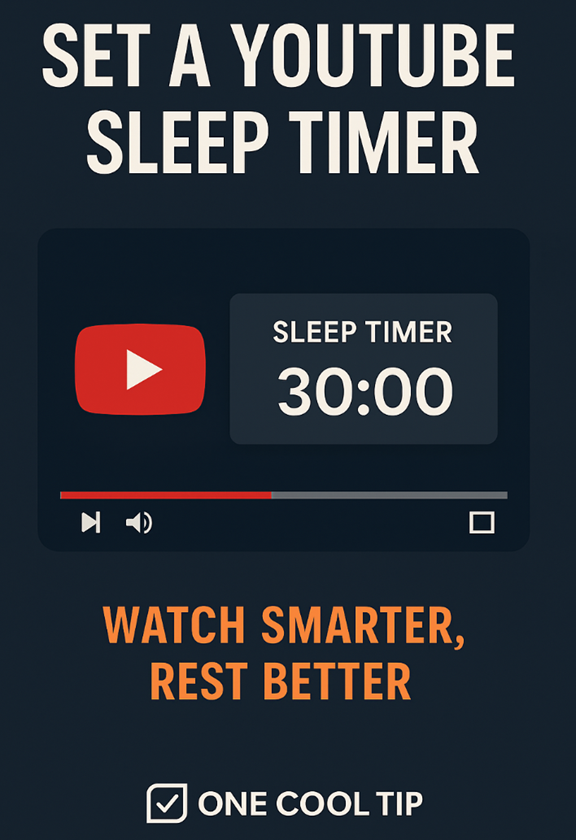
Use YouTube’s built‑in sleep timer on both PCs and mobile phones to pause videos automatically. This is ideal for winding down, zoning in on productivity, or just not falling asleep to needless autoplay chaos.
Have you ever nodded off to a video, only to wake at 3 a.m. realizing you’re the star of an impromptu all‑night binge?
Happens to the best of us.
Here's a Cool Tip: Set a YouTube Timer.
YouTube has a subtle but game‑changing little feature: the sleep timer.
Not flashy, not front‑and‑center, but it’ll quietly pause playback when you’re ready to call it a night or just reclaim your attention.
What You'll Gain
Stop playback automatically when you're done or drifting off
Save battery and data, no more runaway overnight streaming
Regain control, whether for focus or bedtime sanity
What the Feature Is & Why It Matters
This isn’t a countdown to show you when to wrap up.
It’s a one‑and‑done sleep timer that pauses your video after the time you choose.
For anyone trying to sleep, stay focused, or simply avoid unintentional marathon watching, it’s low‑warp but high‑utility.
Step-by-Step Instructions
On iOS and Android
- Open the YouTube app (Android / iOS) and start playing a video.
- Tap the video player to bring up the on-screen controls, then tap the Settings icon (the gear symbol) in the top-right corner.
- Select More.
- From the menu that appears, select Sleep timer.
- Choose your desired time limit: you can select a preset duration like 10, 15, 30 minutes, or choose for the video to stop at the end of the video.
On Desktop
- Navigate to the video you want to watch on YouTube's website.
- Click the Settings icon (the gear symbol) in the bottom-right corner of the video player.
- From the menu that appears, click on Sleep Timer.
- Choose your desired time limit from the preset options (e.g., 10, 15, 30 minutes) or select to have the video stop at the end of the current video.
Pros and Cons
Pros:
- Simple, intuitive setup across devices
- Ideal for bedtime routines or background listening.
- Reduces screen time and battery usage.
Cons:
- Timer resets require manual interaction.
- No granular scheduling (e.g., recurring nightly timers).
- Limited customization beyond duration.
Feature Access
Available to all YouTube viewers.
Score
Criterion Score (0–10) Justification
Value 7
Pauses playback when you want. It's simple but solves real problems with late-night watching and productivity.
Usability 6
Easy to use once you know how to do it.
Wow Factor 5
Not revolutionary, but quietly delightful once discovered. Practical rather than dazzling.
Total 18 / 30 Good. Worth adopting for most users.
Key Takeaways
The sleep timer is a small but underappreciated tool.
Use it to save sleep and simplify your evening focus.
Try It Yourself
Set a sleep timer, see how it changes your ending-of-day routine.
Share your best “I actually slept through Baby Shark” story in the comments.
If this helps your team, share it.
If you love it, subscribe to the One Cool Tip newsletter.
READ MORE
Read the Full Cool Tip
|