|
Watch YouTube With Fewer Ads
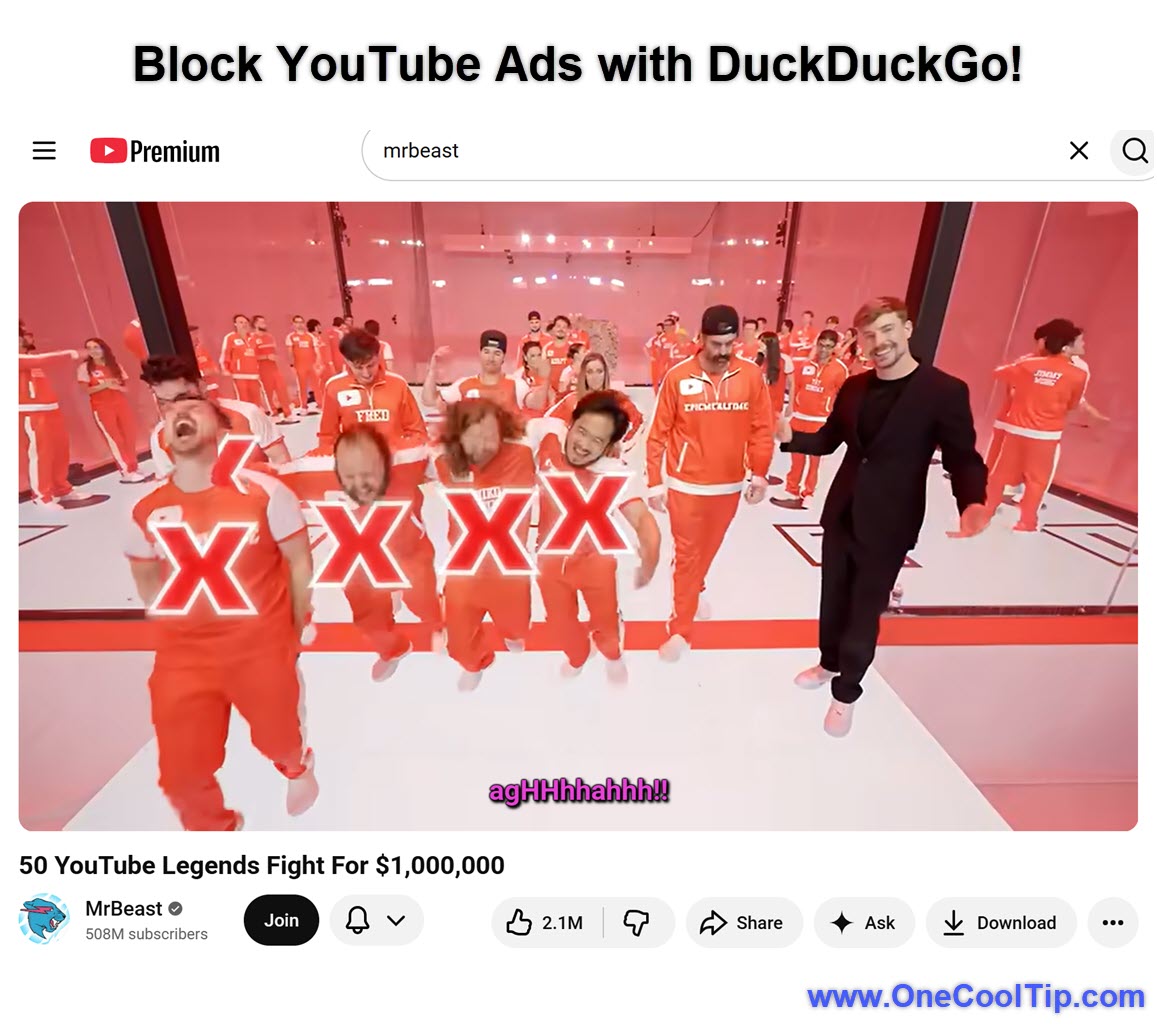
DuckDuckGo’s free browser can now block most advertisements that play before and during YouTube videos. You can continue using the familiar YouTube website without installing a separate ad-blocking extension or paying for a subscription.
You open YouTube to watch a quick tutorial, product review, or news clip. Before the video begins, an advertisement appears. Another interruption arrives halfway through.
Here’s a Cool Tip: Watch YouTube with Fewer Ad Interruptions in DuckDuckGo.
DuckDuckGo now offers a free alternative for people who watch YouTube in a web browser.
Its built-in YouTube Ad Blocking feature blocks most video advertisements that appear before and during videos.
DuckDuckGo introduced the feature on July 8, 2026. It is available in the company’s browser for Windows, macOS, iPhone, iPad, and Android. No DuckDuckGo account or paid subscription is required.
There is one important limitation: You must watch YouTube through the DuckDuckGo browser.
The feature does not work inside the native YouTube app on a phone or tablet.
Feature Explanation
YouTube Ad Blocking is built directly into the DuckDuckGo browser.
It uses community-maintained filter lists sourced from the uBlock Origin project, along with additional DuckDuckGo rules designed to improve compatibility and reduce playback problems.
These lists are updated as online advertising methods change.
The feature blocks video ads while leaving you on the standard YouTube website.
You can still sign in, manage subscriptions, save videos, read comments, use playlists, and maintain your viewing history.
This differs from Duck Player, another feature in the DuckDuckGo browser.
Duck Player opens videos in a simplified theater-style interface and prevents the videos you watch from influencing your personalized YouTube recommendations or advertising profile.
YouTube can still record the video view, so Duck Player does not make viewing completely anonymous.
You can enable both features at the same time.
YouTube Ad Blocking provides the regular YouTube experience with fewer interruptions, while Duck Player adds a more private and distraction-free viewing option.
What You’ll Gain
-
Fewer interruptions: Block most pre-roll and mid-roll video advertisements.
-
No added subscription: The feature is included in DuckDuckGo’s free browser.
-
Familiar controls: Continue using playlists, comments, subscriptions, and playback settings.
-
Easy control: Disable or restore ad blocking from the browser settings or while watching a video.
Step-by-Step Instructions
Here's how to do it.
Windows
-
Install or update the DuckDuckGo browser.
-
Open the browser menu.
-
Select Settings.
-
Select Ad Blocking.
-
Confirm that YouTube Ad Blocking is turned on.
-
Visit YouTube in the DuckDuckGo browser and play a video.
-
To change the setting while watching, select the video icon beside the green shield in the address bar.
|