One Cool Tip Newsletter

August 25, 2025

Your daily dose of tech-savvy brilliance!

😀Greetings! Happy Monday, Cool Tipper!


Get ready to streamline your digital life with simple, actionable tips delivered straight to your inbox.


Today's Cool Tip Theme: New Brush and Fountain Pens in Microsoft 365


IN THIS ISSUE


  • 🚨 Cybersecurity Alert: Russian Cyber Actors.
  • 🤖 AI Productivity Prompts.
  • 📝 OneNote for Windows 10 is Ending.
  • 🖊️ New Office Pen Tools.
  • ✍️ Microsoft Quick Parts.
  • 🖼️ Pictures in Excel Cells.
  • 🚀 Teams Shortcut.


New here? Subscribe to the One Cool Tip Newsletter for daily updates. It's FREE!


  • 😂 Laugh with Us! Enjoy our Tech Joke of the Day, Haiku and Cool Tip Comics.


  • 🌐 Stay Informed! Check out ICYMI, and our One Cool Tip Video.


🔔 Is your email provider (Gmail, Yahoo, Outlook...) not delivering the newsletter? 


Check the Junk folder - Move the newsletter to your Inbox. And reply to this email with a “Hey, Rodger” or “I got it.” That tells your mail service you want this newsletter!


Today's Tech Trivia


Which Microsoft Office app was the first to introduce digital inking tools?


A) Excel

B) PowerPoint

C) OneNote

D) Word


Answer at the end of this newsletter.

3️⃣

If you enjoy the One Cool Tip newsletter, please forward this newsletter to THREE friends or colleagues or share it on social media using the links below.


Leave a Tip!


Share this One Cool Tip Newsletter!

X Share This Email
LinkedIn Share This Email
Pinterest Share This Email

🔥Hot Topics 🔥

🚨Check Your Router

Russian Cyber Actors Are Targeting Legacy Devices🚨


If you’re still using an old router or networking gear, now’s the time to take a closer look.


The FBI has issued a public warning about Russian government-linked cyber actors, specifically FSB’s Center 16, targeting outdated networking devices across the U.S. and globally.


These attackers are exploiting vulnerabilities in legacy protocols like SNMP and Cisco’s Smart Install (CVE-2018-0171), some of which haven’t been patched in years.


The threat isn’t theoretical.


The FBI detected widespread reconnaissance activity, including unauthorized access and configuration changes on thousands of devices tied to critical infrastructure.


These actors, known in cybersecurity circles as “Berserk Bear” or “Dragonfly”, have a long history of compromising routers and switches that still accept unencrypted traffic.


And in Other News...


  • OneNote for Windows 10 Is Going Read-Only. Act Before October 14


Microsoft has officially announced that support for OneNote for Windows 10 will end on October 14, 2025. After that date, the app becomes read-only, you’ll be able to view your notes, but not edit or sync them. If you rely on this version for teaching, organizing, or collaborating, it’s time to switch to the newer OneNote on Windows app.


Here’s what to do now:


  • Open OneNote for Windows 10 and sync all notebooks to OneDrive or SharePoint.
  • Use the in-app banner to migrate your notes to the supported version.
  • Download the latest OneNote on Windows app. It’s free, secure, and packed with new features.


Don’t wait until your notes are locked in place. Make the move now to stay productive and protected.


🚀 Make It a Great Week!


Copy/Paste these AI-powered prompts. Use with your favorite AI assistant: Gemini, Copilot, Grok, DuckAI, Meta and ChatGPT.


1. Conversation Starter

"Give me a professional but lighthearted icebreaker I can use at the beginning of a Zoom meeting."


2. Clear Writing

"Rewrite this sentence to sound concise and professional, without changing the meaning: [insert sentence]."


3. Idea Spark

"Suggest three fresh ways to make a weekly team update more engaging, without adding more slides or meetings."


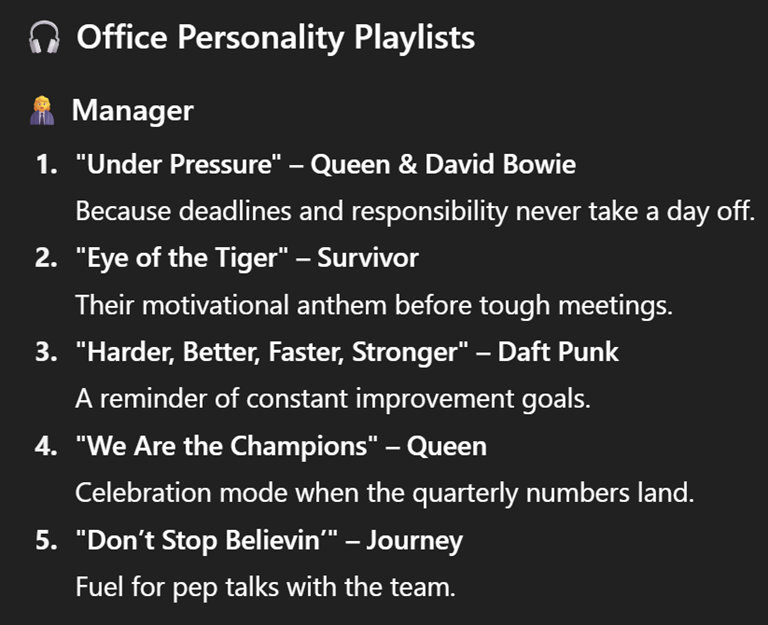
🖼️ Cool ChatGPT AI Prompt of the Day:


"Take the roles in a typical office: manager, intern, IT support, finance, HR, and create a 5-song playlist for each role that reflects their personality and daily vibe. Include a one-sentence explanation of why each song fits.

Today's Cool Tip

New Pen Tools in Microsoft 365


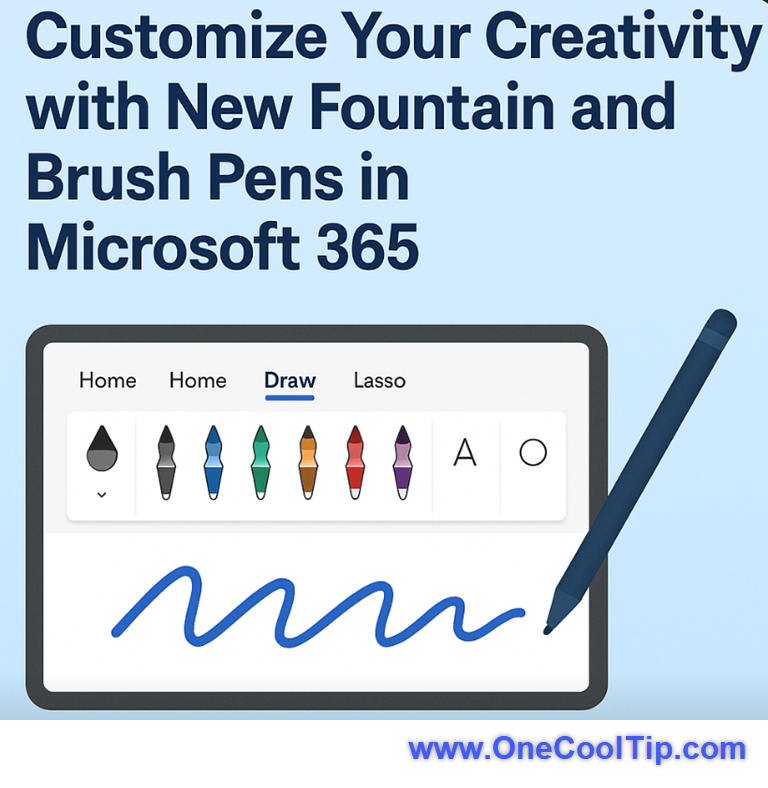
Microsoft just gave Word, Excel, and PowerPoint a subtle but powerful upgrade: new Fountain and Brush pens plus full control over your Draw tab layout. Here's how to make your digital handwriting feel more like your own.


What if your favorite pen could follow you into every document?


For years, OneNote users have enjoyed the expressive flair of the Brush and Fountain pens. 


Here's a Cool Tip:  Use the Brush and Fountain pens in Word, Excel and PowerPoint.


Microsoft is finally bringing those same tools to Word, Excel, and PowerPoint for Windows. 


But this update isn’t just about new ink, it’s about control. 


You can now reorder, remove, and personalize your Draw tab to match how you actually work.


It’s a small change, but one that feels surprisingly personal. Like rearranging your desk so your favorite pen is always within reach.


What You'll Gain


Personalize your Draw tab with the tools you use most


Add expressive flair to notes, annotations, and presentations


Save time by removing clutter and customizing your workflow


New Pen Tools & Draw Tab Customization: What’s New?


Microsoft has added two new digital pens to Word, Excel, and PowerPoint for Windows:


Fountain Pen: Ideal for elegant note-taking or stylized writing in Word.


Brush Pen: Great for expressive annotations in PowerPoint or sketching in Excel.


Alongside these, you now have the ability to reorder, delete, and duplicate drawing tools in the Draw tab. That means no more scrolling past pens you never use just to find your go-to highlighter.


This update is available in Version 2508 (Build 19127.20000) or later.


Step-by-Step Instructions


Here's how to do it.


On Windows Desktop (Word, Excel, PowerPoint)


  1. Open any document or presentation.
  2. Click the Draw tab.
  3. Locate the new Fountain and Brush pens.
  4. To reorder tools: Press and hold a tool, then drag it left or right.
  5. To delete a tool: Right-click or press and hold, then select Delete Tool.
  6. To add a tool: Click the + Add Tool button at the end of the toolbar.
Note: You can’t reorder Select, Lasso Select, or Eraser tools.


On iOS and Android


These customization features are currently Windows-only. 


Mobile users can still access basic inking tools but won’t see the new pens or tab customization yet.


Pros and Cons


Pros:


  • Customization: Tailor your workspace to your habits.
  • Expressiveness: The Brush and Fountain pens add personality to your writing.
  • Efficiency: Removing unused tools declutters your workflow.


Cons:


  • Limited to Windows: Mobile and Mac users are left out for now.
  • No reordering for selection tools: Some tools remain fixed in place.


Configuration Guide


To customize your Draw tab:


  1. Open the Draw tab.
  2. Right-click or press and hold on any tool.
  3. Choose Modify, Move, Add, Delete, or Drag to reorder.
  4. Use the + Add Tool button to add new pens or highlighters.


Feature Access


Available to Microsoft 365 users on Windows running Version 2508 (Build 19127.20000) or later. 


No additional subscription tier required. 


Not yet available on Mac, iOS, or Android.


Score

Criterion | Score | Justification
Value: 9/10 
Improves productivity by streamlining the Draw tab and adding expressive tools for note-taking and annotation.
Usability: 8/10 
Simple drag-and-drop interface with intuitive customization. No training required.
Wow Factor: 7/10 
Not groundbreaking, but the new pens and layout control feel refreshingly personal.
Total Score: 24/30 👍 Good. Worth adopting for most users.


Key Takeaways


Microsoft’s new pen tools and Draw tab customization bring a welcome dose of personality and control to Office apps. 


If you use digital ink regularly, this update is worth exploring.


Try It Yourself


Open Word, Excel, or PowerPoint and head to the Draw tab. 


Try the new pens, rearrange your tools, and see how a little customization can make a big difference. 


Share your favorite setup in the comments and subscribe to the One Cool Tip newsletter for more daily tech wins.


READ MORE


Read the Full Tip.

Cool Products

Help support One Cool Tip. Use this Amazon link when you shop online.


Look at these Cool Products:

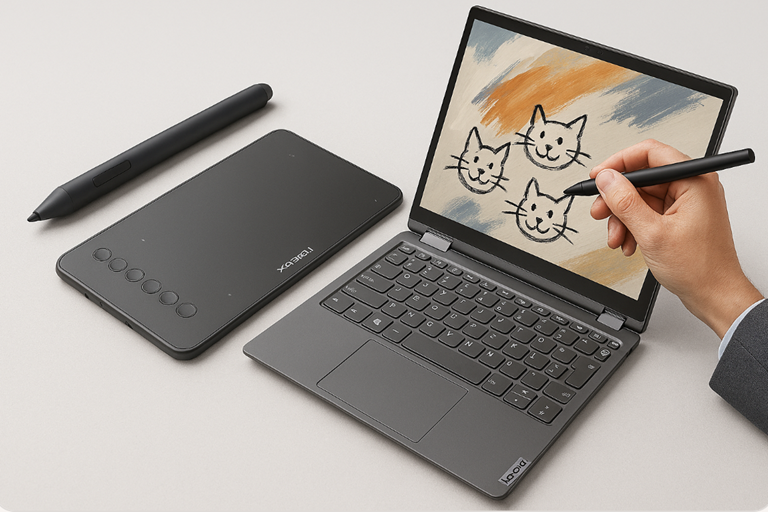
  • 🖊️ Pen for Microsoft Surface: Precision stylus with tilt support and pressure sensitivity, perfect for inking in Office. Overall Pick. Save 20% Limited Time Deal. Check it out on Amazon!


  • 📱 XP-Pen Deco Mini7 Drawing Tablet: Compact and affordable tablet for digital handwriting and sketching. Overall Pick. Save 10% Check it out on Amazon!


  • 💻 Lenovo Yoga 9i 2-in-1 Laptop: Touchscreen laptop with stylus support, ideal for Office users who ink often. Overall Pick. Check it out on Amazon!


Cool Thoughts

🆒Tell Me More


  • The new Fountain and Brush pens are now available in Word, Excel, and PowerPoint for Windows (Version 2508 or later).


  • You can drag-and-drop tools in the Draw tab to reorder them, except for Select, Lasso Select, and Eraser.


  • The customization is local to each app, so your setup in Word won’t affect Excel or PowerPoint.


  • These features are exclusive to Microsoft 365 subscribers on Windows.


  • Mobile and Mac users don’t have access to these new tools, yet.


⏩Quick Tips


  • 🖋️ Try the Fountain Pen for elegant note-taking in Word. → Go to the Draw tab, click “+ Add Tool,” and select Fountain Pen.


  • 🎨 Use the Brush Pen for expressive annotations in PowerPoint. → Add it via the Draw tab and choose your preferred color swatches.


  • 🧹 Clean up your toolbar by removing unused pens. → Right-click any tool and select “Delete Tool.”


  • 🔄 Duplicate your favorite pen with custom settings. → Right-click a tool and choose “Duplicate Tool,” then adjust thickness and color.


  • 🧭 Reorder tools to match your workflow. → Press and hold a tool, then drag it left or right in the Draw tab.


✅ More Must-Read Tech Tips

👀 How Do I Save Time and Effort in Microsoft 365?


Do you often find yourself typing the same text over and over again in your emails and documents? 


If so, try this Cool Tip: Microsoft Quick Parts.


Quick Parts is a feature that allows you to create, store, and insert snippets of text, graphics, fields, and document properties into your Microsoft Word and Microsoft Outlook files. 


You can use Quick Parts to speed up repetitive tasks, such as adding directions, signatures, meeting notes, and more.There are different types of building blocks, such as AutoText, Document Property, Field, and Header. 


AutoText is the most common type of building block that stores text and graphics. 

For example, you can create an AutoText entry for your email signature and insert it into any email with a few clicks.


How to Create a Quick Part


  1. Select the text or graphic that you want to save as a Quick Part. You can select any amount of content, from a single word to a whole paragraph or table.
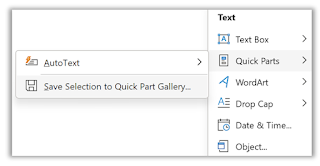
  2. On the Insert tab, in the Text group, click Quick Parts.
  3. Click Save Selection to Quick Part Gallery.
  4. In the Create New Building Block dialog box, give your Quick Part a name and choose a gallery where you want to store it. You can also add a description, category, and options for how you want it to be inserted.
  5. Click OK.


Your Quick Part is now saved and ready to use.


Read the Full Cool Tip to Learn More!


Discover more HERE. 

🤔 Have You Ever Wondered How to Insert a Picture in a Cell in Microsoft Excel?


Have you ever wanted to insert a picture into a cell in Microsoft Excel, but didn’t know how? 


Do you want to make your spreadsheets more visually appealing and engaging? 


You can now insert pictures inside an Excel cell and not just on top of it.


Previously, you could only insert a picture on top of cells.


Here's how to do it:


  1. Open the worksheet where you want to insert the picture.
  2. Select the cell where you want to insert the picture.
  3. Click on the Insert tab in the ribbon at the top of the screen.
  4. Click on the Pictures button in the Illustrations group.
  5. Select Place in Cell.
  6. Select where to Insert Picture From
  7. Navigate to the location of the picture and select it.
  8. Click on the Insert button to insert the picture into the selected cell.


Find more HERE. 

🙋‍♂️ Here's How to Unleash Productivity with This Cool Keyboard Shortcut in Microsoft Teams


Are you getting the most out of Microsoft Teams? 


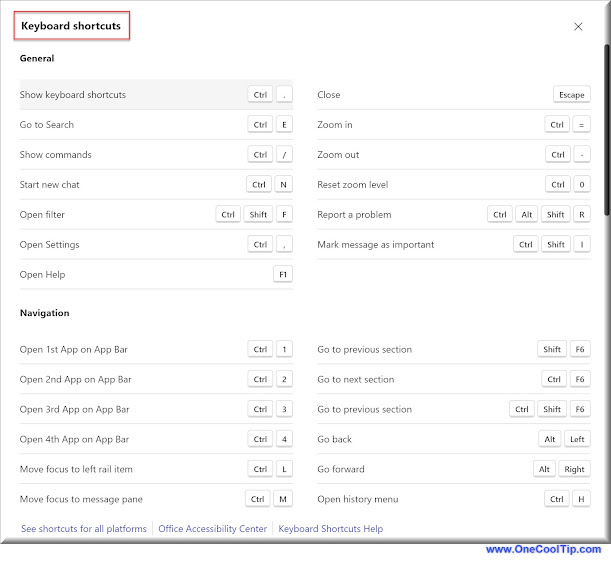
Here's a Cool Tip.  Use the Control + . (period) keyboard shortcut.


This shortcut brings up a helpful screen of keyboard shortcut commands in Teams.


Here's how to do it.


  1. Open Microsoft Teams.
  2. Ensure you’re logged into your account.
  3. Press Control + . (period) on your keyboard.
  4. A window displays all the keyboard shortcuts available in Microsoft Teams.


Instantly view all shortcuts without navigating through menus.


Learn more HERE. 

❓Did you share this newsletter with three friends yet?


😎 Cool Facts


  • 85%: Most Office users never customize their toolbar, missing out on major productivity gains.


  • 350 Million: Microsoft 365 has over 350 million active users globally.

  • 23%: Studies show that handwritten notes can improve memory recall by 23% compared to typed notes.


⌨️Today's Cool Keyboard Shortcuts


Cool Keyboard shortcuts:


  • Windows: Ctrl + P: Print your annotated document.
  • Word: Ctrl + Z: Undo your last ink stroke.
  • Excel: Ctrl + Shift + L: Toggle filters after marking data.
  • PowerPoint: Ctrl + M: Add a new slide for sketching.


😜 Tech Joke of the Day 😅


What do you call a stylus that tells jokes?


A puncil.


🔎 Do you have a Cool Tip or tech question? Email us at onecooltip.com@gmail.com.

Haiku

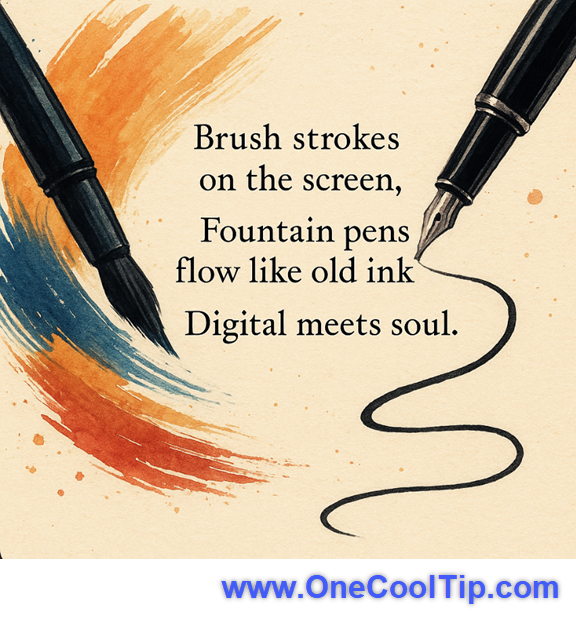
Brush strokes on the screen,

Fountain pens flow like old ink,

Digital meets soul.

Cool Tip Pulse

🤔 How do you use digital ink in Microsoft Office?


Fuel Your Adventure

Try Big Mike's Jerky!


bigmikesjerky.com


Now on TikTok!


Did You See These Cool Tips This Week?

NASA Comes to Netflix: Space Meets Streaming

Netflix is bringing NASA’s most exciting missions directly to your living room. Beginning this month, live streams of rocket launches, spacewalks, and groundbreaking missions will be available on Netflix, no cable channel, no clunky app, just space exploration integrated into the platform you already binge-watch.

How Google Maps Is Taking Fans on a Ride with Benson Boone

The popular navigation app is collaborating with the musician to let you swap your boring blue arrow for a vintage Ford Mustang and more. Here’s how you can take it for a spin and what it means for the future of digital experiences.


Find Your Adventure

Looking for your next adventure?


Call Denise at Travel For You.

314.660.3039


Sign Up for the Monthly Newsletter - Deals and Specials


http://www.travelforyouvacations.com/


https://www.facebook.com/TRAVEL.FOR.U/


ICYMI - In Case You Missed It ...

Discover Aotearoa with i-Spy New Zealand

Uncover a fresh twist on edtech: i-Spy New Zealand turns scenic scenes into clickable fun, making geography and culture accessible, especially for educators, learners, and productivity-focused adults.


One Cool Tip Video

Unlock the Power of PowerPoint: How to Merge Shapes


Have you ever wanted to create a unique shape in PowerPoint, but couldn’t find the right one in the built-in library? 


Watch


Cool Tip Comics

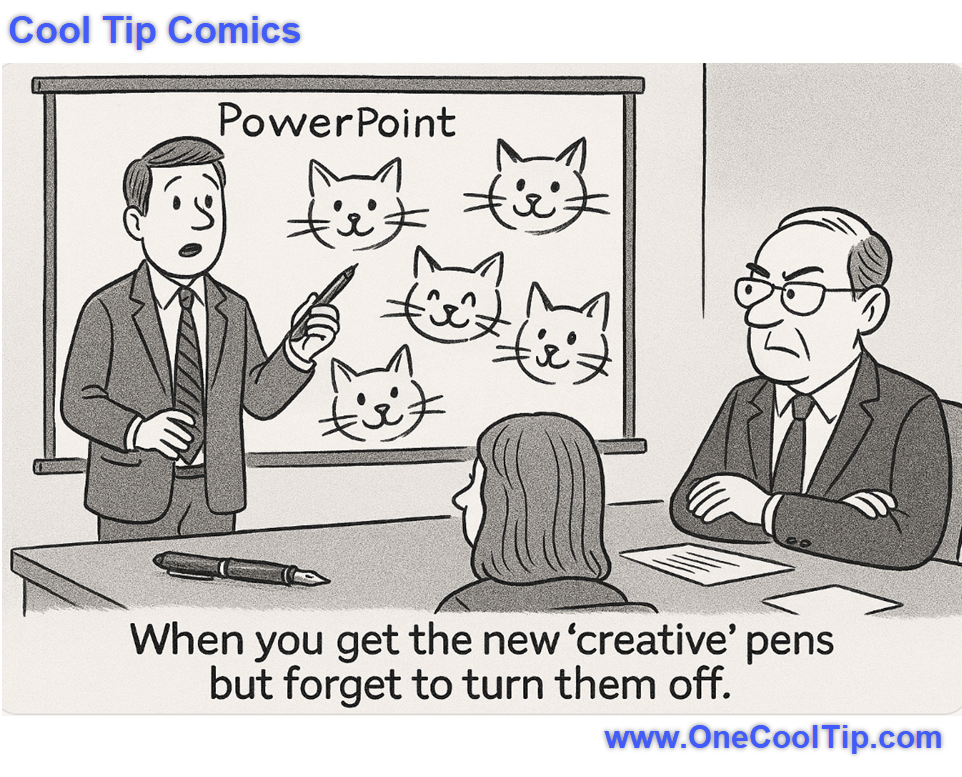
Your PowerPoint’s supposed to show quarterly revenue, but instead it’s giving quarterly meow-venue! lol.


See You Tomorrow

Trivia Answer: C) OneNote


OneNote was the pioneer in digital inking within Microsoft Office, debuting stylus support and handwriting recognition as early as 2003.


It was designed from the ground up for note-taking, making it the natural home for pen-based input.


The success of inking in OneNote paved the way for broader adoption across Word, Excel, and PowerPoint.


----------


Tomorrow's Cool Tip is waiting to amaze you.


Until then, go forth and conquer the tech world with your newfound knowledge!


Be sure to visit www.OneCoolTip.com for Cool Tech Tips for a Cooler Life!


And if you Like One Cool Tip, please support with TipJar!


Enjoy!


Rodger

Chief Cool Tipper

onecooltip.com@gmail.com


What Do You Think?

What do you think of today's OneCoolTip newsletter?

Please Share the One Cool Tip Newsletter!


You asked for it. You got it. There is now a One Cool Tip Newsletter archive. Did you delete a newsletter and want to read it again? Check it out HERE.


Want to help One Cool Tip grow? Please forward this email using the link above. And if you see an OCT social media post, please LIKE, COMMENT and SHARE!


Have you subscribed to the One Cool Tip YouTube channel? Subscribe HERE.

X Share This Email
LinkedIn Share This Email

Connect with One Cool Tip!!

Facebook  X  Instagram  Web  Pinterest  YouTube  LinkedIn
 

As an Amazon Associate, One Cool Tip may earn a small commission from qualifying purchases.


Our media content is intended solely for informational purposes only. Please do not construe anything here as legal, tax, investment, financial, marital or other advice.


Copyright © 2025 | www.OneCoolTip.com | All Rights Reserved