Guest Speakers Help Employees Manage Money Matters
During September, October and November, experts in various financial fields will provide an abundance of valuable information and answer questions, from the most basic to advanced. These sessions are free for faculty, staff, and their spouses. Visit the Professional Development Learning Library for more information and to sign up.
Friday, 09/11 - 1:30pm-3:30pm - A Different Kind of Savings 457 and Roth 457 Deferred Compensation
Friday, 09/18 - 1:30pm-3:30pm - Income Tax Planning: Smart Planning for Your Taxes
Friday, 09/25 - 1:30pm-3:30pm - Planning for Retirement with the Florida Retirement System
Friday, 10/16 - 1:30pm-3:30pm - Medicare Made Easy
Friday, 10/23 - 1:30pm-3:30pm - Protecting Your Family's Future: Estate Planning
Friday, 10/30 - 10:00am-12:00pm - Social Security and Your Retirement
Friday, 10/30 - 1:30am-3:30pm - Social Security and Your Retirement
Friday, 11/06 - 1:30pm-3:30pm - Nearing Retirement in the FRS
All sessions will be held both in the HR Training Room in Building 20 West - Room 156A and virtually via Zoom for employees that request to attend that way.
If you have any questions, please contact Elsie Rivera at 850.474.2921 or April Harvey at 850.972.9005.
| |
Multi-Factor Authentication (MFA) Now Required for People First Portal Login.
The People First portal login process has transitioned to include Multi-Factor Authentication (MFA). MFA is a security layer that requires you to provide two or more forms of identification, your People First password plus a temporary code provided via your authentication method. These additional MFA security measures align People First with industry’s best practices.
MFA has multiple ways to authenticate:
- Notification email for inactive employees
- Work email for active employees
- Cell phone number with SMS capabilities (aka text messages)
- Authentication app
Contact People First at 866-663-4735 with questions or for assistance.
| |
Important Open Enrollment Dates and Information
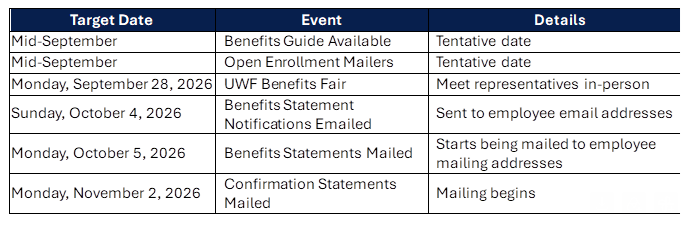
2027 Open Enrollment Updates:
| | Open Enrollment Information Dates: | | |
Key Action Items for Employees:
- Log into People First and update your mailing and email addresses in the system prior to September 30, 2026.
- Thoroughly review Confirmation Statements upon receipt to verify your elected benefits for the 2027 plan year.
Open Enrollment Important Links:
Contact Raven Ransom at 850.474.3093 or Elsie Rivera at 850.474.2921 with questions.
|
Benefits Dates – Mark Your Calendar for Open Enrollment and the Benefits Fair
The Human Resources Benefits Team is planning for this year’s Open Enrollment for the 2027 plan year. The window for making changes to State of Florida insurance plans begins October 12, 2026 and ends October 30, 2026.
The annual employee Benefits Fair will be held on Monday, September 28, 2026. Make plans to join us in the Commons Conference Center between 10:00 am and 2:00 pm. Leaders in each department may wish to explore options for office coverage that would allow all employees to attend this important event. Other information pertaining to the 2027 plan year will be published once it is available.
If you have any questions, please contact April Harvey at 850.972.9005 or Elsie Rivera at 850.474.2921.
|
Fetch Peace of Mind with MetLife Pet Insurance
At the University of West Florida, we know that pets are family too. That is why we are excited to announce that employees now have access to MetLife Pet Insurance as part of our benefits offerings.
With this new coverage, you can help protect your pets and your wallet from the unexpected; while ensuring they receive the care they deserve.
Why Enroll in Pet Insurance?
MetLife Pet Insurance offers flexible plans designed to fit your needs:
-
Comprehensive Coverage – Protects against accidents, illnesses, and even routine care.
-
Flexible Reimbursement Options – Choose from 50%, 70%, 80%, or 90% reimbursement.
-
No Breed Exclusions – Coverage available for all breeds, with multi-pet options.
-
Switch-Friendly – Previously covered pre-existing conditions may be eligible when transferring from another provider.
-
Discounts & Offers – Save up to 30% on coverage (availability varies by state).
-
24/7 Virtual Vet Access – Get immediate support via live chat through the MetLife Pet app.
Key Highlights
- Visit any licensed U.S. veterinarian.
- Coverage available for multiple pets.
- Virtual veterinary services available through AskVet.
- Quick and easy enrollment process.
How to Get Started
Enroll today and give your furry friends the protection they deserve!
At MetLife Pet, pets are treated like family just like we do here at UWF. Do not miss this chance to bring peace of mind and extra care to your four-legged loved ones.
| |
|
Responding to Reports of Harassment or Discrimination
Employees play an important role in ensuring that reports of harassment or discrimination are addressed promptly and appropriately. As a Title IX mandatory reporter or, for supervisory employees, a Title VII mandatory reporter under institutional policy, your responsibility is to recognize, respond, and report, not investigate or determine whether a policy violation occurred.
If a student or employee shares information that may involve harassment, discrimination, sexual misconduct, or other prohibited conduct:
-
Listen and remain professional. Avoid judgement
-
Do not promise confidentiality, but protect their privacy. Inform them that as a mandatory reporter, you cannot guarantee confidentiality; however every effort will be given to protect the privacy of all parties.
-
Avoid investigating or imposing your own discipline. Do not attempt to determine whether the conduct occurred, interview witnesses, confront the alleged offender, or make conclusions about responsibility.
- Report promptly and work collaboratively with the Title IX Coordinator/Equal Opportunity Officer.
Your role is to provide accurate information about available resources and reporting options while allowing Title IX and EO to explain the applicable process.
Resources can be found at uwf.edu/gethelp or uwf.edu/eoo.
When in doubt, report. Federal guidance emphasizes prompt, impartial, and appropriate responses to harassment reports, as well as protection from retaliation. Prompt reporting allows the university to evaluate the information, address potential concerns, connect individuals with appropriate resources, and take action consistent with university policy and applicable law.
If you have any questions, please contact Jenny Palacios, Title IX Coordinator/Equal Opportunity Officer, at 850.474.2175.
| | |
Performance Evaluation Requirements and Best Practices
As employees and supervisors finalize and submit performance evaluations for FY 25 / 26, please keep in mind the following requirements and best practices for completing performance evaluations:
- Per the University's evaluation policy, comments from a supervisor are required for any competency rated above or below "Satisfactory".
- Performance evaluations should assess an employee's work-related behaviors, accomplishments, competencies, and results during the evaluation period using objective, job-related information.
- Personal circumstances should not be included or mentioned in a performance evaluation, including medical, family, or any other personal information that is not directly associated with work-related performance.
- If an employee is supervised by multiple supervisors during the annual evaluation period, the supervisors should collaborate on the completion of the employee's annual performance evaluation.
- If the supervisor during the annual evaluation period is no longer with the University, and there is no individual that is able to speak to the employee’s performance, the employee will automatically receive a rating at the same level as the most recently completed evaluation.
Questions? Please contact the Training and Development Coordinator, Grace Giddens, at 850.474.3481.
| | 2025 - 2026 University Work Force Employee Annual Reviews – Remaining Timeline | |
** If a supervisor does not complete the evaluation for a direct report by August 31, the supervisor, the employee, and the 1-up supervisor will receive auto-generated, past-due emails until complete.
If you have any questions, please contact Jack Kolodziejski, Assistant Director of Employee Relations, at 850.474.2292.
|
Using the Personnel Action Form Template in DocuSign
Sending a Personnel Action Form (PAF) for University Work Force, Faculty, or OPS Staff employees? You can save time and streamline your workflow by using our pre-built DocuSign templates!
To get started, two division-specific templates are available in DocuSign:
- Personnel Action Form - Academic Affairs
- Personnel Action Form - NON Academic Affairs
💡 Need Access? Access to these templates is managed by Academic Affairs or Human Resources, depending upon the template.
To complete a PAF using one of the templates, utilize the following steps:
-
Generate the Personnel Action Form (PAF) – You will generate the PAF through the customary PAF generator tool in MyUWF and save it as a PDF to your computer so it can be uploaded to DocuSign. The PAF generator will automatically name the PDF using elements from the PAF. Please do not change the generated file name before you upload it to DocuSign. The file name generated contains important information that is used by Human Resources.
-
Open DocuSign – Log into MyUWF. Once there, search for DocuSign. Click DocuSign in the search results and a new tab will open and you will be automatically logged in.
-
Begin a New Envelope – Once in DocuSign, click the blue START button and select Send an Envelope.
-
Upload the Saved Personnel Action Form – Click the blue UPLOAD button at the top of the page, locate the PDF you saved of the PAF, and click Open.
-
Apply the Template– Once the PDF is uploaded into DocuSign, click on the ellipsis at the bottom right corner of the document image and select Apply Templates. When the template selection dialog comes up, choose Browse (if not already your default) and select Shared with Me on the left side menu. You may have several templates shared with you, so you may need to search for the correct one. Choose the template which you have access to for your division by clicking the check box for the correct template and then click the blue APPLY SELECTED button at the bottom.
-
Attaching Additional Documents (Optional) – After you have applied the template to the PAF, you have the option of attaching additional documents. Nobody will be asked to sign those additional pages, but they will be available for each signer to review, if needed. Simply click the blue Upload button in the box to the right of the PAF and upload the additional documents. Do not apply any templates to the additional documents.
-
Choose Signers – Once the template is applied, you will see a pre-set list of signers. Each signer's role is named exactly as it appears on the PAF. To remove any signers that are not needed, click the trash can icon next to each signer. If you need additional signers, add those via the "Add Recipient" button at the bottom of the list. You will need to reorder the list to ensure the additional signers are located before HR. Adding additional signers after HR will cause the form to not be properly or fully completed. You also have the option to add additional recipients at the bottom that only need to receive a copy of the completed document once signed by HR. Please be sure that you only select the "Receives a Copy" option for those additional cc: recipients and never the "Needs to Sign" option or the envelope will not properly complete.
-
Adding Email Subject Line (Optional) – At the bottom of the page there is a region labeled Message to All Recipients. In that section the Email Subject will automatically be called "Please DocuSign: FileName.pdf'. Please leave all this text intact. You have the option to add text after the file name, up to the character limit. The automatically generated file name has important information used by Human Resources. Please do not alter the file name in any way.
-
Review Signature Placements (Optional) – Once you have identified each required signer, you have the option of reviewing the placement of the signatures on the document. To do this, click the blue NEXT button at the bottom right side of the page. Typically, these do not need to be adjusted as they have been placed there via the template. If you add additional signers, you may need to add a signature field and date field to the PAF. When doing so, please be sure to place these in a logical spot on PDF form.
-
Send the Envelope – If you chose to review the signature placements, the last step is to click the blue SEND button at the bottom right side of the page. If you did not review the signature placements, instead of clicking the NEXT button in the previous step, you would instead click the SEND NOW button at the bottom right of the workflow assignment page.
For assistance with completing a DocuSign envelope using a template, please contact Sheri Jernigan at 850.474.2884 or Lori Werdann at 850.474.2205.
| | |
University of West Florida | hr@uwf.edu | 11000 University Parkway
Pensacola, FL 32514
Phone: 850.474.2694 | Fax: 850.857.6030
| | This email was sent to all Faculty and Staff at the University of West Florida. This is not a subscription service. You cannot opt-out of these messages. | | | | |