β€Š

One Cool Tip Newsletter

October 1, 2026

Your daily dose of tech-savvy brilliance!

πŸ˜€ Greetings! Happy Thursday, Cool Tipper!


Get ready to streamline your digital life with simple, actionable tips delivered straight to your inbox.


Cool Tip Theme: iOS 27 iPhone Photos: Clean Up, Extend, and Reframe

ο»Ώ

Rescue distracting or tightly framed iPhone photos with iOS 27 Clean Up, Extend, and Reframe. Learn the steps, device requirements, and practical limits.


New here? Subscribe to the One Cool Tip Newsletter for daily updates. It's FREE!

3️⃣

If you enjoy the One Cool Tip newsletter, please forward this newsletter to THREE friends or colleagues or share it on social media using the links below.


Leave a $$$ Tip!


Share this One Cool Tip Newsletter!

X Share This Email
LinkedIn Share This Email
Pinterest Share This Email

🚨 Apple's Warning: Don't Fall for These Convincing Scams🚨


Scammers are getting better at impersonating trusted companies, including Apple.


Apple warns that criminals may use fake emails, text messages, phone calls, pop-ups, and even spoofed phone numbers to trick you into sharing passwords, security codes, or financial information.


If you receive an unexpected message claiming there's a problem with your account, slow down and verify the claim through official channels before taking any action.


Apple will never ask you to provide your password, device passcode, or two-factor authentication code.


One of the biggest red flags is urgency.


Scammers often pressure you to act immediately so you don't have time to think.


If something doesn't feel right, hang up, ignore the message, and contact the company directly using a phone number or website you know is legitimate.


A few moments of caution can help protect your accounts, devices, and personal information.


And in Other News...


  • Apple's Latest iPhone Update Comes With an Urgent Warning


If you're still using iOS 26, don't put off the latest update.


Apple has released iOS 26.7.1 to fix a security vulnerability that may have already been used in highly targeted real-world attacks.


The flaw involves the processing of a maliciously crafted file and could potentially allow attackers to run unauthorized code on an iPhone.


The issue may have been exploited against specific individuals, which is why the company issued this standalone emergency update so quickly.


To install the update, go to Settings > General > Software Update and look for iOS 26.7.1.


Even if you are not a likely target, security experts recommend applying the patch promptly because vulnerabilities often attract additional attackers once details become public.


Keeping your iPhone updated remains one of the simplest and most effective ways to protect your personal information.


  • Could Apple Owe You Money? Check Your iPhone Today


If you purchased an eligible iPhone in the United States, you may qualify for part of a $250 million settlement involving delayed Siri and Apple Intelligence features.


The settlement covers the iPhone 15 Pro, iPhone 15 Pro Max, and all iPhone 16 models purchased between June 10, 2024, and March 29, 2025.


Eligible customers can file a claim and may receive an estimated $25 per device, though the final amount could be higher or lower depending on the number of valid claims submitted.


Apple denies any wrongdoing but agreed to the settlement to resolve the lawsuit.


Claims must be submitted by December 21, 2026, and you'll need information such as your device serial number or other identifying details.


File your claim: https://smartphoneaisettlement.com/


If you owned one of these iPhones during the eligibility period, it may be worth taking a few minutes to see whether you qualify.

Cool Tip Poll

πŸ€” Which photo problem would you most like to fix?

Cool Deals of the Day

Help support One Cool Tip. Use this Amazon link when you shop online.


Check out these Cool Deals:

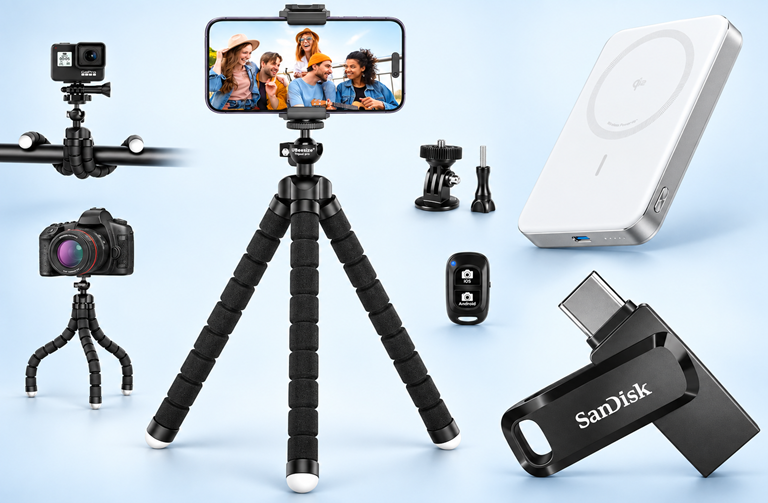
πŸ“· UBeesize Flexible Mini Phone Tripod: A compact phone support is useful for more deliberate composition before you press the shutter.

Save 10%. Now $16.19. 4.5 Stars. Check it out on Amazon!


πŸ”‹ Anker MagGo Power Bank: A portable charger is a practical companion for a day of taking and reviewing photos; verify charging compatibility for your phone and case.

Look! πŸ‘‰ Now $79.99. 4.4 Stars. Check it out on Amazon!


πŸ’Ύ SanDisk Ultra Dual Drive Go USB Type-C Flash Drive: Its USB-C and USB-A connections offer a convenient way to move exported files between compatible devices; confirm your phone’s connector and storage support before buying.

Look! πŸ‘‰ Now $27.74. 4.5 Stars. Check it out on Amazon!


ο»Ώ*Prices accurate when originally published.

One Cool Tip may earn a commission from qualifying purchases.

Fuel Your Adventure

Try Big Mike's Jerky!ο»Ώ


bigmikesjerky.com


Now on TikTok!


Today's Cool Tipο»Ώ

Rescue Your iPο»Ώhone Photos With

ο»ΏClean Up, Extend, and Reframe

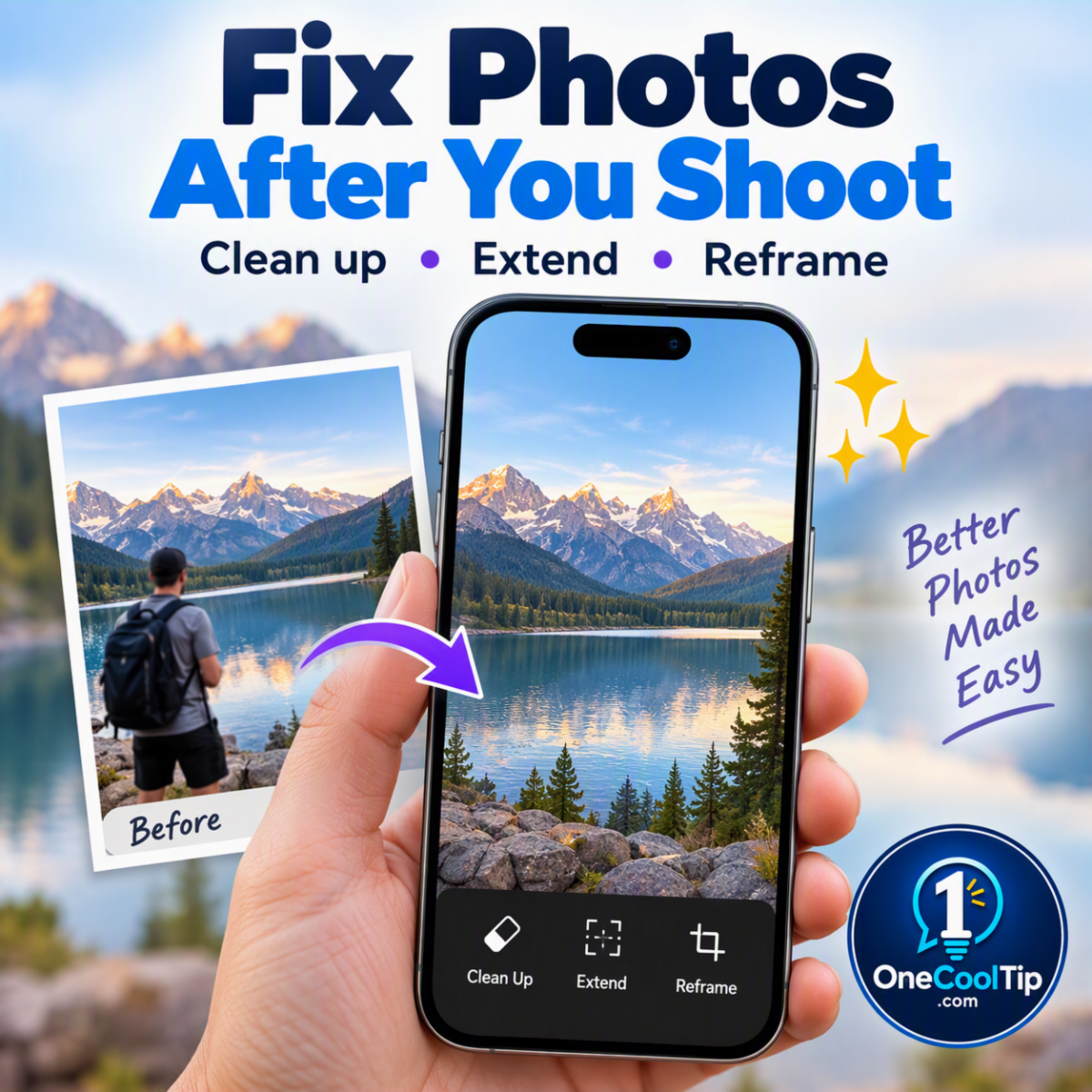
A distracting background or awkward angle does not have to ruin a favorite photo. Discover how Apple’s iOS 27 Photos tools can help you tidy the scene, add breathing room, and rethink the perspective on a compatible iPhone. 

By Rodger Mansfield, Technology Editor

October 1, 2026

Subscribe


You finally get the vacation photo you wanted. 


Then you notice a stranger behind you, a cramped edge, or an angle that makes the scene feel off.


Before writing off that picture, consider what needs fixing. 


A small distraction calls for a different approach than a tight composition.


Here’s a Cool Tip: Use Clean Up, Extend, and Reframe in iOS 27 Photos to give a favorite iPhone picture another chance.


Feature Explanation


Apple improved photo editing in iOS 27 by adding more precise distraction removal, expanded borders, and a different perspective after capture. 


Choose the tool that matches the problem:


  • Clean Up: Remove an unwanted object.
  • Extend: Add background beyond the original borders.
  • Reframe: Adjust the apparent viewpoint after capture.


What You’ll Gain


  • Give the subject more visual attention.
  • Experiment with a composition before abandoning a shot.
  • Prepare more appealing travel pictures or promotional images.


Step-by-Step Instructions


Here's how to do it.


iPhone:


Clean Up


1. In Photos, open a photo and tap Edit > Tools > Clean Up.

2. Tap, brush, or circle a distraction. Pinch with two fingers for precision.

3. If using High Quality, tap Clean Up to process.

4. Tap Done, then Done again. Review the filled area.


Extend


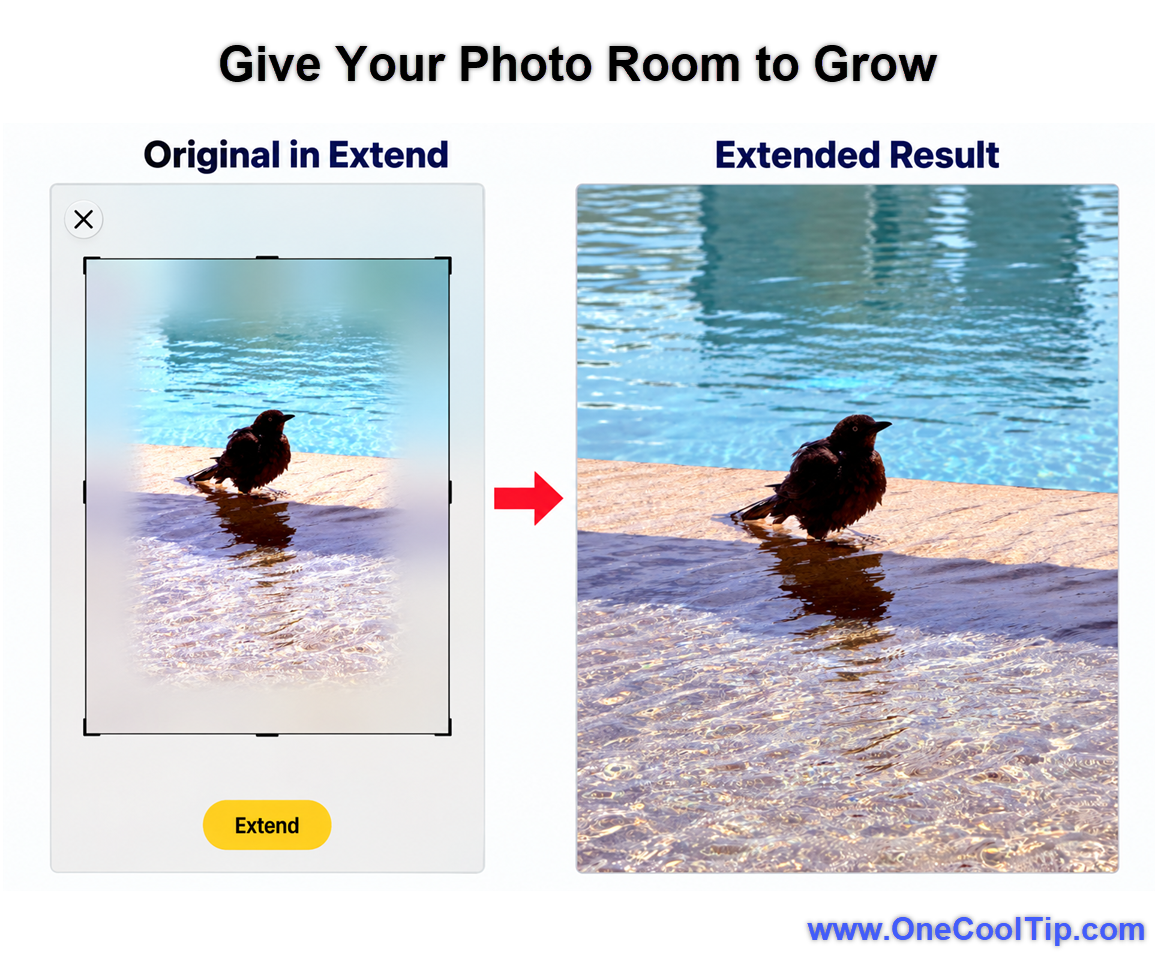
1. In Photos, open a photo and tap Edit > Tools > Extend.

2. Pinch or drag to expand the background; drag a frame edge to crop.

3. Tap Extend, then Done to save and Done again to close. Inspect the added edges.


fig. 1 - Give Your Photo Room to Grow

Reframe


1. In Photos, open a photo and tap Edit > Tools > Reframe.

2. Drag to adjust perspective; use two fingers to pan, zoom, or rotate.

3. Tap Reframe; tap the photo to compare with the original.

4. Tap Done to save, then Done again to close. 


Pros and Cons


Pros:


  • A practical rescue option for favorite family pictures.
  • Useful creative experiments for social graphics.
  • A convenient starting point for small-business promotional photos.


Cons:


  • Fine details deserve close inspection after editing.
  • Generated changes can make a scene less faithful to reality.
  • Compatible hardware, language, and region matter; daily limits can apply.


Feature Access


  • For iOS 27 or later on Apple Intelligence-enabled iPhone 15 Pro, iPhone 15 Pro Max, and iPhone 16 models or later. 
  • Language and regional restrictions apply.
  • Daily usage limits may apply; expanded access will be offered for a fee in the future.


Score

Criterion |  Score (0–10) |  Justification 
Value | 8
A sensible rescue option for pictures you care about. It cannot replace a better original shot.
Usability |  8
The gestures are approachable, but selecting the right tool and inspecting results takes attention.
Wow Factor |  8
Rethinking a photo’s composition after capture is compelling, even when restraint produces the best result.
Total: 24/30  |  πŸ‘ Good
Worth trying on a favorite imperfect photo, provided you inspect the result.
Ordinary Crop and Straighten remain simpler options when trimming or correcting the existing image is enough.


Key Takeaways


Identify the problem before choosing a tool. 


Use small adjustments, inspect the details, and keep an accurate original whenever the scene itself matters.


Cool Tip Snapshot


  • Feature Name: Clean Up, Extend, and Reframe
  • Platform(s): iPhone; related iPad tools documented separately 
  • Quick Benefit: Rescue distracting or awkwardly composed photos.
  • Best For: Travelers, families, creators, and small businesses.
  • Access Type: Included on supported devices; daily usage limits may apply 


Try It Yourself


Pick a favorite imperfect photo and try one modest correction. 


Tell us which tool helped, and subscribe to the One Cool Tip newsletter for FREE.


Share this Cool Tip with family, friends, and coworkers.


READ MORE


Read the Full Cool Tip.

Check Out These Cool Tips & Tricks


  • Crop First: A simple crop may solve the problem without generating new content. Open the photo, tap Edit > Crop, and adjust the corners.


  • Square Up: A square crop helps you prepare a consistent social image. In Edit > Crop, open the aspect-ratio options and choose Square.


  • Level Horizons: A tilted horizon can distract from a good landscape. Open Edit > Crop, select Straighten, and adjust the slider.


  • Correct Tilt: Ordinary perspective controls are worth trying before generative editing. In Edit > Crop, choose the vertical or horizontal tilt control and adjust its slider.


  • Rotate Simply: A photo may only need its orientation corrected. Tap the rotate control in Edit > Crop.


  • Keep Reality: Documentary pictures deserve special care. For a condition report or claim, preserve an unaltered copy and avoid generative changes.


  • Inspect Details: An attractive thumbnail can hide an awkward edge. Zoom into the finished image and inspect faces, lettering, and repeating patterns before sharing.


  • Go Gently: Modest experiments are easier to evaluate. Make a small adjustment, compare it with the original, and decide whether it actually improves the picture.


  • Review Sync: Cloud syncing affects where your photo changes appear. Check Settings > [your name] > iCloud > Photos > Sync this iPhone before working on sensitive pictures.


  • Undo Fully: You can return to the original after ordinary photo edits. Open the edited photo, tap Edit, and select Revert.

ICYMI - In Case You Missed It ...

Put Your Google Drive Files to Work in ChatGPT


ChatGPT can work with accessible files in Google Drive, including Docs, Sheets, and Slides, without making you upload the same material for every task. Connect the Google Drive plugin, name the source you want, and turn stored information into summaries, comparisons, analyses, or new files.


Read the Full Version.


Read the Newsletter Version.

Looking for your next adventure?


Call Denise at Travel For You.

314.660.3039


Sign Up for the Monthly Newsletter


http://www.travelforyouvacations.com/


https://www.facebook.com/TRAVEL.FOR.U/


See You Tomorrow

Tomorrow's Cool Tip is waiting to amaze you.


Until then, go forth and conquer the tech world with your newfound knowledge!


Be sure to visit www.OneCoolTip.com for Cool Tech Tips for a Cooler Life!


And if you Like One Cool Tip, please support with TipJar!


Enjoy!

ο»Ώ


Rodger

Chief Cool Tipper

onecooltip.com@gmail.com


What Do You Think?

What do you think of today's OneCoolTip newsletter?
Positive        Neutral        Negative
X Share This Email
LinkedIn Share This Email

Connect with One Cool Tip!

Facebook  X  Instagram  Web  Pinterest  YouTube  LinkedIn
β€Š

As an Amazon Associate, One Cool Tip may earn a small commission from qualifying purchases.


Our media content is intended solely for informational purposes. Please do not construe anything here as legal, tax, investment, financial, marital or other advice.


Copyright Β© 2026 | www.OneCoolTip.com | All Rights Reserved


β€Š