|
Automate Complex Forms with Chrome and Google Wallet
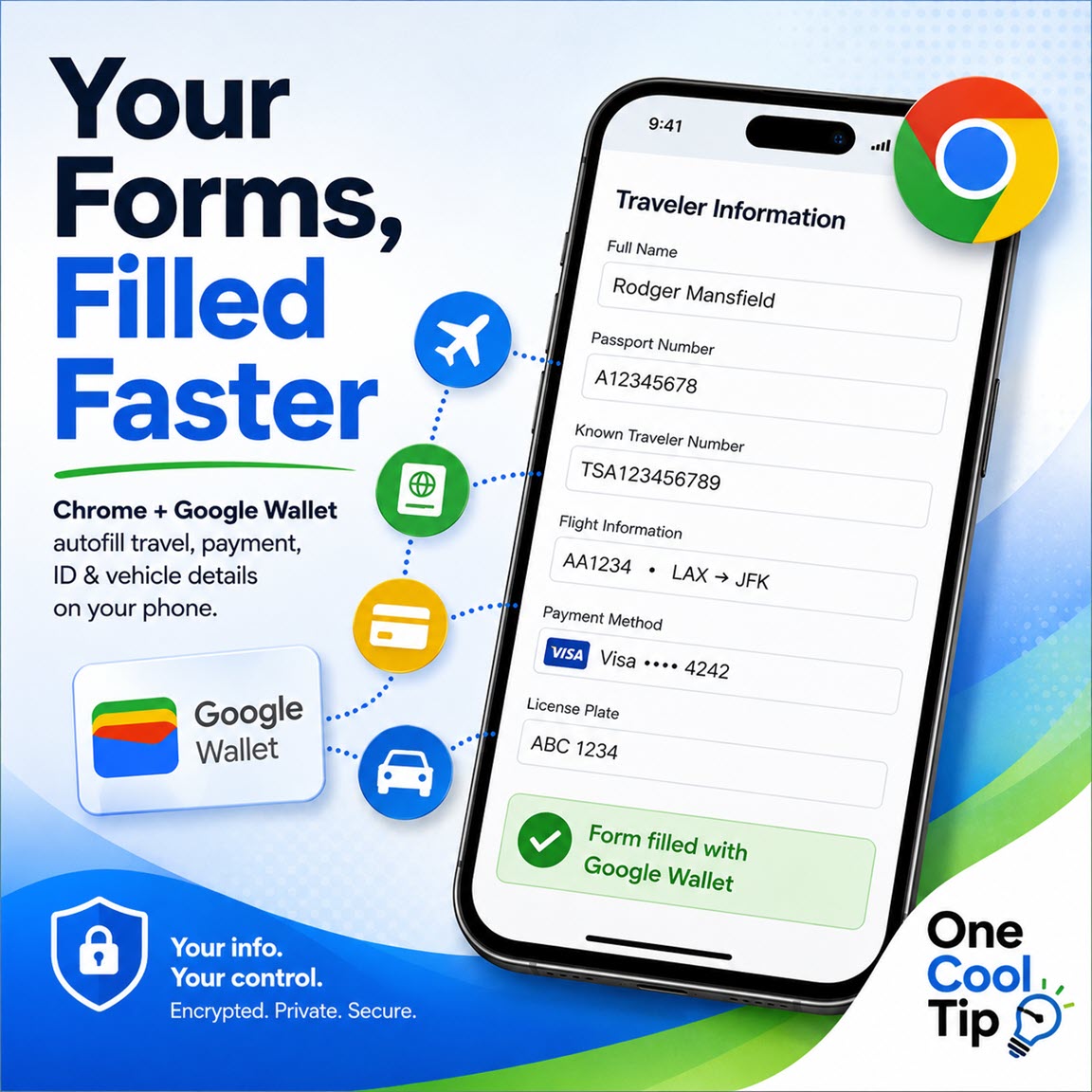
Typing lengthy identification numbers into web forms is frustrating and prone to errors. Google Chrome now integrates directly with Google Wallet to safely populate complex data like passport numbers and vehicle information on your mobile and desktop devices.
Booking an international flight to a destination like London often involves a frantic search for your physical passport.
You find the booklet, prop it open, and carefully type a long string of alphanumeric characters into the airline website, hoping you did not transpose any letters.
This manual data entry process is tedious and slows down routine online tasks like event check-ins or paying parking fees.
Here is a Cool Tip: Connect Google Chrome to Google Wallet to Automatically Fill Your Most Complex Web Forms.
Google recently addressed this friction by updating how the Chrome browser interacts with stored data.
Feature Explanation
Google Chrome recently received an update that significantly expands its autofill capabilities.
While browsers have historically managed basic contact information and passwords, this new functionality targets complex, sensitive data types.
Chrome can now automatically populate fields requiring flight details, Vehicle Identification Numbers, license plates, and official identification details.
This integration bridges the gap between the Chrome browser and Google Wallet.
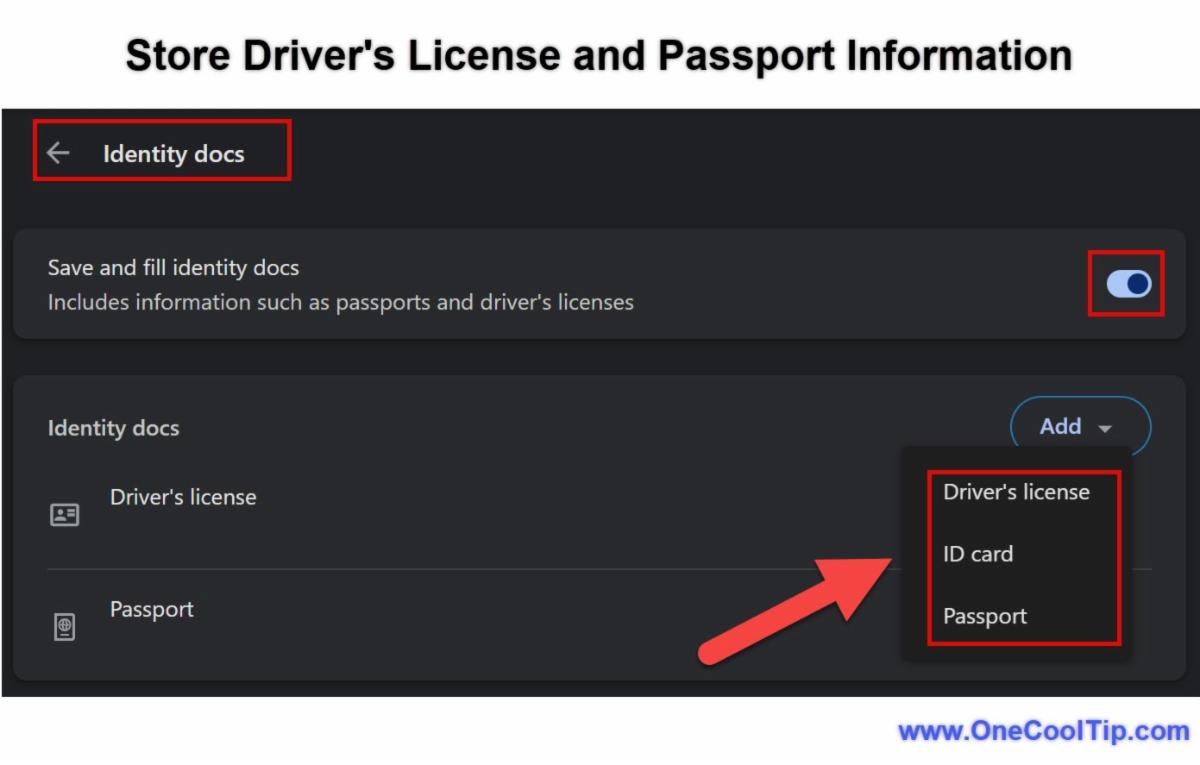
Data securely stored in your Google Wallet, including driver's licenses, passports, and Known Traveler Numbers, is now accessible to Chrome across desktop, iOS, and Android platforms.
When you encounter a web form requesting this information, Chrome will offer to fill it automatically.
This matters because it removes the friction of manual data entry for high-stakes forms.
Travelers, shoppers, and professionals frequently need to provide exact identification numbers on tight deadlines.
The update eliminates typographical errors and speeds up the checkout or registration process.
If your details are not yet in Google Wallet, Chrome will prompt you to save them upon your first manual entry, building your digital wallet for future convenience.
What You'll Gain
-
Save time by eliminating the need to locate physical documents during online checkouts.
-
Reduce confusion when forms require exact alphanumeric strings like a Known Traveler Number or vehicle identification number.
-
Improve privacy by keeping sensitive identification data encrypted within the Google ecosystem rather than typing it in public spaces.
-
Make daily work easier by streamlining travel booking and administrative tasks across your phone and computer.
Step-by-Step Instructions
Here's how to do it.
Web/Desktop:
-
Open the Google Chrome browser on your computer.
-
Click the three-dot menu in the upper right corner and select Settings.
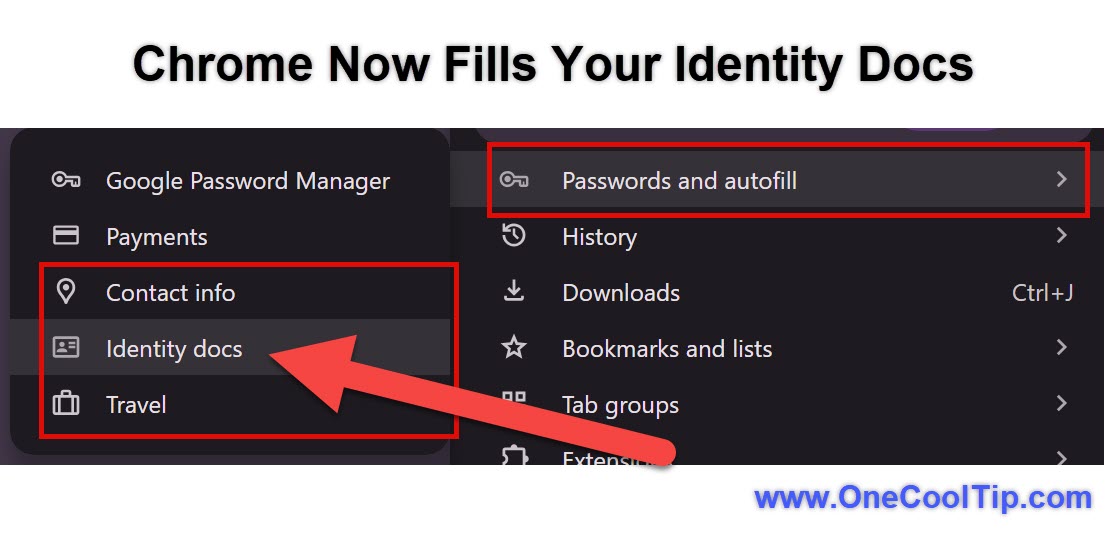
- Click on Autofill and passwords in the sidebar to verify your stored data.
-
When browsing a site that requires identification or vehicle data, click the text field and select the Chrome prompt to authorize the fill.
|