|
One Cool Tip Newsletter
October 19, 2026
| Your daily dose of tech-savvy brilliance! | | |
😀 Greetings!, Happy Back-to-Work Monday, Cool Tipper!
Get ready to streamline your digital life with simple, actionable tips delivered straight to your inbox.
Today's Cool Tip Theme: Unified Microsoft Copilot App
Microsoft is combining its Copilot apps into one experience where eligible users can chat, work with files, and create Word, Excel, and PowerPoint files.
IN THIS ISSUE
- 🚨 Feds Tap AI to Stop Fraud
- ⚖️ Copilot Expands into Legal Work
- 🤖 AI Prompt of the Day
- 🔄 One Unified Microsoft Copilot App
- ✍️ Word, Excel, and PowerPoint Agents
- 📄 Dynamic Document Snapshots in Word
- 📊 Demystify Cryptic Excel Formulas
- ⌨️ Quick Windows 11 Shortcut
New here? Subscribe to the One Cool Tip Newsletter for daily updates. It's FREE!
-
😂 Laugh with Us! Enjoy our Tech Joke of the Day, Haiku, and Cool Tip Comics.
-
🌐 Stay Informed! Check out ICYMI and our One Cool Tip Video.
| | |
3️⃣
If you enjoy the One Cool Tip newsletter, please forward this newsletter to THREE friends or colleagues or share it on social media using the links below.
Leave a $$$ Tip!
Share this One Cool Tip Newsletter!
| | |
Today's Tech Trivia
Which Microsoft Office app made its debut in 1983?
A) Excel
B) PowerPoint
C) Word
D) Outlook
Answer at the end of this newsletter.
| | |
⚠️ Feds Turn to AI to Catch Fraudsters Stealing Taxpayer Money⚠️
The FBI says a new federal center is using artificial intelligence and shared government data to help uncover fraud involving taxpayer-funded programs.
The National Fraud Detection Center, formally launched in August 2026, brings together the FBI, other federal law enforcement agencies, inspectors general, and state partners to spot patterns that might otherwise be missed.
Its focus includes fraud targeting programs such as Medicare, Medicaid, FAFSA student loans, and Small Business Administration loans.
By combining information from multiple agencies, investigators can connect cases involving suspects or schemes that cross state lines or affect several government programs.
In one student-loan investigation, the FBI says this approach helped uncover a larger foreign-directed scheme and led to more than 40 cases across 27 field offices.
The Cool Tip:
This is a good reminder that fraud against government programs ultimately affects taxpayers, and agencies are increasingly turning to AI and data sharing to help detect it.
And in Other News...
- Microsoft Copilot Is Getting a Legal Mind of Its Own
Microsoft is giving Copilot a legal upgrade with new AI capabilities designed specifically for legal work.
The company announced the general availability of more than 20 purpose-built legal skills along with new partner-built plugins.
These additions bring legal-specific capabilities and trusted sources directly into Microsoft Copilot.
The announcement is another example of Microsoft expanding Copilot beyond a general-purpose AI assistant.
While Copilot for legal is designed for legal professionals rather than everyday home users, it offers an interesting glimpse at where workplace AI is heading.
The Cool Tip:
Watch for more profession-specific Copilot tools that tailor AI assistance to the particular jobs people need to get done.
| | |
Try this Cool AI prompt. Copy and paste to ChatGPT, Gemini, Claude or Copilot.
“I'm starting a new project and want to decide whether Word, Excel, or PowerPoint is the best format.
Ask me five questions about my project, audience, information, and desired result.
Then recommend the best Microsoft 365 app and give me a detailed outline I can use to create the file.
Finish by writing a prompt I can paste to create the first draft.”
| | One Copilot to Rule Them All: Microsoft Combines Its Apps | | |
Confused by Microsoft's collection of similarly named Copilot apps?
Microsoft is consolidating its Copilot experiences into one updated app that can handle personal, work, and school accounts and, for eligible users, create Word documents, Excel workbooks, and PowerPoint presentations.
| | |
By Rodger Mansfield, Technology Editor
October 19, 2026
Subscribe
If you've ever looked at Microsoft's assortment of Copilot apps and wondered which one you were supposed to open, Microsoft has apparently heard you.
The company is consolidating existing Microsoft Copilot and Microsoft 365 Copilot app installations into a single Microsoft Copilot application experience.
The updated app can support personal, work, and school accounts while connecting Copilot with Microsoft 365 apps, files, and content.
One clarification is important. Microsoft isn't renaming the entire Microsoft 365 service.
The Microsoft 365 (Office) app and the standalone Copilot app are now being brought together under the unified name Microsoft Copilot.
There's another benefit hiding behind that name change.
Eligible users can use Word, Excel, and PowerPoint Agents inside Microsoft Copilot to create actual documents, workbooks, and presentations simply by describing what they need.
For most existing users, the transition should not require much work.
Most updates happen automatically, and web users are automatically redirected to the updated Copilot experience.
Here’s a Cool Tip: Use the new unified Copilot as your starting point for chat, files, Word, Excel, and PowerPoint.
Feature Explanation
The biggest benefit of Microsoft's Copilot consolidation is simplicity.
Microsoft describes the change as application unification, updating existing Microsoft Copilot and Microsoft 365 Copilot app installations to a single Copilot application experience.
If you've been using Copilot with a personal account, your chat history and most content move with you.
If you've used both of Microsoft's Copilot app experiences with a personal account, your chats and created content will be brought together in the updated app.
The updated app can also handle personal, work, and school identities.
You can switch between them with the account switcher, but that doesn't mean personal and business information gets mixed together.
Personal and organizational experiences remain separate by design.
Word, Excel, and PowerPoint Join the Party
This is where the change becomes much more interesting than a new name and icon.
Microsoft Copilot includes Word, Excel, and PowerPoint Agents for eligible Microsoft 365 users.
Instead of opening a blank file and starting from scratch, you can describe the file you need and let the appropriate agent build a first draft.
You might ask Word to draft a project proposal, Excel to create a budget tracker with charts, or PowerPoint to build a marketing presentation.
Copilot generates a preview, saves the finished file to OneDrive, and lets you open it in the corresponding Office application for further editing.
You can also give the agent broader feedback, such as asking it to shorten a document or add a slide.
There is an important limitation.
These Word, Excel, and PowerPoint Agents are available to Microsoft 365 users with a Microsoft 365 Copilot license.
Microsoft also offers editing with Copilot for Microsoft 365 Personal, Family, Premium, and Pro plans.
This capability, previously marketed as Agent Mode, is now integrated into the regular Copilot experience.
The result is a Copilot experience that's beginning to look less like an AI chatbot sitting beside your productivity tools and more like a front door to them.
There are tradeoffs in the transition.
Group Chat and Podcasts ended after August 18, 2026, and Microsoft began retiring Deep Research from the consumer Copilot app on August 18, 2026.
What You’ll Gain
- Reduce app confusion with one primary Copilot application experience.
- Switch between accounts while keeping personal and organizational information separate.
- Create Office files from prompts with Word, Excel, and PowerPoint Agents when your account and license support them.
- Continue editing in Office because generated files are stored in OneDrive and can be opened in Word, Excel, or PowerPoint.
Step-by-Step Instructions
Here's how to do it.
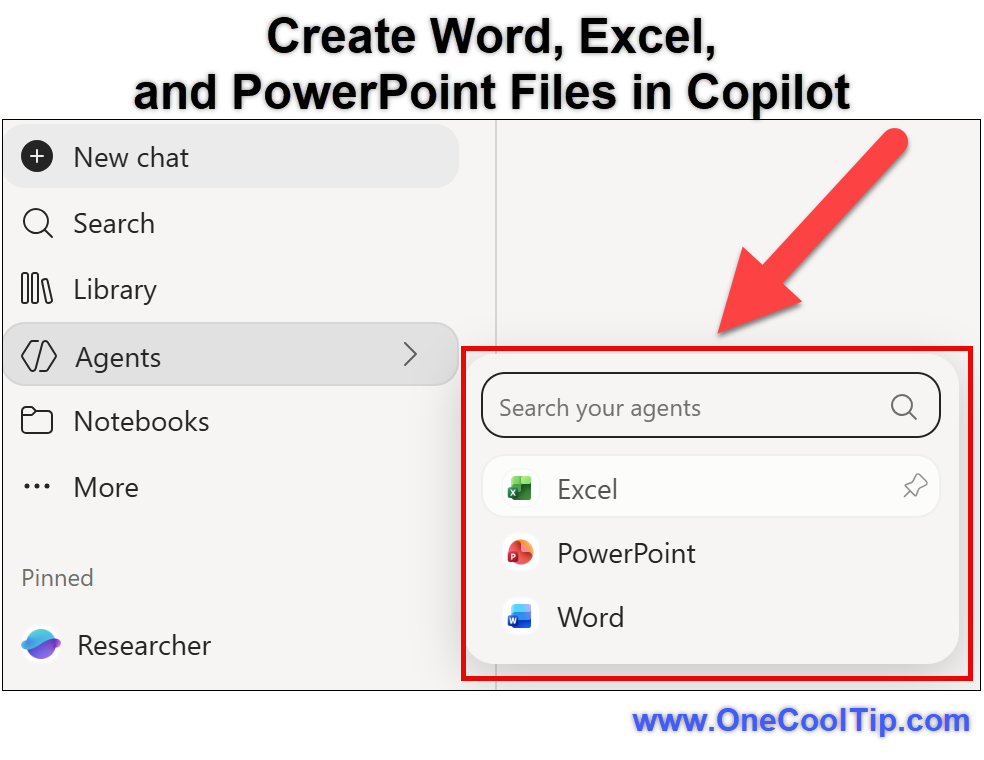
Web/Desktop: Create Word, Excel, and PowerPoint Files
-
Open Microsoft Copilot on the web, copilot.microsoft.com.
-
Go to the Tools menu in Copilot Chat or the Agents menu.
-
Choose Word, Excel, or PowerPoint.
-
Enter a prompt describing the file you want Copilot to create.
-
If Copilot asks follow-up questions, provide details such as tone or length.
-
Review the generated preview.
-
The completed file is saved to OneDrive. Open it in Word, Excel, or PowerPoint to review and polish it.
| | fig. 1 - Create Word Excel and PowerPoint Files in Microsoft Copilot | |
Try It With Word
-
Choose Word and describe your document.
-
For example: "Create a two-page proposal for a neighborhood landscaping project, including goals, estimated expenses, timeline, and next steps."
-
Review the result and revise anything that needs attention before sharing it.
Try It With Excel
-
Choose Excel and describe the workbook you need.
-
For example: "Create a household budget tracker with monthly income and expenses, summary charts, and year-to-date analysis."
-
Review the result and revise anything that needs attention before sharing it.
Try It With PowerPoint
-
Choose PowerPoint and describe your presentation.
-
For example: "Create a 10-slide presentation about our 2027 marketing strategy with an introduction, analysis, recommendations, and conclusion."
-
Add details about the audience, purpose, organization, and desired length to help Copilot understand what you want. Microsoft documents creating a 10-slide marketing strategy deck as an example.
iPhone/iPad and Android
-
Open the Microsoft Copilot mobile app (iOS, Android).
-
From Chat, ask Copilot to create a Word, Excel, or PowerPoint file.
- Describe the file you want.
-
Copilot creates a download link for the file.
- Select that link.
-
You'll be redirected to the appropriate Word, Excel, or PowerPoint mobile app to open and edit it.
Notes:
- You can also preview supported Office files inside Microsoft Copilot and ask Copilot Chat questions about them.
- Actual editing redirects to the appropriate Word, Excel, or PowerPoint mobile app. Managing your full file list redirects to OneDrive.
Pros and Cons
Pros:
- Reduces confusion between Microsoft's overlapping Copilot apps.
- Supports personal, work, and school identities.
- Moves eligible personal chats and generated content into the updated experience.
- Eligible users can generate Word documents, Excel workbooks, and PowerPoint presentations from prompts.
- Generated Agent files are stored in OneDrive so users can continue working on them in the Office applications.
Cons:
- Word, Excel, and PowerPoint Agent access has licensing requirements.
- Mobile users are redirected to the dedicated Office apps for editing.
- Some previous Copilot features have been retired.
- Organizational policies can restrict functionality on work or school accounts.
Troubleshooting and Limitations
Problem: The new Copilot interface does not appear.
-
Why it happens: Your app may not have refreshed the change.
-
Fix or workaround: Confirm an internet connection and restart the Microsoft Copilot app.
Problem: Word, Excel, or PowerPoint doesn't appear under Agents or Tools.
-
Why it happens: Microsoft's Word, Excel, and PowerPoint Agents require a Microsoft 365 Copilot license. An administrator may also need to enable access to the AI models used by these agents.
-
Fix or workaround: Check your Microsoft 365 licensing and, for an organizational account, contact your administrator.
Problem: You can view an Office file on your phone but can't edit it inside Copilot.
-
Why it happens: Microsoft has moved mobile editing to the dedicated Word, Excel, and PowerPoint apps.
-
Fix or workaround: Follow Copilot's redirect and edit the file in the corresponding Office mobile app.
Problem: The Copilot button isn't appearing inside Word, Excel, or PowerPoint.
-
Why it happens: Microsoft lists licensing, account, update channel, and privacy settings among the common causes.
-
Fix or workaround: Verify you're signed into an eligible Copilot account and check Microsoft's missing-Copilot-button troubleshooting guidance.
Problem: An older Copilot feature has disappeared.
-
Why it happens: Group Chat and Podcasts have been retired, while consumer Deep Research began retiring August 18, 2026.
-
Fix or workaround: They are no longer available.
Feature Access
The unified app and its capabilities vary according to account type, subscription, platform, organizational controls, and region.
Free users can continue using Copilot for chat, image creation, file uploads, and other available functions, subject to capacity and usage limits.
Microsoft 365 subscribers can receive higher usage limits and additional capabilities.
There are additional requirements for some Office features.
Word, Excel, and PowerPoint Agents are available to Microsoft 365 users with a Microsoft 365 Copilot license.
For regions where Copilot isn't available, the Copilot tab is removed from the Home screen even though the app retains its Microsoft Copilot branding.
Score
Criterion | Score (0–10) | Justification
Value | 9
Consolidation reduces confusion, while tighter connections with Word, Excel, and PowerPoint give eligible users a practical productivity benefit.
Usability | 8
Most migration happens automatically, and Office Agents provide a straightforward prompt-to-file approach.
Wow Factor | 7
App consolidation alone isn't groundbreaking, but creating editable Office files from Copilot makes the unified experience considerably more interesting.
Total: 24/30 | 👍 Good and nearly excellent.
Microsoft's cleanup of its Copilot apps solves genuine confusion, while the connection to Word, Excel, and PowerPoint gives eligible users a compelling reason to make Copilot a starting point for new projects.
Key Takeaways
Microsoft's Copilot consolidation provides one clearer application experience while maintaining boundaries between personal and organizational accounts.
The bigger opportunity for eligible users is the ability to move from a simple prompt to an actual Word document, Excel workbook, or PowerPoint presentation and then continue working on it with familiar Office tools.
Cool Tip Snapshot
-
Feature Name: Unified Microsoft Copilot App
-
Platform(s): Web, Windows, macOS, iOS, and Android, with features varying by platform and account
-
Quick Benefit: One Copilot destination with access to chat, files, and supported Microsoft 365 workflows
-
Best For: Existing Copilot and Microsoft 365 users
-
Access Type: Free / Subscription / Rolling Out, depending on feature, account, and license
-
Difficulty: Easy
Learn More
Microsoft's official Copilot App Updates for Personal, Work, and School Accounts explains the app transition, account changes, data migration, retired features, and privacy boundaries.
Microsoft also provides dedicated instructions for creating documents, workbooks, and presentations with its Word, Excel, and PowerPoint Agents.
Try It Yourself
Open Microsoft Copilot and see whether the updated experience has reached your account.
If you have access to the Office Agents, try asking Copilot to create a Word document, Excel workbook, or PowerPoint presentation, then tell us how it worked in the comments.
Subscribe to the One Cool Tip newsletter, and share this article with family, friends, and coworkers who are still wondering which Microsoft Copilot they're supposed to use.
READ MORE
Read the Cool Tip on One Cool Tip.com.
| | Help support One Cool Tip. Use this Amazon link when you shop online. | |
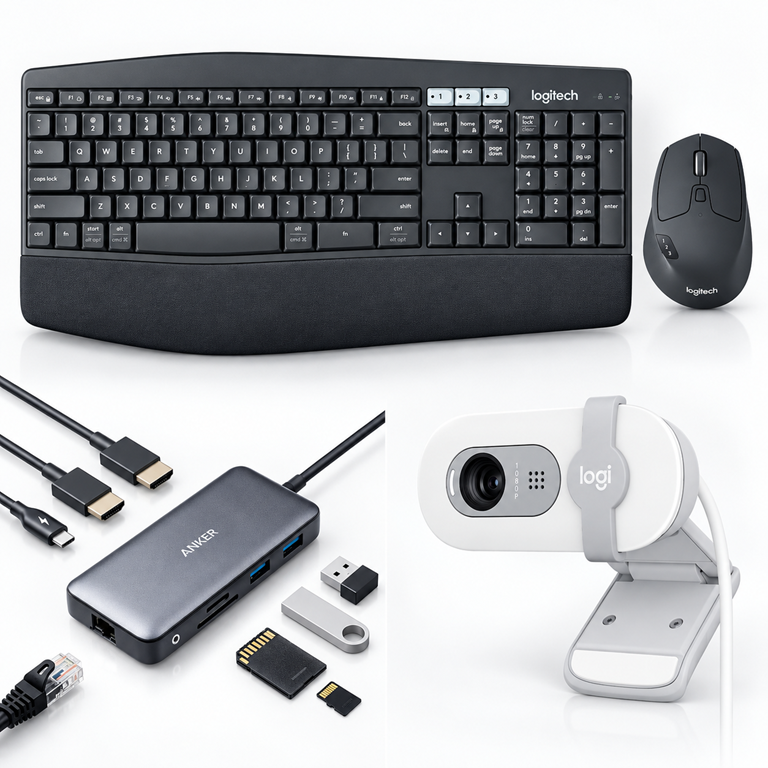
📷 Logitech Brio 100 Full HD Webcam: A straightforward webcam upgrade for people who spend their Microsoft 365 workday moving between documents and online meetings.
Save 38%. $24.99. 4.4 Stars. Check it out on Amazon!
⌨️ Logitech MK850 Performance Keyboard and Mouse Combo: Its multi-device design makes it useful for a desk where you regularly switch among PCs, tablets, and other devices.
Save 11%. $79.99. 4.4 Stars. Check it out on Amazon!
🔌 Anker 8-in-1 USB-C Hub: A practical laptop companion when your Microsoft 365 workspace needs additional USB, display, Ethernet, and charging connections.
👀👀👀Look! $53.99. 4.5 Stars. Check it out on Amazon!
Prices accurate at time of publication
One Cool Tip may earn a commission from qualifying purchases.
| | |
🆒Tell Me More
-
🔄 Your accounts stay separate: The unified app can accommodate personal, work, and school identities, but Microsoft says personal and organizational data remain separate by design.
-
☁️ Copilot files head to OneDrive: Files shared with and generated by the standalone Copilot app move to OneDrive, and files created by Word, Excel, and PowerPoint Agents are also saved there.
-
📱 Mobile works differently: Microsoft 365 subscribers can ask Copilot on mobile to create an Office file, but editing redirects to the appropriate Word, Excel, or PowerPoint mobile app.
-
🧰 Some old features are gone: Group Chat and Podcasts were retired after August 18, 2026. Microsoft also began retiring consumer Deep Research on August 18, 2026.
-
🏢 Work rules still apply: Organizational security, compliance, privacy, and administrator controls remain in effect for work and school accounts.
⏩Quick Tips
-
👤 Check Your Account: Before giving Copilot a prompt, make sure you're using the intended personal, work, or school identity. Use the account switcher inside Copilot when you need to change accounts.
-
📄 Create With Word: Skip the blank page by asking the Word Agent for a first draft. Open Tools in Copilot Chat or Agents, select Word, and describe the document you need.
-
📊 Build With Excel: Ask the Excel Agent to build a useful starting workbook. Tell it what information you want organized and what type of analysis or charts you need.
-
🎨 Make Slides: Give the PowerPoint Agent your topic, audience, and desired presentation structure. Review the generated preview carefully, then finish polishing the file in PowerPoint.
-
🔄 Restart Copilot: Can't see the updated interface? Microsoft recommends confirming that you're connected to the internet, closing Microsoft Copilot, and reopening the app.
| | ✅ More Must-Read Tech Tips | | |
How Do I Use Dynamic Document Snapshot in Word?
What if your Word docs could summarize themselves?
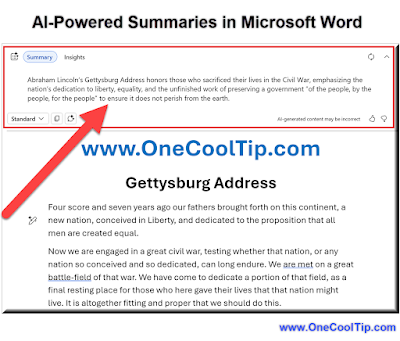
Microsoft Copilot’s Dynamic Document Snapshot feature in Word is not just a summary tool.
It's a contextual, interactive overview that lives at the top of your document and evolves with your needs.
Here's how to do it.
Microsoft Word for Web/Desktop
-
Open a Word document saved in OneDrive or SharePoint.
-
If you have a Microsoft 365 Copilot license, the summary appears at the top.
-
Click “View More” to expand the full summary.
-
Select “Open in Chat” to ask questions or customize the summary.
-
Adjust summary detail level (Brief, Standard, Detailed) using the dropdown.
iOS & Android
-
Open the Word app and select your document.
-
Tap the Copilot icon located at the top of the screen.
-
Tap the Summarize this document button.
-
Copilot provides a response that you can use as needed.
Dynamic Document Snapshot in Word is a practical, time-saving feature that transforms how users interact with long documents.
Discover more HERE.
| | |
🤔 Have You Ever Wondered How To Understand an Excel Formula?
Excel formulas are powerful, but they’re not always readable, especially when digging through inherited budget sheets, performance dashboards, or shared templates filled with nested functions and cryptic references.
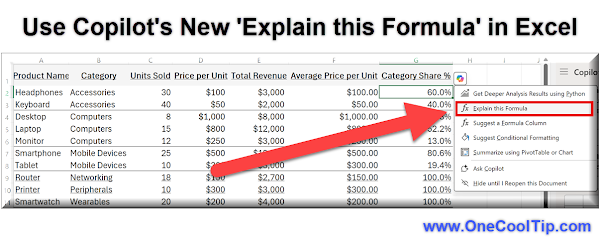
With Microsoft Copilot’s “Explain this formula” feature, you don’t have to play guessing games.
It gives you clear, plain-English explanations for even the most convoluted formulas.
Here's how to do it.
On Microsoft Excel Web/Desktop
-
Open a spreadsheet with formulas.
-
Select a cell containing a formula.
-
Hover over the Copilot icon beside the cell, OR Select the Copilot icon.
-
Click or prompt “Explain this formula.”
- Review the explanation pane that appears.
Microsoft Copilot’s “Explain this formula” feature brings clarity to spreadsheet logic.
It’s intuitive, time-saving, and an essential tool for anyone working with numbers—even if they hate formulas.
Find out more HERE.
| | |
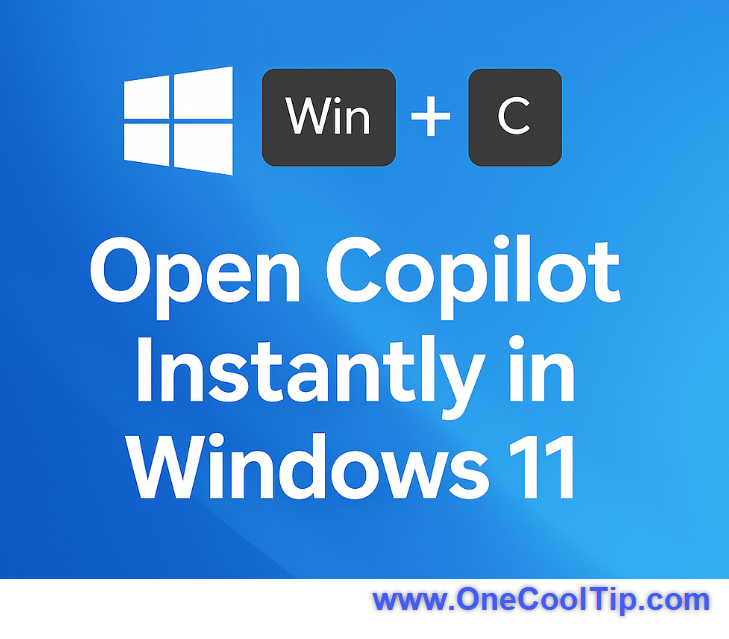
🙋♂️ Here's How To Open Copilot Instantly in Windows 11
Remember when the Win + C keyboard shortcut opened Cortana?
Microsoft retired the shortcut after moving away from its voice assistant, leaving the key combo unused.
Win + C makes a comeback, this time launching Copilot, Microsoft's AI-powered assistant in Windows 11.
Here's how to do it.
Windows 11 Desktop
-
Press Win + C on your keyboard.
-
Copilot opens.
-
Start typing to interact with Copilot.
Learn more HERE.
| | |
❓Did you share this newsletter with three friends yet?
😎 Cool Facts
-
2025: The "Microsoft 365 Copilot" app name began rolling out on January 15, 2025, before the latest simplification to Microsoft Copilot. Source.
-
3 Office Agents: Microsoft's Copilot documentation identifies dedicated Word, Excel, and PowerPoint Agents for supported users. Source.
-
3 account types: Microsoft's updated Copilot can accommodate personal, work, and school accounts, while maintaining boundaries between personal and organizational information. Source.
-
August 18, 2026: Group Chat content stopped carrying forward after this date, Podcasts was retired, and Microsoft began retiring consumer Deep Research. Source.
⌨️Today's Cool Shortcuts
These aren't all Copilot-specific shortcuts, but they make working with Microsoft 365 and AI-generated content easier.
-
Win + E: Open File Explorer to locate documents.
-
Win + V: Open Clipboard History, if enabled.
-
Win + Shift + S: Capture a screenshot for reference.
-
Ctrl + L: Select the address bar to enter the Copilot web address.
-
Ctrl + T: Open a new tab for another Microsoft 365 tool.
😜 Tech Joke of the Day 😅
Why did Microsoft combine its Copilot apps?
Because even the AI couldn't remember which one to open.
🔎 Do you have a Cool Tip or tech question? Email us at onecooltip.com@gmail.com.
| | |
Many helpers fade
One Copilot takes their place
Work and home unite
| |
| 🤔 What would you most like Copilot to create for you? | | | | Did You See These Cool Tips This Week? | | | | Take Control of Facebook: Meet Your Algorithm | |
Tired of Facebook guessing wrong about what you want to see? Your Algorithm lets you describe your interests in plain English and watch your Feed and Reels respond right away.
Read the Newsletter Version.
| | | | Combine Carts Across Stores Using Google's New Universal Cart | |
Juggling dozens of browser tabs and forgotten online carts across different websites creates digital clutter and missed savings. Google's new Universal Cart unites your items from multiple retailers into a single shared shopping hub inside Google Search and the Gemini app.
Read the Newsletter Version.
| |
ICYMI - In Case You Missed It ...
| | | | ChatGPT Images 2.5 Makes Image Editing More Precise | |
ChatGPT Images 2.5 creates sharper visuals and does a better job changing only the parts you ask it to change. New creative controls, including Sketch, templates, image comments, and prompt sharing, make it easier to move from a rough idea to a usable image.
Read the Newsletter Version.
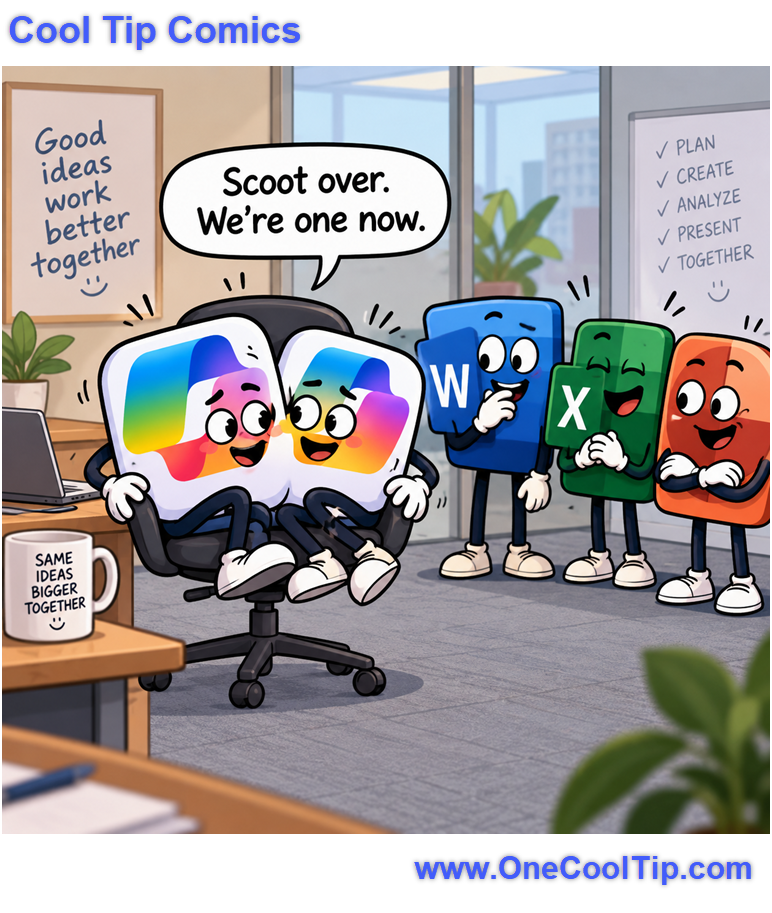
| | Microsoft finally merged its Copilots. Unfortunately, nobody thought to order a bigger chair. | | |
Trivia Answer: C) Word
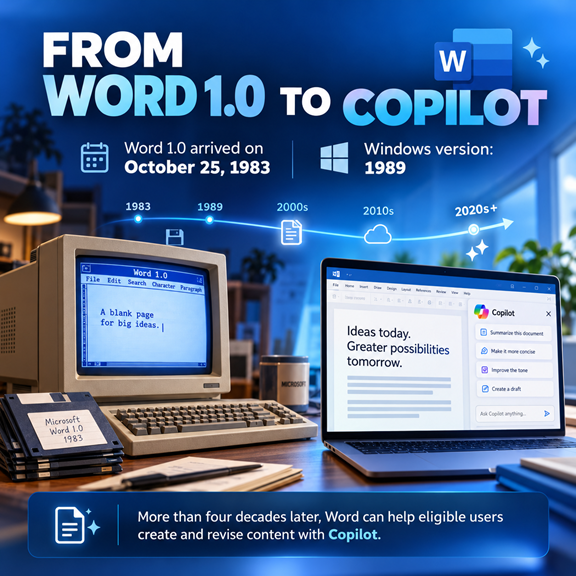
Microsoft Word 1.0 arrived on October 25, 1983, although the Windows version did not arrive until 1989.
Word eventually became part of the first Microsoft Office collection alongside Excel and PowerPoint.
The word processor that started more than four decades ago can now work with Copilot to help eligible users create and revise content using natural-language prompts.
----------
Tomorrow's Cool Tip is waiting to amaze you.
Until then, go forth and conquer the tech world with your newfound knowledge!
Be sure to visit www.OneCoolTip.com for Cool Tech Tips for a Cooler Life!
And if you like One Cool Tip, please support with TipJar!
Enjoy!
Rodger
Chief Cool Tipper
onecooltip.com@gmail.com
| |
| What do you think of today's OneCoolTip newsletter? | | | |
Please Share the One Cool Tip Newsletter!
You asked for it. You got it. There is now a One Cool Tip Newsletter archive. Did you delete a newsletter and want to read it again? Check it out HERE.
Want to help One Cool Tip grow? Please forward this email using the link above. And if you see an OCT social media post, please LIKE, COMMENT and SHARE!
Have you subscribed to the One Cool Tip YouTube channel? Subscribe HERE.
| | Connect with One Cool Tip!! | | |
|
As an Amazon Associate, One Cool Tip may earn a small commission from qualifying purchases.
Our media content is intended solely for informational purposes. Please do not construe anything here as legal, tax, investment, financial, marital, or other advice.
Copyright © 2026 | www.OneCoolTip.com | All Rights Reserved
|
| | | |