How to Know if a Laptop Screen is Damaged

Portability is a big advantage of laptops. But when you take your computer anywhere, you are also more likely to break it. You may not see a break, but there are other signs a laptop screen is damaged. This article shares those, as well as options for what you can do when there’s a screen problem.


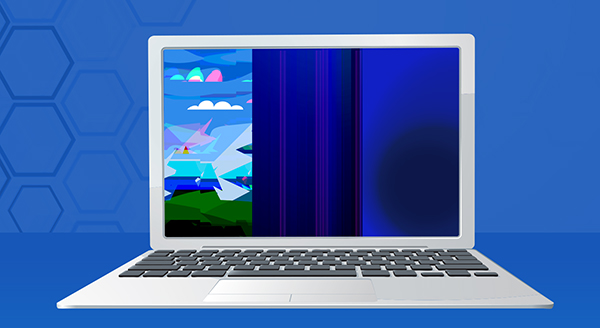
You may not see broken glass, but you can know the laptop screen is damaged because you experience:


  • distorted images;
  • pixelization;
  • resolution lines
  • backlighting issues;
  • a blank screen.


You might want to turn that laptop into a piece of art. The screen, after all, is now showing very psychedelic, colorful images. If you have an LCD screen, the liquid inside might have spread, which can make deciphering your text or graphics like reading a Rorschach test. 


Whether you want to get artistic with that laptop or not, replacing the entire laptop is one way to go, but it’s also the most expensive response. Ideally, you can avoid this approach. So, what’s left to do?


What to do with a damaged screen


If the laptop is under warranty, and the screen wasn’t dropped or damaged by you, you may be able to send it back to the manufacturer for repair.


Otherwise, you may be able to replace just the screen. The difficulty in replacing a screen depends on the manufacturer and laptop model. There are many screws and very fine cables that are easily snapped, and it’s going to be safer to go to a professional.


Screen replacement is still a costly option. In fact, it may be more expensive than a new laptop. Plus, you might be without your laptop for several days while it is in for repair or even longer if you take it to a big-box store, where they will send it away for attention. That’s one reason to prefer a local repair shop.


Another option is to attach your laptop to an external monitor.

It’s a more affordable option and can see you through finishing that report that’s due tomorrow.


Avoid damaging your laptop


Of course, we're also going to share strategies to help avoid breaking the screen in the first place. Try these tips:


  • Never open or close the lid by one corner. Instead, use one hand to close the lid from the center, or hold the keyboard as the other hand opens the lid.
  • Don’t leave a laptop attached to cords that someone can trip over and bring the computer crashing down.


Avoid overheating your computer, as it can burn the laptop’s screen.

The price you’ll pay to deal with a broken screen will vary based on brand and model, as well as what’s wrong. Check with a local computer repair shop for an estimate and get back up and running.


Contact us today at 940-282-0290.

DOWNLOAD PRINTABLE VERSION

How to Reduce PC Power Consumption


You probably grew up having a parent saying, “turn the lights off!” That was the number-one way to save on the power bill. But now, with so many of us having personal computers in the home, they too are a big electricity drain. Try these strategies to cut your PC power consumption.


Unplug the extras


You might connect printers, speakers, external storage, and other devices to your computer, but don’t leave them plugged in permanently, as they pull power even if you aren’t using them. An average printer on standby can use 5–8 Watts. High-end printers take even more power, pulling as much as 30 Watts.


Check your settings


Adjusting the brightness of your screen can cut back on your power usage: the brighter your screen, the more power it needs. So, reducing the brightness helps reduce your power intake.


You can also set your computer to run in power-saving mode. On Windows, options under Advanced Settings allow you to select a power plan to manage consumption. On a Mac laptop, you can go into system preferences and change settings for battery and adapter usage.


You can also set your computer to go to sleep when no activity is detected. This helps ensure you don’t leave the computer taking full power when you forget to turn it off at the end of the day.


Corral your windows


Keeping a bunch of windows open and apps running in the background uses power for all those items. Once you’re done with an app or a browsing window, close it.


Note: We’re suggesting you do this when finished. If you are going to be jumping back and forth between programs or windows, keep them open. As above, launching them again and again can consume more power than leaving active apps open.


By the way, this works on your smartphone, too!


Work in airplane mode


Keeping Bluetooth and Wi-Fi open on a connected PC requires more power. The device will scan for available networks in the background even if you don’t need them right then. By turning on airplane mode, you disable this function.


Upgrade your hardware


Legacy equipment may not have the same power efficiency as newer models. Traditional hard drives, for example, are slower and consume more power than solid-state drives (SSDs).


An old computer processing unit (CPU) may need to work harder to keep up with your needs. That’s going to take more power. Additionally, if your random-access memory (RAM) is full, the operating system has to work harder. Yep, that’s more power, too!


Turn off RGB lighting


RGB (red, green, blue) lighting adds special effects around a monitor, or on a keyboard, mouse, or memory stick. It looks cool but turning off these exciting features can conserve power.

Need to optimize your personal computing setup at home? Our IT experts can help.


Call us today at 940-282-0290.

DOWNLOAD PRINTABLE VERSION
 
Brian W. Norby
 
(Owner of both BWN Computer
AND That Computer Man)


1-940-282-0290
Visit BWN Computer's Website
Visit That Computer Man's Website
Connect with us
Facebook  Linkedin