One Cool Tip Newsletter

June 25, 2026

Your daily dose of tech-savvy brilliance!

😀Greetings! Happy Thursday, Cool Tipper!


Get ready to streamline your digital life with simple, actionable tips delivered straight to your inbox.


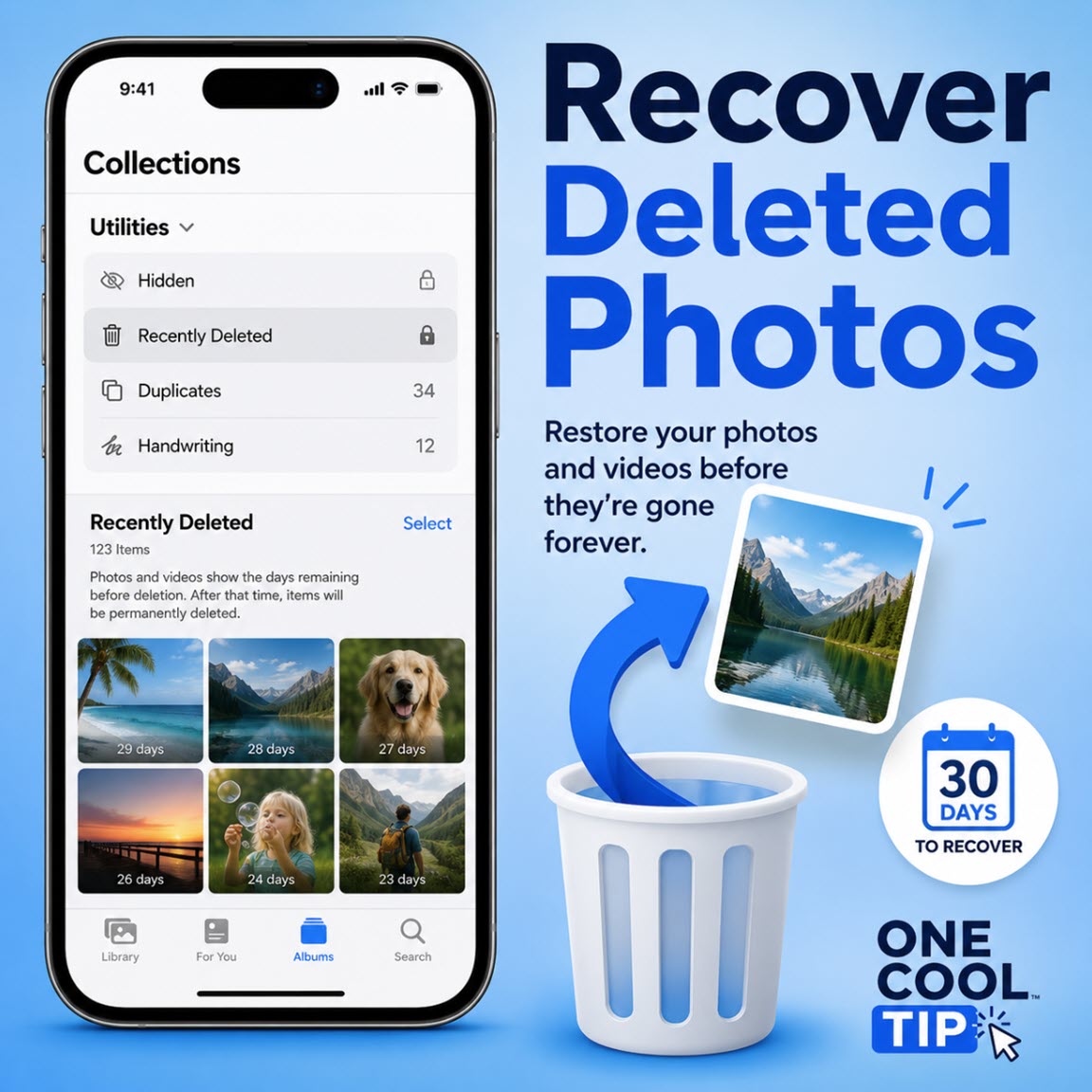
Cool Tip Theme: Recover Deleted iPhone Photos or Videos.


New here? Subscribe to the One Cool Tip Newsletter for daily updates. It's FREE!

3️⃣

If you enjoy the One Cool Tip newsletter, please forward this newsletter to THREE friends or colleagues or share it on social media using the links below.


Leave a $$$ Tip!


Share this One Cool Tip Newsletter!

X Share This Email
LinkedIn Share This Email
Pinterest Share This Email


🚨 FBI Warns About Hidden Risks in Popular Mobile Apps🚨


The FBI is warning consumers about data security risks tied to foreign-developed mobile apps, many of which are widely used in the U.S.


What’s Happening?


Some apps can collect far more information than users expect, including contacts, location data, and personal details, even when the app isn’t actively in use.


These apps may also store data on overseas servers and, in certain cases, could be subject to foreign laws that allow government access to user data.


Why It Matters:


  • Your personal information, and even your contacts’ data, could be exposed.
  • Permissions granted once can enable continuous background data collection.
  • Some apps may include malware or hidden tracking capabilities.


How to Protect Yourself:


  • Review app permissions carefully before downloading.
  • Limit access to contacts, location, and files when not necessary.
  • Stick to official app stores and avoid third-party downloads.
  • Remove apps you don’t trust or no longer use.


Bottom Line:


Even everyday apps can pose serious privacy risks.


Take a few minutes to review your settings, and help protect your data and your identity.


And in Other News...


  • Apple Tightens How Siri Handles Web Content


If you’ve ever asked Siri to summarize a webpage, that feature may soon disappear.


As I've been testing Apple’s latest iOS 27 beta version, I noticed that Siri does not summarize content from URLs.


Instead, Siri says that it can’t open or process those webpages.


Why It Matters:


  • 📵 Fewer quick summaries: You may need to open and read articles yourself rather than relying on Siri.
  • 🔐 Stronger privacy & copyright stance: Apple appears to be limiting AI scraping of web content, likely to protect publishers and creators.
  • 🌐 Workaround still exists: You can still get AI summaries, but only after opening the page directly in Safari.


Bottom Line:


Apple is drawing a clear line: AI assistants won’t replace going directly to the source.


And it is very different from the other leading AI services such as ChatGPT, Copilot, Gemini and Claude.


It’s a small change that could reshape how you use voice assistants for news, research, and quick answers.


We'll see if it stays in the final version of iOS 27 expected to be released this fall.


Cool Deals of the Day

Help support One Cool Tip. Use this Amazon link when you shop online.


Check out these Cool Deals:

⌚ Apple Watch Series 11: Save 30%. Now $279. 4.7 Stars. Check it out on Amazon!


⚪ Apple AirTag (2nd Gen, 4-pack): Save 10%. Now $89. 4.6 Stars. Check it out on Amazon!


👂Apple AirPods Pro 3 Wireless Earbuds: Save 28%. Now $179. 4.5 Stars. Check it out on Amazon!


Check out more Prime Day Deals at the official Amazon Apple Store!


*Prices accurate when originally published.

One Cool Tip may earn a commission from qualifying purchases.

Fuel Your Adventure

Try Big Mike's Jerky!


bigmikesjerky.com


Now on TikTok!


Today's Cool Tip

Recover Deleted iPhone Photos Before They Disappear


Deleted an important iPhone photo or video by mistake? The Photos app gives you a 30-day recovery window, but you need to know where to look before the item is gone for good.


It happens fast. 


You are cleaning up screenshots, deleting blurry vacation shots, or clearing space on your iPhone, and one tap removes a photo or video you meant to keep.


Here’s a Cool Tip: Recover Deleted iPhone Photos.


Thankfully, most deleted iPhone photos and videos are not erased immediately. 


Apple moves them to a Recently Deleted collection, where they can usually be recovered for 30 days.


Feature Explanation


The Recently Deleted collection in Apple Photos works like a short-term rescue folder for deleted photos and videos.


When you delete a photo or video in the Photos app, it moves to Recently Deleted. 


During the 30-day recovery window, you can restore the item to your library or permanently delete it. After that window closes, the item is permanently removed through Apple’s Photos recovery workflow.


This is especially useful because photo cleanup often happens in batches. 


You may delete dozens of screenshots, duplicate images, downloaded memes, or blurry videos at once. One good image can easily get swept away with the clutter.


The feature also matters because iCloud Photos can sync your deletion across devices. 


If iCloud Photos is turned on and you delete a photo on one Apple device, that deletion can affect your other devices signed in to the same Apple Account.


Apple also locks the Recently Deleted and Hidden collections by default. 


You must unlock them with your iPhone passcode, Face ID, or Touch ID. 


That extra step protects private deleted items from casual browsing if someone else has your phone.


This is not a flashy feature, but it is one of the most practical safety nets in the Photos app.


What You’ll Gain


  • Recover important photos or videos before the 30-day window closes.
  • Reduce panic after an accidental delete.
  • Protect deleted items behind passcode, Face ID, or Touch ID.
  • Understand how iCloud Photos affects deletion across your devices.


Step-by-Step Instructions


Here's how to do it.


iPhone/iPad:


  1. Open the Photos app.
  2. Tap Collections.
  3. Scroll down to Utilities.
  4. Tap Recently Deleted.
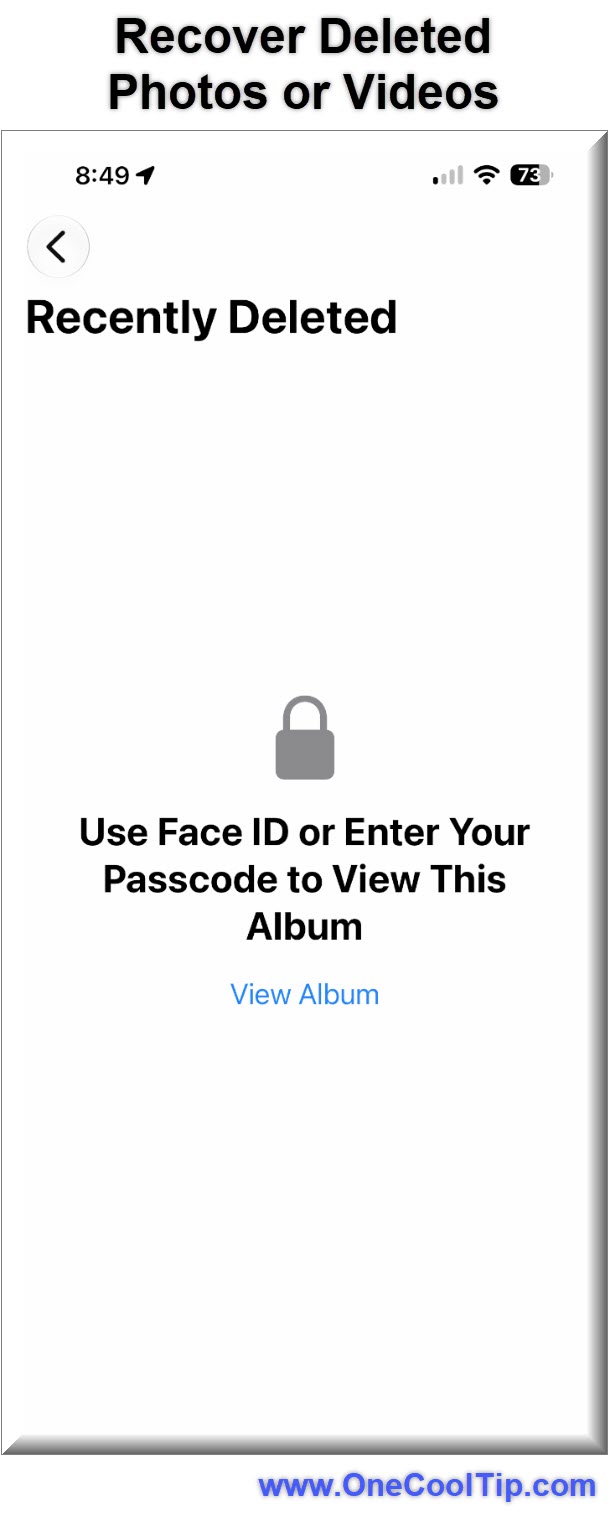
  5. Tap View Album.
  6. Unlock the album with your passcode, Face ID, or Touch ID.
  7. Tap the photo or video you want to restore.
  8. Tap Recover.
  9. Confirm by tapping Recover Photo or Recover Video.


fig. 1 - Recover Deleted Apple Photos or Videos Example

To recover multiple items:


  1. Open the Photos app.
  2. Tap Collections.
  3. Scroll to Utilities.
  4. Tap Recently Deleted.
  5. Tap View Album and unlock it.
  6. Tap Select.
  7. Choose the photos and videos you want to restore.
  8. Tap the More button.
  9. Tap Recover.


Mac:


  1. Open the Photos app.
  2. Select Recently Deleted in the sidebar.
  3. Unlock the album with Touch ID or your Mac login password.
  4. Select the photo or video.
  5. Click Recover.


Web/Desktop:


  1. Go to iCloud.com in a browser.
  2. Sign in with your Apple Account.
  3. Open Photos.
  4. Select Recently Deleted in the sidebar.
  5. Select the photo or video you want to restore.
  6. Click or tap Recover.


Pros and Cons


Pros:


  • Gives users a practical recovery window after accidental deletion.
  • Works directly inside the Photos app on iPhone and iPad.
  • Supports single-item and multi-item recovery.
  • Adds privacy protection by locking Recently Deleted by default.
  • Also works through iCloud.com when iCloud Photos is in use.


Cons:


  • The recovery window is limited to 30 days.
  • Items permanently deleted from Recently Deleted cannot be restored from that album.
  • iCloud Photos can sync deletions across devices, which may surprise some users.
  • Shared Library behavior can be confusing when multiple people manage the same library.


Feature Access


  • Who gets it: iPhone and iPad users using Apple Photos.
  • Supported platforms: iPhone, iPad, Photos on Mac, iCloud.com, and Apple Vision Pro.
  • Supported versions: Apple documents this feature in current iPhone and Apple Photos support materials.
  • Subscription requirements: No paid subscription is required for local Photos recovery. iCloud Photos behavior depends on iCloud use and available storage.
  • Region limits: No region-specific limitation was found in Apple’s support materials.
  • Business, education, enterprise: Availability may vary if an organization manages iCloud, Photos, web access, or Apple Account settings.


Score

Criterion | Score (0–10) | Justification
Value | 9
This solves a common, stressful problem and can save irreplaceable photos or videos. The 30-day recovery window makes it immediately useful.
Usability | 8
The recovery steps are simple once users know where Recently Deleted lives. The locked album adds one step, but it improves privacy.
Wow Factor | 5
This is not new or flashy, but it is quietly powerful and often overlooked.
Total: 22/30 | 👍 Good
A high-value everyday safety net that every iPhone owner should know before they need it.


Key Takeaways


Recently Deleted gives iPhone users a valuable second chance after an accidental photo or video deletion. 


The key is to act before the 30-day window closes and remember that iCloud Photos can sync deletion across your devices.


Cool Tip Snapshot


  • Feature Name: Recently Deleted Photo Recovery.
  • Platform(s): iPhone, iPad, Mac, iCloud.com, Apple Vision Pro.
  • Quick Benefit: Restore deleted photos or videos before they are permanently removed.
  • Best For: Families, travelers, creators, students, business users.
  • Access Type: Free.
  • Difficulty: Easy.


Try It Yourself


Open Photos today and check **Collections > Utilities > Recently Deleted** so you know where recovery lives before you need it. 


Share this tip with family, friends, and coworkers, and leave a comment with your best iPhone photo-saving trick.


READ MORE


Read the Full One Cool Tip.

Check Out These Cool Tips & Tricks


  • Act Fast: Recently Deleted keeps photos and videos for only 30 days.


  • Unlock First: Recently Deleted is locked for privacy. Tap View Album, then use Face ID, Touch ID, or your passcode.


  • Recover Many: You do not have to restore one photo at a time. Tap Select, choose multiple items, then tap More > Recover.


  • Check iCloud: A deletion may sync across your Apple devices. Visit iCloud.com > Photos > Recently Deleted if you cannot reach your iPhone.


  • Look in Hidden: A missing photo may be hidden, not deleted. Go to Photos > Collections > Utilities > Hidden and unlock the album.


  • Avoid Panic Deletes: Deleting from Recently Deleted is permanent through that album. Review selected items carefully before tapping Delete.


  • Use Search: Recovered photos return to your library. Search by date, place, person, or object to find them again.


  • Mind Shared Library: Shared Library items may behave differently if someone else added them. Ask the original contributor to check Recently Deleted if you cannot recover the item.


  • Back Up Trips: Do not rely only on Recently Deleted for travel memories. Export key photos to iCloud, external storage, or another backup after each trip.


  • Keep Lock On: The Recently Deleted lock protects sensitive deleted images. Keep passcode, Face ID, or Touch ID protection enabled unless you have a specific reason to turn it off.


ICYMI - In Case You Missed It ...

Freeform Rotate Comes To Windows Paint: A Tiny Button With Big Creative Power


Freeform Rotate is finally arriving in the classic Windows Paint app, and it quietly fixes a decades-old annoyance. If you sketch, annotate screenshots, or mock up ideas in Paint, this one control can save you time and make your work look more polished.


Read the Full Cool Tip.


Read the Newsletter Version.

Looking for your next adventure?


Call Denise at Travel For You.

314.660.3039


Sign Up for the Monthly Newsletter


http://www.travelforyouvacations.com/


https://www.facebook.com/TRAVEL.FOR.U/


See You Tomorrow

Tomorrow's Cool Tip is waiting to amaze you.


Until then, go forth and conquer the tech world with your newfound knowledge!


Be sure to visit www.OneCoolTip.com for Cool Tech Tips for a Cooler Life!


And if you Like One Cool Tip, please support with TipJar!


Enjoy!


Rodger

Chief Cool Tipper

onecooltip.com@gmail.com


What Do You Think?

What do you think of today's OneCoolTip newsletter?
Positive        Neutral        Negative
X Share This Email
LinkedIn Share This Email

Connect with One Cool Tip!!

Facebook  X  Instagram  Web  Pinterest  YouTube  LinkedIn
 

As an Amazon Associate, One Cool Tip may earn a small commission from qualifying purchases.


Our media content is intended solely for informational purposes only. Please do not construe anything here as legal, tax, investment, financial, marital or other advice.


Copyright © 2026 | www.OneCoolTip.com | All Rights Reserved