|
One Cool Tip Newsletter
November 5, 2025
| Your daily dose of tech-savvy brilliance! | |
😀Greetings!, Happy Windows Wednesday, Cool Tipper!
Get ready to streamline your digital life with simple, actionable tips delivered straight to your inbox.
Today's Cool Tip Theme: Windows 11 Task Manager Bug
IN THIS ISSUE
- 🚨 Possible TP-Link Router Ban.
- ⚠️ Possible DJI Drones Ban.
- 💻 AI Productivity Prompt.
- 👨🍳 ChatGPT Copycat Recipe Prompt.
- ⚙️ Task Manager Bug Fix.
- ⚡ Fast Task Manager Open.
- 🤔 Enable 'End Task' Feature.
- ⏸️ Stop Task Manager Scrolling.
New here? Subscribe to the One Cool Tip Newsletter for daily updates. It's FREE!
-
😂 Laugh with Us! Enjoy our Tech Joke of the Day, Haiku and Cool Tip Comics.
-
🌐 Stay Informed! Check out ICYMI, and our One Cool Tip Video.
🔔 Is your email provider (Gmail, Yahoo, Outlook...) not delivering the newsletter?
Check the Junk folder - Move the newsletter to your Inbox. And reply to this email with a “Hey, Rodger” or “I got it.” That tells your mail service you want this newsletter!
Today's Tech Trivia
Answer at the end of this newsletter.
| |
| What term describes a process that finished but still holds a system table entry? | | | | |
3️⃣
If you enjoy the One Cool Tip newsletter, please forward this newsletter to THREE friends or colleagues or share it on social media using the links below.
Leave a Tip!
Share this One Cool Tip Newsletter!
| | |
🚨TP-Link Routers May Face U.S. Ban Over Security Concerns🚨
If you’re using a TP-Link router, it’s time to pay attention. According to a recent report, more than half a dozen federal agencies are backing a proposal to ban TP-Link Systems products in the U.S. due to alleged national security risks tied to the company’s connections with China.
Why It Matters
TP-Link routers are widely used, some estimates say they account for up to 65% of U.S. router sales since the pandemic. Over 300 internet providers issue TP-Link routers to customers. But recent investigations by the Departments of Commerce, Defense, and Justice suggest that TP-Link’s infrastructure could be vulnerable to foreign influence or exploitation.
Bottom Line
There’s no need to panic but if you’re security-conscious or managing sensitive data, it’s smart to review your router settings and consider upgrading. TP-Link isn’t banned yet, but the momentum is building.
And in Other News...
- DJI Drones May Face U.S. Ban
If you fly DJI drones for photography, education, or business, keep your eyes on Washington. The U.S. government is considering a ban on DJI products due to national security concerns, citing potential data vulnerabilities and ties to China’s military infrastructure.
Why It Matters
DJI dominates the consumer drone market, with over 70% market share in the U.S. Many educators, real estate professionals, and content creators rely on DJI’s affordable, high-performance drones. A ban could disrupt supply chains, limit firmware updates, and block future sales.
The proposed legislation, called the Countering CCP Drones Act, would prohibit DJI from operating in the U.S. if passed. It’s backed by bipartisan lawmakers and national security officials who argue that DJI’s data collection could pose risks to critical infrastructure.
Bottom Line
The ban isn’t final yet, but it’s gaining traction.
| | |
🚀 Make It a Great Week!
Copy/Paste this AI-powered prompt. Use with your favorite assistant: Gemini, Copilot, Grok, DuckAI, Meta and ChatGPT
“Act as my personal productivity coach. It’s Wednesday, and I need a midweek reset.
Here are my top priorities for the week so far: [list your current work and personal priorities here].
Review them and help me refocus on what truly matters for the rest of the week.
Organize your advice into three sections:
🧠 Work Focus: what deserves my attention at work
🏡 Home Tasks: what I can realistically finish at home
🌟 Personal Recharge: one small thing to regain energy and clarity.
End with one quick win I can achieve today in each category.”
| | | |
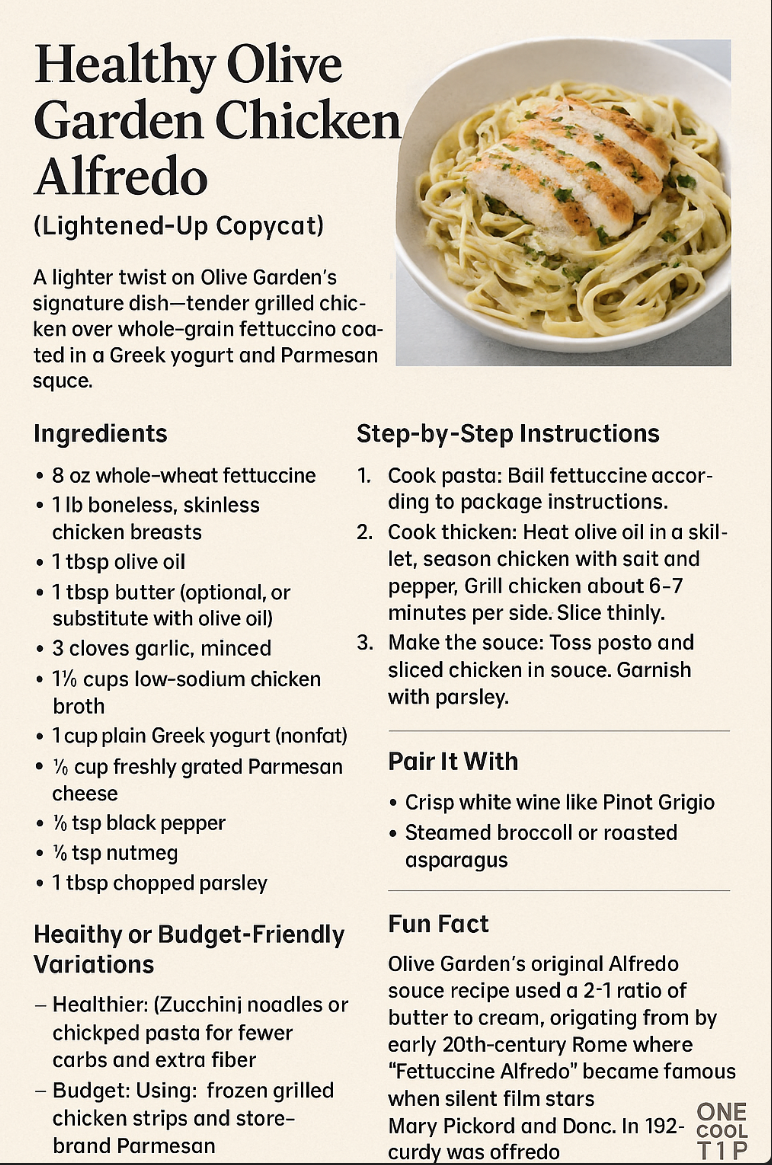
🖼️ Cool ChatGPT AI Prompt of the Day
“Act as a professional chef and recipe developer. Choose a dish from the menu of a popular national restaurant chain (like Olive Garden, Cheesecake Factory, Panera, or Chipotle). Create a home-friendly version of that dish using easy-to-find grocery store ingredients.
Please include:
• The restaurant and dish name
• A short flavor description (what makes it special)
• A complete ingredient list with measurements
• Step-by-step cooking instructions (with timing and tips)
• One healthy or budget-friendly variation
• Suggested sides or drinks to pair it with
• A brief fun fact about the restaurant or recipe’s origin.
•Create a recipe card image”
| | |
Windows 11’s Task Manager Bug Is Slowing You Down - Here’s the Fix.
A recent Windows 11 update introduced a bug that leaves Task Manager running invisibly in the background, draining memory and slowing performance. This guide shows you how to detect and fix it fast.
Have you ever closed Task Manager only to feel your PC dragging minutes later?
You’re not imagining it.
Microsoft’s October 2025 update (KB5067036) quietly broke Task Manager’s close button, leaving behind ghost processes that hog memory and slow down your system.
If you’re a frequent Task Manager user, or just someone who never shuts down, this bug could be eating up gigabytes of RAM without you knowing.
Feature Explanation
The bug affects Windows 11 users who installed KB5067036, an optional update released on October 28, 2025.
When you close Task Manager using the “X” button, it doesn’t actually quit. Instead, it lingers in the background.
Reopening it spawns another instance, and so on.
Each ghost process uses around 20MB of RAM.
Multiply that by dozens or hundreds and you’ve got a performance bottleneck.
What You'll Gain
- Save system memory.
- Avoid slowdowns during multitasking.
- Quickly fix a hidden performance issue.
Step-by-Step Instructions
Here's how to do it.
Microsoft Desktop
-
Press Ctrl + Shift + Esc to open Task Manager.
-
Click the “X” to close it.
-
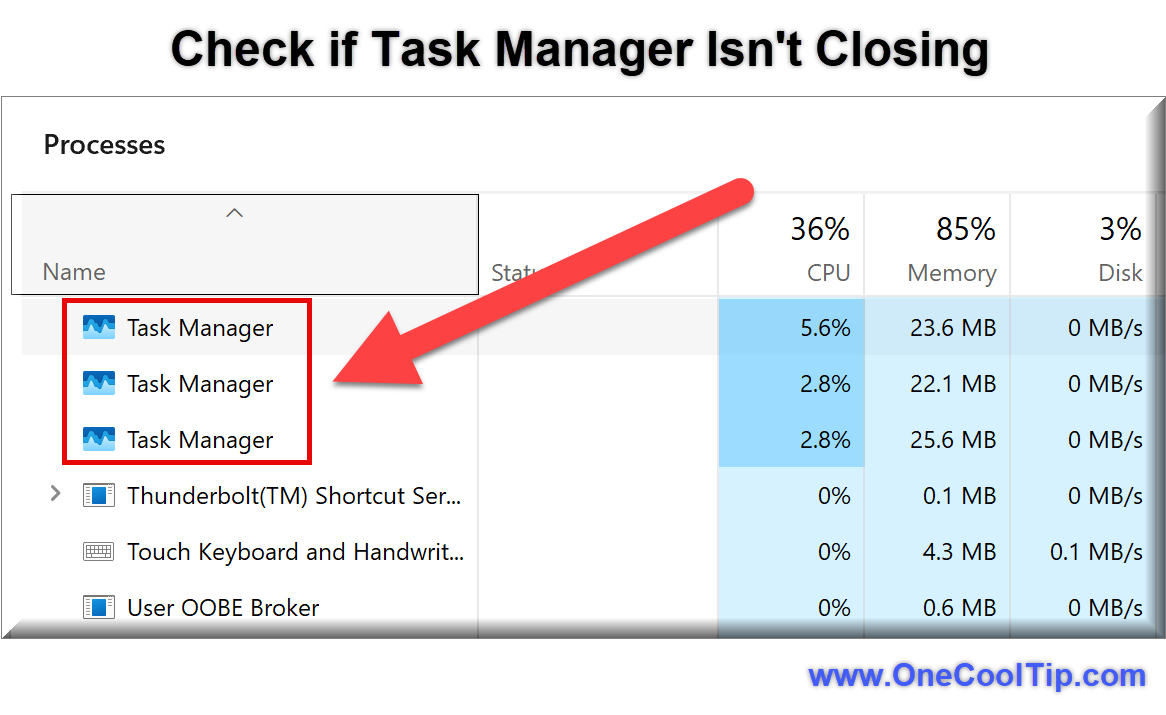
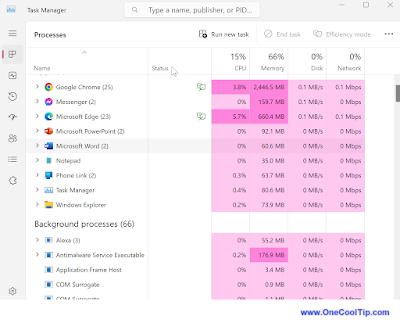
Reopen Task Manager and check for multiple instances under the “Processes” tab.
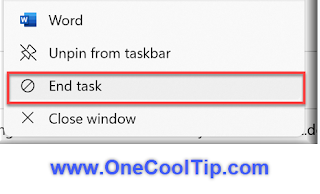
- To manually close them:
- Select each Task Manager process.
- Click End Task.
| | fig. 1 - Check if Task Manager Isn't Closing | | |
Pros and Cons
Pros
- Easy to detect and fix manually.
- Doesn’t cause data loss or crashes.
- Microsoft is working on a patch.
Cons
- Can silently degrade performance over time.
- Affects users who frequently open Task Manager.
- No automatic fix yet—requires manual cleanup.
Configuration Guide
- No toggle exists to disable Task Manager’s close behavior.
- The only workaround is manual cleanup or using the command line.
- Microsoft has acknowledged the issue and is developing a fix.
Feature Access
Affected users:
- Windows 11 24H2 and 25H2
- Installed KB5067036 (October 28, 2025)
- Optional update; only installs if manually selected
- No subscription required.
- Applies to all editions of Windows 11 with the update.
Score
Criterion | Score | Justification
Value 7
Fixing this bug prevents memory drain and improves system responsiveness.
Usability 6
Requires manual cleanup or command line—manageable but not intuitive.
Wow Factor 5
It’s more of a “yikes” than a “wow,” but the fix is oddly satisfying.
Total: 18/30 👍 Good. Worth adopting for most users.
Key Takeaways
- Microsoft’s October update introduced a Task Manager bug that leaves ghost processes running.
- While not catastrophic, it can slow down your system over time.
- Manual cleanup is easy and effective until a fix arrives.
Try It Yourself
Open Task Manager, close it, and reopen.
See multiple entries for Task Manager?
You’re affected.
READ MORE
Read the Full Cool Tip
| | |
Help support One Cool Tip. Use this Amazon link when you shop online.
Look at these Cool Products:
| |
Look at these Cool Products:
-
Amazon Fire TV Stick 4K (newest model) with AI-powered Fire TV Search, Wi-Fi 6, stream over 1.8 million movies and shows, free & live TV Save 40% $29.99 Check it Out on Amazon!
-
Bose SoundLink Flex Bluetooth Speaker (2nd Gen) - Portable Outdoor Speaker with Hi-Fi Audio, Waterproof and Dustproof, USB-C, Up to 12 Hours Battery Life, Black Save 13% $129. Check it Out on Amazon!
-
TESSAN Surge Protector Flat Plug Power Strip, Black Extension Cord, 8 AC Outlets, 3 USB Charger(1 USB C Port) 3 Side Outlet Extender, 5 Ft, 900 Joules Protection, Save 11% $24.99 Check it Out on Amazon!
Prices accurate at time of publication
| | |
🆒Tell Me More
- The bug only affects users who installed KB5067036 after October 28, 2025.
- Closing Task Manager with the “X” doesn’t terminate the process.
- Each ghost instance consumes ~20MB of RAM.
- Microsoft has acknowledged the issue but hasn’t released a fix yet.
⏩Quick Tips
-
🧹 Clean Up Ghost Processes: Use Task Manager to manually end each lingering instance.
-
💻 Use Command Prompt for Speed: Run taskkill /im taskmgr.exe /f as admin to close all at once.
-
🔍 Monitor RAM Usage: Check Task Manager’s “Performance” tab for memory spikes.
-
🧪 Test Before Rebooting: Reopen Task Manager after closing to confirm it’s fully terminated.
-
🛡️ Avoid Repeated Opens: Limit how often you launch Task Manager until the bug is patched.
| | ✅ More Must-Read Tech Tips | |
👀 How Do I Open Task Manager FAST?
Do you have a program that is non-responding in Windows?
The Task Manager app is the best tool to exit a non-responding program.
We've all usually opened the Task Manager by using the ALT-CTRL+DELETE (the three finger Windows salute!) to get to the security screen and then choosing the Task Manager option.
There is a much faster way.
Press and hold CTRL + SHIFT + ESC
Discover more HERE.
| |
🤔 Have You Ever Wondered How to Use the New "End Task" Feature in Windows 11?
Have you ever found yourself in a situation where an application on your computer is not responding, and you’re scrambling to find a way to close it?
Windows 11 has a handy feature that allows users to end tasks directly from the taskbar.
But before you can use it, you need to enable it.
Here's how to do it.
Turning the End Task Feature On
- Right-click on the Start menu and select Settings.
- In the Settings window, select System from the left panel.
- Scroll down and click on For developers.
- Toggle the End Task button
- You’ve now enabled the End Task feature.
Using End Task
- Right-click on any open app on your taskbar and select ‘End Task’ to kill its process.
- This is a much more efficient alternative to launching Task Manager and navigating to the Processes tab.
Give this new feature a try and discover how it can streamline your Windows experience!
Find more HERE.
| | |
🙋♂️ Here's How to Stop Task Manager App Processes from Scrolling.
The Windows Task Manager is a system monitor utility that allows you to manage all the processes running on your computer.
You can use Task Manager to:
-
View performance: View the overall performance of the system, or the performance per package or process
-
Manage processes: Order processes by usage to see what's taking up your computer's resources
- Turn off software: Turn off software that takes up excessive resources on your PC to improve the running speed
-
Restart or shut down system: Restart or shut down the system when it is busy or unresponsive
-
Terminate applications: Terminate applications and processes
Use the Control key to pause the Task Manager screen.
This will stop apps from scrolling in the Windows Task Manager.
Here's how to do it:
-
Open the Task Manager by pressing Ctrl+Shift+Escape.
-
Hold down the Control key while scrolling through the list of processes.
- This will prevent the processes from scrolling automatically. You can release the Control key to resume scrolling.
Learn more HERE.
| | |
❓Did you share this newsletter with three friends yet?
😎 Cool Facts
-
20MB: Each ghost Task Manager process uses ~20MB of RAM. Source.
-
100+: Some users reported 100+ instances running simultaneously. Source.
-
Nov 4: Microsoft’s fix is still pending as of November 4, 2025. Source.
⌨️Today's Cool Keyboard Shortcuts
Check out these Cool Excel shortcuts:
-
Ctrl + Shift + Esc: Open Task Manager instantly.
-
Alt + F4: Close the active window (not reliable for Task Manager bug).
-
Win + X then T: Quick access to Task Manager via Power User menu.
😜 Tech Joke of the Day 😅
What’s Task Manager’s favorite song?
“Stayin’ Alive” by the Bee Gees.
🔎 Do you have a Cool Tip or tech question? Email us at onecooltip.com@gmail.com.
| | |
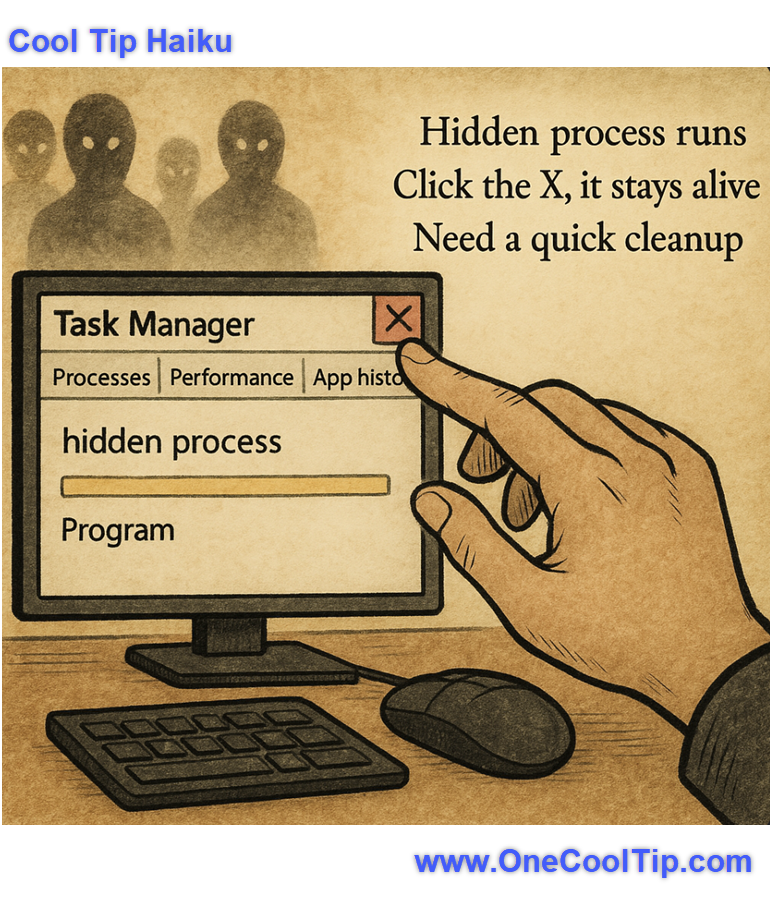
Hidden process runs,
Click the X, it stays alive,
Need a quick cleanup.
| |
| 🤔 How do you usually troubleshoot a slow PC? | | | |
Did You See These Cool Tips This Week?
| | | | Unlock a Time Capsule: Explore the Internet Archive’s Magazine Rack | The Internet Archive’s Magazine Rack lets you browse or download thousands of digitized magazines from past decades. It's more than nostalgia. It’s a practical resource for anyone researching how technology, design, and culture have evolved. | | | | How to Instantly Edit Data Label Text in Excel for the Web | Now you can edit chart data labels directly in Excel for the web with no desktop detour required. This crucial update makes your visual storytelling faster, cleaner, and more intuitive. | |
ICYMI - In Case You Missed It ...
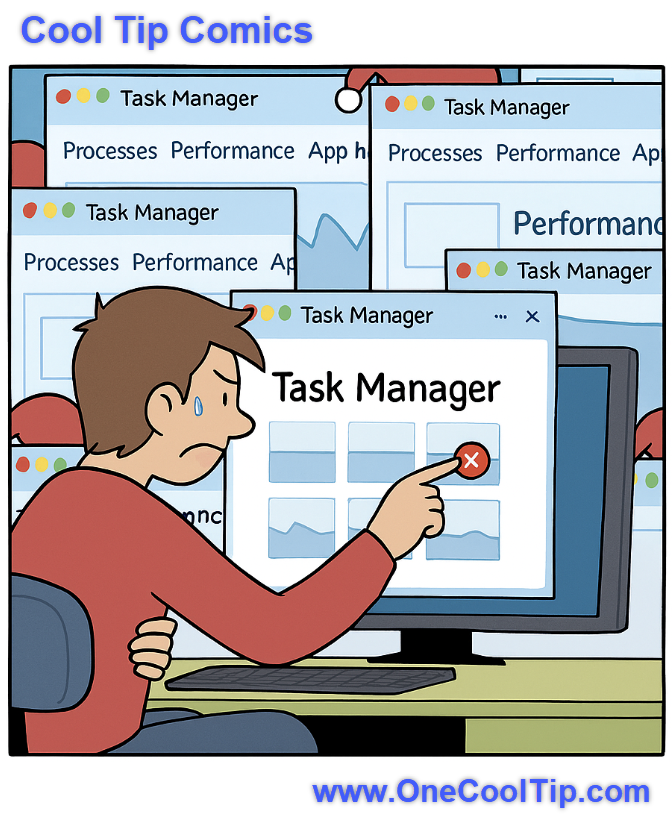
| | | | Your Camera Just Got a Brain: Unlock Google’s Real-Time AI Assistant | Stop typing and start talking. Google Live Search turns your phone’s camera and microphone into a hands-free AI expert that answers questions about whatever you point it at, in real time. | | When Task Manager becomes the task itself, it’s the circle of (CPU) life. | | |
Trivia Answer: D) Zombie Process
A Zombie Process, also known as a defunct process, originates from Unix and Unix-like operating systems.
It is used metaphorically because the process has "died" (finished its execution) but hasn't yet been "reaped" (removed from the process table) by its parent process.
While they are usually harmless and quickly cleared, an accumulation of zombie processes, like the one caused by the Windows 11 Task Manager bug, can clog the system's process table and degrade overall performance, hence the importance of a proper cleanup.
----------
Tomorrow's Cool Tip is waiting to amaze you.
Until then, go forth and conquer the tech world with your newfound knowledge!
Be sure to visit www.OneCoolTip.com for Cool Tech Tips for a Cooler Life!
And if you Like One Cool Tip, please support with TipJar!
Enjoy!
Rodger
Chief Cool Tipper
onecooltip.com@gmail.com
| |
| What do you think of today's OneCoolTip newsletter? | | | |
Please Share the One Cool Tip Newsletter!
You asked for it. You got it. There is now a One Cool Tip Newsletter archive. Did you delete a newsletter and want to read it again? Check it out HERE.
Want to help One Cool Tip grow? Please forward this email using the link above. And if you see an OCT social media post, please LIKE, COMMENT and SHARE!
Have you subscribed to the One Cool Tip YouTube channel? Subscribe HERE.
| | Connect with One Cool Tip!! | | |
|
As an Amazon Associate, One Cool Tip may earn a small commission from qualifying purchases.
Our media content is intended solely for informational purposes only. Please do not construe anything here as legal, tax, investment, financial, marital or other advice.
Copyright © 2025 | www.OneCoolTip.com | All Rights Reserved
|
| | | |