One Cool Tip Newsletter

August 15, 2026

Your daily dose of tech-savvy brilliance!

😀Greetings! Happy Saturday, Cool Tipper!


Get ready to streamline your digital life with simple, actionable tips delivered straight to your inbox.


Cool Tip Theme: Turn Off Gemini Watermark


New here? Subscribe to the One Cool Tip Newsletter for daily updates. It's FREE!

3️⃣

If you enjoy the One Cool Tip newsletter, please forward this newsletter to THREE friends or colleagues or share it on social media using the links below.


Leave a $$$ Tip!


Share this One Cool Tip Newsletter!

X Share This Email
LinkedIn Share This Email
Pinterest Share This Email

🚨One Phone Call Can Lead to a Massive Data Breach🚨


A recent data breach affecting RingCentral is a powerful reminder that cybercriminals often target people, not just technology.


Personal information tied to roughly 1.6 million accounts may have been exposed after attackers used social engineering tactics to gain access.


The incident highlights how a convincing email, text, or phone call can sometimes bypass even strong technical defenses.


The lesson is simple: never share passwords, verification codes, or sensitive account information in response to an unexpected request.


If a company contacts you about security concerns, verify the message through its official website or customer service channels before taking action.


A few moments of caution can help protect your personal information from becoming part of the next data breach.


And in Other News...


  • Google's New AI Gets Smarter, Faster, and More Helpful


Google has introduced Gemini 3.7 Flash, its latest AI model designed to handle complex tasks with greater intelligence and efficiency.


The new version delivers improvements in coding, web development, document analysis, and other knowledge-based work.


It is also designed to better follow instructions, adapt to challenges, and complete multi-step tasks with less back-and-forth.


While many of the upgrades happen behind the scenes, you may notice AI tools becoming faster, more accurate, and more capable of handling everyday requests.


This is another example of how rapidly AI technology is evolving and becoming more useful in the apps and services people use every day.


As AI continues to improve, expect digital assistants to become more capable partners for work, learning, and creativity.

Cool Tip Poll

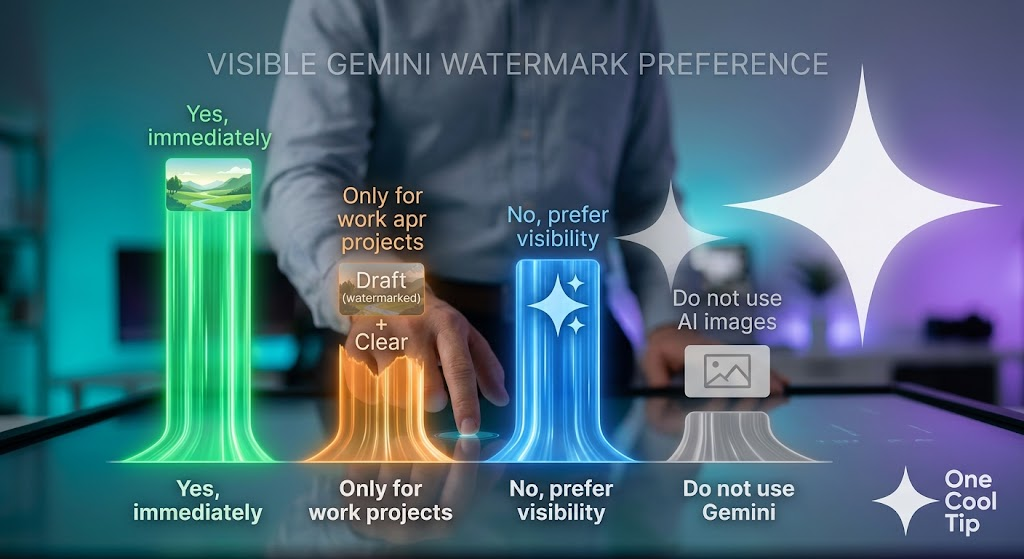
🤔 Will You Turn Off the Google Gemini Visible Watermark?

Cool Deals of the Day

Help support One Cool Tip. Use this Amazon link when you shop online.


Check out these Cool Deals:

🖥️ Dell UltraSharp 27 Monitor: Exceptional color accuracy makes it a top choice for reviewing AI art and creative assets.

Save 20%. Now $279.99. 4.3 Stars. Check it out on Amazon!


🖱️ Logitech MX Master 3S Wireless Mouse: Quiet clicks and precision tracking speed up graphic design and multi-window productivity tasks.

Save 20%. Now $79.99. 4.5 Stars. Check it out on Amazon!


🎧 Anker Space One Active Noise Cancelling Headphones: Premium focus sound with strong battery life for deep productivity sessions.

Look-->. Now $199.99. 4.5 Stars. Check it out on Amazon!


🔌 Anker Prime 6-in-1 Charging Station (140W): Keep all your desktop tablets, phones, and laptops powered with fast USB-C ports.

Save 25%. Now $59.99. 4.6 Stars. Check it out on Amazon!


*Prices accurate when originally published.

One Cool Tip may earn a commission from qualifying purchases.

Fuel Your Adventure

Try Big Mike's Jerky!


bigmikesjerky.com


Now on TikTok!


Today's Cool Tip

Turn Off the Visible Watermark on Google Gemini AI Images


Google now allows you to turn off visible watermarks on AI-generated images, videos, and media files directly in your account settings. Here is how to disable the visible corner sparkle overlay so your downloads stay clean and ready for presentations or personal projects.


Generating graphics and illustrations with artificial intelligence has quickly become a standard part of modern productivity. 


However, Google Gemini has traditionally stamped a visible sparkle badge into the corner of generated pictures, forcing creators and professionals to crop or edit their files before putting them into slide decks or social feeds.


Here’s a Cool Tip: Turn off the visible media watermark in Gemini Settings to download clean graphics instantly.


Google has introduced an official setting that lets users turn off the visible watermark on AI generations across supported accounts.


Feature Explanation


The visible watermark in Google Gemini originally served as an immediate visual marker indicating that an image was generated by artificial intelligence. 


While helpful for quick identification, the overlay often cluttered presentation slides, web hero graphics, marketing mockups, and personal design projects.


The Media Watermark setting allows users to disable this visible overlay. 


When toggled off, newly generated graphics and media files download without the visible icon stamped over the corner.


This setting only alters the surface visual layer. 


Google continues to embed invisible SynthID pixel signatures and standard C2PA content provenance metadata directly into the files. 


This maintains digital attribution and transparency behind the scenes while keeping your final images clean and uncluttered.


What You’ll Gain


Save time by eliminating the need to manually crop or edit corner watermark badges from AI images.


Keep slide decks, documents, and marketing mockups visually clean.


Retain official provenance tracking through invisible SynthID metadata without surface clutter.


Switch the overlay on or off at any time depending on project needs.


Step-by-Step Instructions


Here's how to do it.


Web/Desktop:


  1. Open your desktop browser and go to gemini.google.com.
  2. Sign in to your Google Account.
  3. Click the Settings gear icon in the lower-left navigation bar.
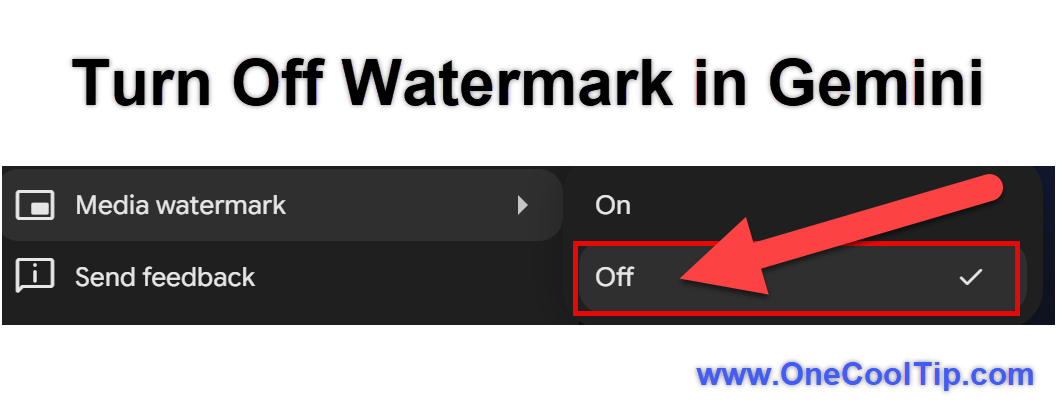
  4. Select Media watermark from the settings menu.
  5. Click the toggle to switch the setting to Off.
  6. Generate a new image or media prompt.
  7. Click the Download full size button to save a clean file free of visible corner icons.


fig. 1 - Turn Off Watermark in Gemini

Android:


  1. Open the Google Gemini app on your Android device.
  2. Tap your profile icon in the top-right corner.
  3. Tap Settings.
  4. Scroll down and tap Media watermark.
  5. Toggle the switch to Off.
  6. Create a new image prompt and tap download to save a clean copy directly to your photo gallery.


iPhone/iPad:


  1. Open the Google app or Google Gemini app on your iOS device.
  2. Tap your profile icon in the upper right.
  3. Open Gemini Settings.
  4. Select Media watermark.
  5. Set the toggle to Off.


Cool Example: 


A marketing designer prompts Gemini for a graphic of a solar-powered smart home. 


With the watermark setting disabled, downloading the asset produces a spotless PNG ready to drop straight into a client presentation without manual editing.


Pros and Cons


Pros:


  • Eliminates manual post-editing and photo cropping.
  • Produces clean visuals for business slide decks, reports, and websites.
  • Applies across both desktop web browsers and mobile apps.
  • Preserves invisible technical provenance data for verification tools.


Cons:


  • Setting must be adjusted separately on some mobile installations.
  • May be restricted in specific regions where visible AI markers are legally required.
  • Managed enterprise or school accounts may have the toggle locked by administrators.


Feature Access


  • Target Availability: Rolling out to Gemini on the web, mobile apps, Google Flow, and integrated search generation tools.
  • Source Verification: Confirmed via Google Gemini product documentation and official rollout notices.
  • Account Types: Available on standard free Google accounts and Google One AI Premium / Advanced subscribers.
  • Regional Notes: Available globally, excluding select jurisdictions where visible AI watermarking is legally mandated.


Score

Criterion | Score (0–10) |  Justification
Value |  9
It eliminates the recurring frustration of cropping and editing visible badges out of generated assets.
Usability |  9
The setting is a simple one-click toggle located right in the main options menu.
Wow Factor |  6
While not a flashy generative model upgrade, it represents a practical and overdue usability fix.
Total: 24/30 |  👍 Good
A practical quality-of-life update that makes Google Gemini far more useful for everyday design, documentation, and presentation work. This aligns Gemini with Midjourney and ChatGPT, which produce clean image outputs while maintaining provenance data in file metadata.


Key Takeaways


  • You can now download Gemini AI images without visible corner watermark badges.
  • The option is accessible through a simple toggle in your Gemini Settings menu.
  • Invisible SynthID pixel markers and C2PA metadata remain intact for provenance and safety.


Cool Tip Snapshot


  • Feature Name: Google Gemini Media Watermark Toggle.
  • Platform(s): Web, Android, iOS, Windows, macOS, Google Workspace.
  • Quick Benefit: Download clean AI-generated images without corner watermark badges.
  • Best For: Creators, business professionals, educators, and designers.
  • Access Type: Free, Subscription, Rolling Out.
  • Difficulty: Easy


Try It Yourself


Head to your Google Gemini settings today, switch off the media watermark toggle, and test a fresh image prompt to see the clean download for yourself. 


Did this tip save you editing time? 


Leave a comment below, subscribe to the One Cool Tip newsletter for daily productivity tips, and share this guide with your family, friends, and coworkers!


READ MORE


Read the Full Cool Tip.

Check Out These Cool Tips & Tricks


  • Check First: Confirm that Media Watermark is off before generating final images. To check it, open Gemini’s Settings and select Media Watermark.


  • Regenerate Media: Changing the setting may not repair a file you already downloaded. Turn it off and ask Gemini to generate a new version.


  • Verify Account: Different Google accounts can have different access. Select your profile picture and confirm that you are using an eligible personal account.


  • Keep Provenance: The visible mark is only one identification layer. Ask Gemini whether media is AI-generated to check for supported SynthID signals.


  • Save Originals: Keep the original generated file before resizing or editing it. Download it directly from Gemini and store a backup locally or in cloud storage.


  • Add Branding: Replace the Gemini corner mark with your own appropriate branding. Import the clean image into your preferred design application and add a logo.


  • Review Policies: A clean image may still require an AI disclosure. Check your employer, school, client, advertising platform, or publisher policy before distributing it.


  • Test Downloads: Preview the downloaded file rather than relying only on the in-app display. Open the exported image or video and inspect its corners and playback overlays.


  • Separate Products: The setting does not control AI watermark behavior in every Google service. Check the originating product whenever a watermark remains.


  • Label Clearly: Visible disclosure may still help audiences understand synthetic content. Add a caption or credit when transparency improves the context.

ICYMI - In Case You Missed It ...

Windows 11's New Point-in-Time Restore Can Save Hours of Recovery


Windows 11's new Point-in-Time Restore feature can help you recover from bad updates, driver problems, and software mistakes without rebuilding an entire PC. If something breaks, you may be able to roll back to a previous working state in minutes instead of spending hours troubleshooting.


Read the Full Version.


Read the Newsletter Version.

Looking for your next adventure?


Call Denise at Travel For You.

314.660.3039


Sign Up for the Monthly Newsletter


http://www.travelforyouvacations.com/


https://www.facebook.com/TRAVEL.FOR.U/


See You Tomorrow

Tomorrow's Cool Tip is waiting to amaze you.


Until then, go forth and conquer the tech world with your newfound knowledge!


Be sure to visit www.OneCoolTip.com for Cool Tech Tips for a Cooler Life!


And if you Like One Cool Tip, please support with TipJar!


Enjoy!


Rodger

Chief Cool Tipper

onecooltip.com@gmail.com


What Do You Think?

What do you think of today's OneCoolTip newsletter?
Positive        Neutral        Negative
X Share This Email
LinkedIn Share This Email

Connect with One Cool Tip!!

Facebook  X  Instagram  Web  Pinterest  YouTube  LinkedIn
 

As an Amazon Associate, One Cool Tip may earn a small commission from qualifying purchases.


Our media content is intended solely for informational purposes only. Please do not construe anything here as legal, tax, investment, financial, marital or other advice.


Copyright © 2026 | www.OneCoolTip.com | All Rights Reserved