One Cool Tip Newsletter

July 25, 2026

Your daily dose of tech-savvy brilliance!

😀Greetings! Happy Saturday Cool Tipper!


Get ready to streamline your digital life with simple, actionable tips delivered straight to your inbox.


Cool Tip Theme: Gemini Notebook Drive Sync.


New here? Subscribe to the One Cool Tip Newsletter for daily updates. It's FREE!

3️⃣

If you enjoy the One Cool Tip newsletter, please forward this newsletter to THREE friends or colleagues or share it on social media using the links below.


Leave a $$$ Tip!


Share this One Cool Tip Newsletter!

X Share This Email
LinkedIn Share This Email
Pinterest Share This Email

🚨 FBI Warns of New Scam Using Fake Agents and AI Deepfakes🚨


The FBI is warning consumers about a growing scam in which criminals impersonate FBI personnel and the Internet Crime Complaint Center (IC3) to target people who have already been victims of fraud.


Scammers are using fake social media accounts, fraudulent websites, and even AI-generated videos that appear to feature FBI officials to gain trust and collect personal information.


In many cases, they falsely claim they can help recover stolen money or assist with an existing fraud complaint.


The FBI stresses that IC3 does not contact victims through social media, messaging apps, or unofficial websites, and it never asks for payment to recover lost funds.


Consumers should be cautious of unsolicited messages, verify website addresses carefully, and avoid sharing sensitive information with anyone claiming to be from IC3 without independent verification.


If something seems suspicious, go directly to the official IC3 website rather than clicking links provided in messages or posts.


And in Other News...


Google Highlights Gemini Tools to Boost Summer Productivity


Google is encouraging students to use Gemini and other AI-powered tools to stay productive during summer break and prepare for the upcoming school year.


The company shared 13 ways its AI tools can help with tasks such as finding internships, organizing application deadlines, building study guides, and practicing interview skills.


Gemini can also assist users with researching new topics, exploring hobbies, and creating personalized learning plans.


Google says these tools are designed to help users save time, stay organized, and reduce stress while working toward academic and career goals.


As AI becomes a bigger part of everyday life, Google is positioning Gemini as a practical assistant for learning, planning, and personal productivity.


User Insight

🤔 Where do you keep your notes?

Cool Deals of the Day

Help support One Cool Tip. Use this Amazon link when you shop online.


Check out these Cool Deals:

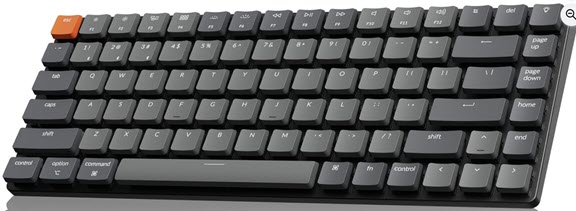
⌨️ Keychron K3 Ultra-Slim Wireless Mechanical Keyboard: Improves typing speed and comfort during extended research sessions.

Save 5%. $59.84. 4.4 Stars. Check it out on Amazon!


💻 Logitech MX Master 3S Wireless Mouse: Great for precise scrolling through long documents and research files.

Save 20%. $79.99. 4.6 Stars. Check it out on Amazon!


🎧 Sony WH-1000XM5 Noise Canceling Headphones: Perfect for blocking out distractions while focusing on complex Gemini Notebook projects.

Save 38%. $248. 4.2 Stars. Check it out on Amazon!


*Prices accurate when originally published.

One Cool Tip may earn a commission from qualifying purchases.

Fuel Your Adventure

Try Big Mike's Jerky!


bigmikesjerky.com


Now on TikTok!


Today's Cool Tip

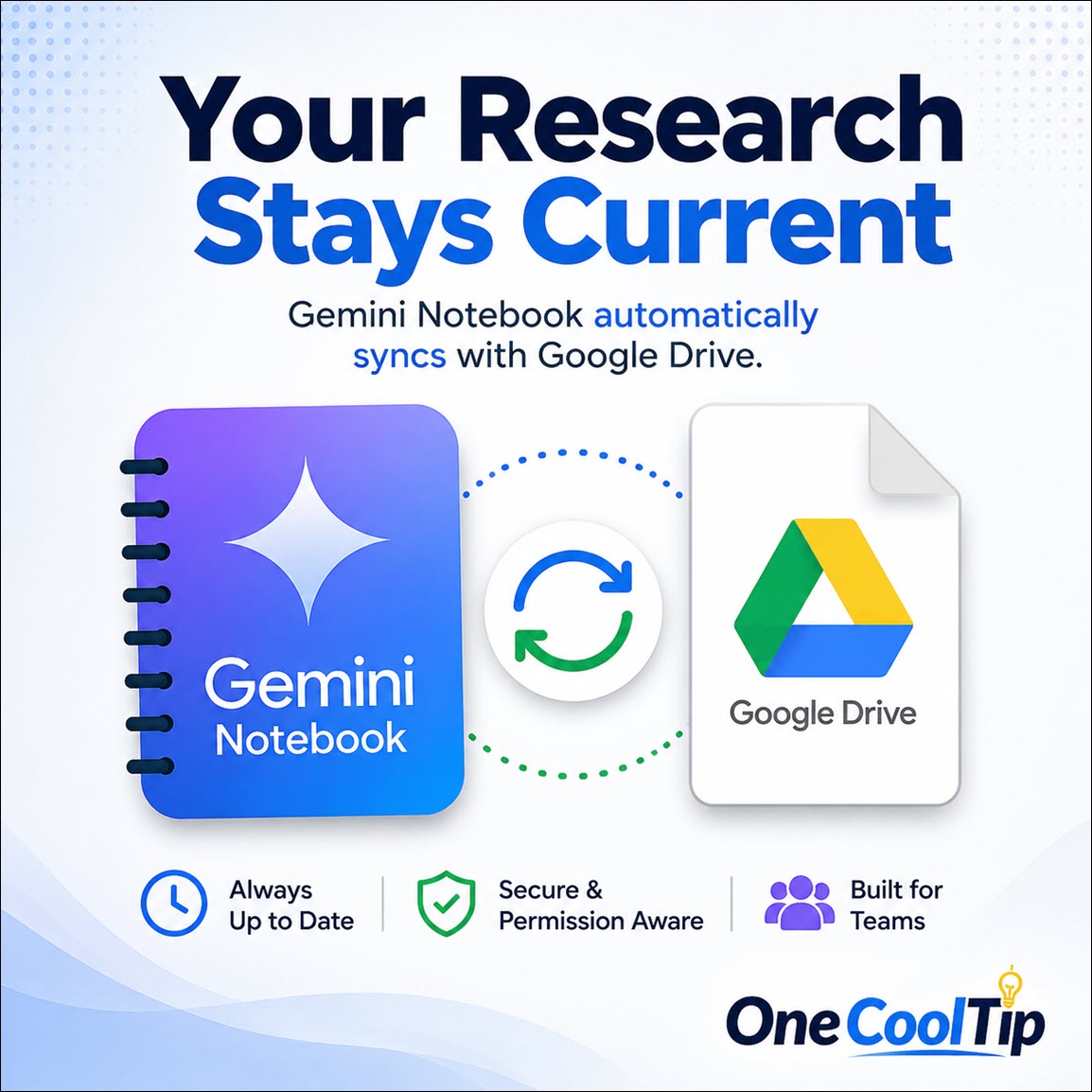
Stop Wasting Time Re-Uploading Sources With Gemini Notebook Auto-Sync


Google recently rebranded NotebookLM to Gemini Notebook and introduced automatic syncing for Google Drive documents. This update means your AI workspace always reflects the latest versions of your files without manual intervention.


Keeping track of multiple document versions while researching often leads to frustrating mistakes. 


You might outline a project in a Google Doc, upload it to your AI assistant for analysis, and then make further edits to the original file. 


In the past, those edits meant you had to manually delete the old file from your workspace and upload the new one just to ask questions about your latest changes.


Here is a Cool Tip: Connect your Google Drive documents to Gemini Notebook for automatic updates.


In May 2026, the company added automatic Google Drive syncing to the tool. 


Then, on July 16, 2026, Google officially renamed NotebookLM to Gemini Notebook. 


This rebrand brings the tool deeper into the Google ecosystem. 


The combination of a new identity and background syncing makes the research process much faster.


Feature Explanation


Gemini Notebook acts as an AI research assistant capable of summarizing, querying, and analyzing documents you provide. 


Previously, when you imported Google Docs, Sheets, or Slides into the system, they remained static.


Modifications made to the original files in Google Drive did not transfer over.


The automatic Drive sync feature changes how information flows. 


When you edit a connected document in Google Drive, Gemini Notebook updates its internal version to match the latest changes. 


The system handles this process quietly in the background. It also respects file permissions. 


If a document is deleted from Google Drive or if your access is revoked, Gemini Notebook immediately removes the file from your workspace. 


This ensures your research relies on accurate and authorized information. The feature requires no manual configuration to work.


What You'll Gain


Save time by eliminating the need to manually re-import updated documents.


Reduce confusion when working with rapidly changing collaborative files.


Improve privacy by knowing deleted Drive files automatically disappear from your notebooks.


Make daily work easier by keeping your research environment connected directly to your active documents.


Step-by-Step Instructions


Here's how to do it.


Web/Desktop:


  1. Open a web browser and go to the Gemini Notebook website, notebooklm.google.com.
  2. Select an existing notebook or create a new one.
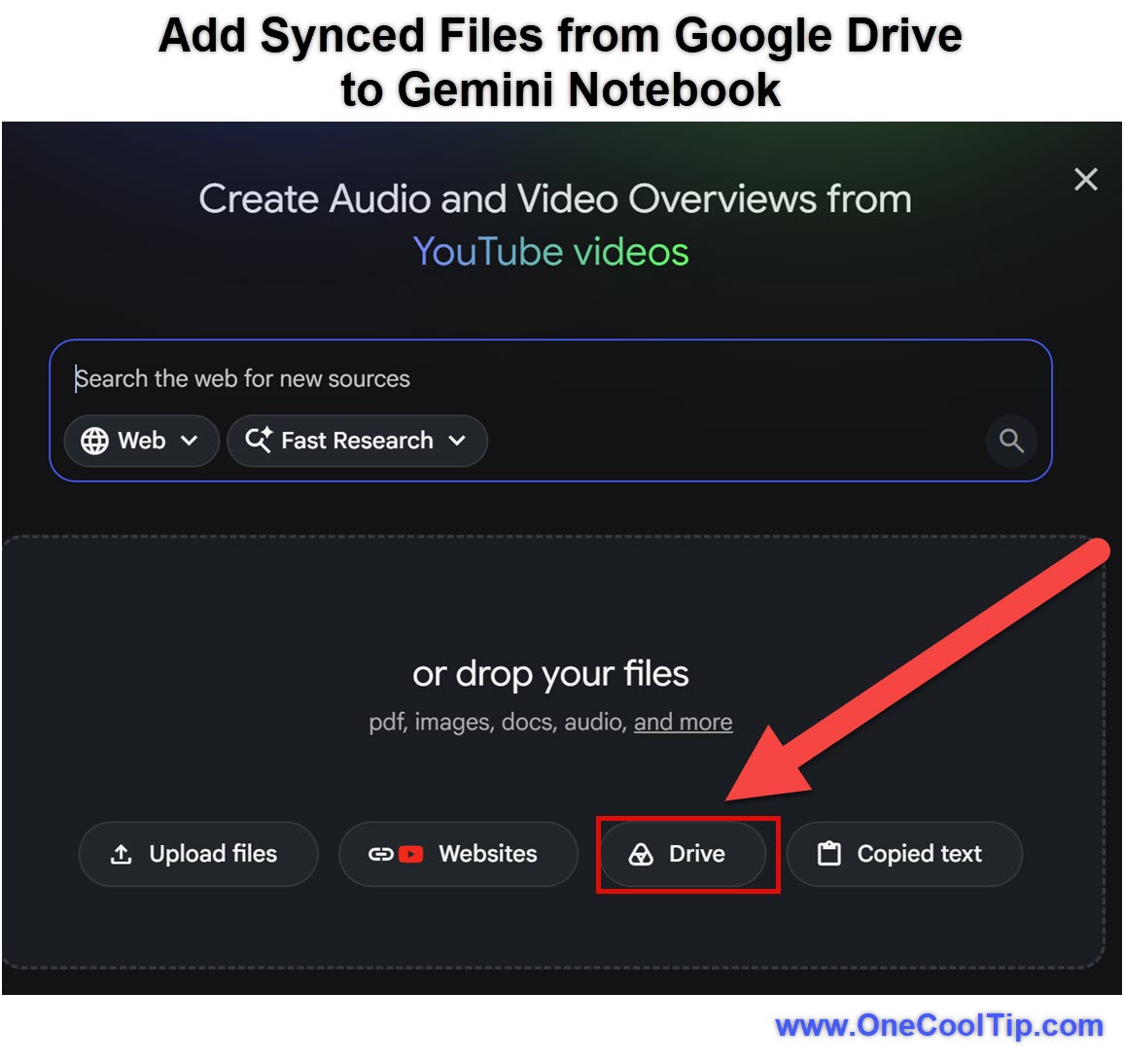
  3. Click the "Add source" button in the sources panel.
  4. Choose "Google Drive" as your source type.
  5. Select the Docs, Sheets, or Slides you want to include and click "Insert".
  6. The files are now connected. Future changes made in Google Drive will automatically


fig. 1 - Add Synced Files from Google Drive to Gemini Notebook

Pros and Cons


Pros:


  • Business teams always query the most recent version of a shared strategy document.
  • Students can take notes in Google Docs during class and have Gemini Notebook instantly ready to generate study guides.
  • The automatic removal of deleted or restricted files maintains strict access control.
  • Eliminates repetitive clicking and uploading tasks for productivity users.


Cons:


  • Requires a constant internet connection for syncing to function properly.
  • Audio files imported from Drive are not supported.
  • Large Google Sheets files are limited to 100,000 tokens.
  • The system does not import footnotes or comments from Google files.


Feature Access


The name change to Gemini Notebook and the Drive auto-sync capabilities are currently available to all Google Workspace customers and users with personal Google accounts who have access to the platform. 


There are no specific subscription requirements for the basic sync functionality. 


Regional availability depends on the broader Gemini Notebook rollout status.


Score

Criterion | Score (0-10) |  Justification 
Value |  9
Automating the update process saves time and prevents errors caused by querying outdated information.
Usability |  10
The feature requires zero configuration and works entirely in the background.
Wow Factor |  6
While highly practical, background syncing is an expected modern feature rather than a revolutionary new capability.
Total: 25/30 |  🌟 Excellent
The automatic Drive sync makes Gemini Notebook a highly reliable research partner. It mirrors the smooth file integration seen in advanced project management tools.


Key Takeaways


The transition from NotebookLM to Gemini Notebook brings tighter integration with Google Drive.


Automatic background syncing eliminates the tedious process of manually updating files. 


Your AI assistant will always evaluate the most current version of your work, saving you time and reducing friction during complex research projects.


Cool Tip Snapshot


  • Feature Name: Automatic Google Drive Sync
  • Platform(s): Web
  • Quick Benefit: Keeps AI research sources up to date automatically.
  • Best For: Researchers, students, and professionals using Google Workspace.
  • Access Type: Free
  • Difficulty: Easy


Try It Yourself


Give this a try on your next project by linking a Google Doc to Gemini Notebook and watching the AI recognize your edits in real time. 


Please share this Cool Tip with your colleagues and friends.


READ MORE


Read the Full Cool Tip.

Check Out These Cool Tips & Tricks


  • Keyboard Shortcuts: Speed up workflow. Learn the keyboard shortcuts for Google Drive to organize your files faster.


  • Folder Organization: Group related files. Place all project documents in a single Google Drive folder before importing them to Gemini Notebook.


  • Naming Conventions: Be descriptive. Use clear and specific file names in Google Drive so they are easy to identify in your sources list.


  • Manual Sync: Force an update. Click the manual sync button within the source view if you need immediate changes reflected.


  • Check Permissions: Verify access. Ensure you have view access to any shared Google Drive file you want to import.


  • Token Limits: Watch your size. Keep your Google Sheets concise to avoid hitting the 100,000 token limit.


  • Supported Formats: Know your files. Remember that audio files from Drive are not currently supported for import.


  • Clean Drafts: Remove clutter. Delete unnecessary older versions of documents in Drive to keep your notebook focused.


  • Review Sources: Audit regularly. Periodically check your Gemini Notebook sources list to remove files you no longer need.


  • Use Search: Find documents quickly. Utilize the search bar within the sources panel to locate specific Drive files instantly.

ICYMI - In Case You Missed It ...

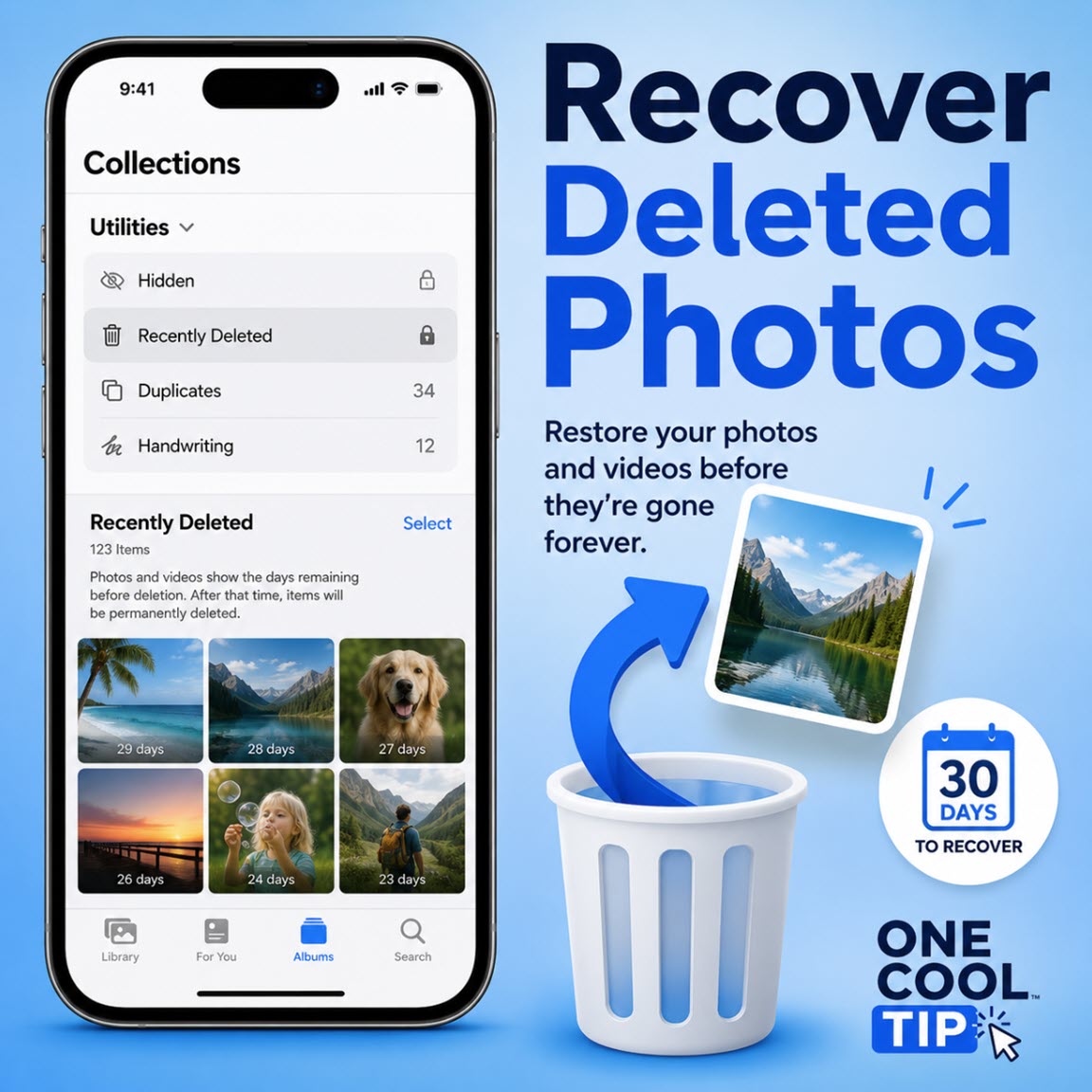
Recover Deleted iPhone Photos Before They Disappear


Deleted an important iPhone photo or video by mistake? The Photos app gives you a 30-day recovery window, but you need to know where to look before the item is gone for good.


Read the Full Cool Tip.


Read the Newsletter Version.

Looking for your next adventure?


Call Denise at Travel For You.

314.660.3039


Sign Up for the Monthly Newsletter


http://www.travelforyouvacations.com/


https://www.facebook.com/TRAVEL.FOR.U/


See You Tomorrow

Tomorrow's Cool Tip is waiting to amaze you.


Until then, go forth and conquer the tech world with your newfound knowledge!


Be sure to visit www.OneCoolTip.com for Cool Tech Tips for a Cooler Life!


And if you Like One Cool Tip, please support with TipJar!


Enjoy!


Rodger

Chief Cool Tipper

onecooltip.com@gmail.com


What Do You Think?

What do you think of today's OneCoolTip newsletter?
Positive        Neutral        Negative
X Share This Email
LinkedIn Share This Email

Connect with One Cool Tip!!

Facebook  X  Instagram  Web  Pinterest  YouTube  LinkedIn
 

As an Amazon Associate, One Cool Tip may earn a small commission from qualifying purchases.


Our media content is intended solely for informational purposes only. Please do not construe anything here as legal, tax, investment, financial, marital or other advice.


Copyright © 2026 | www.OneCoolTip.com | All Rights Reserved