One Cool Tip Newsletter

November 25, 2026

Your daily dose of tech-savvy brilliance!

😀 Greetings! Happy Windows Wednesday, Cool Tipper!


Get ready to streamline your digital life with simple, actionable tips delivered straight to your inbox.


Cool Tip Theme: Windows 11 Privacy & Security Settings


Got a new Windows 11 PC? Spend five minutes on privacy, app permissions and security settings before you install apps or move your files.


New here? Subscribe to the One Cool Tip Newsletter for daily updates. It's FREE!

3️⃣

If you enjoy the One Cool Tip Newsletter, please forward this newsletter to THREE friends or colleagues or share it on social media using the links below.


Leave a $$$ Tip!


Share this One Cool Tip Newsletter!

X Share This Email
LinkedIn Share This Email
Pinterest Share This Email

🚨 The Feds Just Launched Their Biggest Crackdown on Scammers Ever 🚨


The U.S. Justice Department says a major anti-scam enforcement push has resulted in action across more than 400 cases involving more than 800 defendants since March 6.


The cases involve schemes such as cryptocurrency investment fraud, government impersonation, sextortion, sweepstakes scams and other forms of online fraud.


Federal prosecutors and agents also assisted law enforcement in more than 10 countries with raids targeting foreign scam call centers and compounds.


The FBI says its related efforts have directly warned more than 11,000 Americans about scam attempts and prevented more than $690 million in potential losses.


The Justice Department is also encouraging families to talk about scams during the holiday season and share their experiences so others can recognize the warning signs.


The Cool Tip:


Talk about suspicious calls, texts and online messages with family and friends because sharing one scam story could help someone else avoid becoming the next victim.


And in Other News...


  • Microsoft Goes “Code Red” After Massive Microsoft 365 Outage


Microsoft has reportedly launched a “Code Red” effort to improve reliability after the major Microsoft 365 outage that disrupted Outlook, Teams, Copilot and other services.


Code Red represents the company’s highest-priority work to address weaknesses in its engineering and response practices.


The Nov. 12-13 outage was described internally as the most customer-impacting incident in Exchange Online history.


Microsoft’s response reportedly includes work on faster recovery, traffic management and preventing failures from spreading across its infrastructure.


Teams continue working after service is restored to implement lessons learned and company leadership has made those efforts a top priority.


The Cool Tip:


Bookmark Microsoft’s service health page so the next time Outlook, Teams or Microsoft 365 suddenly stops working, you can quickly determine whether the problem is on Microsoft’s end.

Cool Tip Poll

🤔 What's the first thing you do with a new PC?

Cool Deals of the Day

🛍️ Cool Deals for Your New PC Setup


These picks help you protect and back up your new computer from day one.


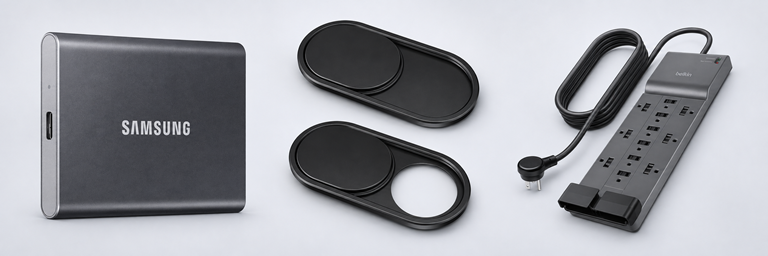
💾 Samsung T7 Portable SSD (1TB)

Keep a backup copy of your files while you move them to your new PC.

$229.99 · Save 16% · ⭐ 4.7

Shop the Samsung T7 1TB on Amazon


📷 Webcam Privacy Cover (2-pack)

Add a physical cover on top of the camera permissions you just set.

$5.59 · Save 20% · ⭐ 4.5

Shop the webcam cover pack on Amazon


⚡ Belkin 12-Outlet Surge Protector

Shield your new desktop or laptop charger from electrical spikes with 12 protected outlets.

$29.95 · Overall Pick · ⭐ 4.7

Shop the Belkin 12-Outlet Surge Protector on Amazon


*Prices accurate when originally published.

One Cool Tip may earn a commission from qualifying purchases.

Have you tried the Upside app? Everyday cash back on gas, groceries and dining.


Help Support One Cool Tip.


Use this Amazon link when you shop online.

Fuel Your Adventure

Try Big Mike's Jerky!


bigmikesjerky.com


Today's Cool Tip

Got a New Windows 11 PC? Change These 3 Settings First

A new Windows 11 PC works fine out of the box, but a few defaults deserve a second look before you install anything.


Five minutes on privacy, permissions and security gets the PC set up your way.

By Rodger Mansfield, Technology Editor

November 25, 2026

Subscribe


The box is open, the screen is on and the setup wizard is finished. 


Now you want to sign in to your browser, install your apps and move years of photos and documents onto the new machine.


Hold off for five minutes.


Windows 11 runs fine with its default settings, but those defaults were picked for the typical user, not for you. 


Before a dozen new apps start asking for access, take a quick look at what Windows shares, what your apps are allowed to use and whether your security tools are running. 


That's much easier on a fresh PC than six months from now.


Here's a Cool Tip: Review privacy, permissions and security before you install anything else.


Feature Explanation


All three settings are in one place: Settings > Privacy & security. None of them are hidden, but most people skip right past them.


1. Ad and personalization settings. 

Windows generates a unique advertising ID for each user on a device, which app developers and advertising networks can then use for their own purposes, including providing more relevant advertising in apps. 


The same page also lets you control whether Windows tracks the apps you open and whether Settings shows you suggested content. 


One thing to know: the General privacy settings page is being replaced by the Recommendations & offers privacy settings page in more recent versions of Windows 11. 


You may see either page, depending on how up to date your PC is.


2. App permissions. 

Think of these as the keys to your camera, microphone and location. In Windows 11, use the Privacy page to choose which apps can use a particular feature. 


There's one catch. 


The Privacy page won't list apps with permission to use all system resources. 


You can't use the Privacy settings to control what capabilities these apps can use. Windows Desktop apps fall under this category. 


3. Windows Security. 

This is the built-in dashboard for virus protection, firewall status and browser protection. 


It includes Windows Defender SmartScreen, which sends data to Microsoft about the websites you visit and files you download to warn you and help protect you and your device from unsafe web content or malicious software. 


These settings help home users, families setting up a shared PC and small-business owners without an IT department. 


None of the three are new. 


They're just easy to overlook.


What You'll Gain


  • See fewer ads tailored to what you do in apps
  • Know exactly which apps can use your camera, microphone and location
  • Confirm your built-in protection is on before you download anything
  • Start with an intentional setup instead of fixing defaults later


Step-by-Step Instructions


Here's how to do it.


Setting 1: Privacy and ads


  1. Select Start > Settings > Privacy & security.
  2. Select General. On newer versions, select Recommendations & offers instead.
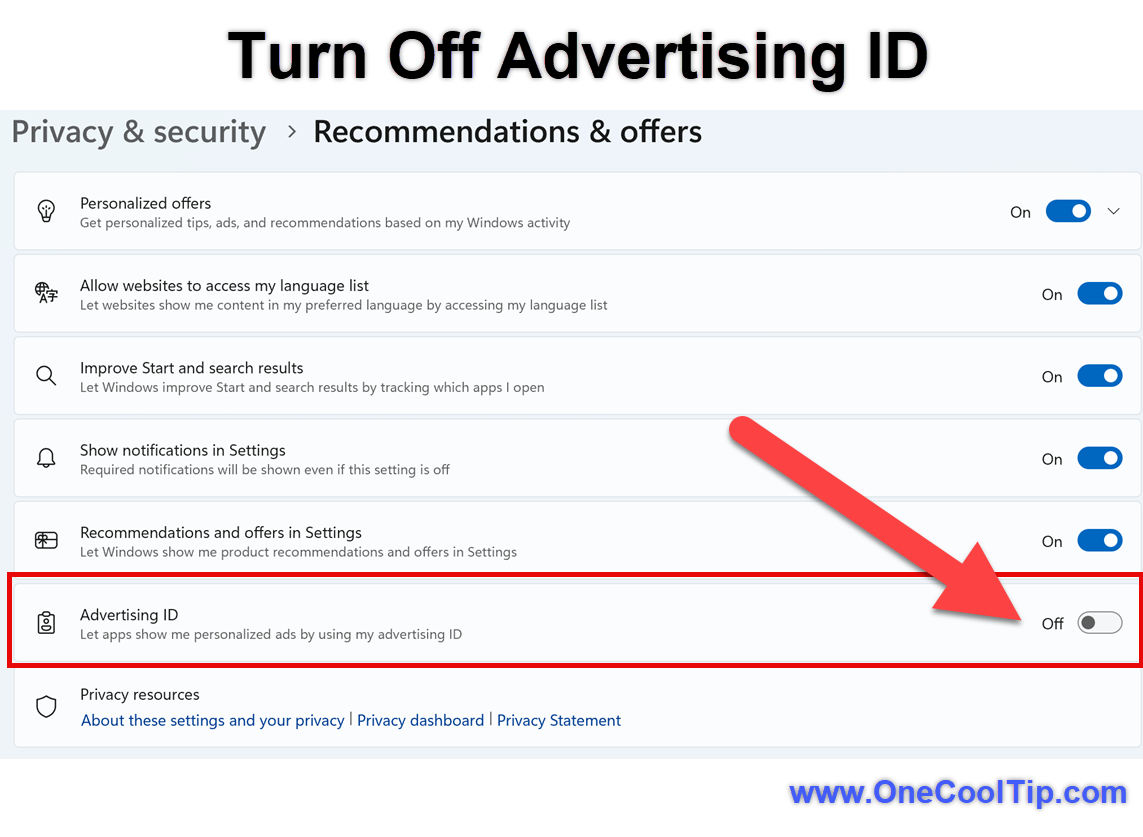
  3. Find Advertising ID / Let apps show me personalized ads by using my advertising ID. Turn it off if you don't want personalized ads.
  4. Review the other toggles, such as app launch tracking and Show me suggested content in the Settings app.


fig. 1 - Turn Off Advertising ID

Setting 2: App permissions


  1. Go back to Settings > Privacy & security.
  2. Scroll to App permissions, then select Location.
  3. Turn off access for any app that doesn't need it. 
  4. Repeat for Camera and Microphone.


Setting 3: Windows Security


  1. Select Start > Settings > Privacy & security > Windows Security.
  2. Click to open the Windows Security and review each protection area for warnings.
  3. Select App & browser control to review your SmartScreen settings.


Cool Example: 


Maria buys a laptop for her small bakery. 


Before she installs a video-calling app and a point-of-sale app, she turns off the advertising ID, gives only the video app access to her camera and confirms Windows Security shows no warnings. 


The whole check takes her about five minutes.


Pros and Cons


Pros:


  1. Quick: You can review all three settings over a cup of coffee.
  2. Free and built in: You don't need extra software or a subscription.
  3. Easy to undo: You can turn any toggle back on if an app stops working as expected.
  4. Family-friendly: Parents can limit what a child's apps can use on a shared PC.
  5. Work-ready: Freelancers can keep client calls private by controlling microphone access.


Cons:


  • Turning the advertising ID off will not reduce the number of ads you see, but it may mean that ads are less interesting and relevant to you.
  • Traditional desktop apps don't appear in the permission lists the same way Microsoft Store apps do.
  • Page names vary by Windows 11 version.
  • If you turn off too much, you can break features you rely on, such as local weather.


Who Should Skip This


If your employer or school manages your PC, your IT department may already control these settings. 


Students using Windows 11 SE will not be able to download apps from the Microsoft Store. 


Apps are managed by their IT Admin. 


If you like personalized ads and already watch your permissions closely, you won't gain much either. 


Real-World Examples


  • Families: A parent sets up a new PC for a 10-year-old and turns off location access for every app except Maps.
  • Small businesses: A two-person accounting office checks Windows Security on each new laptop before loading client files.
  • Older adults: A retiree turns off suggested content in Settings so the menus feel less cluttered.


Troubleshooting and Limitations


Problem: You can't find the General page. 


  • Why it happens: Newer versions of Windows 11 replace it with Recommendations & offers. 
  • Fix or workaround: Open Privacy & security and select Recommendations & offers.


Problem: A desktop app isn't listed under Camera permissions. 


  • Why it happens: Traditional desktop apps are handled differently from Store apps. 
  • Fix or workaround: Check the app's own settings. You can also check the app's permissions on its product page in the Microsoft Store or online.


Problem: Your video app can't find your camera. 


  • Why it happens: You may have blocked that app's camera access. 
  • Fix or workaround: Go to App permissions > Camera and turn that app back on.


Problem: The toggles are grayed out. 


  • Why it happens: An organization manages the device. 
  • Fix or workaround: Contact your IT administrator.


Privacy and Data Notes


The advertising ID lets apps tie the data they collect about you to one identifier, much like a web cookie. 


Turning it off limits that link inside Windows apps only. 


The advertising ID setting does not apply to other methods of interest-based advertising delivered by Microsoft or third parties, such as cookies used to provide interest-based display ads on websites.


SmartScreen trades some browsing data for protection, and most people should leave it on. 


Feature Access


These settings are free and built into Windows 11. 


Page names may vary by version and update status. 


Administrators may control them on work, school and Windows 11 SE devices. 


If you're still on an older PC, keep this in mind: Microsoft stopped providing free software updates from Windows Update, technical assistance and security fixes for Windows 10 on Oct. 14, 2025.


Score

Criterion |  Score (0–10) |  Justification
Value | 8
Real privacy and security benefits for very little effort.
Usability |  8
Everything lives in one Settings area, though page names vary.
Wow Factor |  5
It's practical housekeeping, not a flashy new feature.
Total: 21/30 |  👍 Good
This is a smart five-minute habit for anyone setting up a new PC.
It's similar to reviewing app permissions on a new iPhone or Android phone, though Windows gives you less detailed control over desktop apps.


Key Takeaways


A few minutes in Privacy & security decides how apps use your data, which apps can reach your camera and microphone, and whether your protection is running. 


Do it before you install apps, and you'll have less to clean up later.


Cool Tip Snapshot


  • Feature Name: Windows 11 Privacy & security settings
  • Platform(s): Windows 11
  • Quick Benefit: Better privacy and security from day one
  • Best For: New PC owners, families and small businesses
  • Access Type: Free
  • Difficulty: Easy


Learn More


Microsoft's help page explains each general privacy setting, including the advertising ID, SmartScreen and suggested content, and shows how to change them.


https://support.microsoft.com/en-us/windows/privacy/general-privacy-settings-in-windows


Try It Yourself


Take five minutes tonight to review these three settings on your new PC. 


Tell us in the comments which one surprised you, subscribe to the FREE One Cool Tip Newsletter, and share this tip with family, friends and coworkers who just got a new computer.


READ MORE


Read the Full Cool Tip!

Check Out These Cool Tips & Tricks


  • Update First: New PCs often need the latest fixes right away. Go to Settings > Windows Update and select Check for updates.


  • Remove Bloatware: Preinstalled apps you never use take up space. Go to Settings > Apps > Installed apps and uninstall what you don't need.


  • Trim Startup: Too many startup apps slow down your PC when it boots. Turn off the extras in Settings > Apps > Startup.


  • Back Up Files: A backup protects your files if something goes wrong. Turn on folder backup in your OneDrive settings.


  • Snap Layouts: Arranging windows side by side makes multitasking easier. Hover over a window's maximize button and pick a layout.


  • Clipboard History: You can paste items you copied earlier, not just the last one. Press Windows key + V and turn it on.


  • Night Light: Warmer screen colors are easier on your eyes at night. Turn it on in Settings > System > Display.


  • Focus Sessions: Timed focus sessions help you block out distractions. Open the Clock app and start a focus session.


  • Storage Sense: Windows can clear out temporary junk files for you. Turn it on in Settings > System > Storage.


  • Restore Point: A restore point gives you a safety net before big changes. Search Start for "Create a restore point" and select Create.

ICYMI - In Case You Missed It ...

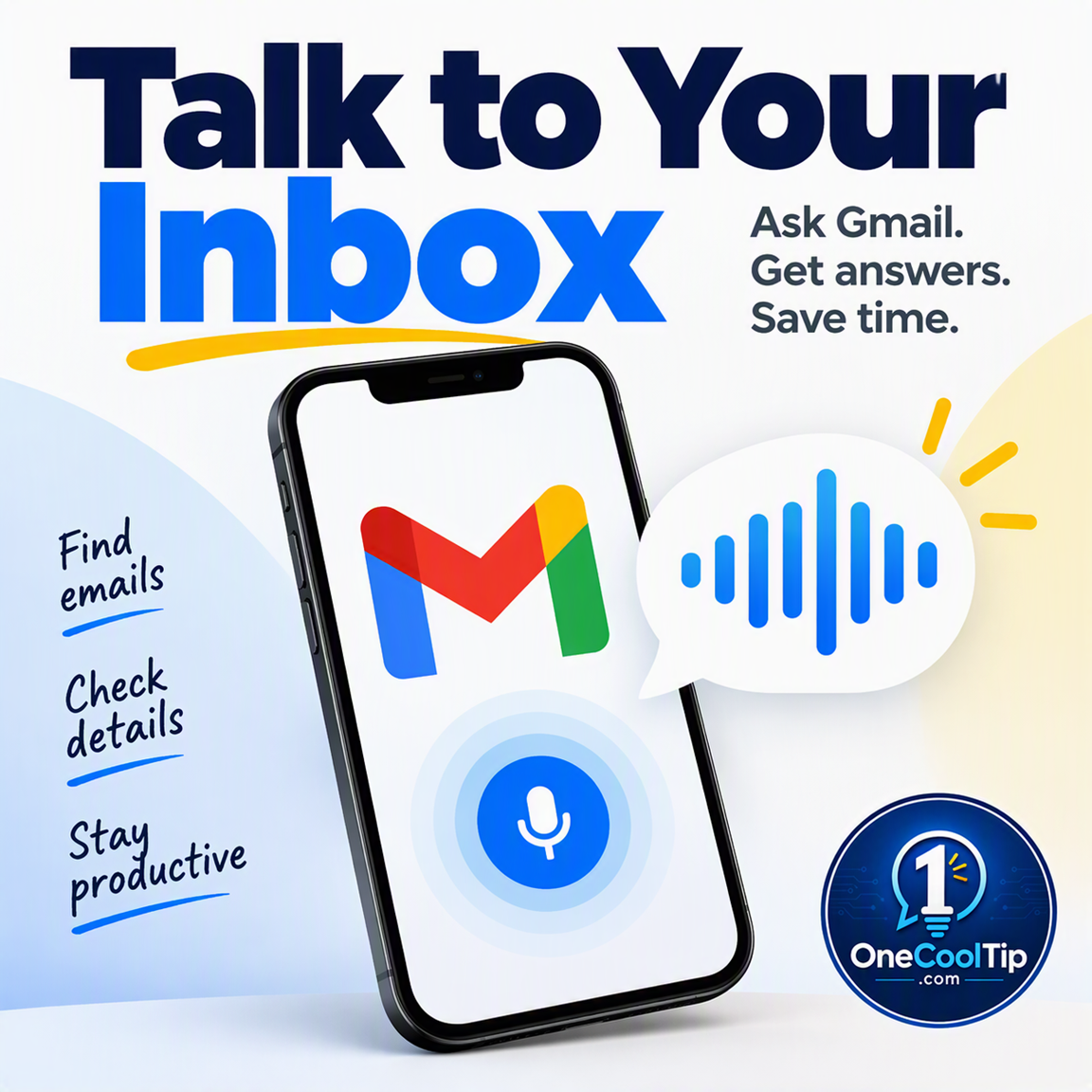
Talk Directly to Your Inbox with Gmail Live on Mobile


Finding specific details buried inside sprawling email threads usually requires tedious scrolling and pinching on small mobile screens. Gmail Live introduces a conversational voice interface that reads your inbox context and delivers spoken answers alongside direct source citations.


Read the Full Version.


Read the Newsletter Version.

Looking for your next adventure?


Call Denise at Travel For You.

314.660.3039


Sign Up for the Monthly Newsletter


http://www.travelforyouvacations.com/


https://www.facebook.com/TRAVEL.FOR.U/


See You Tomorrow

Tomorrow's Cool Tip is waiting to amaze you.


Until then, go forth and conquer the tech world with your newfound knowledge!


Be sure to visit www.OneCoolTip.com for Cool Tech Tips for a Cooler Life!


And if you like One Cool Tip, please support us with TipJar!


Enjoy!


Rodger

Chief Cool Tipper

onecooltip.com@gmail.com


What Do You Think?

What do you think of today's One Cool Tip Newsletter?
Positive        Neutral        Negative
X Share This Email
LinkedIn Share This Email

Connect with One Cool Tip!

Facebook  X  Instagram  Web  Pinterest  YouTube  LinkedIn
 

As an Amazon Associate, One Cool Tip may earn a small commission from qualifying purchases.


Our media content is intended solely for informational purposes. Please do not construe anything here as legal, tax, investment, financial, marital or other advice.


Copyright © 2026 | www.OneCoolTip.com | All Rights Reserved