|
Cool Example:
- Before guests arrive, open the code for your home network.
- When someone asks for Wi-Fi, show them your screen instead of reading the password aloud.
Pros and Cons
Pros:
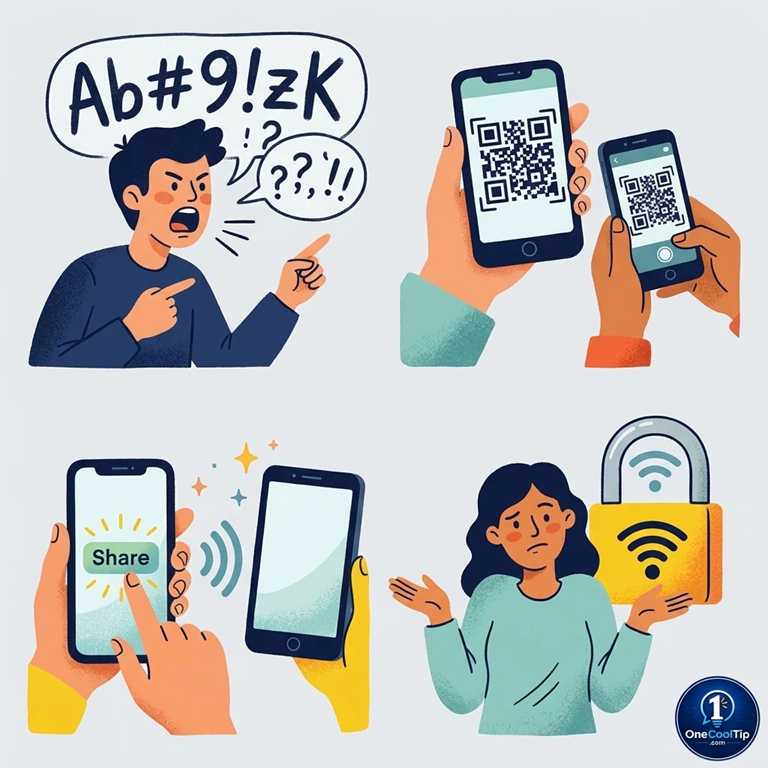
- Guests can connect without typing a long password.
- The code is quick to display when several people need access.
- It can help visitors who are unfamiliar with the network password.
- The host does not have to read the password aloud.
Cons:
- Anyone who sees and scans the code may be able to join the network.
- A guest’s phone may not recognize Wi-Fi QR codes automatically.
- The QR code option may be hard to find if you have not used the Passwords app.
Who Should Skip This
Skip showing the code when you don’t want someone to have access to your home network.
If your guest has an iPhone, iPad or Mac, Apple’s nearby password-sharing prompt may be more convenient.
Real-World Examples
-
Families: Let relatives connect their phones when they arrive for dinner.
-
Small businesses: Share a guest-network code at reception, if your router has a separate guest network.
-
Travelers: Share a vacation rental’s Wi-Fi with your group, provided you have permission to share it.
Configuration Guide
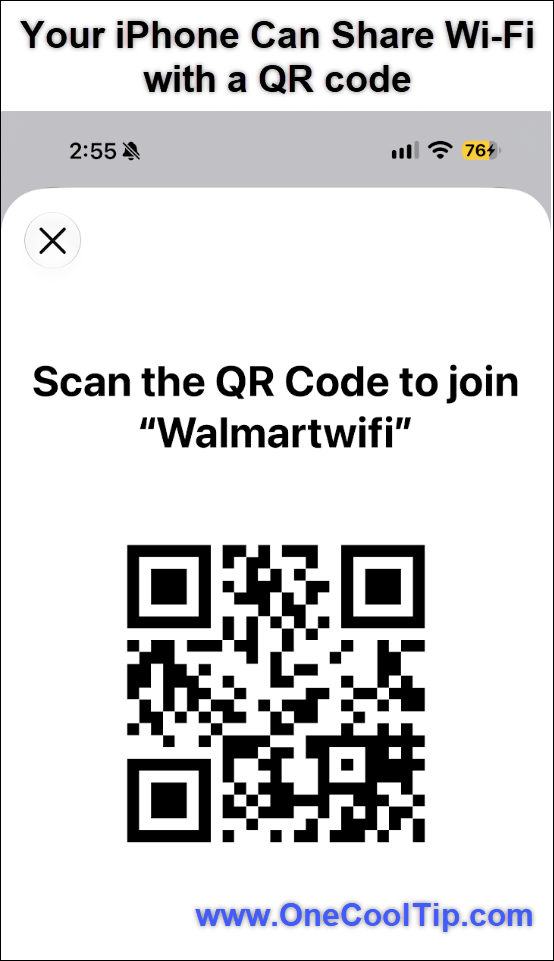
Display the code from a saved Wi-Fi network in Passwords, then close it when you’re done.
To remove access from people who have already connected, change the Wi-Fi password in your router’s settings and reconnect your own devices.
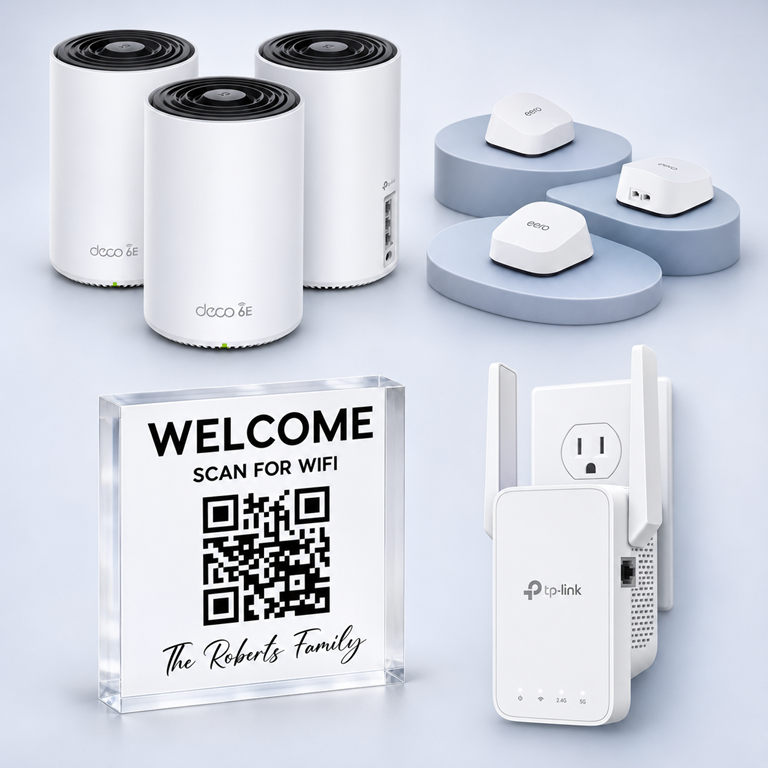
If you regularly host visitors, check whether your router supports a separate guest network.
That lets guests connect without using the network you reserve for your household devices.
For Apple-to-Apple password sharing, both devices should be nearby, have Wi-Fi and Bluetooth turned on, and have each person’s contact information saved in Contacts.
Personal Hotspot should be off.
Troubleshooting and Limitations
Problem: You can’t find Show Network QR Code.
-
Why it happens: You may be looking in general Wi-Fi settings instead of the saved network entry.
-
Fix: Open Passwords, tap Wi-Fi and select the saved network.
Problem: The guest’s camera does not react to the code.
-
Why it happens: The camera app may not recognize Wi-Fi QR codes automatically.
-
Fix: Try the phone’s built-in QR scanner, if available, or share the password another way.
Problem: An Apple device does not show the password-sharing prompt.
-
Why it happens: The devices may not meet Apple’s proximity, Wi-Fi, Bluetooth or Contacts requirements.
-
Fix: Check those settings or show the QR code instead.
Privacy and Data Notes
A Wi-Fi QR code provides a convenient way to share network access.
Keep it on your screen instead of posting it publicly.
If you need to remove access later, change the network password through your router.
Feature Access
If the option is missing, make sure you’re viewing a saved network in Passwords.
Direct password sharing with nearby iPhone, iPad and Mac users, is subject to its stated device and contact requirements.
Score
Criterion | Score (0–10) | Justification
Value | 7
Solves a familiar inconvenience for hosts and guests.
Usability | 8
The steps are short once the network is saved in Passwords.
Wow Factor | 6
A helpful shortcut, though not a major new capability.
Total: 21/30 | 👍 Good
A practical holiday tip that saves time when guests need Wi-Fi.
Apple’s nearby sharing prompt is a useful alternative for households with Apple devices.
Key Takeaways
An iPhone can display a QR code for a saved Wi-Fi network, so guests can scan it instead of typing the password.
Keep the code private because it can give others a way to join your network.
Cool Tip Snapshot
-
Feature Name: Show Network QR Code
-
Platform(s): iPhone
-
Quick Benefit: Let guests scan to join Wi-Fi
-
Best For: Hosts and families
-
Access Type: Built-in feature
-
Difficulty: Easy
Learn More
Apple’s iPhone guide explains how to view saved Wi-Fi passwords and share a network with nearby Apple devices.
It also documents the option to show a network QR code for guests to scan.
Try It Yourself
Show a guest your Wi-Fi QR code the next time they visit, then tell us whether it made connecting easier.
Subscribe to the free One Cool Tip Newsletter, and share this article with family, friends and coworkers.
READ MORE
Read the Full Cool Tip!
|