|
How to Fix an iPhone That Won't Turn On or Respond
A black, unresponsive iPhone screen does not necessarily mean your handset is permanently broken. In most cases, a hardware button sequence or a dedicated charge cycle will get your device back up and running within minutes.
You pick up your iPhone to verify a travel booking, check a critical message, or silence an alarm, only to discover a blank screen.
Tapping the display does nothing.
Holding the side button brings up zero signs of life.
The immediate reaction is panic, especially when you depend on that device for work, family logistics, and two-factor security codes.
Here’s a Cool Tip: Force a hardware reset to revive your unresponsive iPhone safely without wiping your data.
A non-responsive display often indicates a system-level lockup or a deeply depleted battery rather than permanent hardware failure.
Before booking a repair or replacing your handset, a targeted restart sequence can clear the freeze and restore full operation.
Feature Explanation
Every modern iPhone runs a hardware-level override sequence designed to interrupt power to the operating system and force a clean reboot.
This mechanism bypasses normal touch-screen controls, which are useless when iOS crashes or freezes during background processing.
When an iPhone display remains pitch black, the processor may still be active but caught in an unrecoverable kernel loop.
In other situations, the lithium-ion battery has entered a state known as deep discharge, where the device lacks sufficient reserve energy even to power the charging indicator icon.
The forced restart triggers a direct signal to the power management unit.
It cuts temporary power, flushes volatile memory, and restarts the operating system cleanly.
Because this process functions as a hard reboot rather than a factory reset, your photos, messages, apps, and account configurations remain intact.
What You’ll Gain
- Save money by resolving standard display lockups without paying diagnostic fees.
- Recover quickly when traveling or working remotely away from computer access.
- Protect personal files by reviving the operating system without triggering a factory wipe.
- Diagnose power faults clearly by isolating cable, charger, or logic board issues.
Step-by-Step Instructions
Here's how to do it.
iPhone:
Option A: iPhone 8, iPhone X, iPhone 11, 12, 13, 14, 15, 16, and newer (including iPhone SE 2nd and 3rd Generation)
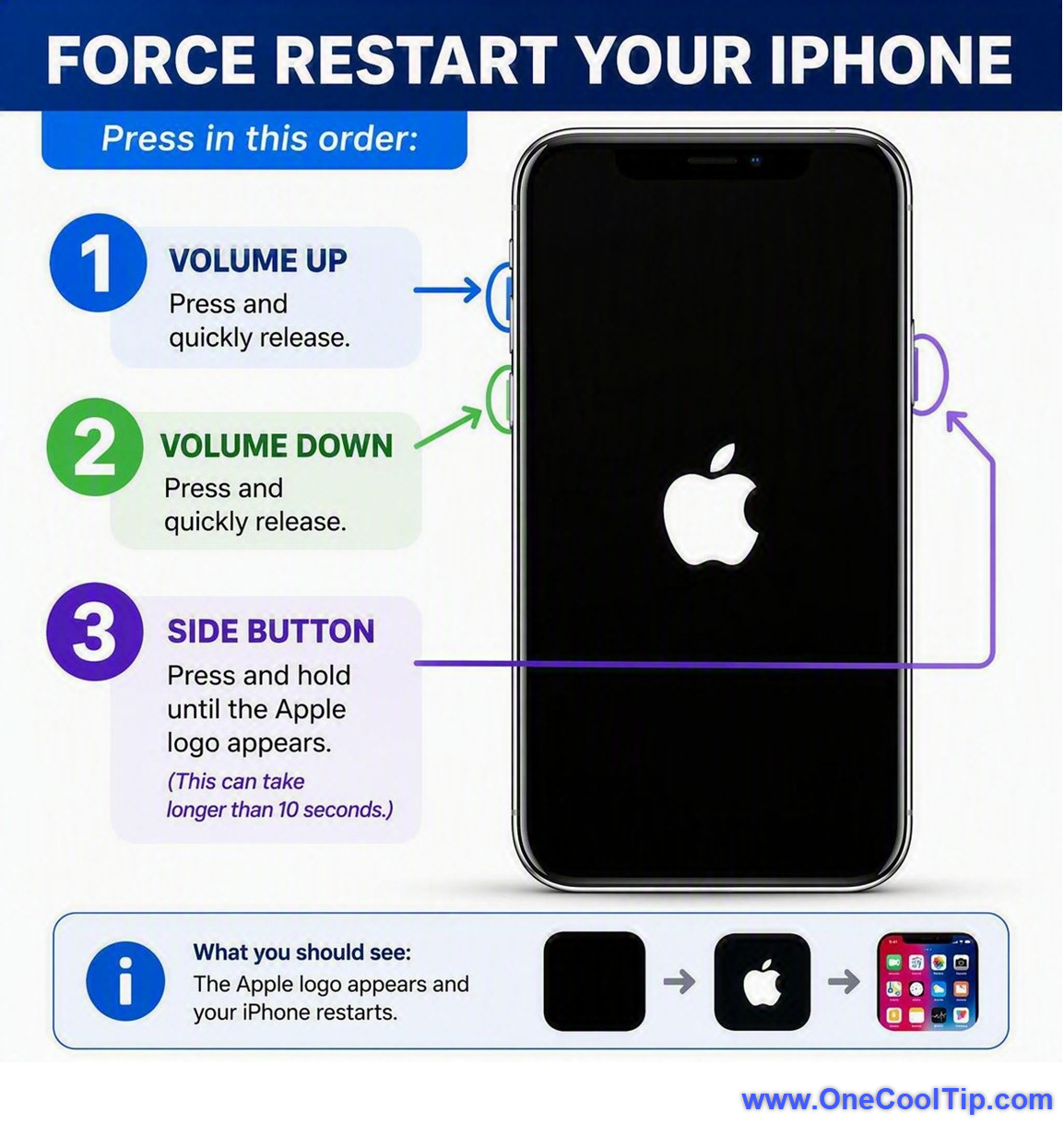
- Quickly click and release the Volume Up button on the left edge.
- Immediately click and release the Volume Down button directly beneath it.
- Press and hold the Side button on the right edge. Keep holding this button down firmly.
- Continue holding through the "Slide to Power Off" prompt if it appears. Do not release the button until the white Apple logo appears on the screen. This step can take 15 to 30 seconds.
- Release the Side button once the Apple logo shows, then enter your passcode when the lock screen appears.
|