Welcome to ITS Powertivity eNews | May 2025

Florida Gulf Coast University log on Powertivity Tips banner
 

We're here to help you SOAR!

Today's newsletter is 563 words... a 2.1-minute read.

Microsoft Teams logo

In this issue, we're focused on optimizing MS Teams meetings to help you meet smarter!


How do you corral the meeting cats to make a decision?


Leverage the Teams poll app


The problem: Getting your team to make decisions in a meeting is almost next to impossible and takes time away from other critical matters to discuss.


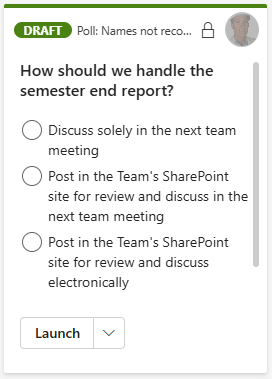
The solution: Leverage the Polls app in Teams to create and manage polls that get your team's answer on a decision and back on track with the meeting agenda.


Learn how to create and manage Teams Polls.

Screenshot of a draft poll created in Teams

Handy resources at your fingertips...

 
Teams do not disturb, no sign on top of purple background

"Do Not Disturb" Status


During a meeting, click your profile picture in Teams, click on the current status, and select Do not disturb from the list. You will NOT receive any notifications including calls when this status is selected.


REMEMBER to change your status when you're done with the meeting/call.

Teams reaction emojis - like, love, applause, laugh, surprise.

Show Your Reactions


During your meeting, select React in the meeting controls at the top of the meeting view to share your reaction to what's being shared.


Your reaction will pop up momentarily at the bottom of your meeting and over your profile picture or video feed.

Teams raise hand emoji.

Raise Your Hand


In the meeting controls at the top of the screen, select Raise. Everyone in the meeting will see that your hand is raised.


Meeting presenters will also receive a notification that your hand is raised. In meetings where attendees can't unmute themselves, a presenter can allow you to unmute.


Two tips for the deaf or hard of hearing

 
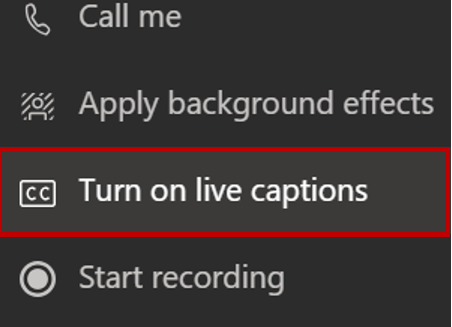
Teams turn on live captions dialog box.

Tip 1: Turn on live captions in your meetings


Teams can detect what’s being said in a meeting and present real-time captions.


To use live captions in a meeting, go to your meeting controls and select More options > Turn on live captions (preview).


For more information on live captions, see Use live captions in a Teams meeting.

Web conference screens with a red pin showing in the middle.

Tip 2: Pin important people in your meetings


If you're using a sign language interpreter in your meetings, you can pin their video on your screen so it's always visible regardless of who is talking.


To pin a video, right-click on the video and select Pin.

"Phew!" ~ Just in time tips!

Pop out the meeting into a separate window


The Problem: Do you face challenges with not seeing chat, among other needed controls, when presenting in a meeting because everything is in one window?


The Solution: Pop out the meeting into a separate window so you can see the window AND controls, which is helpful when sharing the screen, using chat, and browsing meeting-related documents.


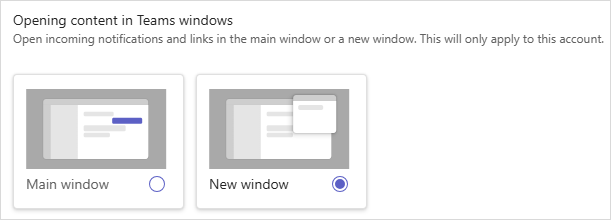
To have meetings open in separate windows, go to Settings > General > Opening content in Teams windows section, and make sure that the New window setting is enabled.

Teams New Window setting screenshot
FGCU virtual backgrounds click to access


FGCU Virtual Backgrounds: Click to access.


Click for instructions.


Like to see a specific powertivity topic covered?

Send your suggestion to: itschange@fgcu.edu

How beneficial are the Powertivity tips to you? (1 sec. click)
1-star        2-stars        3-stars        4-stars        5-stars

Need to report an issue or have a question?

Contact the University Help Desk:


helpdesk@fgcu.edu or 239.590.1188


Be your own help desk, click to visit the Knowledge Base

 
FGCU ITS Logo image
 

Empowering the University Community to achieve new digital possibilities