|
One Cool Tip Newsletter
September 22, 2026
| Your daily dose of tech-savvy brilliance! | |
😀Greetings! Happy Tuesday, Cool Tipper!
Get ready to streamline your digital life with simple, actionable tips delivered straight to your inbox.
Cool Tip Theme: ChatGPT Appshots
ChatGPT Appshots shares your active Windows or Mac app window, including its image and available text, so you can get useful help faster.
New here? Subscribe to the One Cool Tip Newsletter for daily updates. It's FREE!
| |
3️⃣
If you enjoy the One Cool Tip newsletter, please forward this newsletter to THREE friends or colleagues or share it on social media using the links below.
Leave a $$$ Tip!
Share this One Cool Tip Newsletter!
| | |
🚨That Dream Job Offer Could Be a Cybercrime Trap🚨
If you're searching for a new job in tech, be extra cautious about coding tests, interview assignments, and software downloads.
A new international cybersecurity alert (pdf) warns that North Korean cybercriminals have been posing as recruiters and employers to target software developers, IT professionals, and cryptocurrency experts.
Victims are asked to download files or complete coding assignments that secretly install malware designed to steal passwords, personal information, and cryptocurrency wallet credentials.
Before running any code provided by a prospective employer, verify the company, inspect the files carefully, and consider using a sandbox or virtual machine for testing.
Be especially wary of opportunities that seem unusually lucrative or require downloading unfamiliar software during the interview process.
Cybersecurity experts estimate these campaigns have compromised tens of thousands of devices worldwide and stolen millions of dollars in cryptocurrency.
The bottom line: a legitimate job interview should help advance your career, not compromise your computer and financial accounts.
And in Other News...
- Who Sets the Rules for AI? Why It Matters to You
As artificial intelligence becomes more powerful, many experts believe the world needs common standards to help keep the technology safe, reliable, and under human control.
In a recent policy proposal, OpenAI called for international cooperation on AI testing, safety evaluations, incident reporting, and oversight as AI systems become more capable and autonomous.
This is about more than technology.
It is about ensuring that future AI tools are developed responsibly and that companies follow clear guidelines for safety and transparency.
Supporters argue that shared standards can help unlock AI's potential while reducing risks, while others see them as an important safeguard as the technology advances.
The key takeaway is that the conversation is shifting from what AI can do to how it should be governed.
The decisions being made today could shape how AI affects work, education, healthcare, and everyday life for years to come.
| |
| 🤔 How would you use ChatGPT Appshots? | | | | |
Help support One Cool Tip. Use this Amazon link when you shop online.
Check out these Cool Deals:
| | |
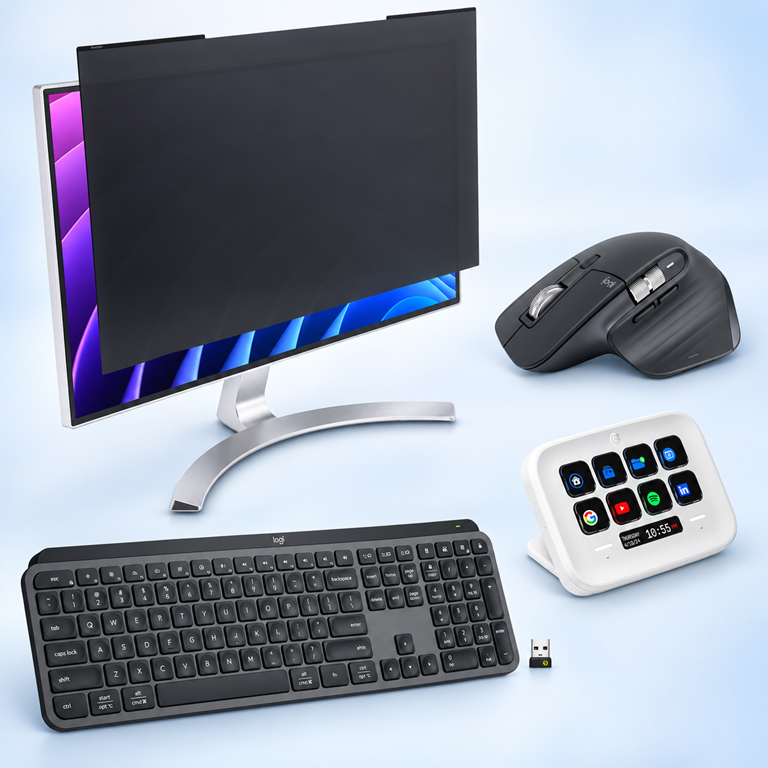
⌨️ Logitech MX Keys S Wireless Keyboard: A comfortable full-size keyboard with programmable shortcut keys, useful for frequent desktop AI workflows.
Save 8%. Now $119.99. 4.4 Stars. Check it out on Amazon!
🖱️ Logitech MX Master 3S Wireless Mouse: Customizable buttons can speed up window switching, capture review, and repetitive editing tasks.
Save 10%. Now $89.99. 4.5 Stars. Check it out on Amazon!
🎙️ Elgato Stream Deck Neo: Programmable keys provide a visual control surface for launching ChatGPT and related desktop actions.
Save 21%. Now $78.99. 4.6 Stars. Check it out on Amazon!
🔒 Kensington MagPro Privacy Screen for 24-Inch Monitors: A removable privacy filter helps limit side-angle viewing when working with sensitive material. Confirm monitor dimensions before ordering.
Look👉 Now $99.99. 4.1 Stars. Check it out on Amazon!
*Prices accurate when originally published.
One Cool Tip may earn a commission from qualifying purchases.
| | |
Show ChatGPT What You See With Appshots
ChatGPT Appshots lets you send the app window in front of you directly to a ChatGPT conversation, saving you from writing a long explanation or taking and uploading a separate screenshot. The feature works in the ChatGPT desktop app for Windows and macOS, with customizable shortcuts and chat-routing controls.
You are staring at an error message, confusing spreadsheet, crowded settings panel, or unfinished design. ChatGPT could probably help, but first you would need to explain exactly what is on the screen.
Here’s a Cool Tip: Use Appshots to show ChatGPT the problem instead of describing it.
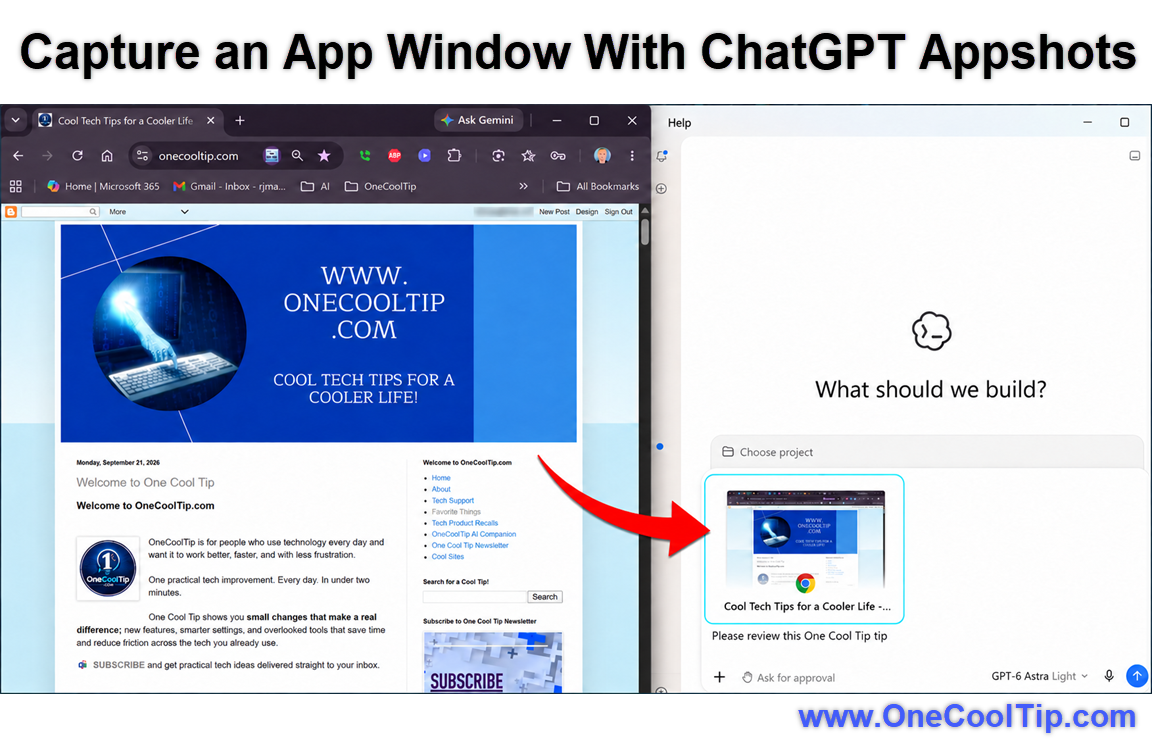
With one keyboard shortcut, the ChatGPT desktop app captures the frontmost window and attaches it to a conversation.
The attachment can contain both an image of the visible window and text the app makes available, including some text beyond the visible area.
What ChatGPT Appshots Does
An Appshot is a focused window capture, not a picture of your entire desktop.
When you activate the shortcut, ChatGPT receives the frontmost app window so it can interpret the interface, read available text, and respond to your request with better context.
That distinction matters.
A normal screenshot often requires you to save a file, find it, upload it, and explain why it matters.
An Appshot turns those steps into a shortcut.
Press both Alt keys on Windows or both Command keys on a Mac, then tell ChatGPT what you need.
You can replace the default shortcut in the app settings.
Appshots are especially useful when the visual state matters: a warning dialog, a formatting problem, an unfamiliar menu, a draft email, a calendar view, or a software preview.
OpenAI also suggests using them with API references, image editors, and settings panels.
An Appshot provides context, but it does not automatically know your intent.
Add a direct instruction such as, “Explain this error and give me the safest fix,” or “Rewrite this message to sound friendly and concise.”
What You’ll Gain
- Skip lengthy descriptions by sharing the relevant app window.
- Get help with visual problems that are difficult to explain in words.
- Keep related Appshots together during a multi-step task.
- Control whether captures open a new chat or enter the current one.
Step-by-Step Instructions
Here's how to do it.
Windows
-
Open the ChatGPT desktop app and sign in.
-
Bring the window you want to share to the front.
-
Press both Alt keys at the same time, or use the custom Appshots shortcut configured in ChatGPT.
-
Complete any permission setup if ChatGPT requests it.
-
Confirm that the Appshot appears as an attachment, then type a specific request and send it.
| | fig. 1 - Capture an App Window With ChatGPT Appshots | | |
macOS
-
Open the ChatGPT desktop app and sign in.
-
Place the app window you want ChatGPT to examine in front.
-
Press both Command keys together, or use your custom shortcut.
-
If prompted, allow Screen & System Audio Recording and Accessibility access. These permissions let ChatGPT capture the window image and read available text.
-
Return to ChatGPT, check the attachment, add your instruction, and send it.
Pros and Cons
Pros:
-
Faster context: Share a confusing screen without manually describing every control.
-
Focused capture: Only the frontmost window is captured, rather than the entire desktop.
-
Image plus text: ChatGPT may receive both the visible window image and text made available by the app.
-
Flexible routing: Send Appshots to the current chat, a new chat, or let ChatGPT choose automatically.
-
Practical across roles: Business users can review a dashboard, students can ask about software, and creators can request feedback on a visual draft.
Cons:
-
Desktop only: Creating Appshots requires the Windows or macOS ChatGPT app.
-
Inconsistent text access: Google Docs, Gmail, Google Sheets, Google Slides, and some other apps or websites may provide only the visible screenshot, not the complete document or off-screen text.
-
Sensitive information risk: The capture may include private text, account details, names, or confidential work.
-
Permission and policy limits: macOS permissions or an organization’s administrative settings can block the feature.
Feature Access
- Appshots are currently documented for the ChatGPT desktop app on Windows and macOS.
- Use the latest desktop app.
- Availability may vary by account, organization policy, region, and app version.
Score
Criterion | Score (0–10) | Justification
Value | 8
Appshots eliminate several manual steps and give ChatGPT useful visual context for troubleshooting, writing, design, and analysis.
Usability | 8
The two-key shortcut is memorable, but permissions, automatic chat routing, and inconsistent text access add friction.
Wow Factor | 7
Capturing the active window and its available text feels clever, although screenshots and manual attachments already solve part of the same problem.
Total: 23/30 | 👍 Good
Appshots are a fast, practical bridge between the work on your screen and the help you want from ChatGPT.
Compared with a conventional screenshot, an Appshot reduces capture and upload friction and may include additional app-provided text, but the original file remains better when complete data matters.
Key Takeaways
ChatGPT Appshots make it much easier to ask for help with the exact window in front of you.
The shortcut is simple, routing is configurable, and the focused capture is more deliberate than sharing an entire screen.
Users still need to check for sensitive information and verify that ChatGPT received enough context.
Cool Tip Snapshot
-
Feature Name: ChatGPT Appshots.
-
Platform(s): ChatGPT desktop app for Windows and macOS.
-
Quick Benefit: Share the active app window with ChatGPT using one shortcut.
-
Best For: Troubleshooting, drafting, explaining interfaces, reviewing designs, and analyzing visible information.
-
Access Type: Desktop feature; availability may vary by account and organization.
-
Difficulty: Easy.
Try It Yourself
Open a non-sensitive app window, press both Alt keys on Windows or both Command keys on a Mac, and ask ChatGPT one precise question about what it sees.
Share your result in the comments, subscribe to the One Cool Tip newsletter, and send this Cool Tip to family, friends, and coworkers who still explain every error message by hand.
READ MORE
Read the Full Cool Tip.
| | |
Check Out These Cool Tips & Tricks
-
Check First: Appshots can capture private material along with the content you want. Scan the full window and hide sensitive details before pressing the shortcut.
-
Ask Clearly: A capture supplies context but not your goal. Follow it with a direct request that specifies the desired outcome and format.
-
Keep Focus: Appshots capture the frontmost window. Click the correct app window immediately before using the shortcut.
-
Route Intentionally: Automatic mode may add a capture to a recently used chat. Choose Current chat or New chat when placement matters.
-
Take Sequences: Multiple Appshots can document a process or changing screen. Capture each important state and label the order in your prompt.
-
Share Errors: Error dialogs are ideal Appshot subjects because exact wording and surrounding controls matter. Ask for an explanation before applying a proposed fix.
-
Add Context: A window alone may omit your operating system, objective, or recent actions. Include those details when they could change the answer.
-
Attach Files: A screenshot may not expose every row or paragraph. Upload the original document when ChatGPT needs complete data.
-
Verify Numbers: Visual recognition and AI interpretation can be wrong. Compare totals, dates, names, and settings with the source before acting.
-
Change Shortcut: Conflicting keyboard commands can prevent reliable capture. Assign a custom Appshots shortcut in ChatGPT settings if the default combination interferes with another app.
| | ICYMI - In Case You Missed It ... | | | | |
ChatGPT for Teens Adds Smarter Study Tools and Safeguards
ChatGPT for Teens gives students guided learning tools while adding age-appropriate protections and optional controls for families. Here is what changes for teen accounts and how parents can configure the experience.
Read the Full Version.
Read the Newsletter Version.
| | |
Tomorrow's Cool Tip is waiting to amaze you.
Until then, go forth and conquer the tech world with your newfound knowledge!
Be sure to visit www.OneCoolTip.com for Cool Tech Tips for a Cooler Life!
And if you Like One Cool Tip, please support with TipJar!
Enjoy!
Rodger
Chief Cool Tipper
onecooltip.com@gmail.com
| |
| What do you think of today's OneCoolTip newsletter?
| | | | Connect with One Cool Tip! | | |
|
As an Amazon Associate, One Cool Tip may earn a small commission from qualifying purchases.
Our media content is intended solely for informational purposes. Please do not construe anything here as legal, tax, investment, financial, marital or other advice.
Copyright © 2026 | www.OneCoolTip.com | All Rights Reserved
|
| | | |