|
Pros and Cons
Pros:
- Eliminates repetitive scrubbing and manual rewinding across lengthy videos and podcasts.
- Functions natively in the browser without third-party plugins or external extensions.
- Allows multi-tab context sharing using the @ tab command alongside media queries.
Cons:
- Requires media playback to occur first; it does not parse unplayed segments ahead of time.
- Restricted primarily to desktop builds of Chrome (Windows, Mac, Chromebook Plus).
- Inactive in Incognito mode and restricted on certain work or school enterprise accounts.
- Performance depends heavily on audio clarity and platform playback compatibility.
Who Should Skip This
- Users who primarily browse on mobile devices (iOS or Android phones).
- Individuals working inside strict corporate, government, or education networks where administrator policies block Gemini AI features.
- Users who conduct browsing sessions exclusively inside Incognito windows.
- Anyone viewing copyrighted, DRM-restricted streams that prevent browser-level canvas or audio buffer processing.
Real-World Examples
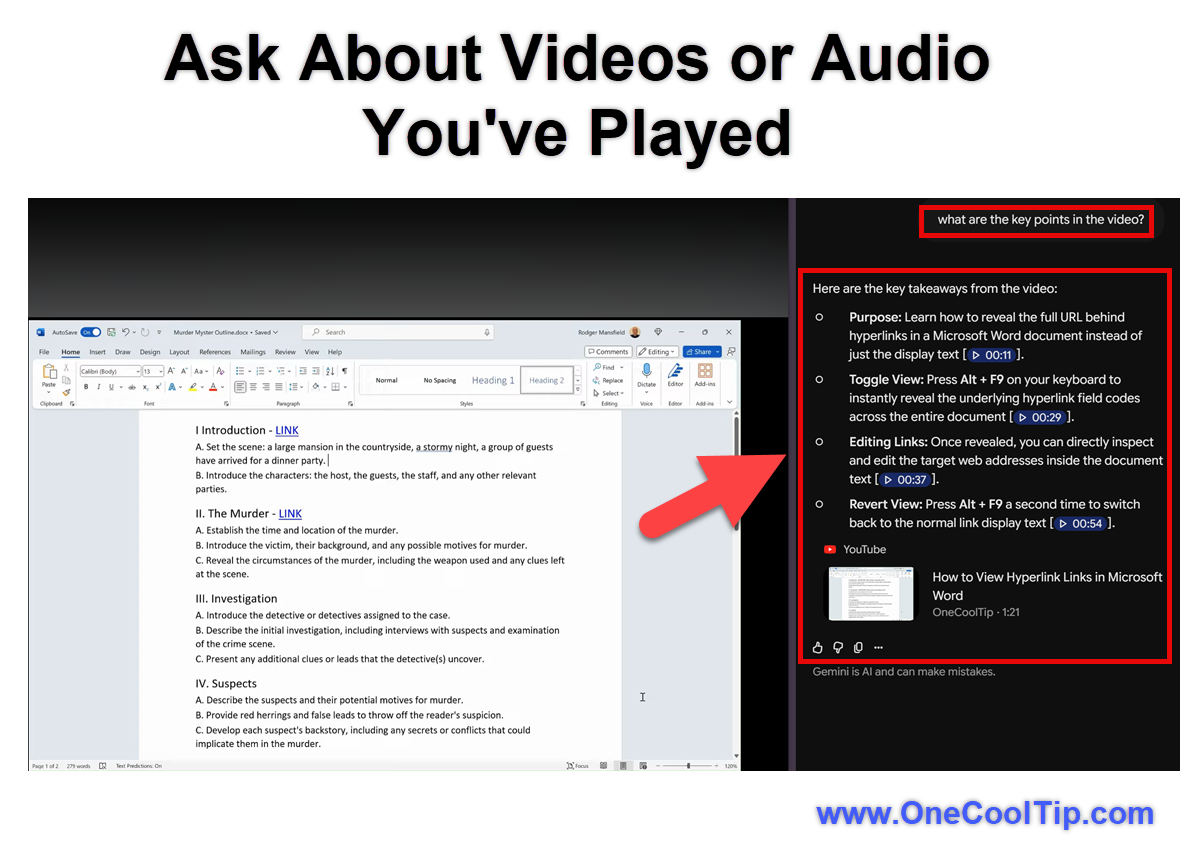
The Remote Student: A college student listening to a recorded university chemistry lecture opens Gemini in Chrome and asks: "What formula was stated right after the discussion on equilibrium?" The assistant identifies the spoken formula immediately, sparing the student a 15-minute search through the video.
The Business Analyst: A project manager attends a web conference demonstration. Instead of pausing every two minutes to write down software parameters, the manager plays the walkthrough and asks Gemini to generate an outline of every setting demonstrated.
The Web Creator: A video producer reviewing competitor clips uses Gemini in Chrome to draft a comparative checklist of audio talking points covered across two open media tabs.
Configuration Guide
-
Access Path: Open Chrome, select the three-dot menu (More) at the top right, click Settings, and choose AI innovations.
-
Default Setting: On by default once you opt in to Gemini in Chrome on a supported computer.
-
Account Requirements: Requires a signed-in personal Google Account (age 13 or older, or applicable age by jurisdiction) in a supported geographic region.
-
Enterprise Controls: Administrators managing Google Workspace environments can disable Gemini in Chrome across organizational units via Google Admin console policies.
Troubleshooting and Limitations
Problem: The Ask Gemini icon is missing from the Chrome toolbar.
Why it happens: Chrome is outdated, you are browsing in an Incognito window, or you are signed in with an unmanaged student account.
Fix or workaround: Update Chrome via Help > About Google Chrome, exit Incognito mode, and sign in with your primary personal Google Account.
Problem: Media queries fail while connected to an enterprise VPN.
Why it happens: Regional IP geolocation mismatches or corporate firewall restrictions on generative AI endpoints.
Fix or workaround: Temporarily disconnect the VPN, restart Chrome, and confirm your account is configured to a supported country and language.
Privacy and Data Notes
Gemini processes audiovisual streams and active tab content to generate its replies.
Google isolates these interactions to active sessions, but queries and interaction data are handled according to the Gemini Apps Privacy Hub terms.
Content from tabs opened in private Incognito windows is never shared with Gemini.
Feature Access
Users must be 13 or older (or the applicable regional age threshold) and located in supported regions with their browser set to a supported language.
The feature is not active in Incognito mode.
For enterprise and education Google Workspace accounts, access depends strictly on whether domain administrators have enabled Gemini features.
Score
Criterion | Score (0–10) | Justification
Value | 8
Solves the persistent annoyance of scrubbing through long, unindexed web recordings to verify facts.
Usability | 7
Works natively from the browser toolbar.
Wow Factor | 8
Extracting accurate context directly out of playing media streams without external transcription feels noticeably capable.
Total: 23/30 | 👍 Good
A practical upgrade for desktop research that turns unsearchable web multimedia into searchable reference material.
It provides a more integrated experience than copying YouTube links into standalone external chatbot windows.
Key Takeaways
Gemini in Chrome interprets played audio and video directly inside your desktop browser tabs.
The capability requires desktop Chrome on Windows, Mac, or Chromebook Plus.
You can extract facts, outlines, and quotes without scrubbing through video timelines manually.
Cool Tip Snapshot
-
Feature Name: Media Understanding in Gemini in Chrome.
-
Platform(s): Windows, macOS, ChromeOS (Chromebook Plus).
-
Quick Benefit: Ask questions and pull summaries directly from played video and audio streams.
-
Best For: Students, researchers, and professionals who consume long online presentations.
-
Access Type: Rolling Out / Free (Requires supported personal Google Account).
-
Difficulty: Easy.
Learn More
Consult Google's official documentation to explore system requirements, tab sharing capabilities, and configuration options for Gemini in Chrome.
Use Gemini in Chrome - Computer
Try It Yourself
Open a video tutorial or recorded webinar in Chrome today, run Gemini, and ask a question about what was just discussed.
Drop a comment below with your experience, subscribe to the One Cool Tip newsletter for Free, and share this Cool Tip with family, friends, and coworkers!
READ MORE
Read the Full Cool Tip!
|