One Cool Tip Newsletter

April 23, 2026

Your daily dose of tech-savvy brilliance!

😀Greetings! Happy Thursday, Cool Tipper!


Get ready to streamline your digital life with simple, actionable tips delivered straight to your inbox.


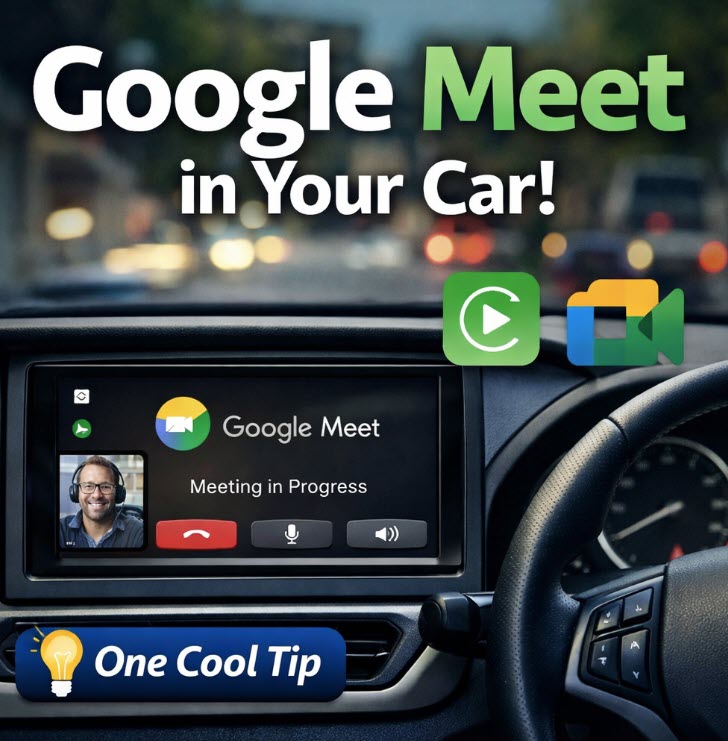
Cool Tip Theme: Google Meet in Apple CarPlay (and Android Auto too!)


New here? Subscribe to the One Cool Tip Newsletter for daily updates. It's FREE!

3️⃣

If you enjoy the One Cool Tip newsletter, please forward this newsletter to THREE friends or colleagues or share it on social media using the links below.


Leave a $$$ Tip!


Share this One Cool Tip Newsletter!

X Share This Email
LinkedIn Share This Email
Pinterest Share This Email

🚨 iOS 26.4.2 Update Fixes Key Security Bug 🚨


Apple has released iOS 26.4.2, a quick follow‑up to last month’s 26.4.1 patch.


This update focuses on security and stability, addressing a Notification Services flaw (CVE‑2026‑28950) that could let deleted notifications linger on your device logs.


To update:


  1. Go to Settings → General → Software Update and install iOS 26.4.2 to keep your iPhone protected.
  2. No new features; just a quiet but important fix to keep your data clean and secure.


Share this alert with your team, family, and friends.

Cool Deals of the Day

Help support One Cool Tip. Use this Amazon link when you shop online.


Check out these Cool Deals:


*Prices accurate when originally published.

One Cool Tip may earn a commission from qualifying purchases.

Fuel Your Adventure

Try Big Mike's Jerky!


bigmikesjerky.com


Now on TikTok!


Today's Cool Tip

Take Your Meetings on the Road with Google Meet for Apple CarPlay


Drive safely while staying connected to your team using the new Google Meet integration for Apple CarPlay.


Have you ever found yourself stuck in traffic while a critical project sync is starting? 


You might feel the urge to fumble with your phone or balance a laptop on the passenger seat, but distracted driving is a leading cause of accidents. 


Modern professionals need a way to bridge the gap between the office and the commute without sacrificing safety. 


Here's a Cool Tip:  Use Google Meet in Apple CarPlay.


Google has brought Google Meet to the Apple CarPlay dashboard. 


This update transforms your vehicle into a mobile audio conferencing suite, allowing you to join calls with a single tap on your car's infotainment screen.


Feature Explanation


Google Meet for Apple CarPlay is a specialized version of the communication app designed specifically for the driving environment. 


It focuses entirely on audio to ensure your eyes stay on the road. 


When you connect your iPhone to a CarPlay-compatible vehicle, the Meet icon appears on the interface.


The system syncs with your Google Calendar to show upcoming meetings directly on the car’s display. You won't see video feeds of your colleagues, and they won't see you. 


Instead, you get a simplified interface with large, easy-to-tap buttons for muting, unmuting, and hanging up. 


It uses your car's built-in microphone and speaker system to provide clear audio, making it feel like a standard phone call but with the organization of a professional meeting platform.


And good news for Android users: Google Meet is also now available for Android Auto.


What You’ll Gain


  • Hands-Free Safety: Join and manage professional meetings using your car's native controls.
  • Calendar Integration: View your daily schedule and join the next meeting without touching your phone.
  • Productivity on the Go: Turn dead commute time into active collaboration time.


Step-by-Step Instructions


Here's how to do it.


iOS (Apple CarPlay)


  1. Ensure you have the latest version of the Google Meet app installed on your iPhone from the App Store.
  2. Plug your iPhone into the USB port or connect wirelessly to your CarPlay-enabled vehicle.
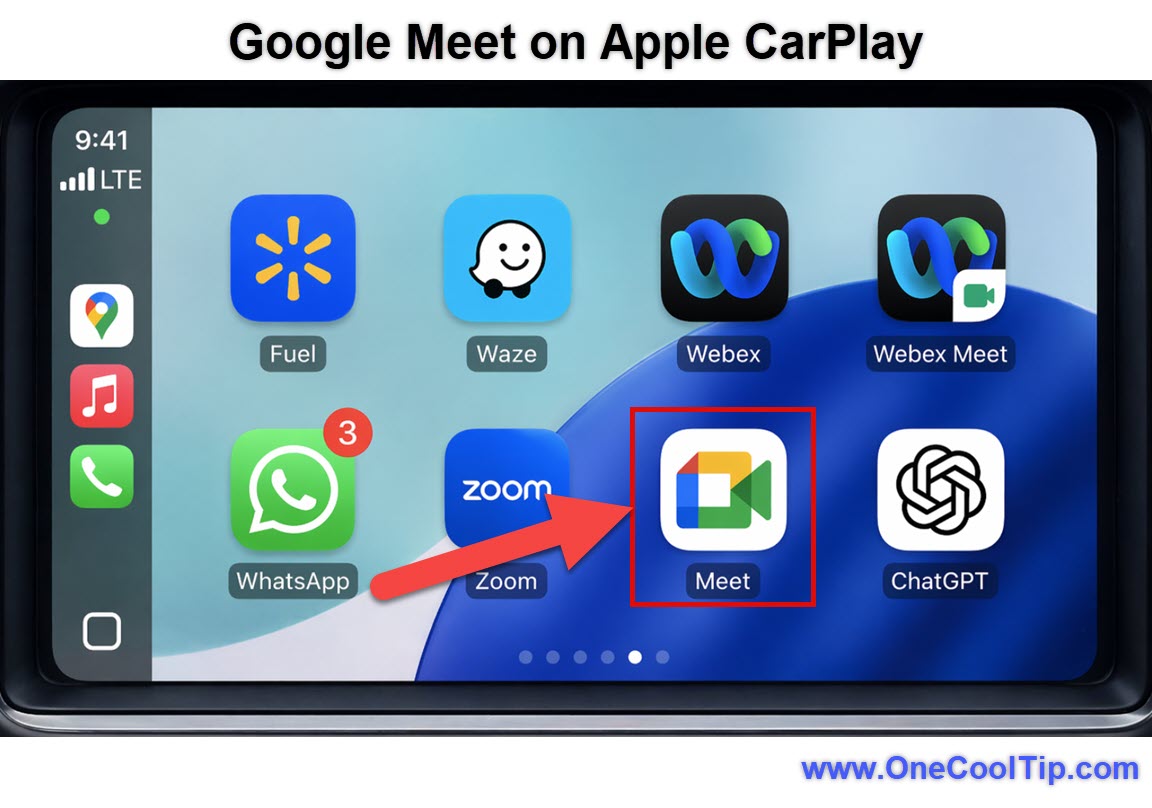
  3. Tap the Google Meet icon on the CarPlay home screen.
  4. Browse the list of upcoming meetings synced from your Google Calendar.
  5. Tap the specific meeting you wish to join.
  6. Use the on-screen "Mute" or "End Call" buttons as needed.


fig. 1 - Google Meet on Apple CarPlay

Cool Example: 


  • Imagine you are driving to a client site. As 10:00 AM approaches, a notification pops up on your car's screen. 
  • You tap "Join," and you are instantly connected to your team's weekly update through your car speakers.


Pros and Cons


Pros:


  • Minimizes driver distraction by removing video elements and providing a simplified UI.
  • High-quality audio integration through the vehicle's sound system.


Cons:


  • Audio-only format means you cannot view shared screens or presentations.
  • Requires a stable cellular data connection, which can be spotty on long highway stretches.


Feature Access


This feature is currently rolling out to all Google Workspace customers, Workspace Individual subscribers, and users with personal Google accounts. 


It requires an iPhone running iOS 26.4 or later and a vehicle that supports Apple CarPlay.


Android Auto requires a phone with Android 12 or later and a compatible vehicle.


Score

Criterion | Score (0–10) | Justification
Value 9 
Essential for professionals who spend significant time commuting.
Usability 9 
Extremely intuitive with a "one-tap" philosophy for joining calls.
Wow Factor 7 
The execution is seamless and highly practical.
Total: 25/30 |  🌟Excellent
Google Meet for CarPlay is a must-have for the modern mobile workforce, rivaling Zoom’s existing car integration in simplicity and reliability.


Key Takeaways


Google Meet on CarPlay allows you to attend meetings safely using audio-only controls. 


By integrating directly with your calendar, it removes the need to look at your phone while driving.


Cool Tip Snapshot


  • Feature Name: Google Meet for CarPlay
  • Platform(s): iOS (CarPlay), Android Auto
  • Quick Benefit: Safe, audio-only meeting participation while driving.
  • Access Type: Free & Subscription (Rolling out)


Try It Yourself


Next time you head out for a drive, plug your phone in and check your CarPlay dashboard for the Meet icon. 


Give it a test run by joining a scheduled sync or a test meeting. 


If you find this helpful, subscribe to the One Cool Tip newsletter and share this guide with your colleagues who are always on the move!


READ MORE


Read the Cool Tip on OneCoolTip.com.

Check out these Cool Tips & Tricks.


  • Quick Join: Open Meet on CarPlay before departure so the next meeting is one tap away. Do this by connecting your iPhone first, then checking the upcoming meetings list.


  • Stay Audio-First: Treat this as a listening-and-talking tool, not a full meeting console. Do this by saving chat, polls, and screen viewing for after you park.


  • Check Permissions: Missing mic permissions can block the smooth first-run experience. Do this by opening Meet on the iPhone and approving prompts before your trip.


  • Use the Right Account: Your meeting list only helps if the correct Google account is signed in. Do this by verifying the account inside the Meet iPhone app.


  • Update Meet: New platform features often need the latest app version. Do this by updating Google Meet from the App Store before testing CarPlay.


  • Watch the Mute: Large meetings may auto-mute your mic when you join. Do this by glancing at the mute icon before you start speaking.


  • Plan the Handoff: Audio can shift back to your phone when you disconnect from CarPlay. Do this by keeping earbuds handy if you may continue the meeting after parking.


  • Know the Limits: You will not see shared slides or participant video on CarPlay. Do this by rescheduling slide-heavy calls or joining fully after arrival.


  • Test Once: The first use should be a low-stakes meeting, not a critical call. Do this by trying it on a short internal meeting first.


  • Use for Openers: CarPlay Meet is ideal for catching the first ten minutes while in transit. Do this by joining early, listening in, and switching to full mobile mode after parking if needed.


ICYMI - In Case You Missed It ...

How To Create QR Codes In Microsoft Word (So People Actually Scan Them)


Turn any Word document into a scannable, mobile-friendly experience with built-in QR codes. No addins, no sketchy websites, just a smart field code hiding in plain sight. Creating QR codes directly in Microsoft Word lets you turn reports, handouts, and invoices into interactive documents. 


Read the Full Cool Tip.


Read the Newsletter Version.

Looking for your next adventure?


Call Denise at Travel For You.

314.660.3039


Sign Up for the Monthly Newsletter


http://www.travelforyouvacations.com/


https://www.facebook.com/TRAVEL.FOR.U/


See You Tomorrow

Tomorrow's Cool Tip is waiting to amaze you.


Until then, go forth and conquer the tech world with your newfound knowledge!


Be sure to visit www.OneCoolTip.com for Cool Tech Tips for a Cooler Life!


And if you Like One Cool Tip, please support with TipJar!


Enjoy!


Rodger

Chief Cool Tipper

onecooltip.com@gmail.com


What Do You Think?

What do you think of today's OneCoolTip newsletter?
Positive        Neutral        Negative
X Share This Email
LinkedIn Share This Email

Connect with One Cool Tip!!

Facebook  X  Instagram  Web  Pinterest  YouTube  LinkedIn
 

As an Amazon Associate, One Cool Tip may earn a small commission from qualifying purchases.


Our media content is intended solely for informational purposes only. Please do not construe anything here as legal, tax, investment, financial, marital or other advice.


Copyright © 2026 | www.OneCoolTip.com | All Rights Reserved