|
By Rodger Mansfield, Technology Editor
October 22, 2026
Subscribe
How often have you read an email, noticed something you needed to do, and promptly forgotten about it?
Maybe it's a bill to pay, an appointment to schedule, or something you promised to pick up at the store.
Apple's built-in Reminders app can help keep those little obligations from slipping through the cracks.
With iOS 27, Reminders offers a more intelligent way to create tasks.
On supported iPhones, Apple Intelligence can interpret a simple description and fill in reminder details automatically.
The app also includes AI-powered suggestions, automatic organization, and quick ways to capture tasks without interrupting what you're doing.
Some of those capabilities arrived in iOS 26, but together they make Reminders a more useful productivity tool.
Here's a Cool Tip: Use Apple Intelligence to create reminders with everyday language and keep your tasks organized with less effort.
How iOS 27 Makes Reminders More Useful
The biggest improvement is how easily you can tell Reminders what you need to accomplish.
Instead of filling out several fields, you can describe a task the way you might explain it to another person.
Create Reminders Using Everyday Language
Suppose you want to remember to water your plants every Saturday morning.
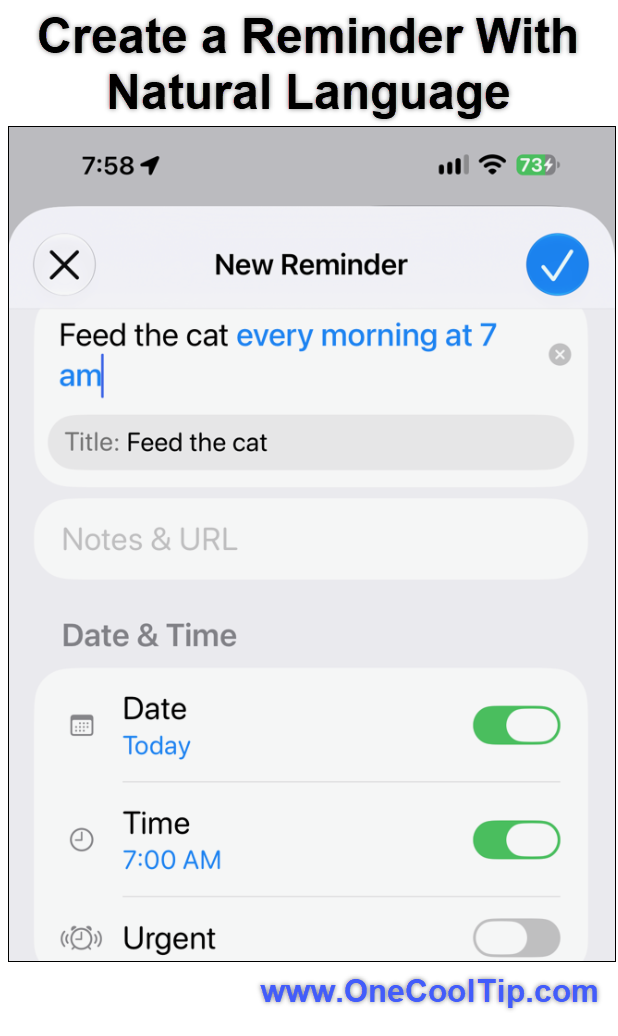
Open Reminders and type: Water the plants every Saturday at 9 AM.
With Apple Intelligence enabled on a compatible iPhone, Reminders can interpret the description and fill in the scheduling details.
You don't need to select the date, time, and repeat settings individually when the app correctly recognizes them.
Just review the information and save the reminder.
Turn Emails and Webpages Into Tasks
Ever receive an email containing several action items?
Instead of creating each reminder manually, share the relevant text with Reminders.
Apple Intelligence can examine the content and suggest individual tasks.
For example, an email about an upcoming business trip might generate reminders to confirm a hotel, complete a registration, and arrange transportation.
You decide which suggestions to keep.
The same capability can help identify grocery items from an online recipe in Safari or action items from notes.
Apple introduced suggested reminders in iOS 26, and the capability remains available in the iOS 27 Reminders experience.
Automatically Organize Your Lists
A long to-do list can become overwhelming, especially when it includes unrelated tasks.
The Auto-Categorize feature uses Apple Intelligence to group related reminders into sections.
Imagine preparing for a vacation with a list containing packing tasks, travel reservations, and shopping items.
Reminders can organize those tasks into related categories so they're easier to review.
If the results aren't quite right, you can move items manually or reset the automatic organization.
Auto-Categorize isn't new to iOS 27, but it's particularly useful when combined with AI-generated reminders.
Capture Tasks Without Opening Reminders
Sometimes the biggest challenge is remembering to create a reminder in the first place.
You can add a Reminders control to Control Center for faster access.
On supported iPhones, you can also assign Reminders to the Action button.
These quick-capture options help you record an idea, obligation, or errand before it disappears from your mind.
What You'll Gain
-
Save Time: Describe a reminder naturally instead of entering every detail manually.
-
Remember More: Turn useful information from emails and webpages into actionable tasks.
-
Stay Organized: Let Apple Intelligence group related reminders into sections.
-
Work Faster: Capture reminders from Control Center or the Action button.
Step-by-Step Instructions
Here's how to do it.
iPhone: Create a Reminder With Natural Language
-
Open the Reminders app on your iPhone.
-
Tap New Reminder.
- Type a complete description, such as Call the insurance agent tomorrow at 10 AM.
- If Apple Intelligence is available and enabled, review the date and time that Reminders identifies from your description.
-
Make any necessary corrections.
-
Tap Done to save.
-
Your new reminder appears in the selected list with its scheduling information.
|