Eastern Region Extension

Information Technology Newsletter

Volume 12, Issue 5

September 2024

Network Connections - On the Go & In the Office

Your computer connects to the world via the internet with the network connections. But what connection does what and how do I connect in different locations? Most laptops have 2-3 network connections. These include the wired, wireless and docking port.


With your laptop, if you are in your local office, another county or region office, 4-H center or UT campus, you should connect to the wired network (your office) or the secure Eduroam wireless network. Both are secure internet connections though UT and allow you access to other network devices on your network. The Guest network should never be used for your UT owned laptop.


But my computer will not connect to Eduroam. Now what? Follow these steps:

  • Open the list of wireless network connections and right-click the Eduroam connection. Select Forget. If this is not an option, select Disconnect and try selecting Forget again.
  • Reboot the computer.
  • Open the wireless network connections again. Select Eduroam as the connection. Leave the check box marked for Connect automatically.
  • If prompted for credentials, use Your NetID@utk.edu and your NetID password. Click OK and then Connect.

When connecting to the internet at locations not on the UT network, you need to use the VPN called Pulse Secure. Launch Pulse Secure and log in with your credentials after you connect to the internet. This software creates a secure link back to the UT network.

Dell Command Updates

Have you seen a notification in the lower right of your computer screen pop-up for Dell Command Updates and wonder what that is? And if you should allow the updates to happen?


Dell Command Updates is a program installed on your Dell computer that keeps the drivers of physical computer components updated. This runs in the background and when updates are available, you may be notified. A user can also manually trigger the Dell Command Updates by launching the program from the Start button.


It is a good practice to install the updates. Just remember you will need to reboot the computer after most updates have been installed. 

The Move to Windows 11

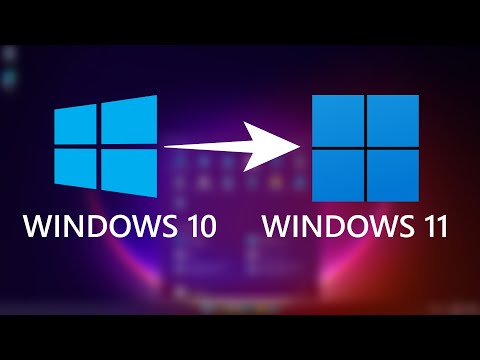
Thanks for your enthusiasm on the call to update all UT computers to Windows 11. Since posting this in July, Andrew and I have reimaged 48 computers to Windows 11. As we move to the one-year mark of no support for Windows 10, take a look at all the computers in your office and see if any are still using Windows 10. From our Endpoint Central managed system, there are still a number of Windows 10 computers in offices. If you have a Windows 10 computer that is schedule to be replaced in early 2025, you can hold off on those as the new computer will have Windows 11.


Also remember, as staff leave, we need to reimage those computers as well. Please contact Andrew or David to arrange a time to reimage any of your computers in either situation.

Is everyone in your office getting this newsletter? If not, please contact David.

If you have ideas or suggestions for topics you wish to see, please email David or Andrew with your ideas.


All the best,


Eastern Region Information Technology Staff

David Yates - Area Specialist

Andrew Clark - IT Administrator