|
🆒Tell Me More
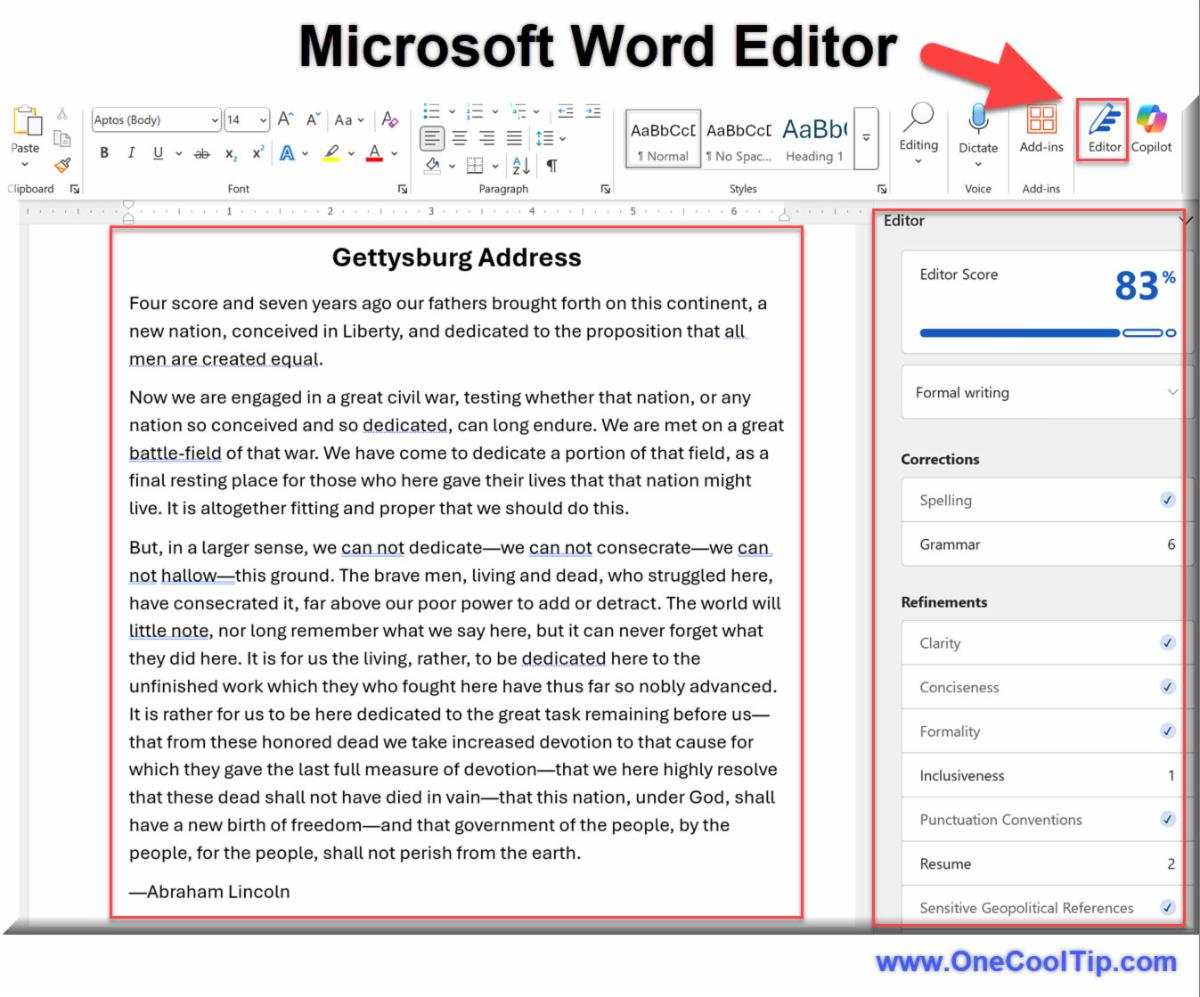
Here's more about the Microsoft Word Editor:
-
Grammar and Spell Check: Microsoft Editor provides comprehensive grammar and spell checking capabilities to help users write with confidence.
-
Writing Style Suggestions: Beyond basic corrections, Editor offers suggestions to improve clarity, conciseness, and formality in your writing.
-
Multilingual Support: Editor supports more than 20 languages, allowing users to write and edit content in multiple languages seamlessly.
-
Similarity Checker: Editor includes a similarity checker to identify potential plagiarism by comparing your content against online sources.
-
Real-Time Collaboration: When collaborating on documents, Editor provides real-time suggestions to all participants, enhancing the quality of shared content.
-
Accessibility Improvements: Editor helps ensure your documents are accessible by checking for issues and suggesting improvements.
🔢 By the Numbers
-
10 Billion: Number of documents edited monthly in Microsoft Word using Editor.
-
80+: Editor checks for over 80 grammar and style rules.
-
50% Faster: Editor's AI improvements help users edit documents 50% faster than manual review.
-
20+ Languages: Supports advanced grammar checks in over 20 languages.
-
1983: Microsoft Word, the base of Editor, was first released in this year.
✅ More Must-Read Tech Tips.
👀 How Do I Use the Microsoft Word Secret Menu?
Do you want to find a quicker way to make formatting and editing changes in Microsoft Word?
Do you know there are secret menus that can help?
Rather than selecting a word and then moving your mouse to the top ribbon menu to make formatting or editing changes, you can use the context menus.
Here's how to do it.
- Click in any word and then right-mouse click. OR
- Highlight and select a word or words you want to format or edit.
- Cool Tip: You can also double click a word to highlight it. Triple click to highlight and select the paragraph.
- You'll see the formatting menu appear.
- To display the pop-up menu, right-mouse click. You can make many other edits from this menu.
-
You can also use the Shift + F10 keyboard shortcut to display this menu wherever your cursor is at.
These two menus will let you make the most common formatting and editing changes.
Discover more HERE.
🤔 Have You Ever Wondered How to Select Vertical Text?
Have you ever found yourself spending too much time editing a list in Microsoft Word?
Do you often need to delete or edit the beginning of each line in a list, especially when dealing with text pasted from another source?
Selecting vertical text in Microsoft Word is a simple process that can save you time and effort when editing your documents.
Here's how to do it.
-
All you have to do is hold down the Alt key while dragging the mouse pointer to select the text.
- Drag the mouse up and down until you get your desired text selection.
This feature is especially useful when you need to delete or edit the beginning of each line in a list, or when dealing with text pasted from another source.
You can make a vertical selection anywhere in the document, not just with lists.
Learn more HERE.
🙋♂️ Here's How To Change Case in Microsoft Word.
What happens if you accidentally type several paragraphs in all UPPERCASE in Microsoft Word?
HAS THAT EVER HAPPENED TO YOU?
Here's how to quickly change the case (upper vs. lower) of text in Microsoft Word.
- Highlight the word, phrase, sentence or paragraph.
-
Press Shift + F3 (you may also have to press the Fn key on some keyboards)
- Each time you press the keys, you'll cycle through three different text options:
- all lowercase,
- First Letter Capitalized
- ALL IN UPPERCASE
Find more HERE.
❓Did you share this newsletter with three friends yet?
⌨️Today's Cool Keyboard Shortcuts
Try these Cool keyboard shortcuts:
-
Ctrl + Shift + E: Turn on/off Editor in Microsoft Word.
-
F7: Run a basic spellcheck.
-
Alt + F8: Open the Editor pane for detailed suggestions.
-
Ctrl + Z: Undo changes suggested by Editor.
✍️Today's Haiku
Lines red and green glow,
Guiding words to perfection—
Editor’s soft touch.
🔎 Do you have a Cool Tip or tech question? Email us at onecooltip.com@gmail.com
😜 Tech Joke of the Day 😅
What’s a Microsoft Word Editor’s favorite drink?
Spell-check soda!
|