Tech Tips: How to Use Your Smartphone's Alarm
How to Use Your Smartphone's Alarm
You may be familiar with the well-known features of smartphones, like texting and browsing the Internet. But smartphones can do many of the same things as other devices, including alarm clocks.

Most smartphones come with a clock app that includes programmable alarms and other features, and more alarm apps are available to download as well.

Alarms can be set for one-time or recurring tasks and events. Setting an alarm can be extremely helpful: wake up, pick someone up, run an errand at a certain time, take medication, etc.

New Year's Resolution: Never be late again ...

How to Set your iPhone/iPad's Alarm

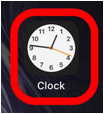
  1. Open the Clock app.
  2. Select Alarm at the bottom.
  3. Tap the + in the upper right corner.
  4. Where it says Time, enter the hour and minute of your alarm time, and select AM or PM. Tap Save.
  5. Tap Repeat to select which days you want the alarm for, then tap Back at the upper left corner. If it's just this once, leave it on the default Never.
  6. Tap Label to name your alarm. Tap Back when you're done.
  7. Tap Sound to choose an alarm tone and then tap Back.
  8. Select whether you want Snooze enabled by toggling it on or off.
  9. Tap Save
  10. If you want to change or add something, tap Edit and select the alarm to change. In EDIT mode, tapping the red negative sign (-) deletes the alarm.
How to Set your Android Phone's Alarm

  1. Open your phone's Clock or Alarm app
  2. At the top or bottom, tap Alarm.
  3. Pick an alarm. To add an alarm, tap Add To or the plus (+) icon to reset an alarm, tap its current time.
  4. Set the alarm time.
  5. On the analog clock: Slide the hand to the hour you want. Then slide the hand to the minutes you want.
  6. On the digital clock: Enter the hour and minutes you want. When using the 12-hour format, tap AM or PM.
  7. Tap OK.
  8. If you want to change or add something, tap Alarm and tap the drop down arrow for additional options, e.g. Label, Repeat, Alarm Music or have it vibrate, etc.
**Use your Virtual Assistant to set the Alarm**

iPhone/iPad > Ask Siri to set an Alarm for 10 AM tomorrow

Android > Ask Google Assistant to set an Alarm for 10 AM tomorrow
2021 Winter Class & Webinar Schedules
Our classes teach how to use technology with individual attention and hands-on instruction for beginners to advanced students.
Our Winter class schedule
2021 Classes start January 6, 2021
Registration Now Open!
View the Class Catalog for additional details on each class.
-----------------------------------
Our free webinars are class introductions where we show what can be done using today’s technology.
Our free Webinar schedule
2021 Webinars start January 11
Registration Opens January 4 at 5 AM
SeniorNet @ FSL website
Family Service League website