|
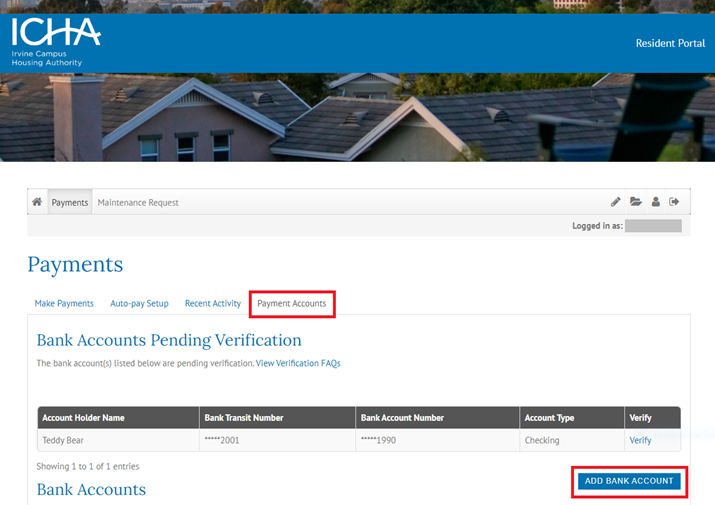
3. Verify bank account.
HIGHLY RECOMMENDED: Option 1 (less than 5 minutes): The system will guide you through verification steps using Finicity, a secure authentication application that connects directly with your financial institution. Using Finicity, residents grant Yardi Payment Processing permission to pull funds from their bank accounts to pay University Hills invoices. The software will ask you to identify which bank you use. It will then take you to your bank's customer log-in screen. Once you log in, Finicity will ask which information to grant access to. Regardless of what is checked, Finicity only allows access to routing and bank account number. For Finicity security information:
https://www.finicity.com/security
**Chase and PNC Bank account holders: due to security protocols on the bank side, ICHA recommends using the MANUAL bank account verification process. Using Finicity may require reverification.
***SchoolsFirst Federal Credit Union users: If you have a child’s account linked to your SchoolsFirst account, please do NOT use Finicity. Instead, manually add your bank account. There is a problem with SchoolsFirst and Finicity linking the child’s account instead of the homeowner bank account, even when the correct homeowner account is selected.
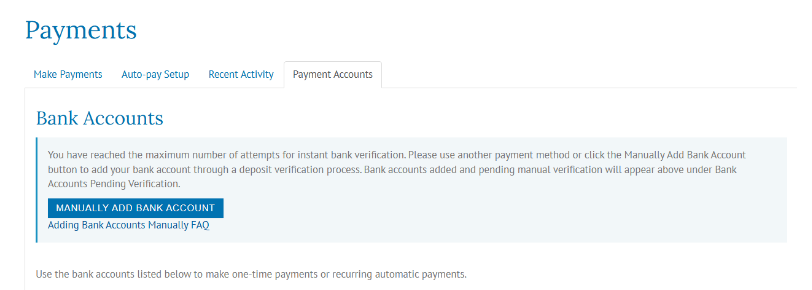
Option 2 (2-5 business days): Manual bank account verification is available as an alternative to Finicity. Once you open and close the Finicity window 3 times, a manual account verify button will appear (see below). Using the manual method involves a penny test, where a small deposit is made to the resident bank account within 3 days. Once the deposit appears in the bank account, return to Resident Portal, log in and click the verify button and then enter the small deposit amount that has been paid to your bank account. If the amount you enter matches the amount paid to your bank account, you'll then be able to make a payment from that account.
|