One Cool Tip Newsletter

March 18, 2026

Your daily dose of tech-savvy brilliance!

😀Greetings!, Happy Wednesday, Cool Tipper!


Get ready to streamline your digital life with simple, actionable tips delivered straight to your inbox.


Today's Cool Tip Theme: Edge Image Search Bar


IN THIS ISSUE


  • ⚠️ Edge 146 Update: Critical security fixes and a heads-up on the June 4th password protection retirement.
  • 🤖 AI Prompt of the Day: Use this specific query to supercharge your visual research projects.
  • 📸 Windows 11 Edge Search Bar: How to run instant visual searches.
  • 🎨 Custom Edge AI Themes: A step-by-step guide to generating a personalized browser look using AI.
  • 🛑 Edge Scareware Blocker: Enable this hidden security toggle to stop fake "virus detected" pop-ups in their tracks.
  • 😴 Sleeping Tabs: Optimize your PC’s performance and battery life by putting inactive Edge tabs to rest.


New here? Subscribe to the One Cool Tip Newsletter for daily updates. It's FREE!


  • 😂 Laugh with Us! Enjoy our Tech Joke of the Day, Haiku and Cool Tip Comics.


  • 🌐 Stay Informed! Check out ICYMI, and our One Cool Tip Video.


3️⃣

If you enjoy the One Cool Tip newsletter, please forward this newsletter to THREE friends or colleagues or share it on social media using the links below.


Leave a Tip!


Share this One Cool Tip Newsletter!

X Share This Email
LinkedIn Share This Email
Pinterest Share This Email

Today's Tech Trivia


Which 1990s event is widely credited with the creation of Google Image Search because so many people were searching for a specific photo of a celebrity?


A) The launch of the Hubbel Space Telescope

B) Jennifer Lopez’s Green Versace Dress at the Grammys

C) The release of the first Toy Story movie

D) The introduction of the iMac G3


Answer at the end of this newsletter.

🔥Hot Topics 🔥

⚠️ Microsoft Edge 146 Update: Password Changes, Security Fixes, and UI Tweaks⚠️


Microsoft just released Edge version 146, and it’s packed with important updates for everyday users. Highlights include:


  • Custom password protection is going away: If you use a separate password to protect saved logins in Edge, that feature will stop working after June 4, 2026. Microsoft recommends switching to Windows Hello or system authentication for better security.


  • Safer cleanup options: Passwords are no longer listed in Edge’s “clear browsing data” menu, so you won’t accidentally wipe saved logins.


  • Simplified privacy settings: Edge now uses one tracking prevention setting for all browsing modes. The old “stricter InPrivate” toggle has been removed.


  • Cleaner site permissions menu: The Page Info and address bar permissions have been redesigned to make it easier to review and adjust what each site can access.


How to update:


Open Edge and visit edge://settings/help (copy and paste) to check for updates.


Try this Cool AI prompt. Copy and paste to ChatGPT, Gemini or Copilot.


"I am working on a visual research project regarding [Insert Topic, e.g., Mid-Century Modern Furniture]. List 10 specific visual search terms I should use to find high-quality reference images, and explain what key details I should look for in the results to ensure authenticity."


Today's Cool Tip

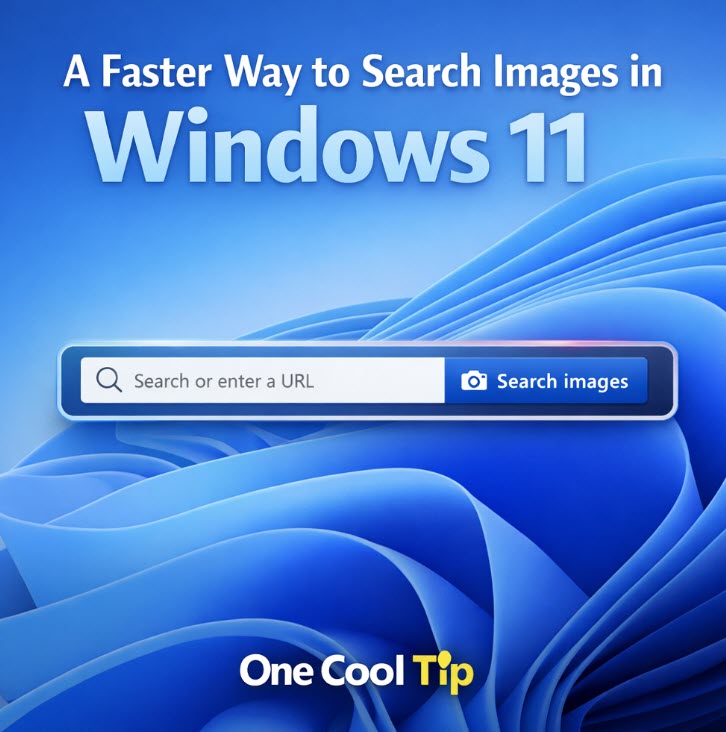
A Faster Way to Search Images in Windows 11 With the Edge Search Bar


The Edge Search Bar in Windows 11 now includes a simple way to search the web using any image. This quick tip shows how to use the new "Search images" option to identify objects, find similar photos, and explore visual matches without opening a full browser window.


You know that moment when you spot an image on your desktop and wonder where it came from or whether there are similar versions online?


Here's a Cool Tip:  Use the Microsoft Edge Search Bar.


The Microsoft Edge Search Bar includes a new "Search images" option that lets you run a visual search directly from your desktop. No browser tabs. 


No extra steps. 


Just a quick image lookup that feels built for real life.


Feature Explanation


The Edge Search Bar is a floating search box that sits on top of your Windows 11 desktop. 


It has existed for a while, but Microsoft recently added a new "Search images" option that makes it easier to run a visual search using any picture on your PC. 


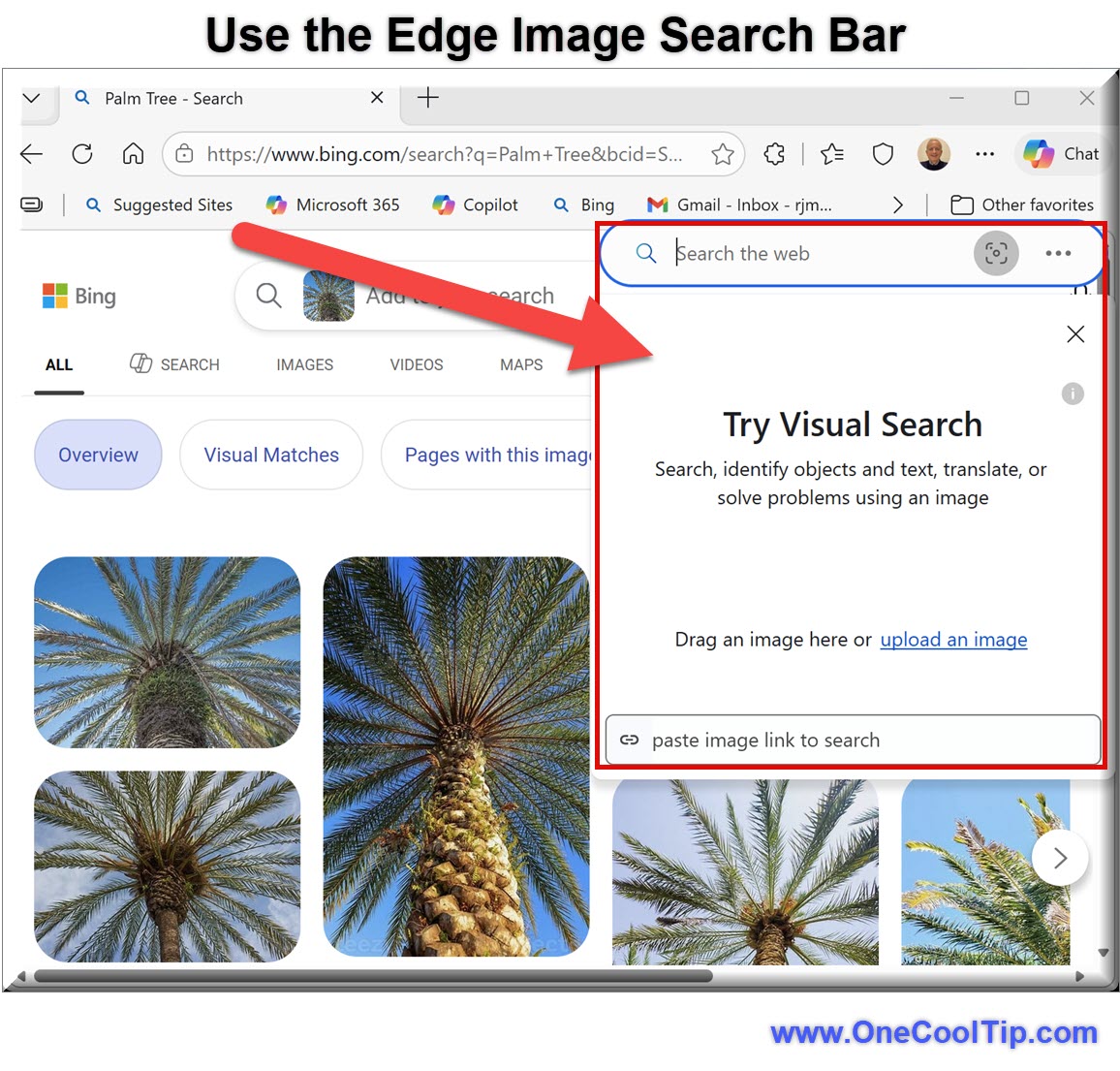
You can upload an image, drag one into the bar, or capture a quick screenshot. 


Edge then sends the image to Bing Visual Search and returns results that include similar images, product matches, and related pages.


This feature matters because it removes friction. 


You no longer need to open a browser, navigate to a search engine, and upload a file. 


The search bar handles everything in one place. 


It is ideal for users who work with photos, research products, or simply want to identify something they found online.


What You’ll Gain


  • Faster image lookups without opening a browser window.
  • Simple drag and drop workflow for visual search.
  • Instant access to similar images and product matches.
  • A lightweight tool that stays out of the way until you need it.


Step-by-Step Instructions


Here's how to do it.


Windows 11


1. Open the Edge Search Bar

  1. Press Win + Shift + F.
  2. The floating search bar appears on your desktop.
  3. Drag it to any location if you want it out of the way.


2. Start an image search

  1. Click Search images in the bar.
  2. Choose one of the following:
  • Upload an image from your PC.
  • Drag and drop an image directly onto the bar.

    3. Capture a screenshot using the built-in snip option.


3. Review your results

  1. Edge opens a results panel with visually similar images.
  2. Scroll to see product matches, related pages, and source information.
  3. Click any result to open it in a full browser tab.


Example: Drag a photo of a plant into the bar. The results show similar plants, product listings, and care guides.


fig. 1 - Edge Image Search Bar Example

Pros and Cons


Pros

  • Fast visual search without opening a browser.
  • Simple drag and drop workflow.
  • Helpful for product research and image identification.
  • Lightweight tool that stays out of the way.


Cons

  • Requires Microsoft Edge to be installed.
  • Results depend on Bing Visual Search accuracy.
  • Not available on iOS or Android.
  • Limited customization options.


Feature Access


  • The "Search images" option is available in the current version of Microsoft Edge for Windows 11. 
  • Availability may vary slightly by region as updates roll out.


Score

Criterion | Score (0–10) | Justification
Value 8
The feature saves time and simplifies visual search for everyday tasks.
Usability 9
The drag and drop workflow is intuitive and requires no setup.
Wow Factor 7
The feature feels fresh and useful, though it relies on existing visual search technology.
Total: 24/30 👍 Good
A practical upgrade that makes image search faster and more accessible than before.


Key Takeaways


The Edge Search Bar now offers a quick way to search the web using any image on your Windows 11 desktop. 


It is simple, fast, and helpful for product research, education, and everyday curiosity. 


The feature works without opening an initial full browser window, which keeps your workflow clean.


Cool Tip Snapshot


  • Feature Name: Edge Search Bar "Search images"
  • Platform(s): Windows 11
  • Quick Benefit: Run visual searches directly from your desktop.
  • Access Type: Free


Try It Yourself


Open the Edge Search Bar with Win + Shift + F and try dragging an image into the bar. 


Share this tip with your team, family, and friends.


READ MORE


Read the Cool Tip on One Cool Tip.com.

Cool Products of the Day

Help support One Cool Tip. Use this Amazon link when you shop online.


🖱️ Logitech MX Master 3S: Smooth scrolling and precise control make dragging images into the Search Bar effortless. Save 6% $84.99 Check it out on Amazon.


🖼️ BenQ GW2780 27" IPS Monitor: A crisp display helps you compare similar images with less eye strain. $199.95 Check it out on Amazon.


💾 SanDisk 1T Extreme Portable SSD: Store screenshots and reference images without slowing down your PC. $183.39 Check it out on Amazon.


🎧 Anker Soundcore Life Q30: Stay focused while researching with comfortable noise cancelling headphones. Save 24% $64.99 Check it out on Amazon.


📷 Logitech C920 HD Pro Webcam: Capture quick reference photos you can feed into image search. $69.99 Check it out on Amazon.

Prices accurate at time of publication

One Cool Tip may earn a commission from qualifying purchases.

Cool Thoughts

🆒Tell Me More


  • The Edge Search Bar is an Edge feature, not a Windows feature.


  • IT admins can enable or block it using the SearchbarAllowed policy.


  • Search images uses Bing Visual Search behind the scenes.


  • Screenshot search is perfect for grabbing small details like labels or logos.


⏩Quick Tips


  • 🪟 Open it fast: Press Win + Shift + F to launch the Search Bar instantly.


  • 🖼️ Drag and drop: Drop any image file onto the bar to start a visual search.


  • ✂️ Screenshot search: Use the built in capture tool to search only part of your screen.


  • 🧭 Check the source: Scroll to the bottom of results to see where an image appears online.


  • 🛒 Compare products: Drag a product photo into the bar to find similar items and prices.


✅ More Must-Read Tech Tips

👀 How Do I Create a Custom AI Theme For Microsoft Edge?


Have you ever imagined a browser that not only serves your daily digital needs but also reflects your personal style and passions? 


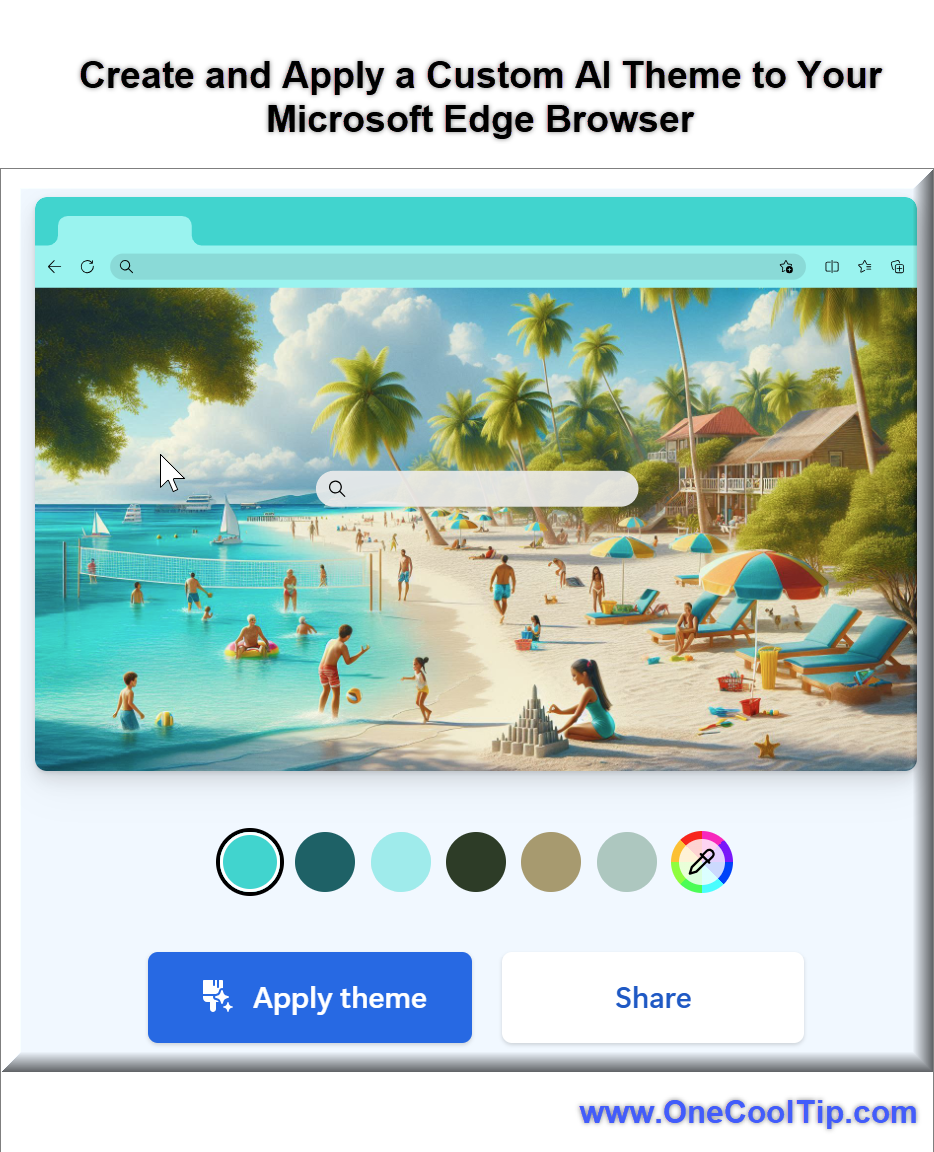
Here's a Cool Tip.  Use the new Microsoft Edge Theme Generator.


The future of browser customization is here, and it’s powered by AI.


Here's how to do it.


  1. Sign in to Microsoft Edge with your Microsoft account.
  2. Navigate to the AI Theme Generator feature: AI Theme Generator: Create a Custom Browser Theme | Microsoft Edge
  3. Enter a description of your desired theme.
  4. Click ‘Create a theme’ and watch as AI brings your vision to life.
  5. Preview the theme.
  6. Click the "Apply Theme" to apply to your browser.


The Microsoft Edge AI Theme Generator is more than just a tool; it’s a gateway to a more personalized and enjoyable browsing experience. 


Discover more HERE. 

🤔 Have You Ever Wondered How to Use Edge's Scareware Blocker?


Have you ever encountered a pop-up claiming your computer is infected with a virus and urging you to call a fake tech support number? 


These "scareware" scams are not only annoying but also dangerous. But what if there was a way to block them automatically? 


Microsoft Edge has introduced a new feature called Scareware Blocker, designed to protect users from tech support scams. 


Here's how to do it.


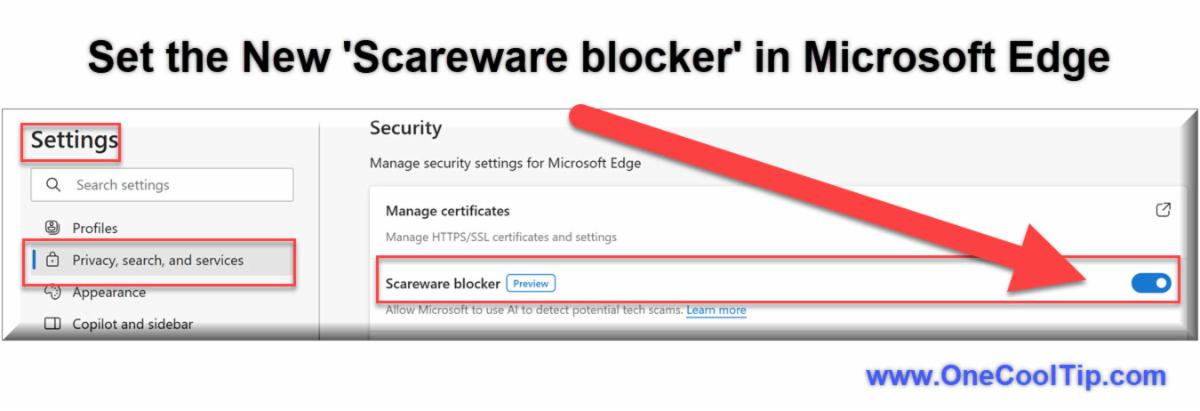
  1. Click the Settings from the top-right corner.
  2. Click on Privacy, search, and services from the left pane.
  3. Turn on the Scareware blocker toggle switch under the Security section.
  4. Optionally, turn on the Microsoft Defender SmartScreen toggle switch for additional protection.


With Scareware Blocker enabled, Edge detects the scam, exits full-screen mode, and warns you, giving you control over the situation.


Find out more HERE.

🙋‍♂️ Here's How to Use Microsoft Edge Sleeping Tabs.


Have you ever noticed your computer slowing down with too many tabs open? 


Microsoft Edge has introduced a feature called Sleeping Tabs to address this issue.


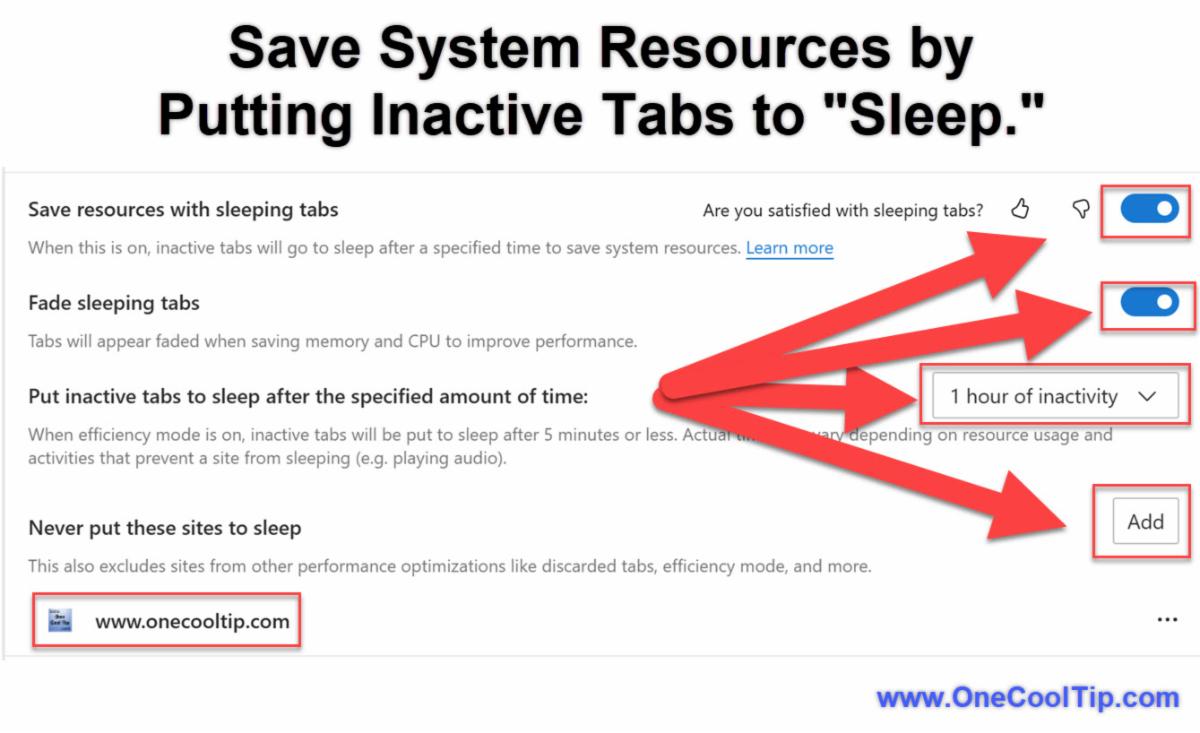
Sleeping Tabs is a feature designed to save system resources by putting inactive tabs to "sleep." 


This reduces memory and CPU usage, ultimately enhancing the overall performance of your device. 


Here's how to do it.


  1. Open the Edge browser on your device.
  2. Click on the three-dot menu icon in the top-right corner.
  3. Select "Settings."
  4. In the Settings menu, click on "System and Performance."
  5. Toggle the switch for "Save resources with sleeping tabs" to enable the feature.
  6. Select "Fade sleeping tabs" so tabs appear faded when saving memory.
  7. Adjust the inactivity period before tabs go to sleep by selecting a preferred duration from the dropdown menu.
  8. Add websites to the "Never put these sites to sleep" list to ensure they remain active.


Microsoft Edge Sleeping Tabs is a game-changer for users looking to optimize their browser performance and extend battery life. 


Learn more HERE. 

❓Did you share this newsletter with three friends yet?


😎 Cool Facts


  • 1991: The first web browser, WorldWideWeb, became available in 1991. Source.


  • July 1995: Microsoft released Internet Explorer 1.0 as an add-on to Windows 95 in July 1995. Source.


  • 146: Chrome 146 reached the stable channel on March 2026 for Android, ChromeOS, Linux, macOS, and Windows. Source.


⌨️Today's Cool Shortcuts


  • Win + Shift + F: Open the Edge Search Bar


  • Win + Shift + S: Capture a screenshot


  • Ctrl + L: Jump to the address bar in Edge


  • Ctrl + T: Open a new tab


  • Ctrl + W: Close the current tab


😜 Tech Joke of the Day 😅


I asked Edge to identify a random screenshot.


It said, “That looks like three open tabs and one bad decision.”


🔎 Do you have a Cool Tip or tech question? Email us at onecooltip.com@gmail.com.

Cool Tip Haiku

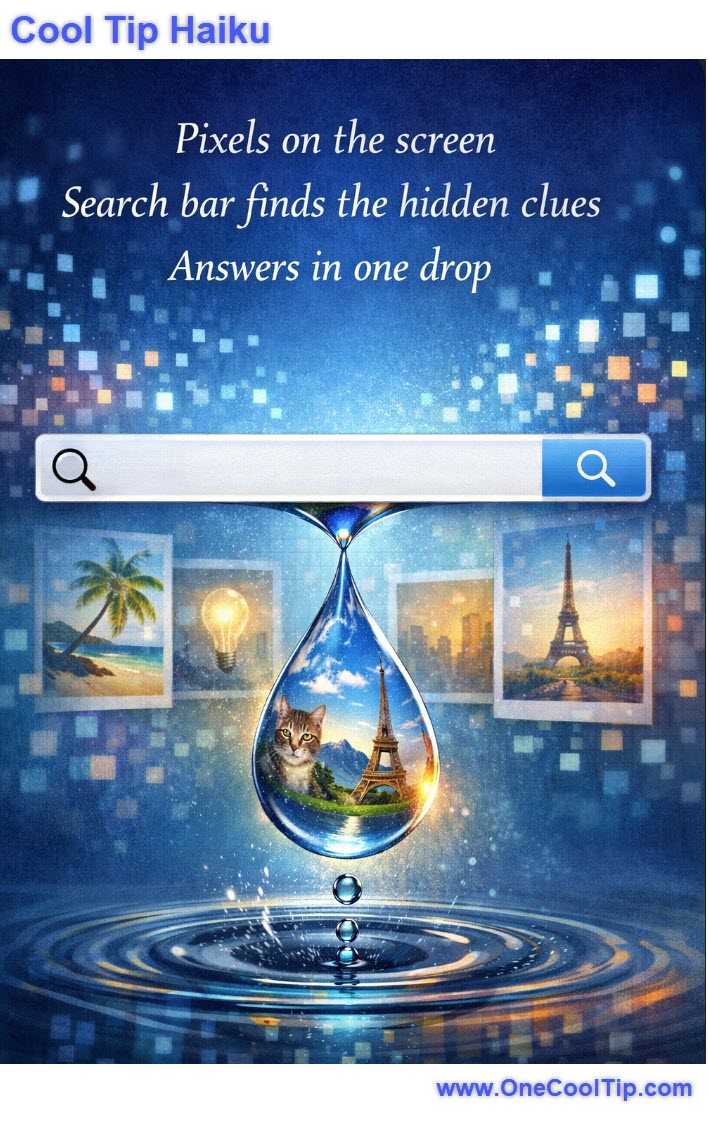
Pixels on the screen

Search bar finds the hidden clues

Answers in one drop

Cool Tip Pulse

🤔 What would you most likely use Edge image search for?


Fuel Your Adventure

Try Big Mike's Jerky!


bigmikesjerky.com


Now on TikTok!

Did You See These Cool Tips This Week?

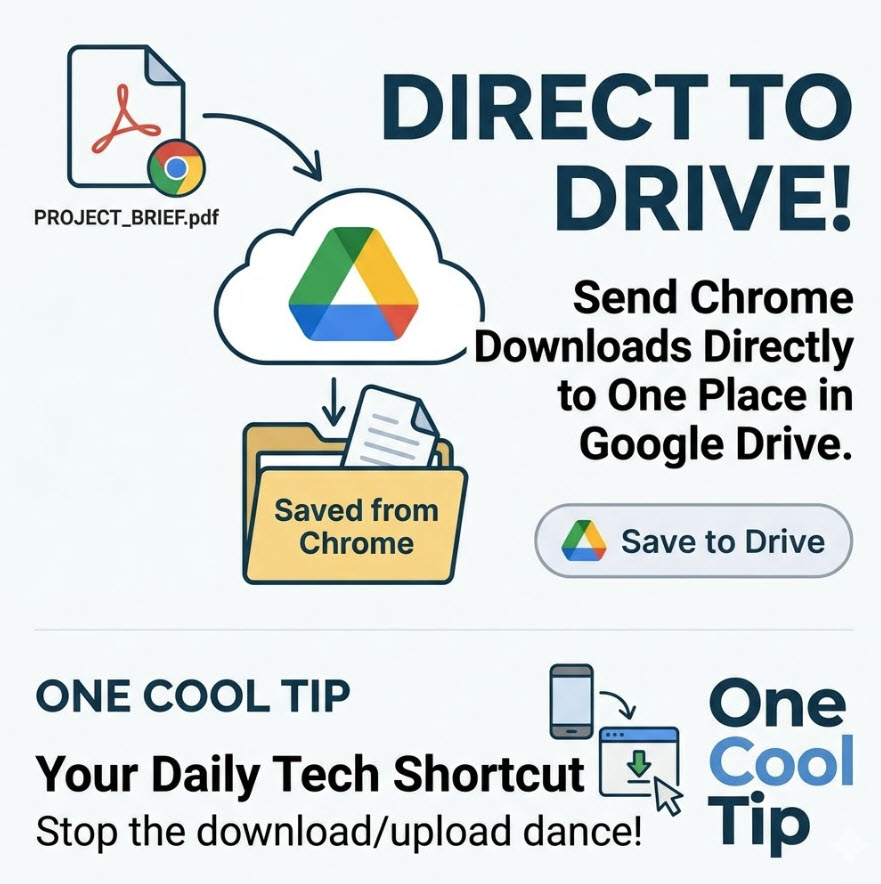
Direct to Drive: How to Send Chrome Downloads to One Place

Stop the manual upload cycle and sync your web saves directly to a dedicated, searchable folder in the cloud.


Read the Newsletter Version.

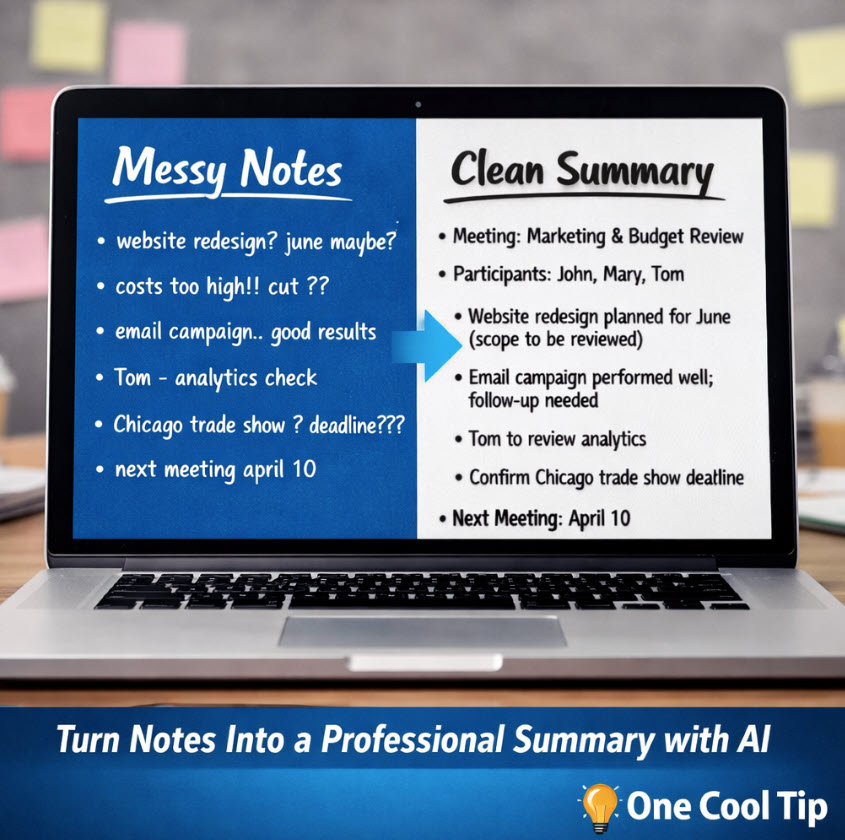
Turn Messy Meeting Notes Into a Clean Summary with AI

Capture rough meeting notes and turn them into clear, organized summaries using ChatGPT or similar AI tools in seconds.


Read the Newsletter Version.

Find Your Adventure

Looking for your next adventure?


Call Denise at Travel For You.

314.660.3039


Sign Up for the Monthly Newsletter - Deals and Specials


http://www.travelforyouvacations.com/


https://www.facebook.com/TRAVEL.FOR.U/


ICYMI - In Case You Missed It ...

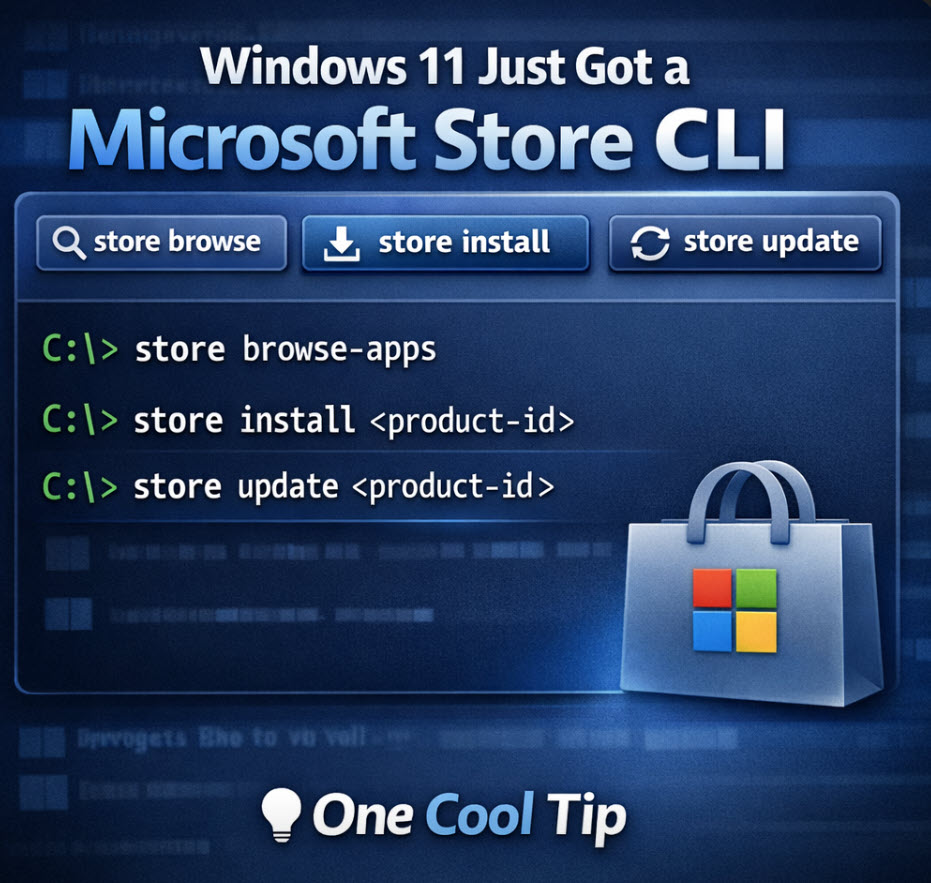
Windows 11’s Microsoft Store CLI: Install and Update Apps Without Opening the Store

If you live in Windows Terminal, Microsoft just gave you a faster way to manage Store apps. The new Microsoft Store command line tool lets you browse, install, and update Microsoft Store apps with a few simple commands, no GUI required.


Read the Newsletter Version.

One Cool Tip Video

Unleash the Power of Microsoft Edge’s Task Manager


Ever wondered why your Microsoft Edge browser is running slow? 


Or which tab is consuming most of your system’s resources? 


What if you could have a built-in tool within your browser that could answer all these questions? 


Watch

Cool Tip Comics

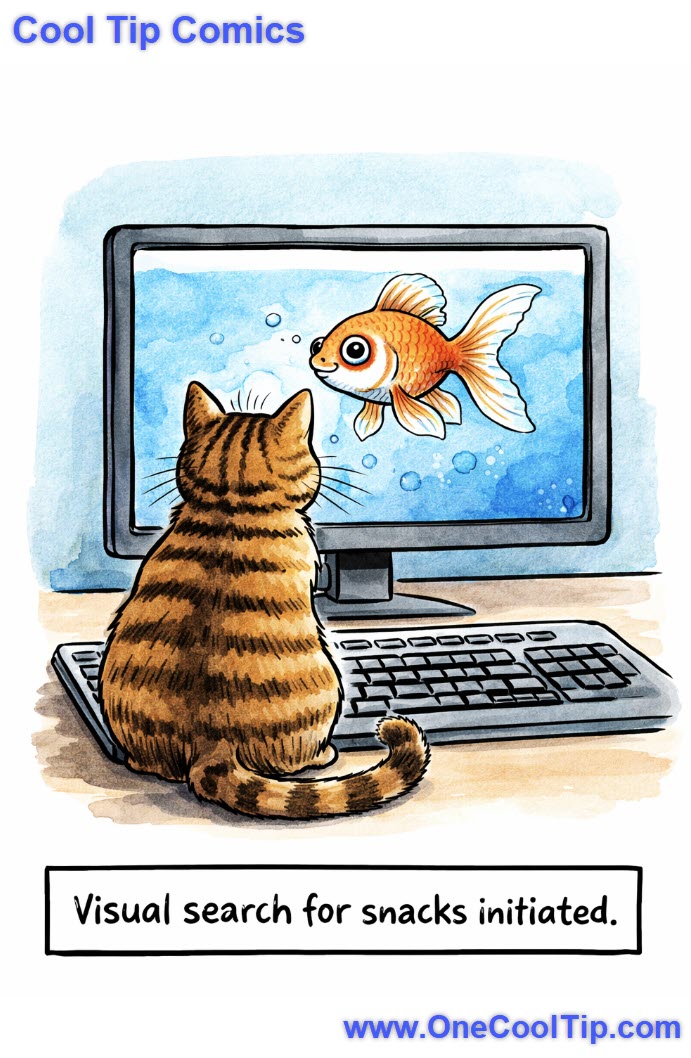
He’s not browsing… he’s conducting highly targeted seafood research.


See You Tomorrow

Trivia Answer: B) Jennifer Lopez’s Green Versace Dress at the Grammys


In February 2000, Jennifer Lopez wore a daring green dress to the 42nd Grammy Awards.


The sheer volume of search queries for the dress overwhelmed Google's text-based results.


The engineering team realized they couldn't give users exactly what they wanted (the image) with just blue links.


This led to the development and 2001 launch of Google Image Search.


image: Google

----------


Tomorrow's Cool Tip is waiting to amaze you.


Until then, go forth and conquer the tech world with your newfound knowledge!


Be sure to visit www.OneCoolTip.com for Cool Tech Tips for a Cooler Life!


And if you Like One Cool Tip, please support with TipJar!


Enjoy!


Rodger

Chief Cool Tipper

onecooltip.com@gmail.com


What Do You Think?

What do you think of today's OneCoolTip newsletter?
Positive        Neutral        Negative

Please Share the One Cool Tip Newsletter!


You asked for it. You got it. There is now a One Cool Tip Newsletter archive. Did you delete a newsletter and want to read it again? Check it out HERE.


Want to help One Cool Tip grow? Please forward this email using the link above. And if you see an OCT social media post, please LIKE, COMMENT and SHARE!


Have you subscribed to the One Cool Tip YouTube channel? Subscribe HERE.

X Share This Email
LinkedIn Share This Email

Connect with One Cool Tip!!

Facebook  X  Instagram  Web  Pinterest  YouTube  LinkedIn
 

As an Amazon Associate, One Cool Tip may earn a small commission from qualifying purchases.


Our media content is intended solely for informational purposes only. Please do not construe anything here as legal, tax, investment, financial, marital or other advice.


Copyright © 2026 | www.OneCoolTip.com | All Rights Reserved