|
One Cool Tip Newsletter
May 27, 2026
| Your daily dose of tech-savvy brilliance! | | |
😀Greetings!, Happy Bing Wednesday, Cool Tipper!
Get ready to streamline your digital life with simple, actionable tips delivered straight to your inbox.
Today's Cool Tip Theme: Bing AI Image Search
IN THIS ISSUE
- ⚠️ Security Alert: Learn how to spot fake IT department scams from the Silent Ransom Group before they steal your company data.
- 🛡️ Windows 11 Secure Boot: Find out what happens when the June 2026 certificate deadline hits and how to keep your PC protected.
- 🤖 AI Prompt of the Day: Try a clever copy-and-paste prompt to turn ChatGPT, Gemini, or Copilot into your personal visual research assistant.
- 🔎 Bing AI Image Search: Discover how Bing's new guided layout groups visual results into clean categories to end endless thumbnail scrolling.
- 🔄 Third-Party App Updates: Use the Microsoft Store as a centralized hub to keep all your non-Microsoft applications updated automatically.
- 📋 Clear Your Clipboard: Protect your passwords and sensitive information by learning how to wipe your Windows clipboard history.
- 📸 Auto-Save Screenshots: Streamline your workflow with a quick Windows shortcut that sends captures straight to your Pictures folder.
New here? Subscribe to the One Cool Tip Newsletter for daily updates. It's FREE!
-
😂 Laugh with Us! Enjoy our Tech Joke of the Day, Haiku and Cool Tip Comics.
-
🌐 Stay Informed! Check out ICYMI, and our One Cool Tip Video.
| | |
3️⃣
If you enjoy the One Cool Tip newsletter, please forward this newsletter to THREE friends or colleagues or share it on social media using the links below.
Leave a $$$ Tip!
Share this One Cool Tip Newsletter!
| | |
Today's Tech Trivia
Which format, introduced in 1987 by CompuServe, became the early standard for displaying 8-bit color images on the World Wide Web?
A) JPEG
B) PNG
C) GIF
D) BMP
Answer at the end of this newsletter.
| | |
⚠️Scammers Are Pretending To Be Your IT Department⚠️
A new FBI alert warns that a cybercriminal group called Silent Ransom Group (SRG) is tricking people by pretending to be company IT staff.
They call or email employees, claim there’s a tech issue, and then try to get access to computers.
In some cases, they even send someone in person to plug in a USB drive and steal data.
SRG doesn’t lock your files like traditional ransomware.
Instead, they steal data and demand payment by threatening to leak it.
What to watch for:
- Unexpected calls or emails claiming to be IT.
- Requests to install remote‑access tools.
- Anyone showing up onsite claiming they need to “image your device”.
- Alerts that files were uploaded to OneDrive, Google Drive, or unknown servers.
How to protect yourself:
- Verify every IT request through an official company channel.
- Never install remote‑access software unless you initiated the support request.
- Report suspicious calls or emails to your security team.
- Keep backups and enable multi‑factor authentication.
And in Other News...
Windows 11 Secure Boot Deadline Is Almost Here
Microsoft has confirmed what happens if you ignore the June 2026 Secure Boot certificate update, and the good news is your PC won’t suddenly stop working.
But there is a catch.
If your Windows 11 device doesn’t receive the new 2023 Secure Boot certificates, it will still start normally, but it will lose critical security protections.
Microsoft will no longer send boot‑level security updates or new malware‑blocking entries to the Secure Boot blacklist.
That means future threats targeting the boot process could slip through.
The update is required because the original 2011 Secure Boot certificates expire in June 2026, and Windows needs the newer 2023 certificates to keep protecting your device.
What you should do
- Open Windows Security → Device Security → Secure Boot.
- Look for a green checkmark (fully updated).
- A yellow or red warning means your PC needs attention.
- Install all Windows Updates and reboot if prompted.
| | |
Try this Cool AI prompt. Copy and paste to ChatGPT, Gemini or Copilot.
Act as a visual research assistant. Help me improve this image search query: [paste your topic]. Suggest five more specific Bing image search queries, explain what each one will likely find, and recommend which query is best for a presentation, article, school project, or creative mood board.
| | |
Find Better Images Faster with Bing’s New AI Search
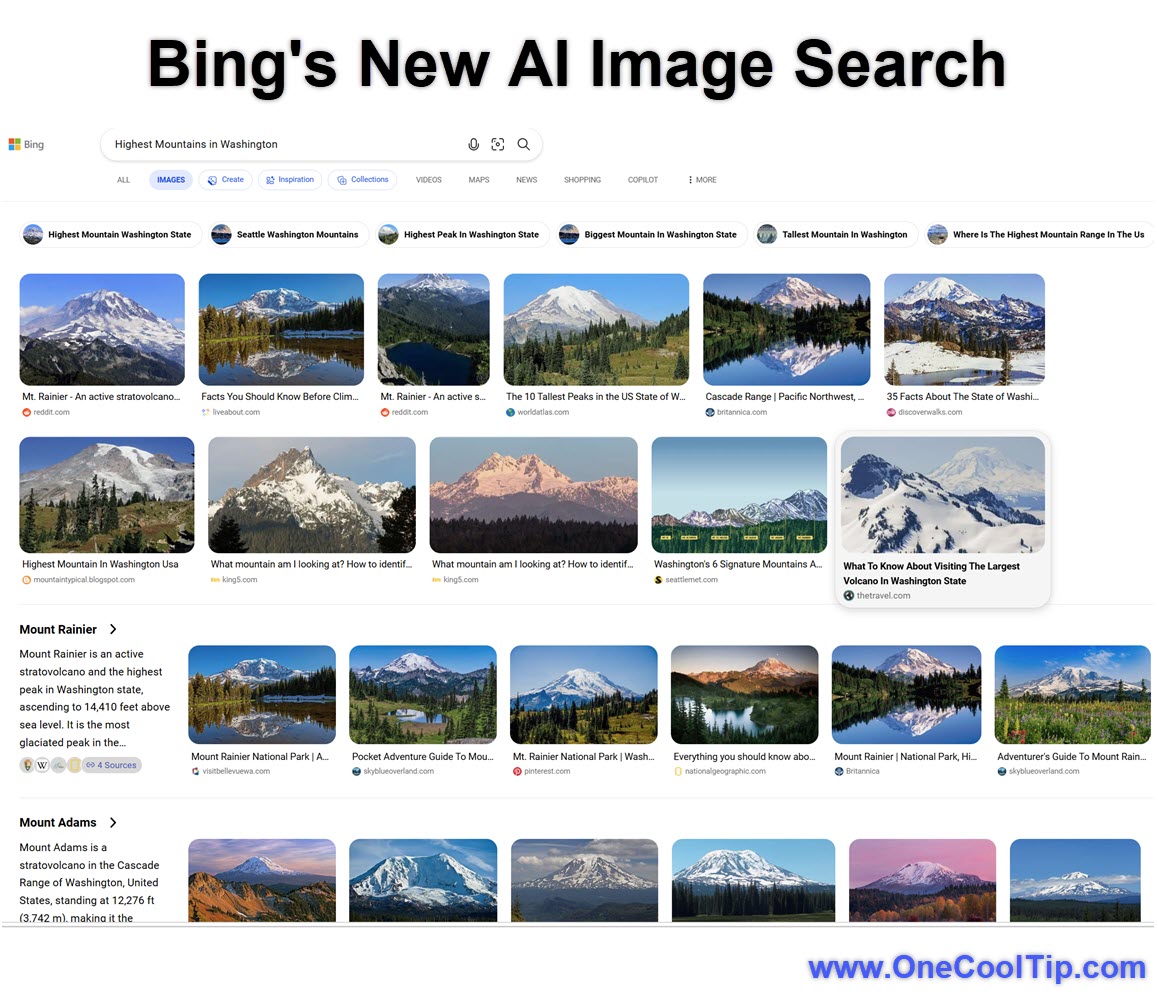
Bing’s new AI-guided Image Search helps turn a crowded page of pictures into organized visual results with labels, summaries, and sources. It is especially useful when you are researching design ideas, travel destinations, shopping inspiration, school topics, or creative projects.
Image search is useful, but it can also feel messy.
Search for “modern patio ideas,” “best beaches in Portugal,” or “Picasso art periods,” and you often get a wall of thumbnails with little guidance about what matters, what is related, or where to go next.
Here’s a Cool Tip: Try Bing’s New Image Search.
Microsoft is trying to improve that experience with a new AI-guided version of Bing Image Search.
Instead of showing only a dense grid of image results, Bing can now organize images into clearer sections, add short summaries, and show sources that help users understand and explore a visual topic more easily.
This is not Bing Image Creator.
It does not create AI images from prompts. It helps users explore existing image search results in a more organized way.
Feature Explanation
Bing’s new AI Image Search is an updated experience inside Bing Images.
It uses AI to make image results easier to understand, compare, and explore.
The feature organizes images into categories, adds short summaries, and includes sources for additional context.
That matters because many image searches are not just about finding one picture.
Users often want to compare styles, understand a topic, plan a trip, research a school project, shop for ideas, or gather creative inspiration.
A traditional image grid can be fast, but it can also be noisy.
Bing’s new AI-guided layout makes visual search feel more like a guided research board.
You still see images, but you also get helpful groupings and context that can point you in a better direction.
This feature is most useful for creators, students, educators, travelers, marketers, small businesses, and anyone who uses images to understand a topic quickly.
What You’ll Gain
-
Save time by reviewing organized image groups instead of endless scrolling.
-
Reduce confusion by seeing short explanations for visual categories.
-
Compare creative, educational, travel, shopping, or design ideas faster.
-
Improve confidence by checking visible sources alongside image results.
Step-by-Step Instructions
Here's how to do it.
Web/Desktop:
-
Open Bing.com in a desktop web browser.
-
Search for a visual topic, such as coastal kitchen ideas, highest mountains in Washington, or Picasso art periods.
-
Select the Images tab.
-
Look for the New Version option.
-
Select New Version if it appears.
-
Review the organized image groups, summaries, and sources.
| | fig. 1 - Bing's New AI Image Search | |
Pros and Cons
Pros:
-
Less visual clutter: Organized sections make image research easier than scanning a long page of thumbnails.
-
Better context: Short summaries help explain why images are grouped together.
-
Useful for research: Students, educators, and business users can compare visual concepts faster.
-
Helpful for creative planning: Bloggers, designers, marketers, and creators can move from broad inspiration to useful examples more efficiently.
-
No sign-in required on supported desktop access: Microsoft says the U.S. desktop experience does not require sign-in.
Cons:
-
Limited rollout: U.S. desktop availability first, with mobile and additional markets rolling out later.
-
Opt-in may be required: Users may need to select New Version before seeing the updated layout.
-
Not necessary for every search: A simple image grid may still be faster when you need one specific picture.
-
AI summaries require judgment: Treat summaries as helpful guidance, not final authority.
Who Should Skip This
Skip this feature when you already know exactly what image, logo, product photo, or source page you need.
A standard image grid or direct website search may be faster.
Organizations with strict search, browser, or AI policies should also check internal guidance before encouraging employees to use AI-guided search features.
Privacy and Data Notes
This feature is part of Bing Image Search, so the main privacy consideration is the search query itself.
Avoid entering private personal details, confidential client information, unpublished product names, sensitive business plans, or private medical, legal, or financial details into image searches.
Use general terms when possible.
For example, search small business brochure design ideas instead of including a client name, budget, or unreleased campaign title.
Feature Access
The new Bing Image Search experience is available for Bing users in the United States on desktop, with no sign-in required.
Mobile and additional markets will continue rolling out, but it did not provide exact dates, supported mobile app details, browser requirements, or country-by-country availability.
Score
Criterion | Score (0–10) | Justification
Value | 8
This solves a real problem for visual research by reducing clutter and adding useful context. It is especially valuable for planning, learning, shopping research, and creative work.
Usability | 7
The feature is easy to try if the New Version option appears, but opt-in access and rollout limits reduce consistency.
Wow Factor | 8
Grouped AI image results with summaries and sources feel meaningfully better than a plain grid, although the concept is evolutionary rather than surprising.
Total: 23/30 | 👍 Good
Bing’s new AI Image Search is a useful upgrade for anyone who researches visual topics and wants less scrolling with more context.
Compared with traditional image search, this feels less like a pile of thumbnails and more like a guided visual research board.
Key Takeaways
Bing’s new AI-guided Image Search helps users find, compare, and understand images faster by organizing results into labeled sections with summaries and sources.
It is currently most useful on desktop in the United States, with mobile and additional markets still rolling out.
Cool Tip Snapshot
-
Feature Name: Bing Image Search New Version,
-
Platform(s): Bing Images on desktop web,
-
Quick Benefit: Organizes image results into clearer AI-labeled groups,
-
Best For: Creators, students, educators, travelers, shoppers, marketers, and visual researchers,
-
Access Type: Rolling Out,
-
Difficulty: Easy,
Try It Yourself
Try Bing’s New Version the next time you search for images, then compare it with the standard grid view.
Share this article with family, friends, and coworkers, and leave a comment with your favorite use case.
READ MORE
Read the Cool Tip on One Cool Tip.com.
| | Help support One Cool Tip. Use this Amazon link when you shop online. | |
📷 Logitech C920 HD Webcam: A reliable webcam for capturing clear photos and videos for projects. $68.39 Check it out on Amazon!
💡 Philips Hue Essential Smart LED A19 Bulb (4 pack): Great for improving lighting when taking reference photos at home. Save 12% $52.95 Check it out on Amazon!
🧽 Screen Cleaning by Whoosh: Keeps your screens spotless so images look crisp. $19.99 Check it out on Amazon!
Prices accurate at time of publication
One Cool Tip may earn a commission from qualifying purchases.
| | |
🆒Tell Me More
- Bing’s new AI Image Search uses machine learning to identify themes and group similar photos together.
- The feature works without sign-in on supported browsers, making it easy for casual users to try.
- AI-generated summaries help you understand what’s in a cluster without opening each image.
- The update focuses on reducing “image overload,” a common issue when searching broad topics.
- Availability may vary by region and device, based on Microsoft’s announcement.
⏩Quick Tips
-
🔍 Try Clusters: Bing now groups similar images automatically. Use it when searching broad topics like “kitchen ideas.” How: Search on Bing Images and look for grouped sections.
-
✏️ Use Descriptive Queries: More detail gives better clusters. Try “small balcony plants” instead of “plants.” How: Type a more specific phrase in the Bing search bar.
-
⭐ Check the Summaries: AI-generated labels help you skip irrelevant results. How: Look for short text descriptions above each cluster.
-
🖼️ Open a Cluster: Each group expands into a curated set of related images. How: Tap or click a cluster title to explore deeper.
| | ✅ More Must-Read Tech Tips | | |
👀 How Do I Update My Third-Party Apps?
Have you ever wondered if there's an easier way to manage and update all your third-party applications on Windows 11?
The Microsoft Store now offers a seamless solution to keep both your Microsoft and non-Microsoft apps in check.
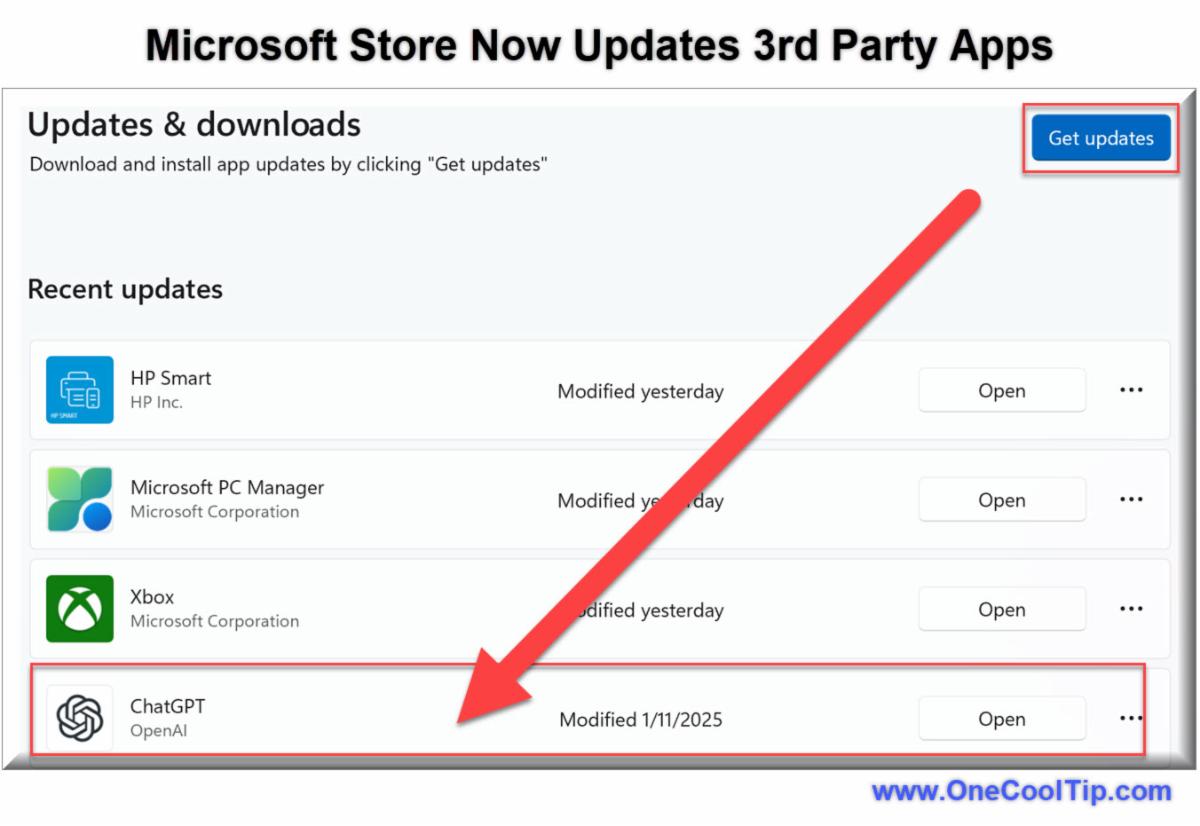
The Microsoft Store's new feature allows users to update third-party apps directly through the store, making it a central hub for software management.
This functionality ensures that all your applications, including those not originally downloaded from the Microsoft Store, receive the latest updates automatically.
This development is particularly important in maintaining your system's security and performance.
Here's how to do it.
-
Launch the Microsoft Store from the Start menu.
-
Navigate to the 'Library' section.
-
Click 'Check for updates' to see if there are any available updates for your third-party apps.
-
Select the apps you wish to update and click 'Update' to install the latest versions.
By keeping your applications current, you minimize vulnerabilities and enjoy the latest features and improvements.
Discover more HERE.
| | |
🤔 Have You Ever Wondered How to Delete Windows Clipboard Contents?
Ever copied sensitive information only to worry later about it sitting in your clipboard?
Whether it's passwords, private messages, or important data, keeping your clipboard clean is crucial for maintaining security and efficiency.
The clipboard is a handy tool for temporarily storing information you copy or cut, but leaving sensitive data in the clipboard can pose a security risk.
Moreover, an overloaded clipboard can slow down your system's performance.
Here's how to do it.
Using Clipboard History:
-
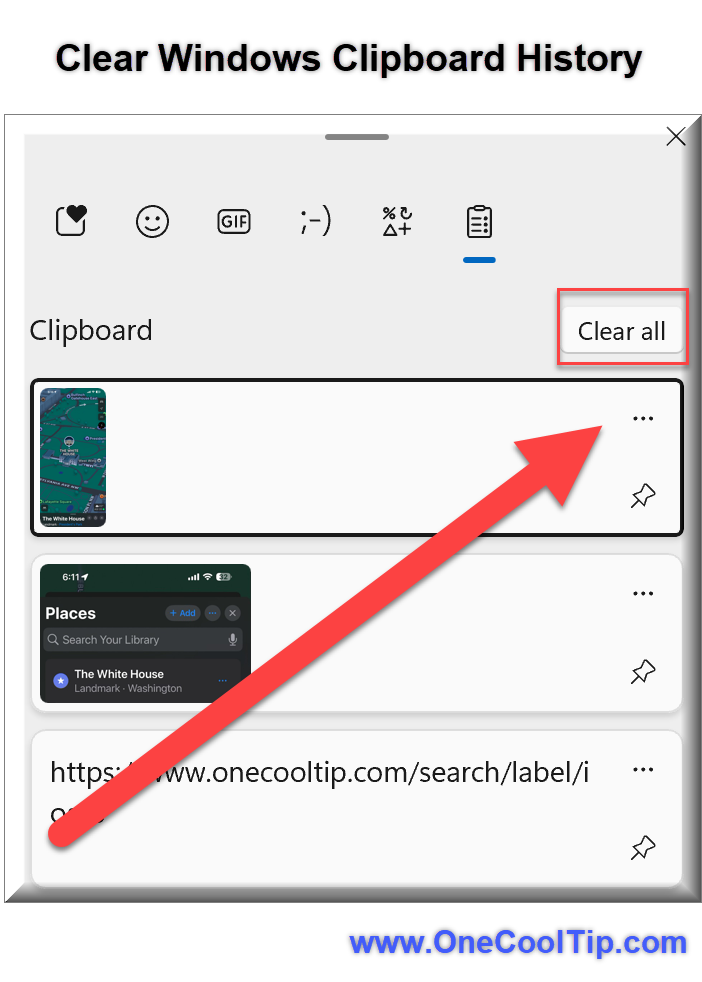
Press Windows key + V to open the Clipboard history.
-
Click the three dots (ellipsis) next to the item you want to delete.
-
Select Delete from the menu.
Clear All Clipboard Data:
-
In the Clipboard history window, click the Clear All icon to delete all items from the Clipboard history.
Using Windows Settings:
-
Go to Settings > System > Clipboard.
-
Click on the Clear button under Clear Clipboard Data.
The Clipboard History feature is particularly useful for those using the latest versions of Windows 10 and Windows 11.
Find out more HERE.
| | |
🙋♂️ Here's How to Automatically Save Your Screenshots.
Have you ever taken a screenshot, only to scramble trying to find where it was saved?
With Windows 11, those days are over.
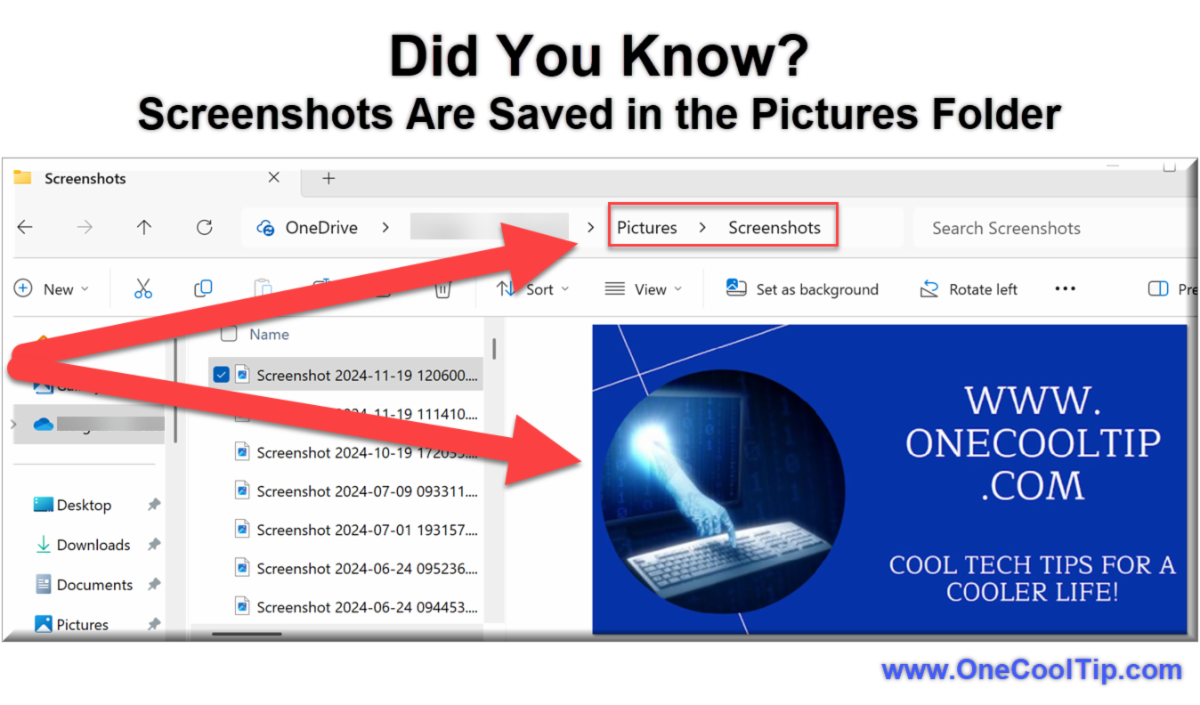
Windows 11 has introduced a nifty feature that automatically saves your screenshots in the Pictures folder.
Here's how to do it.
-
Press Windows + Shift + S.
-
Capture a screenshot.
-
Open File Explorer.
-
Navigate to the Pictures folder.
-
Find the Screenshots subfolder.
-
That's it! Your screenshot is automatically saved in the Screenshots subfolder within your Pictures directory.
By streamlining the capture process and ensuring easy access to screenshots, you can focus more on your tasks and less on file management.
Learn more HERE.
| | |
❓Did you share this newsletter with three friends yet?
😎 Cool Facts
-
2006: Microsoft officially took control of its own image search technology on September 11, 2006, with the launch of Windows Live Search. Prior to this change, third-party provider Picsearch powered the company's image lookup results. Source.
-
2009: The Bing search engine platform officially debuted on June 1, 2009, bringing standard image search filters along with it to replace the aging Live Search brand. Source.
-
17 Years: Microsoft introduced its first "Visual Search" iteration, allowing users to search specifically by selecting picture-based categories, at the TechCrunch50 conference on September 14, 2009. Source.
⌨️Today's Cool Shortcuts
-
Windows browser: Ctrl + L: Selects the address bar so you can quickly type a new Bing search.
-
Windows browser: Ctrl + T: Opens a new tab for comparing search results or sources.
-
Windows browser: Ctrl + Shift + T: Reopens the last closed tab if you accidentally close a useful source.
😜 Tech Joke of the Day 😅
I asked Bing for patio ideas.
Now my browser thinks I own a landscaping company.
🔎 Do you have a Cool Tip or tech question? Email us at onecooltip.com@gmail.com.
| | |
Images gather
AI sorts the quiet noise
Clarity appears
| |
| 🤔 How do you usually search for images? | | | | Did You See These Cool Tips This Week? | | | | Create and Edit AI Videos Conversationally Using Google Gemini Omni | |
Google recently introduced Gemini Omni, a brand new AI model family designed to generate and modify video clips using conversational prompts. Discover how this tool mixes text, photos, and video references to fix details, switch styles, and keep characters consistent across scenes.
Read the Newsletter Version.
| | | | Add a Trusted Contact in ChatGPT Before You Need One | |
ChatGPT’s Trusted Contact feature lets eligible adult users name one person who may be notified if serious self-harm concerns are detected. It is optional, privacy-limited, and worth setting up before a difficult moment happens.
Read the Newsletter Version.
| |
ICYMI - In Case You Missed It ...
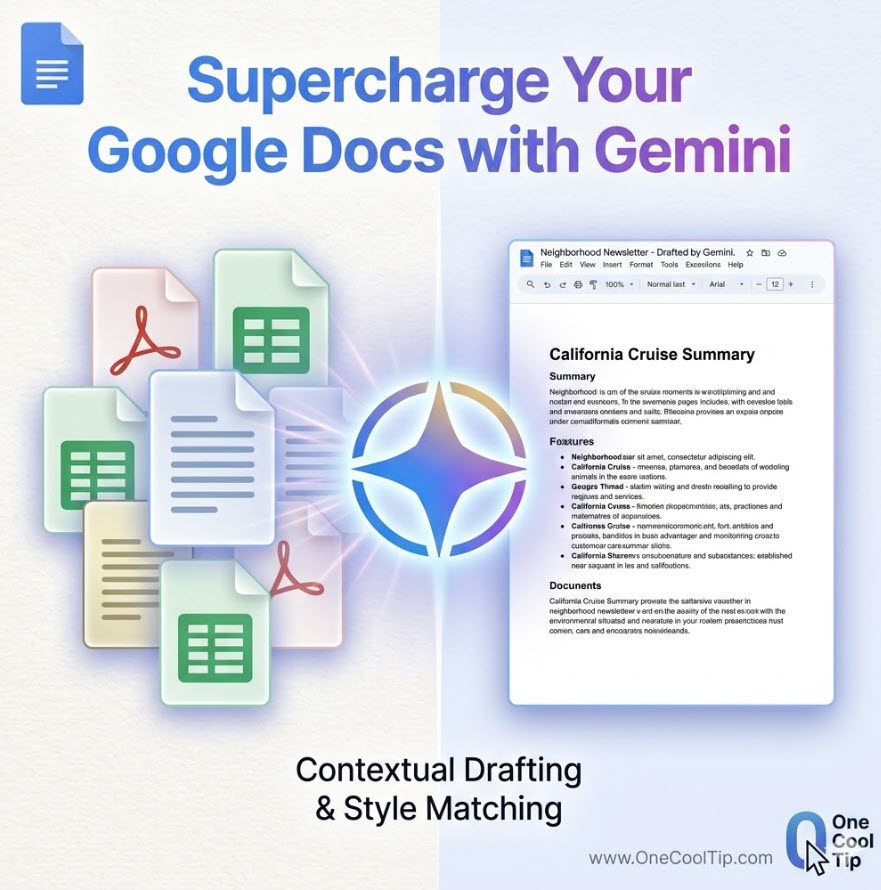
| | | | Unlock the Next Level of Productivity with New Gemini Features in Google Docs | |
Transition from a blank page to a sophisticated first draft in seconds using the latest March 2026 updates to Google Workspace. These new tools allow Gemini to pull directly from your Gmail and Drive, match your personal writing style, and automate document formatting with unprecedented ease.
Read the Newsletter Version.
| | When your search results decide to remodel your entire house instead | | |
Trivia Answer: C) GIF
The Graphics Interchange Format, or GIF, was introduced by CompuServe in 1987 to provide a color image format for their file download areas.
It used LZW data compression, which was efficient enough for the slow dial-up connections of the era.
While JPEGs later became preferred for photography and PNGs for web graphics, the GIF survived for decades. Today, it remains widely popular across
----------
Tomorrow's Cool Tip is waiting to amaze you.
Until then, go forth and conquer the tech world with your newfound knowledge!
Be sure to visit www.OneCoolTip.com for Cool Tech Tips for a Cooler Life!
And if you Like One Cool Tip, please support with TipJar!
Enjoy!
Rodger
Chief Cool Tipper
onecooltip.com@gmail.com
| |
| What do you think of today's OneCoolTip newsletter? | | | |
Please Share the One Cool Tip Newsletter!
You asked for it. You got it. There is now a One Cool Tip Newsletter archive. Did you delete a newsletter and want to read it again? Check it out HERE.
Want to help One Cool Tip grow? Please forward this email using the link above. And if you see an OCT social media post, please LIKE, COMMENT and SHARE!
Have you subscribed to the One Cool Tip YouTube channel? Subscribe HERE.
| | Connect with One Cool Tip!! | | |
|
As an Amazon Associate, One Cool Tip may earn a small commission from qualifying purchases.
Our media content is intended solely for informational purposes only. Please do not construe anything here as legal, tax, investment, financial, marital or other advice.
Copyright © 2026 | www.OneCoolTip.com | All Rights Reserved
|
| | | |