|
iPhone and iPad
The process is similar in the ChatGPT mobile app.
-
Open the ChatGPT app.
-
Find the conversation you want to protect.
-
Open its More options (•••) menu.
-
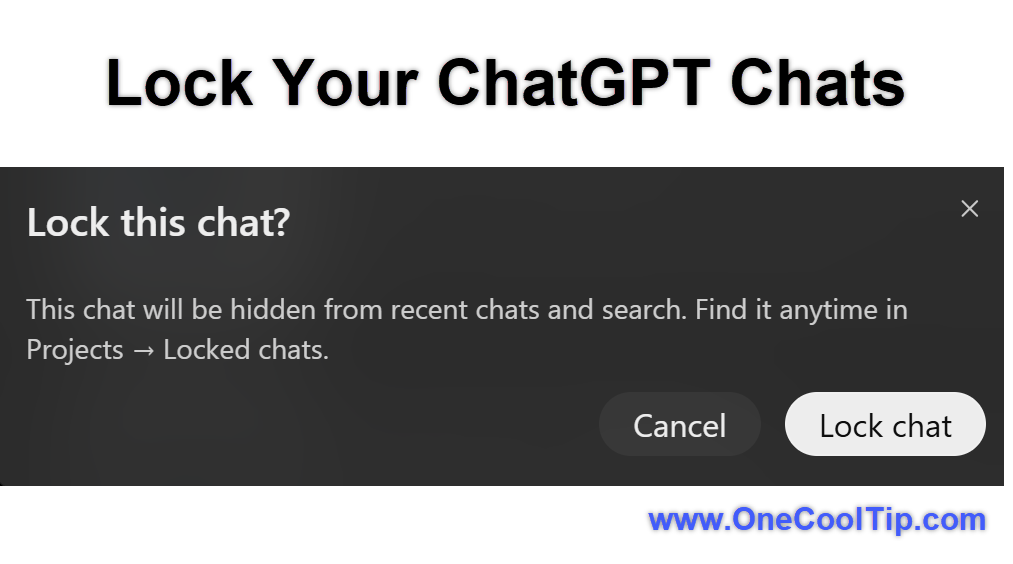
Select Lock chat and confirm.
-
Create or enter your account PIN when prompted.
-
For easier access on supported devices, go to: Settings > Security and login > Account PIN
-
Enable Use Face ID or Use Touch ID, when available.
Android
-
Open the ChatGPT app.
-
Find an eligible conversation.
-
Open its More options (•••) menu.
-
Select Lock chat and confirm.
-
Create or enter your four-digit account PIN.
-
Choose Use device unlock when offered, if you'd like to use your phone's supported authentication method.
How to Find and Open Locked Chats
Your protected conversations have their own location within ChatGPT.
-
Open Projects.
-
Select Locked chats.
-
Enter your account PIN or use supported device authentication.
-
Select the conversation you want to open.
-
You can now continue the discussion.
-
After you've locked your first conversation, you can also start new conversations directly from the Locked chats area.
One limitation: You cannot search across all locked conversations. You'll need to browse the conversations stored there.
How to Lock Your Chats Again
Opening Locked chats gives you temporary access.
-
When you're finished, select Lock now to immediately end access and hide the protected chat titles.
-
On the web, refreshing the page or closing the authenticated tab also ends access.
-
On iPhone and Android, access automatically ends after one minute away from the locked chat area or after one minute in the background.
-
On desktop, ChatGPT automatically relocks the area after you've been away from the authenticated window. OpenAI does not specify a universal desktop timeout in its documentation.
Cool Tip:
Select Lock now before sharing your screen, rather than relying on automatic relocking.
How to Unlock a Chat Permanently
If you no longer need the additional protection, you can restore a conversation to regular history.
-
Open Projects > Locked chats.
-
Enter your PIN or authenticate.
-
Open the conversation.
-
Select More options (•••).
-
Choose Unlock chat, or Unlock on iOS.
-
Confirm the action.
-
The conversation returns to your regular ChatGPT history.
If you originally locked a conversation from a project, it won't automatically return to that project when you unlock it.
Pros and Cons
Pros:
-
Reduces Accidental Exposure: Keeps sensitive chat titles and content out of regular history.
-
Preserves Useful Discussions: No need to delete conversations you want to revisit.
-
Supports Mobile Authentication: Face ID, Touch ID, and supported Android device unlock offer convenient access.
-
Works Across Devices: Your account PIN works on supported devices signed into the same OpenAI account.
Cons:
-
Not End-to-End Encryption: Locking a conversation doesn't create a separate encrypted storage vault.
-
Limited Chat Management: You cannot archive, pin, move, or share conversations while they're locked.
-
Restricted Conversation Types: Temporary chats, group chats, archived chats, and several other conversation types cannot be locked.
-
PIN Reset Risk: Resetting a forgotten PIN permanently deletes your locked conversations and content protected only by that PIN.
Who Should Skip This?
If you use ChatGPT primarily for everyday questions, recipes, or general research, you may not need to lock individual conversations.
Temporary Chat may be a better choice when you don't need to save a discussion.
Locked Chats is also less convenient for people who frequently search their conversation history or organize discussions inside projects.
Business users should remember that locking conversations doesn't override their organization's security, retention, or compliance policies.
Real-World Examples
Business Users: You're developing a confidential business proposal in ChatGPT. Locking the conversation can keep its title out of sight during presentations or screen-sharing sessions.
Families: You're using ChatGPT to plan a surprise anniversary party. Lock the conversation so the surprise doesn't accidentally appear in regular chat history.
Travelers: You've been discussing a detailed trip itinerary or personal travel arrangements. A locked conversation keeps those details out of ordinary history while preserving the information for later use.
These examples illustrate protection against casual visibility, not a guarantee that the information cannot be accessed through other authorized channels.
Troubleshooting and Limitations
Problem: The Lock chat option doesn't appear.
-
Why it happens: The feature may not have reached your account, or the conversation may not be eligible.
-
Fix or workaround: Check an eligible regular conversation and make sure you're using a supported ChatGPT app. If the feature is unavailable, check again as the rollout continues.
Problem: A locked conversation still appears on another device.
-
Why it happens: Previously opened ChatGPT sessions may not immediately refresh their conversation lists.
-
Fix or workaround: Refresh those devices before sharing your screen.
Problem: I can't find my conversation through Search.
-
Why it happens: Locked conversations are excluded from regular ChatGPT search.
-
Fix or workaround: Open Projects > Locked chats and browse your protected conversations.
Problem: I can't share or move a locked conversation.
-
Why it happens: ChatGPT doesn't support sharing, moving, archiving, or pinning conversations while they're locked.
-
Fix or workaround: Permanently unlock the conversation before using those features.
Problem: I forgot my PIN.
-
Why it happens: ChatGPT requires your account PIN even if you normally use mobile biometric authentication.
-
Fix or workaround: If you still know your current PIN, change it through Settings. If you don't, carefully review the reset warning before proceeding because resetting permanently deletes your locked conversations and protected content.
Privacy and Data Notes
Locked Chats improves privacy within the ChatGPT interface, but it doesn't change all the rules governing your information.
Your existing retention and Improve the model for everyone settings continue to apply.
Locking a conversation also doesn't erase information ChatGPT remembered before you locked it.
When Memory is enabled, new information remembered within locked chats can be used in other locked chats, but it doesn't automatically become available to regular conversations.
Files uploaded or created within a locked conversation are protected with that conversation. However, files added from other sources may retain their original access permissions.
Another important consideration involves shared links.
If you previously created a shared link to a conversation, locking that conversation doesn't disable the link.
Previously shared content may still be accessible until you delete the link separately.
Locking a conversation from an existing project also removes it from that project and its associated instructions, files, and memory.
For business and education accounts, workspace compliance rules continue to apply. Authorized compliance tools may still access eligible workspace data.
Locked Chats is best understood as an additional privacy barrier within ChatGPT, not a replacement for account security or organizational data policies.
Feature Access
- OpenAI introduced Locked Chats on October 20, 2026.
- The feature is gradually rolling out to ChatGPT Free, Go, Plus, Pro, Business, Enterprise, and Edu accounts.
- Supported platforms include ChatGPT on the web, iOS, Android, and the new desktop apps for Windows and macOS.
- Locked Chats is not available in ChatGPT for Healthcare. Codex conversations and local Work conversations are also excluded.
- An exact minimum app version and universal rollout completion date have not been published.
- Availability may vary by account, device, and rollout status.
Score
Criterion | Score (0–10) | Justification
Value | 9
Provides meaningful everyday privacy without requiring users to delete useful conversations.
Usability | 7
Easy to understand, although PIN management and limitations add some complexity.
Wow Factor | 6
A useful and welcome privacy improvement, but not a revolutionary capability.
Total: 22/30 | 👍 Good
Locked Chats is a worthwhile privacy feature, particularly for anyone who mixes personal and professional conversations in ChatGPT.
Unlike Temporary Chat, which keeps a conversation out of regular history without saving it there, Locked Chats preserves the discussion for future access.
Key Takeaways
ChatGPT Locked Chats makes it easier to protect selected conversations without deleting them.
Its account PIN, supported mobile authentication, and separate chat area add useful privacy, especially when you share a screen or device.
Just remember that locking doesn't revoke existing shared links, change retention settings, or replace the need for good account security.
Cool Tip Snapshot
-
Feature Name: ChatGPT Locked Chats
-
Platform(s): Web, Windows, macOS, iOS, Android
-
Quick Benefit: Hide selected conversations and protect access with additional authentication
-
Best For: Professionals, families, students, travelers, and privacy-conscious users
-
Access Type: Rolling Out
-
Difficulty: Easy
Learn More
OpenAI's official Locked Chats guide explains how to lock and unlock conversations, configure your PIN, use supported mobile authentication, and understand the privacy and file-management limitations.
Try It Yourself
Open ChatGPT and check an eligible conversation's three-dot menu for Lock chat.
Try it first with a non-sensitive conversation so you can see how the feature works.
Have you found Locked Chats useful?
Tell us in the comments, subscribe to the One Cool Tip newsletter for FREE, and share this Cool Tip with family, friends, and coworkers who use ChatGPT.
READ MORE
Read the Full Cool Tip!
|