One Cool Tip Newsletter

November 5, 2026

Your daily dose of tech-savvy brilliance!

😀 Greetings! Happy Thursday Cool Tipper!


Get ready to streamline your digital life with simple, actionable tips delivered straight to your inbox.


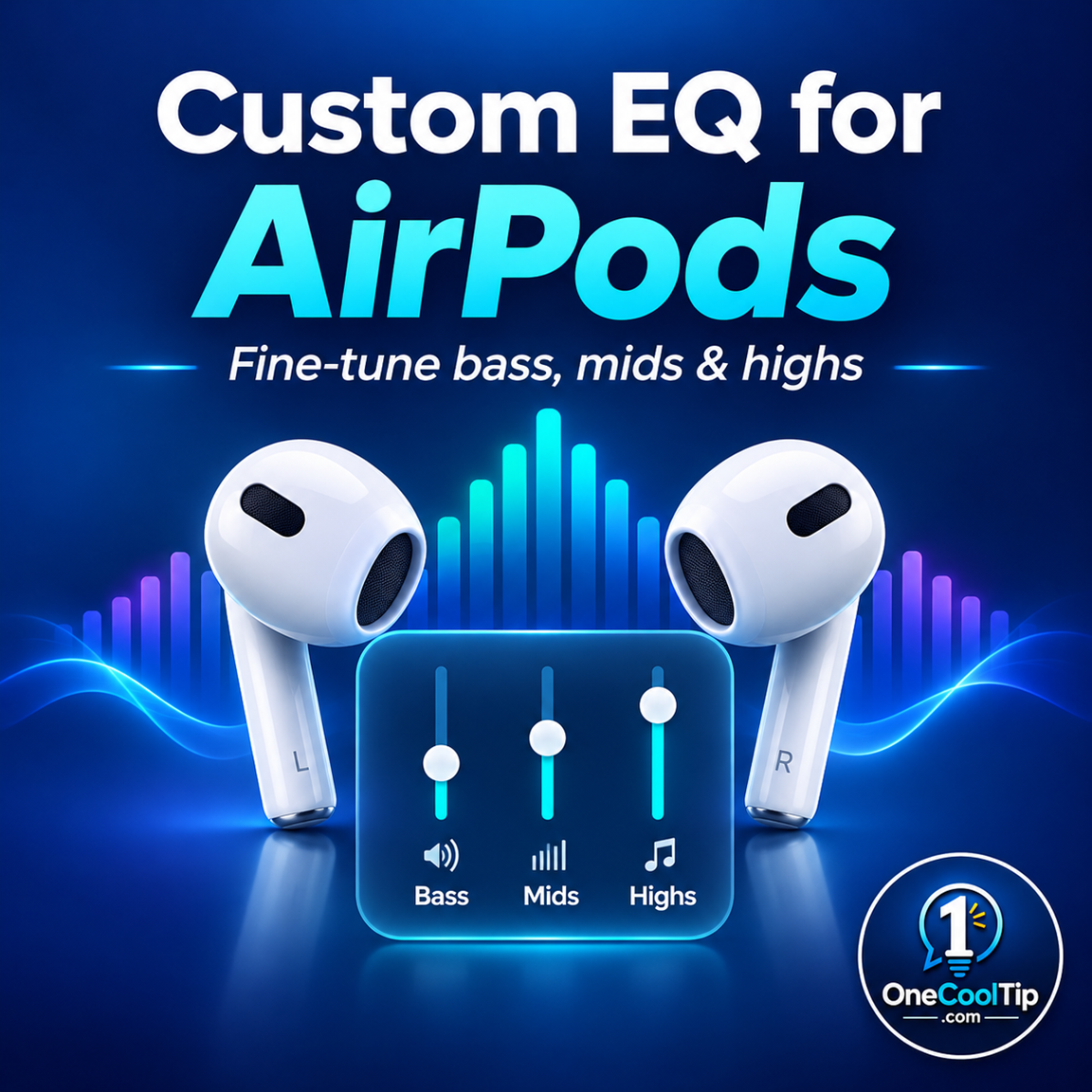
Cool Tip Theme: Custom EQ for AirPods


Discover how to customize AirPods EQ in iOS 27. Adjust bass, midrange and treble to personalize music, podcasts and other audio on supported AirPods.


New here? Subscribe to the One Cool Tip Newsletter for daily updates. It's FREE!

3️⃣

If you enjoy the One Cool Tip Newsletter, please forward this newsletter to THREE friends or colleagues or share it on social media using the links below.


Leave a $$$ Tip!


Share this One Cool Tip Newsletter!

X Share This Email
LinkedIn Share This Email
Pinterest Share This Email

🚨 Before You Send Apple Cash, Stop and Check This 🚨


Apple is reminding Apple Cash users to send money only to people they know and trust.


Be suspicious if someone you don’t recognize contacts you by phone, email, text, or social media and asks for an Apple Cash payment.


Scammers may impersonate businesses, government agencies, Apple Support, or even someone you know.


Businesses and government agencies will not request payment through Apple Cash, and Apple will never ask for your account password, verification codes, device passcode, or recovery key.


Also think twice before using Apple Cash to pay for something you haven’t received because you might not be able to get your money back.


The Cool Tip:


If someone is rushing or pressuring you to send money, stop and verify who you’re dealing with before tapping Send.


And in Other News...

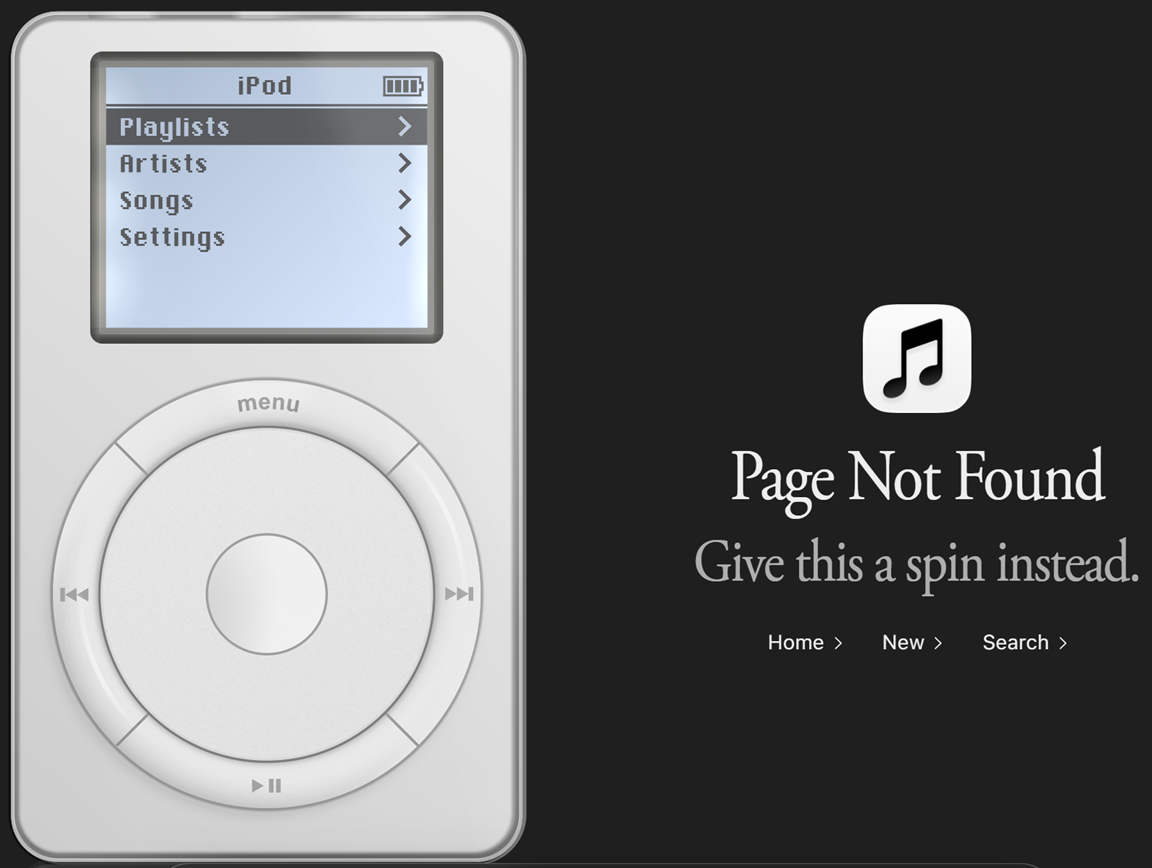
  • Apple Hid a Working iPod Where You’d Never Think to Look


Apple Music has a clever Easter egg hiding on its website: an interactive version of the original iPod.


Visit a nonexistent Apple Music web address in a browser and the usual 404 error page displays the virtual iPod with the message “Give this a spin instead.” Or click HERE.


You can use its classic click wheel to browse playlists, artists, songs, and settings, and even listen to song previews.


The Cool Tip:


Sometimes getting lost on the internet is exactly where the fun begins.


  • Sharing an iCloud Link? Apple May Check What You Upload


Starting with the upcoming version 27.3 of Apple’s operating systems, content you share from iCloud using "Anyone with the Link" can be checked by Apple for harmful content.


This can include items such as photos in iCloud Photos or files stored in iCloud Drive.


Items shared this way are no longer end-to-end encrypted, even if you use Advanced Data Protection.


If you instead share with "People you choose", only people you invite or approve can access the shared item.


Content flagged as harmful may be refused, removed, or deleted, and Apple may take action against an Apple Account.


The Cool Tip:


Before sharing an iCloud link, consider whether "People you choose" is the better option for content you want to keep more private.

Cool Tip Poll

🤔 What would you adjust first with AirPods Custom EQ?

Cool Deals of the Day

  • Have you tried the Upside app? Everyday cash back on gas, groceries and dining.


Help support One Cool Tip. Use this Amazon link when you shop online.


Check out these Cool Deals:

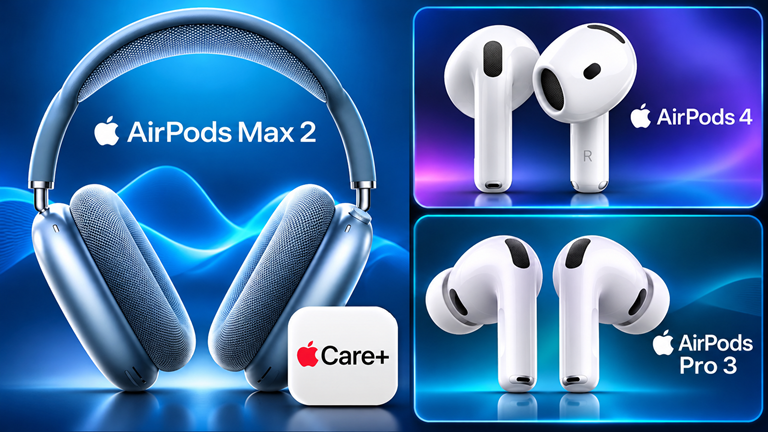
🎧 Apple AirPods Pro 3: Premium in-ear AirPods with active noise cancellation, hearing-related features and customizable EQ. 

Save 20%. Now $199. 4.4 Stars. Check it out on Amazon!


🎵 Apple AirPods 5 Wireless Earbuds with Active Noise Cancellation: An accessible entry point to Apple's customizable audio, with active noise cancellation and an open-ear design.

Overall Pick! Now $129. 4.4 Stars. Check it out on Amazon!


🎼 Apple AirPods Max 2 with AppleCare+ (2 Years): Over-ear headphones for listeners who prefer a full-size design and adjustable sound. 

Save 16%. Now $508.99. 5.0 Stars. Check it out on Amazon!


*Prices accurate when originally published.

One Cool Tip may earn a commission from qualifying purchases.

Fuel Your Adventure

Try Big Mike's Jerky!


bigmikesjerky.com


Today's Cool Tip

Make Your AirPods Sound Better With Custom EQ in iOS 27

Want more bass in your music or clearer voices in your favorite podcasts?


Apple's Custom EQ feature lets you adjust the sound of compatible AirPods, with your preferences saved directly to the headphones.

By Rodger Mansfield, Technology Editor

November 5, 2026

Subscribe


Give Your AirPods a Sound Makeover


Ever listen to your favorite song and wish it had a little more bass? Or struggle to hear the voices in a podcast because the music seems too loud?


Your AirPods may have a solution.


Apple's Custom EQ feature gives owners of compatible AirPods more control over how their music, podcasts and other audio sound.


Instead of relying exclusively on Apple's recommended audio settings, you can adjust bass, midrange and treble to suit your preferences.


Even better, your adjustments are stored on your AirPods, so they carry over when you connect to other paired devices.


Here's a Cool Tip: Customize your AirPods' sound with the built-in equalizer in iOS 27.


What Is Custom EQ?


Custom EQ is a feature that lets you adjust the balance of different sound frequencies on supported AirPods.


EQ stands for equalization. In simple terms, an equalizer changes how prominent certain frequencies sound when you listen to audio.


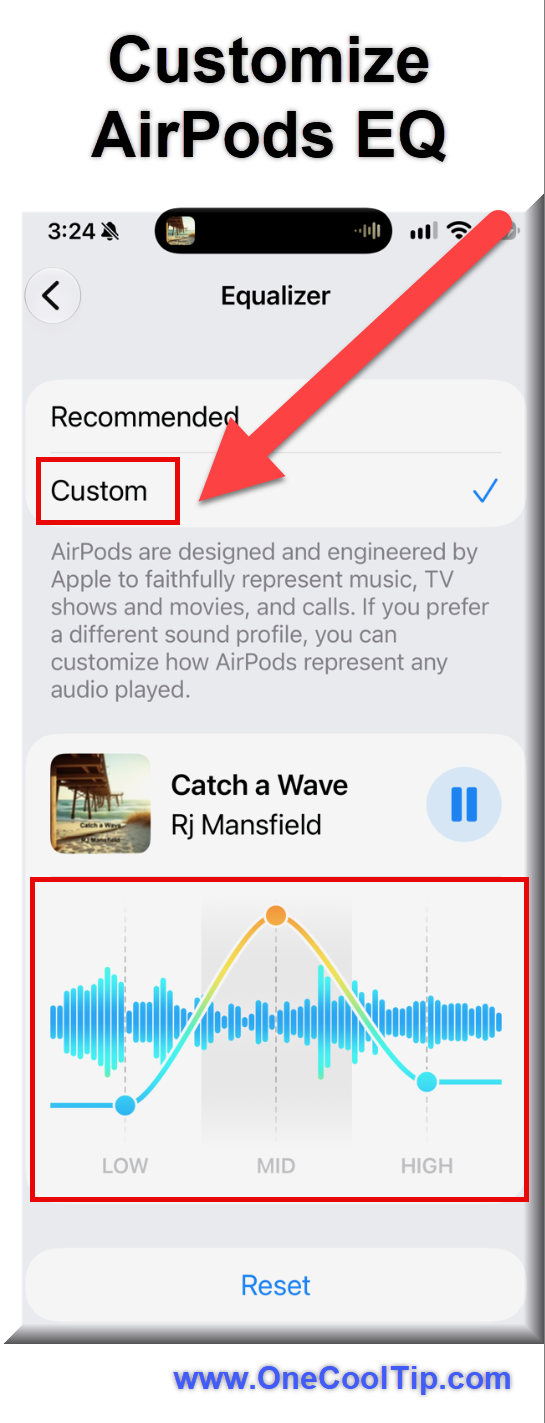
Apple's Custom EQ provides three adjustable controls:


Low (Bass): Adjusts deeper sounds, such as drums, bass guitars and low-frequency effects.


Mid (Midrange): Adjusts frequencies associated with vocals, dialogue and many musical instruments.


High (Treble): Adjusts higher-frequency sounds, including cymbals and some details in speech.


For example, you might increase the Low setting when listening to dance music or experiment with Mid to make a podcast host's voice more prominent.


The adjustments are a matter of personal preference. More bass or treble doesn't necessarily mean better sound.


What's New?


Apple introduced Custom EQ through AirPods firmware update 9A348.


The feature is available on AirPods 4 and later, AirPods Pro 2 and later, and AirPods Max 2 when used with compatible Apple devices and software.


Unlike an equalizer that's limited to a particular music app, Custom EQ settings are stored on the AirPods themselves.


That means your preferred settings can follow you when you switch between paired devices.


What You'll Gain


  • Personalized Sound: Adjust bass, midrange and treble to match your listening preferences.
  • Better Listening Control: Experiment with settings for music, podcasts, videos and other audio.
  • Consistent Preferences: Keep your Custom EQ settings when switching between paired devices.
  • Easy Adjustments: Return to Apple's Recommended setting whenever you want.


Step-by-Step Instructions


Here's how to do it.


You'll need compatible AirPods connected to an iPhone, iPad or Mac running supported software.


On iPhone or iPad


  1. Put your AirPods in your ears and make sure they're connected to your device.
  2. Open the Settings app.
  3. Tap the name of your AirPods near the top of the screen.
  4. Tap Audio & Routing.
  5. Select Equalizer.
  6. Tap Custom.
  7. Drag the Low, Mid and High sliders up or down to adjust the sound.
  8. Play a familiar song or podcast while experimenting with the controls.


Cool Tips:


  • Try making small adjustments and comparing the results. 
  • You may discover that a subtle change produces a more pleasing sound than a dramatic one.

fig. 1 - Customize AirPods EQ

(Listen to Catch a Wave on Spotify, Amazon and Apple Music)


On a Mac


You can also customize the EQ from a compatible Mac.


  1. Connect your AirPods and put them on.
  2. Open System Settings.
  3. Select your AirPods in the sidebar. You may need to scroll down.
  4. Click Audio & Routing.
  5. Select Equalizer.
  6. Choose Custom.
  7. Drag the Low, Mid and High sliders to adjust the sound.
  8. Your changes are saved to the AirPods, not just the Mac.


How to Turn Off Custom EQ


Prefer Apple's original tuning?


  1. Open the Equalizer settings and select Recommended instead of Custom.
  2. You can switch between the two settings to compare the sound.


How to Check Your AirPods Firmware


Custom EQ was introduced in AirPods firmware version 9A348 for supported models.


To check your firmware on an iPhone or iPad:


  1. Connect your AirPods.
  2. Open Settings.
  3. Tap Bluetooth.
  4. Tap the information button next to your AirPods.
  5. Scroll to the About section and look for the firmware version.
  6. Your AirPods may have a newer firmware version than 9A348.


Apple generally delivers firmware updates automatically while your AirPods are charging and within Bluetooth range of a compatible Apple device connected to Wi-Fi.


Pros and Cons


Pros:


  • More Control: Fine-tune the sound of supported AirPods to match your preferences.
  • Simple Settings: Three sliders make it easy to experiment without learning complicated audio terminology.
  • Works Across Paired Devices: Your preferences are stored on the AirPods.
  • Reversible: Return to Recommended whenever you want.
  • Versatile: Experiment with different settings for music, spoken audio and entertainment.


Cons:


  • Limited Compatibility: Older AirPods models do not support the feature.
  • Basic Equalizer: Three controls provide less precision than advanced equalizers.
  • Additional Setup: You need a compatible Apple device to configure the settings.
  • Subjective Results: Changing the EQ may not improve every recording, and excessive adjustments can make audio sound unnatural.


Who Should Skip This?


If you're already happy with how your AirPods sound, you don't need to change anything.


You may also prefer to leave Custom EQ disabled if you regularly listen to music and want to preserve Apple's recommended sound balance.


Owners of unsupported AirPods models can explore Apple's separate Headphone Accommodations feature, which provides other audio personalization options on compatible devices.


Troubleshooting and Limitations


1. The Equalizer Setting Is Missing


  • Problem: You can't find Equalizer in your AirPods settings.
  • Why it happens: Your AirPods model, firmware or connected device software may not support Custom EQ.
  • Fix: Confirm that you have a supported AirPods model and check for software and firmware updates.


2. Your AirPods Aren't Listed in Settings


  • Problem: Your AirPods don't appear near the top of the Settings screen.
  • Why it happens: They may not be connected to your device.
  • Fix: Put on your AirPods, connect them through Bluetooth and reopen Settings.


3. Your Music Sounds Unnatural


  • Problem: The bass sounds overwhelming or the treble is too sharp.
  • Why it happens: Your adjustments may be too aggressive for the recording.
  • Fix: Reduce the adjustments or select Recommended to restore Apple's tuning.


4. Your Audio Sounds Different Across Apps


  • Problem: Music sounds different from podcasts or other audio.
  • Why it happens: Recordings vary, and some apps may apply their own audio processing or equalization.
  • Fix: Compare the same recording with and without Custom EQ. Check for additional audio settings in the app you're using.


5. You Can't Change EQ Settings on Windows or Android


  • Problem: You want to adjust Custom EQ from a Windows PC or Android phone.
  • Why it happens: Apple's documented configuration process uses compatible iPhones, iPads and Macs.
  • Fix: Configure Custom EQ using a supported Apple device. The settings are stored on the AirPods and carry over to other paired devices.


Privacy and Data Notes


  • Custom EQ is an audio personalization feature that stores your settings on compatible AirPods.
  • Those settings carry over to other paired devices.
  • This also means someone else using your AirPods may hear your customized sound profile.


Feature Access


  • Custom EQ supports:
  • AirPods 4 and later
  • AirPods Pro 2 and later
  • AirPods Max 2
  • Apple introduced the feature in firmware update 9A348.
  • The equalizer is configured through compatible iPhones, iPads and Macs.
  • You don't need a separate paid subscription to use Custom EQ, but you do need compatible hardware and software.


Score

Criterion | Score (0–10) |  Justification
Value |  8
Useful personalization that makes it easier to tailor AirPods audio to individual preferences.
Usability |  8
Three intuitive controls make adjustments simple, although the setting takes a few steps to find.
Wow Factor |  7
Saving EQ preferences directly to the AirPods is convenient, even if the underlying audio controls are relatively basic.
Total: 23/30 |  👍 Good
Custom EQ is a worthwhile improvement for AirPods owners who want more control over their listening experience.
Unlike audio settings limited to a specific app, Custom EQ preferences stay with your compatible AirPods.


Key Takeaways


Custom EQ gives compatible AirPods owners an easy way to personalize bass, midrange and treble.


Start with small adjustments, compare the results and remember that you can always return to Apple's Recommended setting.


Cool Tip Snapshot


  • Feature Name: Custom EQ for AirPods
  • Platforms: iPhone, iPad and Mac for configuration
  • Quick Benefit: Customize bass, midrange and treble
  • Best For: Music lovers, podcast listeners and frequent AirPods users
  • Access Type: Included with compatible AirPods and software
  • Difficulty: Easy


Learn More


Apple's official AirPods User Guide explains how to configure Custom EQ, adjust the three frequency controls and restore the Recommended setting.


You can also review Apple's AirPods firmware release notes to learn more about supported models and firmware updates.


Try It Yourself


Put on your AirPods, play a favorite song or podcast and experiment with Custom EQ. Do you prefer more bass, clearer voices or Apple's Recommended setting?


Share your experience in the comments, subscribe to the free One Cool Tip newsletter and share this article with family, friends and coworkers.


READ MORE


Read the Full Cool Tip!

Check Out These Cool Tips & Tricks


  • Sound Check: Compare Custom EQ with Apple's standard tuning before choosing your favorite. Open AirPods settings, select Audio & Routing → Equalizer, and switch between Custom and Recommended.


  • Bass Boost: Give your music a little more low-end impact. Open Custom EQ and gently raise the Low slider.


  • Clearer Vocals: Make voices more prominent in podcasts and spoken content. Open Custom EQ and experiment with a small increase to Mid.


  • Treble Tuning: Adjust the brightness of higher-frequency sounds. Open Custom EQ and carefully change the High slider.


  • Fresh Start: Return to Apple's suggested sound if your adjustments don't work. Open Equalizer and select Recommended.


  • Music EQ: Apple Music also provides its own audio equalizer settings. On iPhone, open Settings → Apps → Music → EQ to review the available presets.


  • Audio Balance: Adjust left-right audio balance if one channel needs a different level. Open Settings → Accessibility → Audio & Visual and move the Balance slider.


  • Headphone Accommodations: Personalize audio using Apple's accessibility controls on supported headphones. Open Settings → Accessibility → Audio & Visual → Headphone Accommodations.


  • Listening Sample: Use an audio sample to compare your Headphone Accommodations preferences. Open Headphone Accommodations and select Play Sample.


  • Device Switching: Keep your preferred Custom EQ when moving between paired devices. Configure it once on a compatible Apple device, because the settings are stored on supported AirPods.

ICYMI - In Case You Missed It ...

One LinkedIn Post, Multiple Authors, Bigger Reach


LinkedIn's new Collaborative Posts feature gives professionals and businesses a better way to publish content together and share visibility across multiple audiences. If you regularly work with coworkers, customers, partners, or creators, this feature can help your posts travel farther without creating duplicate content.


Read the Full Version.


Read the Newsletter Version.

Looking for your next adventure?


Call Denise at Travel For You.

314.660.3039


Sign Up for the Monthly Newsletter


http://www.travelforyouvacations.com/


https://www.facebook.com/TRAVEL.FOR.U/


See You Tomorrow

Tomorrow's Cool Tip is waiting to amaze you.


Until then, go forth and conquer the tech world with your newfound knowledge!


Be sure to visit www.OneCoolTip.com for Cool Tech Tips for a Cooler Life!


And if you Like One Cool Tip, please support with TipJar!


Enjoy!


Rodger

Chief Cool Tipper

onecooltip.com@gmail.com


What Do You Think?

What do you think of today's One Cool Tip Newsletter?
Positive        Neutral        Negative
X Share This Email
LinkedIn Share This Email

Connect with One Cool Tip!

Facebook  X  Instagram  Web  Pinterest  YouTube  LinkedIn
 

As an Amazon Associate, One Cool Tip may earn a small commission from qualifying purchases.


Our media content is intended solely for informational purposes. Please do not construe anything here as legal, tax, investment, financial, marital or other advice.


Copyright © 2026 | www.OneCoolTip.com | All Rights Reserved