TODAY'S TECH TIP
Keyboard Shortcuts
Why use Keyboard shortcuts instead of the Mouse or Trackpad?
Did you know that using keyboard shortcuts can increase productivity and save you time? Yes, the term “shortcut” may seem daunting at first, but if you use computers every day it’s important to consider the benefits! To help you to get into the habit of using keyboard shortcuts, here are three reasons that may encourage you even more:

1. Efficient and time-saving
Using shortcuts makes you more efficient at doing certain tasks on your computer. When you’re not necessarily reaching for the mouse every second and once you start using shortcuts each day, you’ll start noticing a boost to productivity.

Take for example the task of selecting all the text in a document: instead of using the mouse to click and hold it across the whole document, you can simply press Ctrl+A. Easy, right? This quick shortcut lets you do more with less effort.

Can't find the Undo button in the Ribbon? Use Ctrl + Z in almost all applications.

2. Multi-tasking
Being a multi-tasker is sometimes required in life. It’s an ability that lets us tick boxes in our to-do list quickly, especially when juggling dozens of tabs and tools at once. Knowing the right shortcuts allows you to easily navigate your way through these tasks in less time than usual. You might feel awkward using a combination of keys while using your mouse at the same time, but once you start powering through your work as a keyboard ninja, you’ll never look back.

3. Health benefits
Cutting down on your mouse usage by using keyboard shortcuts can help reduce the risks of RSI (Repetitive Syndrome Injury). Many people develop RSI by doing a repetitive task– like resting the heel of your palm on the desk and raising your fingers to use the mouse. If you use keyboard shortcuts, you can save hundreds of mouse clicks and movements each day.

Windows Keyboard Shortcuts
On Windows 10, keyboard shortcuts provide a quick way to navigate and operate the experience and features using a single press of one or multiple keys, which otherwise will take several clicks and more time to accomplish using the mouse.

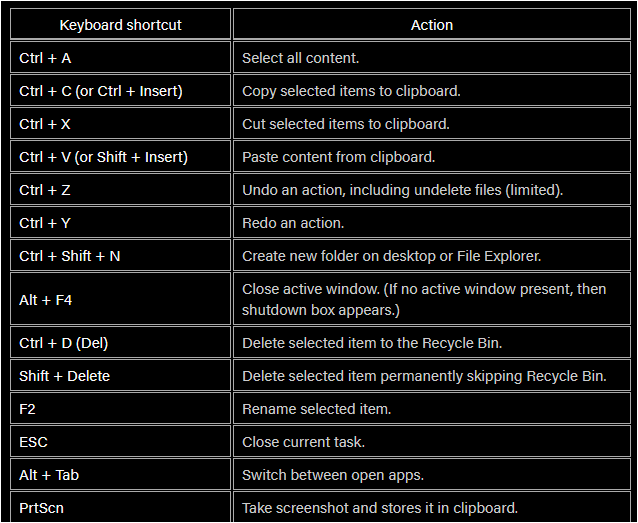
The convention is Hold Down the CTRL or ALT or SHIFT key and the "letter" - for example, For the Copy command, hold down the CTRL key and the letter "C" at the same time. This places the highlighted text in the clipboard and is ready for the next command, probably Paste, CTRL V.

Pick a few to become your favorites and you'll be keyboarding in no time!

Here are a few essentials. For more visit this website:
Want to type an Emoji? Windows Key +. (the period). Yippee! 👍

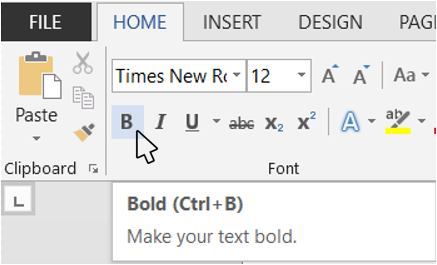
Another hint > When you are mousing over an icon in the ribbon (before you click it), you will see a label pop-up that tells you the keyboard shortcut.
Ctrl + B = Bold Text
Mac Keyboard Shortcuts
You can press key combinations to do things on your Mac that you’d normally do with a trackpad, mouse, or another device. Here’s a list of commonly used keyboard shortcuts.

Here are a few essentials. For more visit this website:
Mac Tips for Windows Switchers
Learn how to perform some common tasks on your new Mac.
The Blue highlighted links take you to Apple Support.

Right-click
Control from the keyboard + Mouse Click - or - Click the right corner of your Apple mouse, or click with two fingers on your Apple trackpad. You can change this in Mouse preferences and Trackpad preferences. 

Close & resize windows
Buttons for closing, minimizing, and maximizing a window are in the upper-left corner of the window.

Change Mac settings
Looking for the Control Panel? Use System Preferences instead.

Find files
Use Spotlight to quickly find and open apps, documents, and other files.

Throw files away
Looking for the Recycle Bin? Use the Trash, which is in the Dock.
Refund Policy & 100% Money-Back Guarantee
are posted on the Class Schedule webpage.