|
By Rodger Mansfield, Technology Editor
November 18, 2026
Subscribe
You're several folders deep in File Explorer when you spot another location you need.
Opening it normally can mean leaving your current location and retracing your steps a few moments later.
Tabbed browsing already helps reduce that back-and-forth in Windows 11.
Microsoft expanded the feature in its July 28, 2026 preview update by adding support for middle-clicking a folder in the Address Bar and Home page to open that location in a new tab.
Microsoft describes the change as providing more consistent and efficient tabbed navigation across File Explorer.
The gesture will feel familiar if you already middle-click links to open them in new browser tabs.
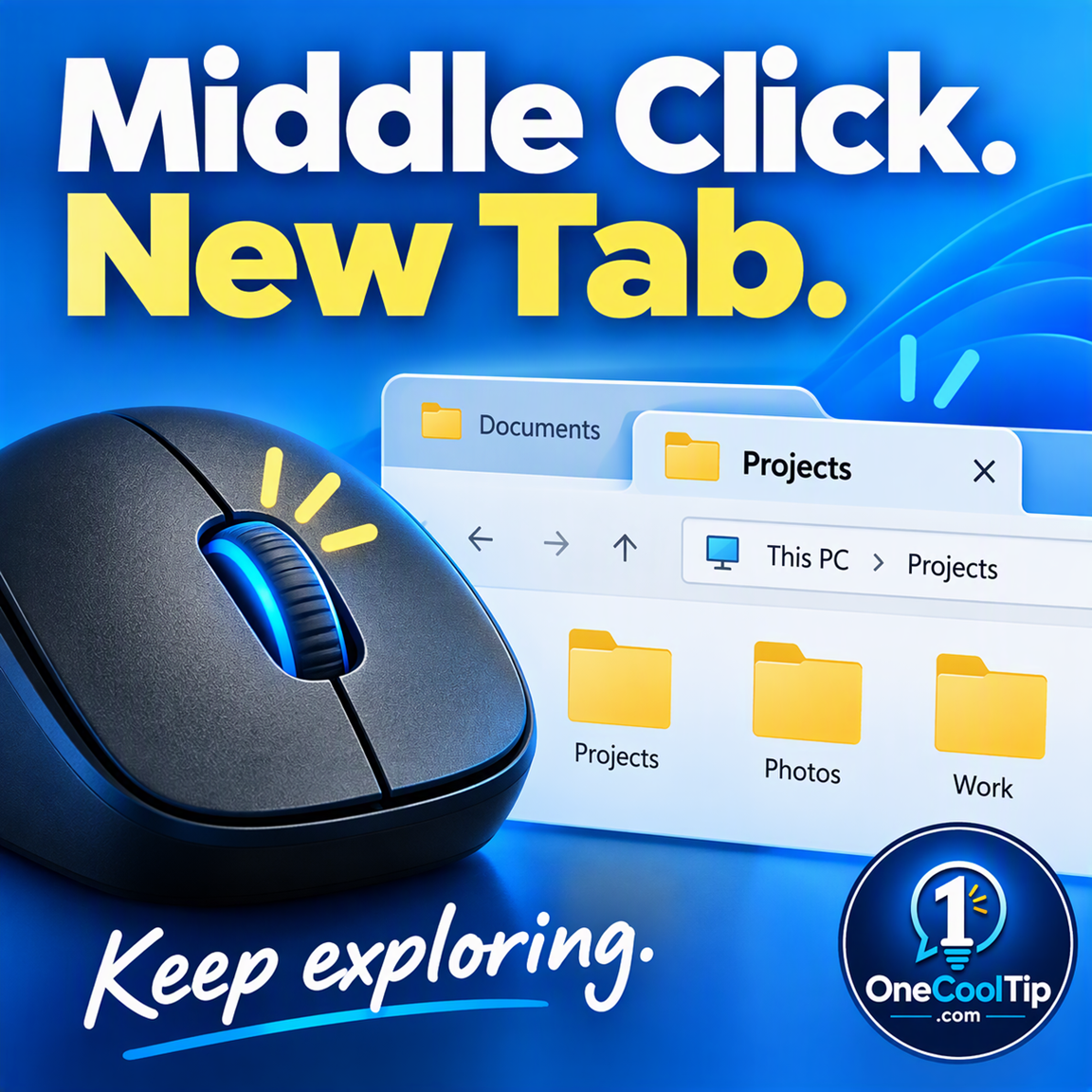
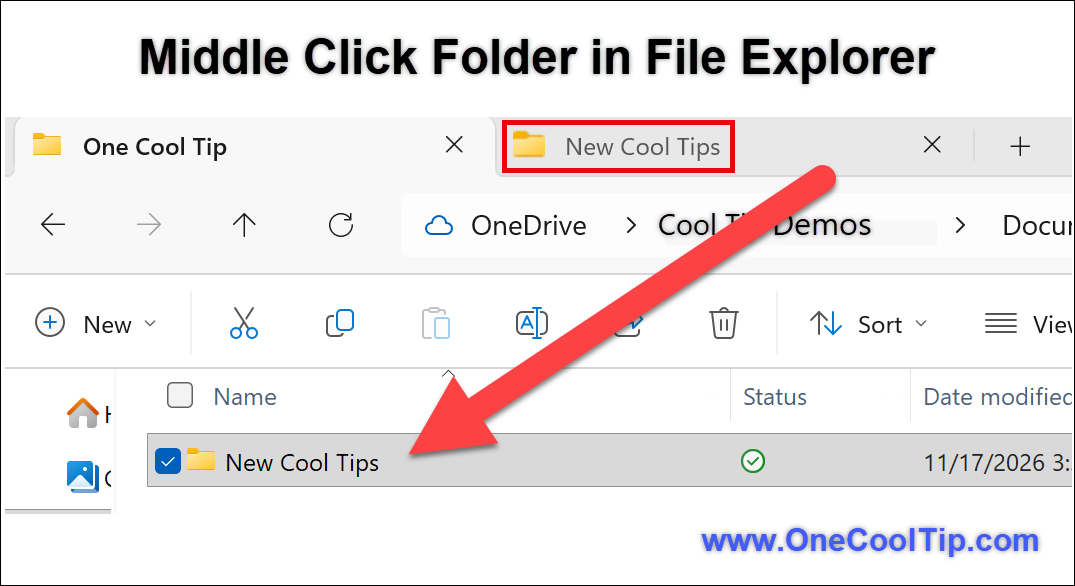
Here’s a Cool Tip: Middle-click folders to open them in new File Explorer tabs.
Feature Explanation
The expanded middle-click behavior is in KB5101684, its July 28, 2026 preview update for Windows 11 versions 24H2 and 25H2.
The feature is refreshingly simple.
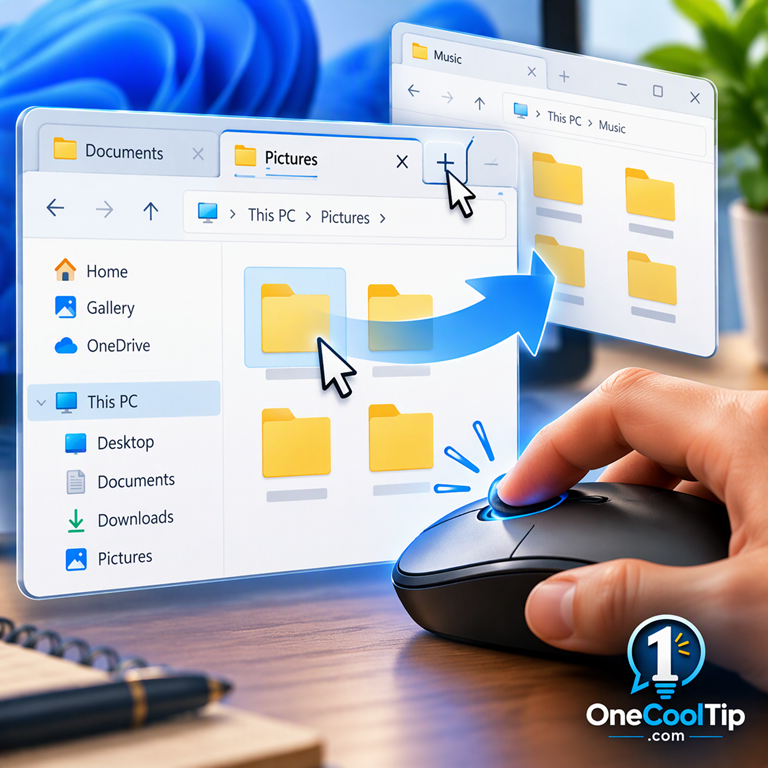
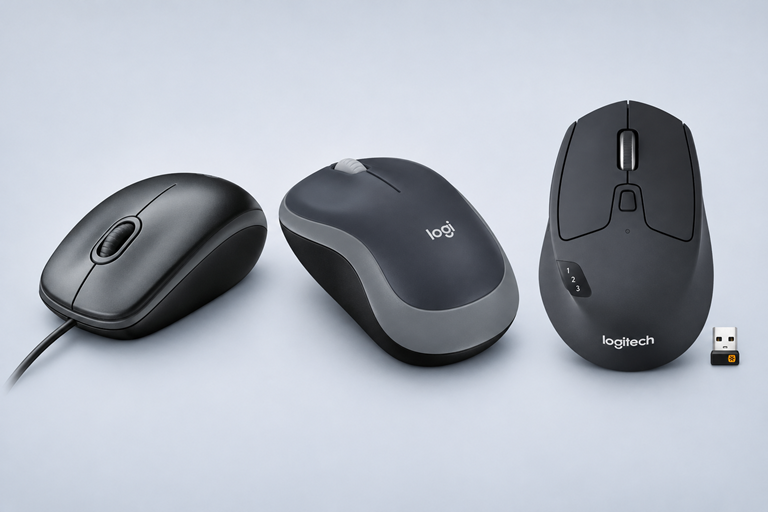
Instead of opening a supported folder location normally and replacing your current view, press the clickable scroll wheel, also known as the middle mouse button.
File Explorer opens the folder in another tab.
This can be handy when you're comparing folder locations, working with project files or keeping a reference folder nearby while looking somewhere else.
What You’ll Gain
-
Browse faster: Open another folder without immediately giving up your current location.
-
Reduce backtracking: Keep multiple locations available as tabs.
-
Organize your work: Use tabs instead of filling your desktop with File Explorer windows.
-
Use a familiar gesture: Apply the same basic middle-click idea that many people already use with web browsers.
Step-by-Step Instructions
Here's how to do it.
How to Get the Latest Windows Preview Features
-
Open Start > Settings > Windows Update.
-
Turn on "Get the latest updates as soon as they're available" if you want to be among the first to receive Microsoft's latest non-security updates and improvements.
-
Select Check for updates. If an update is available for your PC, Windows will download and install it.
-
If Windows asks you to restart, select Restart now to finish applying the update.
-
After restarting, return to Settings > Windows Update > Update history if you want to see which updates were installed.
The Cool Tip:
- You do not need to join the Windows Insider Program to use this setting.
- The toggle is a way to get the latest non-security updates, fixes, features and improvements sooner when they become available for your device.
How to Open Folders in File Explorer with One Middle Click
-
Open File Explorer from the taskbar or Start menu, or press Windows key + E.
-
Select Home, or browse to a location where the folder you want appears in the File Explorer Address Bar.
-
Position the pointer over the supported folder location you want to open.
-
Press down once on your mouse's clickable scroll wheel, which functions as the middle mouse button.
-
File Explorer will open that folder in another tab.
-
Select the new tab when you are ready to work with that folder.
|