Online@JSU This Week | 11.18.26 | |
🍂 Before You Gobble Up Thanksgiving Break...
Before heading out for Thanksgiving break, take a few minutes to give your Canvas course a quick checkup! A little preparation now can make the final weeks of the semester go much more smoothly.
Here are 5 things to check before signing off:
-
Review upcoming due dates: Make sure assignments, quizzes, and discussions have the correct due dates, especially if your schedule changes around the holiday.
-
Check your Gradebook: Take a look for any missing grades or submissions that may need attention before the final stretch of the semester.
-
Post a reminder: Let students know what they should be working on over the break and what to expect when classes resume.
-
Check your course announcements: Make sure important updates are easy for students to find.
-
Look ahead to finals: If you haven't already, start checking that final assessments, instructions, and availability dates are in place.
A little prep now = fewer surprises later! Enjoy the break, and give yourself a head start on the busy weeks ahead.
| |
Honorlock Update: Environment Integrity & Workspace Scan
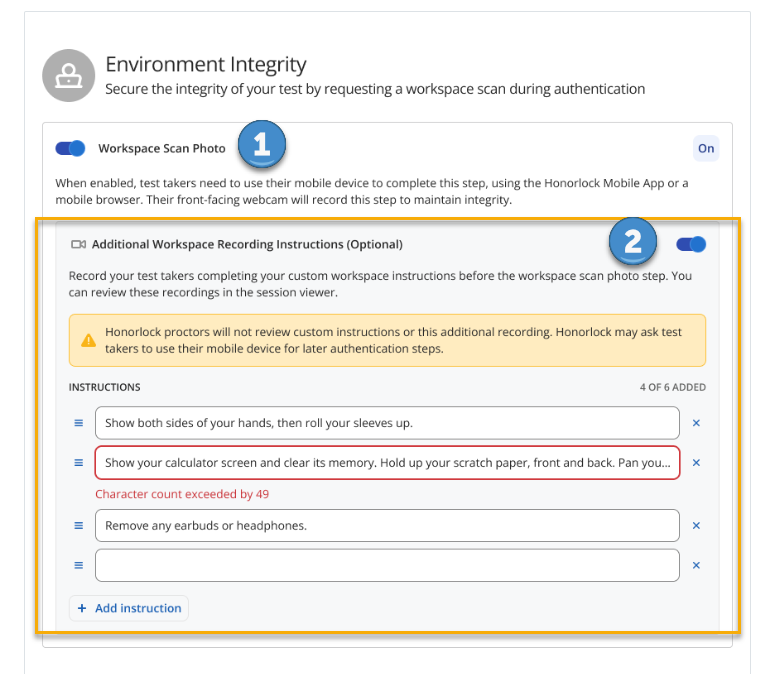
Honorlock has updated its Environment Integrity settings, including changes to how students complete a room scan. The traditional Room Scan Video option was deprecated on September 1, 2026. Faculty who want to include a scan of the student's testing environment will now need to enable Workspace Scan Photo [1] under Environment Integrity.
|
Here are a few things to know about the updated settings:
-
Workspace Scan Photo: Click the toggle next to Workspace Scan Photo to enable this feature. Students will be prompted to use a mobile device to complete the authentication step, and their front-facing webcam will record the process.
-
Room Scan Video Alternative: Students are still given the option to complete a room scan video instead of using a mobile device. Honorlock provides recommendations and suggested language under Tips & Recommendations for faculty who prefer not to introduce mobile devices into the testing environment.
-
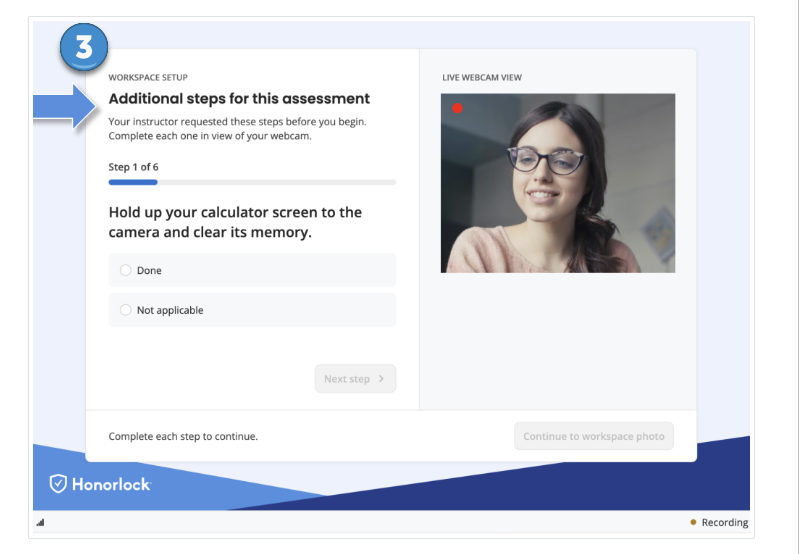
New Feature – Additional Workspace Recording Instructions (Available November 17, 2026) [2]: Faculty can now add custom instructions for students to complete during the workspace scan. These appear to students as Additional steps for this assessment [3] during workspace setup.
- Why Honorlock Recommends Using Additional Workspace Recording Instructions
Important Reminder: Honorlock proctors do not review custom workspace instructions or verify student compliance. Faculty are responsible for reviewing session recordings to confirm that students followed any additional instructions provided.
| | |
Reminder!
BEFORE You Copy a Course OR
Request a Course Copy
As you begin preparing your spring courses, please take a moment to complete one important step before copying content into your course shell.
🔍 Check Your Blueprint Association First
All Canvas courses are connected to a Blueprint, which controls:
- Course content
- Settings
- Navigation menu
Confirming your Blueprint association before copying a course helps prevent content conflicts or overwritten materials.
✅ How to Check Your Blueprint
- Open your course in Canvas
-
Click Settings in the course navigation menu
-
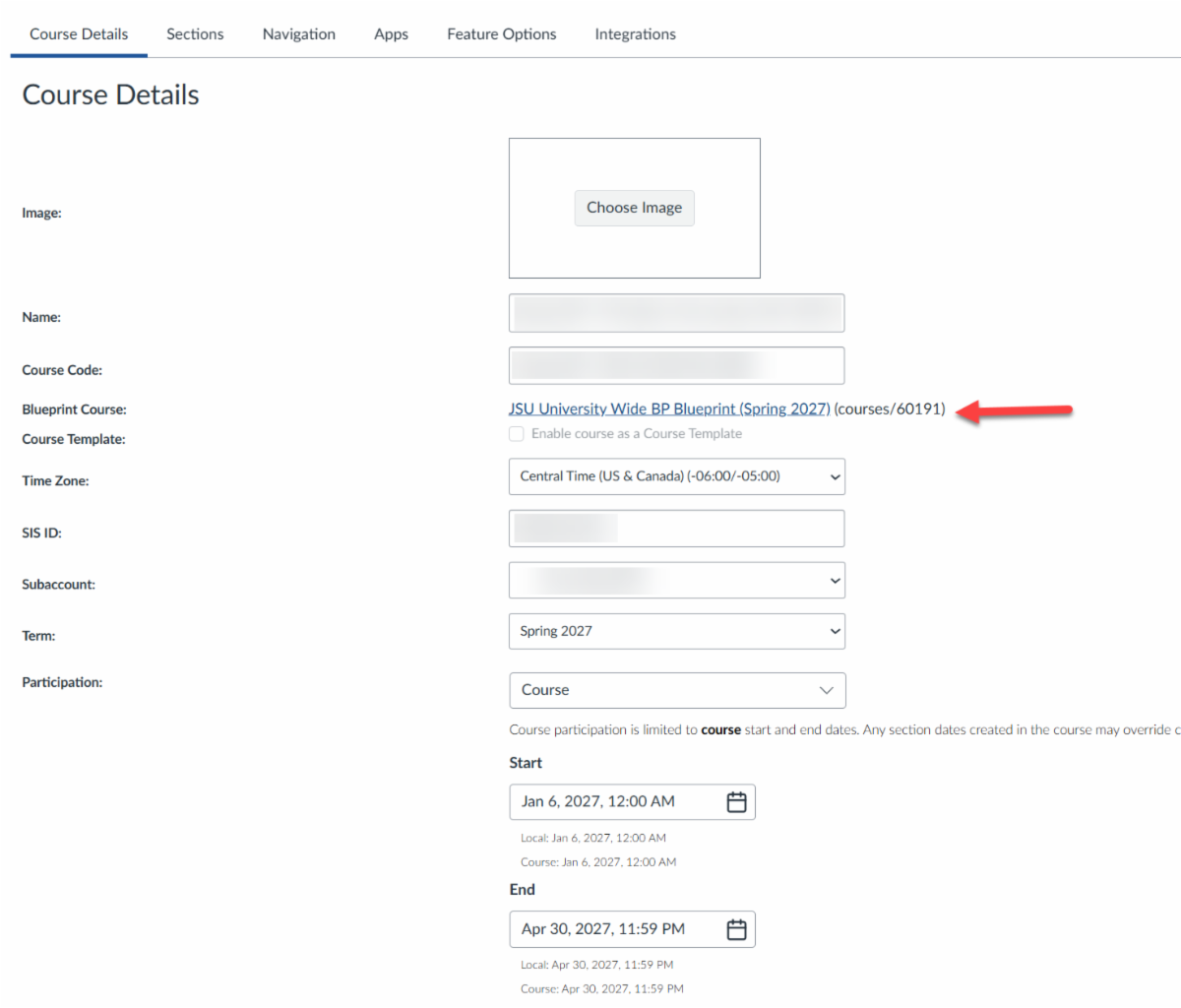
On the Course Details page, locate “Blueprint Course”
- Ensure a Blueprint is listed (the name may vary by term or course)
Once you’ve confirmed that your course is associated with a Blueprint, you’re ready to move forward with your course copy or submit a copy request.
| |
Canvas Classic Quizzes Are Retiring: Is Your Course Ready?
The end of Fall 2026 is approaching, which also means we are approaching an important Canvas transition.
Canvas Classic Quizzes will be turned off at the end of Fall 2026.
If you haven't already done so, please begin reviewing any quizzes and exams you intend to use in Spring 2027.
Before the end of the semester, we recommend that you:
- Identify assessments created using Classic Quizzes.
- Convert assessments you intend to reuse to New Quizzes.
- Review converted questions carefully.
- Review your Item Banks and question organization.
- Verify quiz settings, attempts, time limits, and accommodations.
- Confirm that proctored assessments are configured appropriately with Honorlock.
- Test important assessments before using them with students.
Why start now?
Waiting until the beginning of Spring 2027 could leave very little time to address unexpected issues with converted assessments.
Completing the transition now gives you time to review your assessments carefully and begin the new semester with confidence.
Need assistance?
Online@JSU is here to help faculty navigate the transition to Canvas New Quizzes. Please reach out to our office if you have questions or need assistance with your courses.
Prepare now. Convert early. Test before Spring.
| | |
Course Copy Requests, Merge Requests, and Other Key Information
Course Copy: Course copies can be completed by instructors, or by Online@JSU by request.
- Request a Course Copy from Online@JSU
-
Faculty Tutorial for Completing a Course Copy. Please review all instructions, which include modified procedures in consideration of the current functionality and impact. These instructions may be modified again for future terms as technology changes and new evaluations are conducted. Faculty will be notified of new recommendations as those become relevant.
-
Before you copy a course, please review the "Converting Classic Quizzes to New Quizzes" guide, especially the following sections which are relevant to conducting complete course copies:
- Import Course Content - All content
- Import Course Content - Select specific content
-
Note: If you don't use Classic or New Quizzes, it is still important to review these sections for changes and important information when performing a Course Copy to avoid issues.
Course Enrollment Merge Requests:
-
Requests must be submitted at least three business days before the first day of class per JSU's Academic Calendar.
-
Enrollment merges transfer to a parent course only course enrollments (faculty and students) but do not transfer content, assignments, student submissions, or student grades.
-
Warning: Merging after student submissions have been submitted and graded will erase all submissions and grades in the child course(s).
-
Request a Course Merge from Online@JSU.
Important Reminders:
-
Remember to Publish Your Course
-
Courses should be published by the first day of the semester according to JSU's Academic Calendar.
- Optional - Prior to the term, view-only mode may be configured for early student view-only access.
-
Verify JaxBooks Configuration - If you or your students experience any issues accessing your eTextbook in the JaxBooks course navigation menu or through a courseware link in Modules, please contact the JaxState Campus Bookstore for assistance. Information about the JaxBooks course navigation link and publisher courseware is also available within the Textbooks accordion on the Faculty Tutorials and Guides page.
-
Course Navigation Menu Links - Academic Policies, Academic Support, and Tutor.com should not be removed from your course navigation menu in Canvas. These links support university initiatives. Depending on your approach to importing content from one course to another, you may need to remove duplicates of these links as well as duplicated template content in the course, as described in the Faculty Course Copy tutorial referenced above.
| |
Moving from Classic to New Quizzes? Don't Skip the Review!
Migrating a quiz from Classic Quizzes to New Quizzes doesn't always mean everything transfers exactly as expected. Some question types, formatting, images, and answer settings may change during the process. Before assigning a migrated quiz, take time to review each question and make any necessary adjustments.
Common Migration Issues to Watch For
-
Multiple Dropdown Questions: These may convert to Fill-in-the-Blank questions, changing the original dropdown format and how students select answers.
-
Question Banks: Verify that Question Banks converted to Item Banks correctly and that questions are pulling from the intended bank.
-
Formatting and Spacing: Line breaks, lists, images, tables, and equations may shift or display differently.
-
Fill-in-the-Blank Questions: Double-check accepted answers, capitalization, and answer tolerances.
-
Matching Questions: Review question pairings and scoring settings.
-
Question Feedback: Make sure feedback transferred correctly and appears in the intended location.
Accessibility Matters: Consider Your Question Types
Not all New Quizzes question types offer the same level of accessibility, particularly for students using screen readers or keyboard navigation.
Generally, Multiple Choice, Multiple Answer, True/False, Essay, and carefully constructed Fill-in-the-Blank questions are more screen-reader-friendly options.
Use additional caution with:
-
Matching and Ordering: These interactions may be more difficult to complete without a mouse.
-
Stimulus: Accessibility depends on how the content is structured. Consider including reading passages directly in the question when appropriate.
-
Hot Spot and Categorization: These question types can create significant accessibility barriers and are not recommended when an equally effective accessible alternative is available.
Your Post-Migration Checklist
Before publishing or assigning a migrated quiz, take a few minutes to work through this checklist:
- Open the migrated quiz and review every question.
- Check images, tables, equations, links, and question formatting.
- Verify answer keys, feedback, point values, and grading settings.
- Confirm that Question Banks converted to Item Banks and randomization works correctly.
- Add meaningful alternative text to images, graphs, and diagrams.
-
Test keyboard navigation to make sure students can complete questions without a mouse.
- Use Preview to take the quiz as a student.
- Compare the total points in the Classic and New Quizzes versions.
A Final Accessibility Tip: When possible, test your quiz using a screen reader such as NVDA or JAWS. Pay attention to question reading order, response controls, feedback, and submission. If a question type creates an accessibility barrier, coordinate with the Office of Disability Resources rather than relying solely on additional time as an accommodation.
Remember: A successful migration is more than moving questions from one quiz to another. Reviewing question behavior, formatting, grading, and accessibility helps ensure students can complete assessments as intended.
Need More Help with the Transition? Visit the Classic to New Quizzes resource page for additional guidance, migration tips, and resources to help you prepare your quizzes for New Quizzes.
| | |
❓ Canvas FAQ Corner
Quick answers to common Canvas questions from faculty like you!
📌 Q1: Can students still access course materials on their phones while traveling for Thanksgiving?
A: Yes! Students can access Canvas through a web browser or the Canvas Student app. However, some activities and course features may work differently on mobile devices, so students should use a computer when completing activities that require specific software or browser extensions.
📌 Q2: Can I check whether students have viewed course materials before break?
A: Yes! Canvas provides several ways to review student participation. The New Analytics tool can help you review course participation, page views, and assignment activity to identify students who may need additional reminders or support.
📌 Q3: Can I reuse questions from previous quizzes when building a final exam?
A: Yes! New Quizzes allows instructors to add questions from existing item banks. This can save time when creating cumulative assessments using questions you've already developed.
📌 Q4: Should I make my final exam review materials available before Thanksgiving break?
A: Making review materials available early gives students additional time to prepare. Consider publishing study guides, practice activities, and review materials before the break rather than waiting until everyone returns.
📌 Q5: Is there a way to help students keep track of everything due during the final weeks?
A: A final-weeks checklist can be a helpful addition to your Canvas course. Include remaining assignments, discussion deadlines, projects, and final exam information so students can see what's coming up.
| |
Helpful
Resources and Links from Online@JSU
| | | | |