|
Let AI Help You Write in WhatsApp
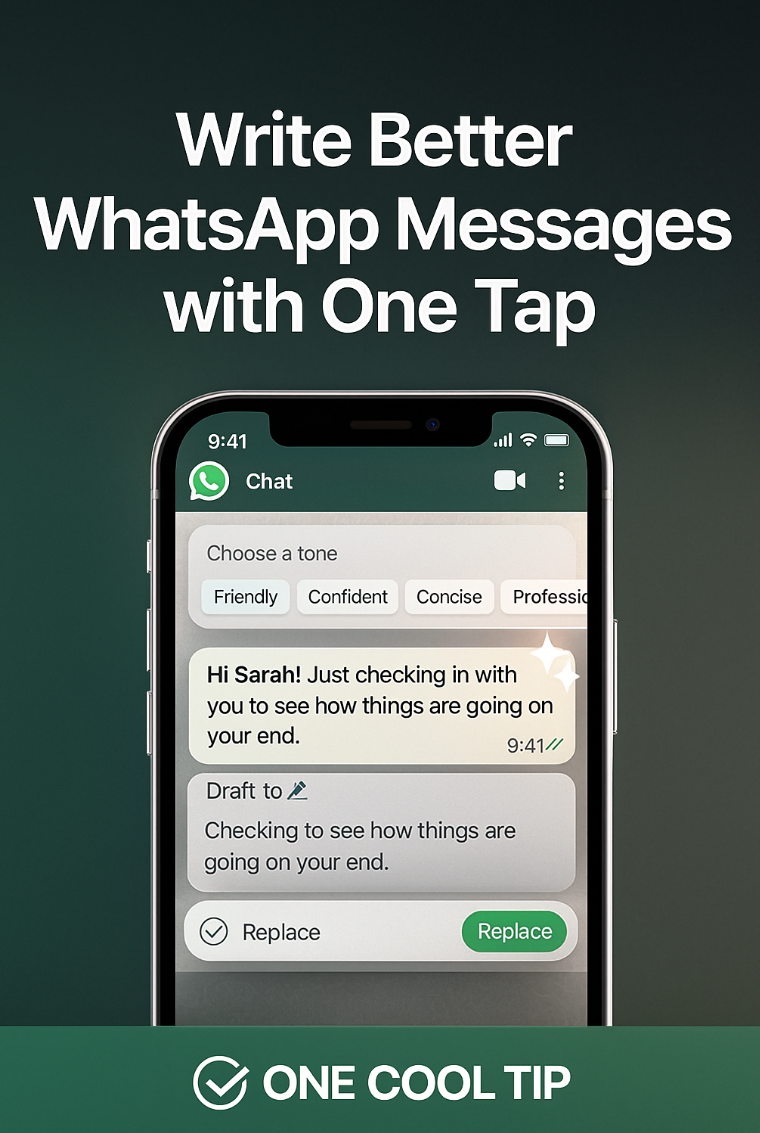
WhatsApp just added a smarter way to refine your messages before you send them. Pick your tone, preview the rewrite, and send something that sounds clearer and more intentional.
Have you ever hit "send" on a message only to instantly regret the tone?
Perhaps you meant to sound encouraging, but it came across as demanding.
Maybe you drafted a professional update that read like a casual chat.
In today’s fast-paced digital communication, getting the tone right is critical, especially when sending work or business-related messages on platforms like WhatsApp.
An unintended nuance can derail a deal or create unnecessary friction with a coworker or client.
This is a common and frustrating problem.
Here's a Cool Tip: Let AI rewrite your WhatsApp Messages.
Fortunately, WhatsApp now offers a smart solution built right into the composition window.
Feature Explanation
WhatsApp is rolling out an AI writing assistant, an on-device feature designed to help users refine the tone and polish the phrasing of their drafted messages before they are sent.
It uses a small language model that runs locally on your phone, enhancing privacy.
When you type a message, the AI offers suggestions to rewrite or rephrase the text.
This feature is not a grammar check; it is a communication tool.
The feature works by analyzing your message draft and then presenting alternative ways to express the same idea, focusing on changing the message's style and tone.
For example, a curt one-line reminder can be softened into a polite request.
A complex explanation can be simplified for clarity.
This matters because WhatsApp is increasingly used for official business communications, and maintaining a professional or appropriate tone is key to successful interaction.
What You’ll Gain
-
Clarity: Ensure your message is easy to understand without ambiguity.
- Tone Control: Effortlessly switch between professional, casual, formal, or friendly tones.
-
Time Savings: Quickly polish drafts without manually composing multiple versions.
-
Fewer Misunderstandings: Reduce the chance of an unintended meaning causing friction.
Step-by-Step Instructions
Here's how to do it.
iOS
-
Open WhatsApp and pick any chat.
-
Write your message normally.
-
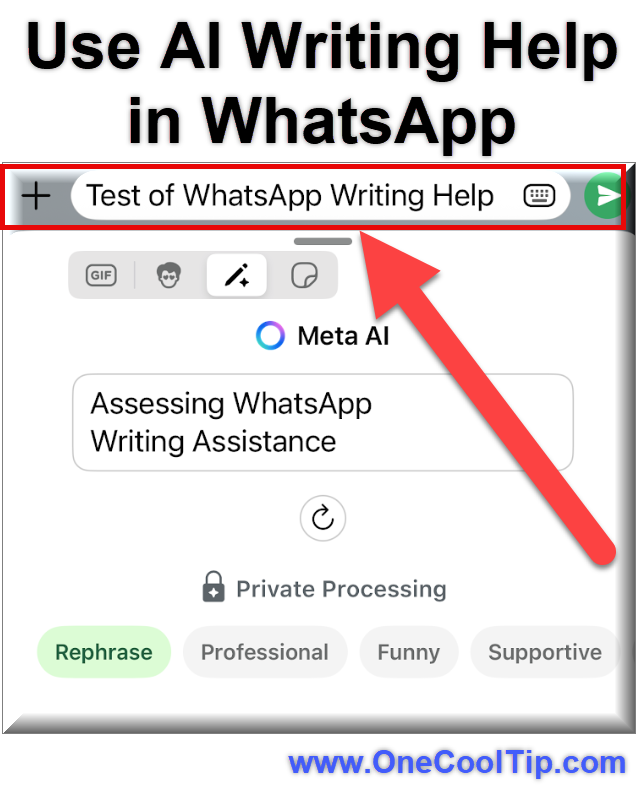
Tap the keyboard icon in the message writing block (to the right).
-
Tap the writing help icon (the magic pencil) that appears above the keyboard.
-
Select a tone: friendly, confident, concise, or professional.
-
Preview the rewrite.
-
Insert it into your chat or make final edits.
|