|
One Cool Tip Newsletter
October 15, 2025
| Your daily dose of tech-savvy brilliance! | |
😀Greetings! Happy Windows Wednesday, Cool Tipper!
Get ready to streamline your digital life with simple, actionable tips delivered straight to your inbox.
Today's Cool Tip Theme: Windows File Extensions
IN THIS ISSUE
- 🚨 Medicare & ACA Scams.
- ⚖️ Online Job Scams Linked to Forced Labor Rings.
- 💡 Make It a Great Week! (AI-Powered Prompt).
- 🍳 Cool ChatGPT AI Prompt of the Day: Clean Recipe.
- 🖥️ Show File Extensions in Windows 11.
- 📌 Pin Folders to the Windows Start Menu.
- 📡 Find and Lock Your PC Remotely.
- 🔗 File Copy Feature in Windows 11.
New here? Subscribe to the One Cool Tip Newsletter for daily updates. It's FREE!
-
😂 Laugh with Us! Enjoy our Tech Joke of the Day, Haiku and Cool Tip Comics.
-
🌐 Stay Informed! Check out ICYMI, and our One Cool Tip Video.
🔔 Is your email provider (Gmail, Yahoo, Outlook...) not delivering the newsletter?
Check the Junk folder - Move the newsletter to your Inbox. And reply to this email with a “Hey, Rodger” or “I got it.” That tells your mail service you want this newsletter!
Today's Tech Trivia
Answer at the end of this newsletter.
| |
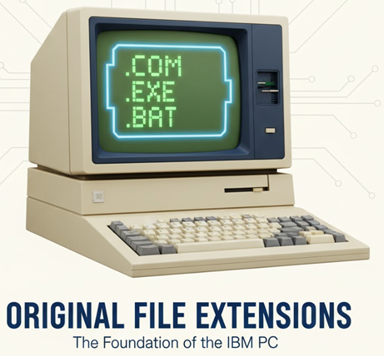
| What were the first widely adopted file extensions on the original IBM PC operating systems? | | | | |
3️⃣
If you enjoy the One Cool Tip newsletter, please forward this newsletter to THREE friends or colleagues or share it on social media using the links below.
Leave a Tip!
Share this One Cool Tip Newsletter!
| |
🚨Medicare & ACA Scams Surge During Open Enrollment🚨
Scammers are impersonating Medicare and Affordable Care Act reps to steal personal data, often by phone, email, or fake websites. Never share your Medicare ID, Social Security number, or banking info unless you initiated the contact and verified the source.
According to the Better Business Bureau, fraudsters may offer fake discounts, threaten loss of coverage, or push you to act urgently. Legitimate providers won’t pressure you or ask for sensitive info out of the blue. If in doubt, hang up and contact Medicare directly at 1-800-MEDICARE.
And in Other News...
- Online Job Scams Linked to Forced Labor Rings
The U.S. Department of Justice has indicted the chairman of Prince Group for allegedly operating scam compounds in Cambodia that used forced labor to run online fraud operations. Victims were lured with fake job offers, then coerced into conducting phishing, romance scams, and crypto fraud targeting global users.
If a remote job offer seems too good to be true, especially from overseas, verify the company, check for reviews, and never hand over your passport or personal documents. These scams often start on social media or messaging apps and escalate quickly.
| | |
🚀 Make It a Great Week!
Copy/Paste this AI-powered prompt. Use with your favorite AI assistant: Gemini, Copilot, Grok, DuckAI, Meta and ChatGPT.
“It’s Wednesday, and I want to get my workweek back on track. Here’s what’s going on:
• My key goals for this week are: [list your goals]
• My biggest distractions so far have been: [list them]
• The tasks I’ve been avoiding are: [list or describe them]
• I have about [X] hours left this week for focused work.
Help me create a realistic midweek action plan that:
- Refocuses me on what’s most important.
- Breaks my goals into smaller, doable steps.
- Suggests how to handle distractions or motivation dips.
- Ends with a short checklist I can follow for the next 3 days.”
| | | |
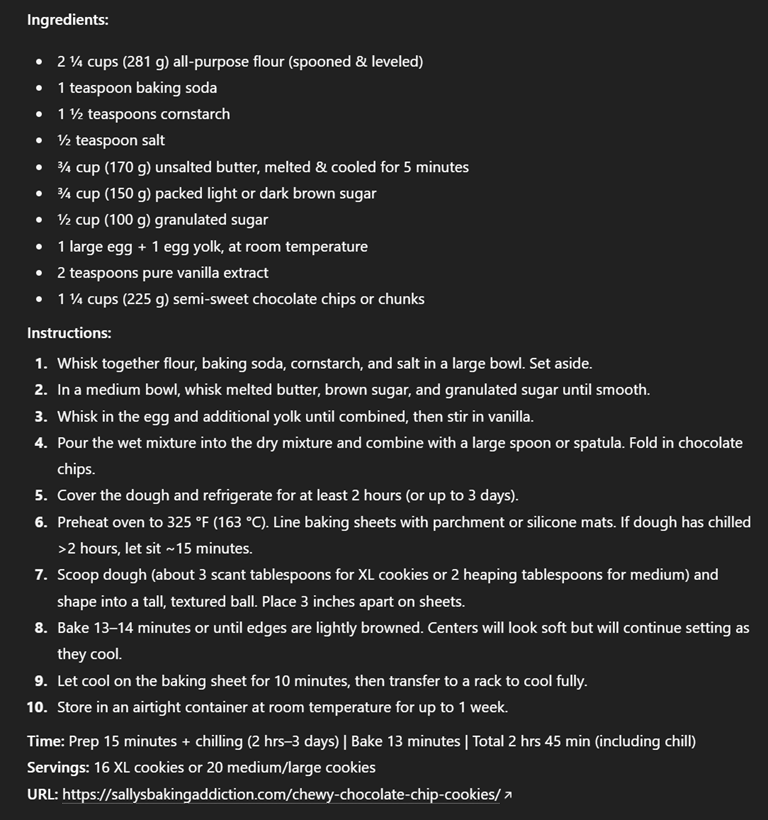
🖼️ Cool ChatGPT AI Prompt of the Day: Clean Recipe
“Take the following recipe URL and extract only the essential recipe information.
Ignore all the storytelling, ads, popups, and irrelevant text.
Please format the response as follows:
Recipe Title: [title]
Ingredients:
• List each ingredient clearly, with quantities and units.
Instructions:
- Present each step in a concise, numbered format.
- Include only necessary cooking actions (no personal commentary).
Time: [Prep time, Cook time, Total time if available]
Servings: [if available]
URL: [original recipe link for reference]
Here’s the link: [paste your recipe URL here]”
| |
🤖One Cool Tip AI Companion
| |
Do you want online tech help?
Check out the NEW and improved One Cool Tip AI Companion, powered by ChatGPT.
Log in with ChatGPT or create a FREE ChatGPT account.
One Cool Tip AI Companion
| | |
How to Show File Extensions in Windows 11
Know exactly what you're clicking. Learn how to display file extensions in Windows 11 and avoid costly mistakes.
Have you ever opened a file thinking it was a harmless document, only to realize it was something else entirely?
That tiny “.exe” or “.pdf” at the end of a filename isn’t just decoration.
It’s the digital equivalent of a food label.
And yet, Windows 11 hides these extensions by default, leaving users to guess what they’re dealing with.
For business users, educators, and anyone juggling dozens of files a day, that’s a recipe for confusion or worse, a security risk.
Here's a Cool Tip: Show File Extensions in Windows 11.
What Are File Extensions and Why Should You Care?
File extensions are those little tags at the end of filenames, like .docx, .jpg, or .xlsx.
They tell Windows what kind of file it is and which app should open it.
Without them, you're flying blind.
Is “report” a Word doc or a spreadsheet?
Is “invoice” a PDF or a zipped archive?
Showing file extensions gives you:
- Instant clarity.
- Better control over file types.
- A layer of protection against malicious files disguised with misleading icons.
What You'll Gain
- Spot risky or mislabeled files instantly.
- Save time when organizing or renaming files.
- Avoid opening the wrong app or sending the wrong format.
Step-by-Step Instructions
Here's how to do it.
On Windows 11 Desktop
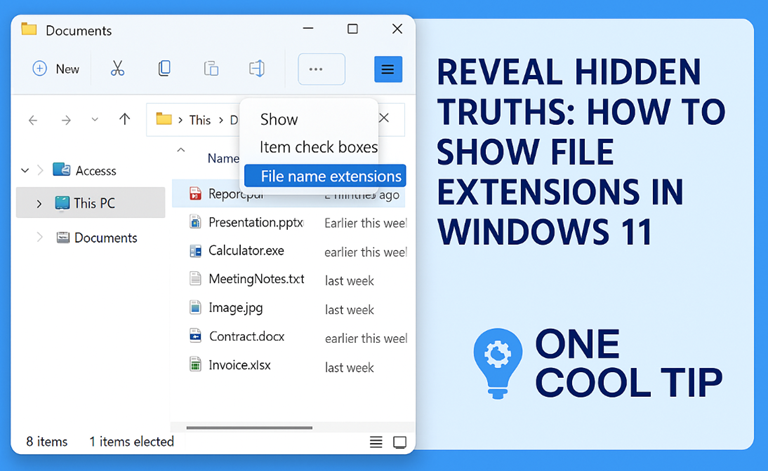
- Open File Explorer.
- Click the View tab in the top toolbar.
- Select Show, then click File name extensions.
-
You’ll now see extensions like .txt, .jpg, and .exe next to every filename.
fig. 1 - Show File Name Extensions in Windows 11
On Microsoft Web/OneDrive
- The OneDrive web interface doesn’t let you toggle file extensions directly.
- Files uploaded from Windows will retain visible extensions if you’ve enabled the setting on your desktop.
Pros and Cons
Pros:
- Makes file types instantly recognizable.
- Helps spot suspicious or misnamed files.
- Useful for renaming or batch editing file types.
Cons:
- Adds visual clutter for users who prefer minimal filenames.
- Might confuse non-technical users unfamiliar with extensions.
Feature Access
This Cool Tip works for:
- All Windows 11 users (Home, Pro, Enterprise).
- No subscription required.
- No admin privileges needed.
Score
Criterion | Score | Justification
Value: 9/10
This feature improves clarity, security, and productivity for nearly every user.
Usability: 10/10
One-click toggle. No training required. Works instantly.
Wow Factor: 7/10
Not flashy, but surprisingly satisfying once enabled. It’s a quiet productivity win.
Total Score: 26/30 🌟 Excellent.
Highly recommended for immediate use.
Key Takeaways
Showing file extensions in Windows 11 is a simple tweak with outsized benefits.
It helps users avoid mistakes, spot threats, and manage files more efficiently.
If you work with documents daily, this is a must-enable feature.
Try It Yourself
Toggle file extensions today to see how much smoother your workflow becomes.
Share this tip with your team and let us know how it helped.
READ MORE
Read the Full Cool Tip.
| | |
Help support One Cool Tip. Use this Amazon link when you shop online.
Look at these Cool Products:
|
-
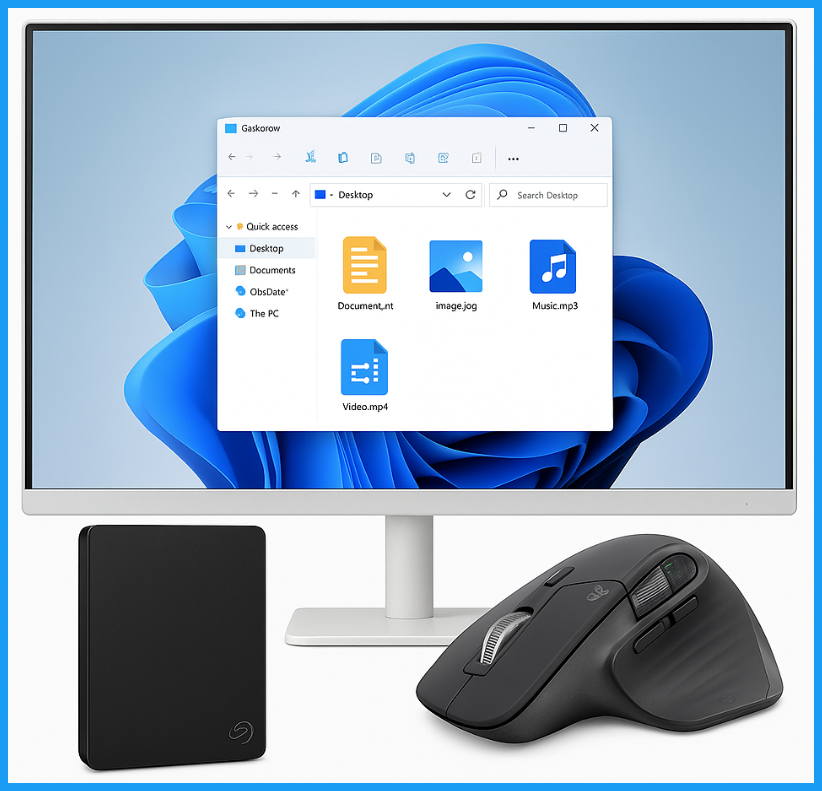
🖱️ Logitech MX Master 3S Mouse: Ergonomic, customizable, and perfect for navigating File Explorer with precision. Check it out on Amazon!
-
🖥️ Samsung 32" Smart Monitor M8: Ideal for multitasking and file management with crisp resolution and built-in apps. Check it out on Amazon!
-
📁 Seagate Portable 2TB External Hard Drive: Keep your organized files backed up and secure. Check it out on Amazon!
| | |
🆒Tell Me More
- File extensions help Windows decide which app to use when opening a file.
- You can rename a file extension, but that doesn’t change its actual format.
- Some extensions like .exe can be dangerous if disguised always check before opening.
- Windows hides extensions by default to reduce visual clutter, but it’s easy to change.
- Showing extensions is especially useful when managing backups, media, or shared files.
⏩Quick Tips
-
🖥️ Enable Extensions in File Explorer: Go to View > Show > File name extensions to toggle them on.
-
🔍 Spot Suspicious Files: If a file looks like a document but ends in .exe, don’t open it.
-
🧹 Clean Up File Names: Use extensions to batch rename or organize files by type.
-
📤 Send the Right Format: Double-check extensions before emailing files to ensure compatibility.
-
🛠️ Change Default Apps by Extension: Go to Settings > Apps > Default apps > Choose by file type.
| | ✅ More Must-Read Tech Tips | |
👀 How Do I Pin Folders to the Windows Start Menu?
Are you tired of digging through layers of directories to find that important folder?
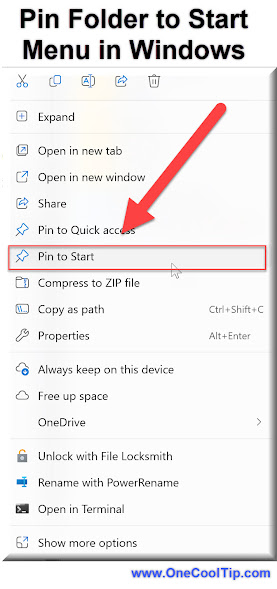
Pinning folders to the Start Menu in Windows offers quick access to frequently used directories.
It streamlines your workflow, saving time and reducing the need to navigate through layers of folders
Here's how to do it.
-
Open File Explorer (Windows + E).
-
Locate the folder you want to pin.
-
Right-click the folder icon.
-
From the context menu, select “Pin to Start.” Voilà!
-
The folder now appears in your Start Menu.
No more hunting for folders buried deep in your file system.
Arrange pinned folders as tiles on your Start Menu and jump directly to your work or personal folders with a single click.
Discover more HERE.
| |
🤔 Have You Ever Wondered How to Find and Lock Your PC Remotely
Imagine this scenario: You’re rushing through a crowded airport, and suddenly, panic sets in.
Your laptop, the repository of your work, memories, and cat videos, is nowhere to be found.
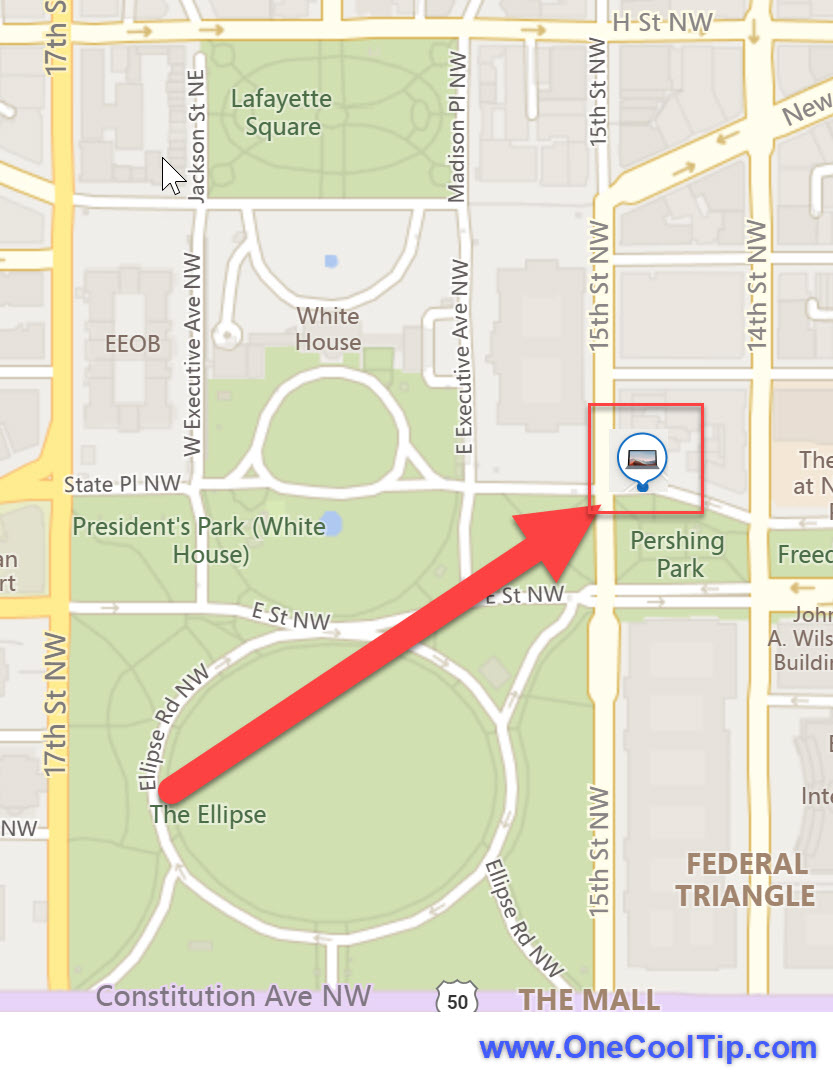
Find My Device is a built-in feature in Windows 10/11 that allows you to track your PC’s location.
Think of it as Windows’ counterpart to Apple’s Find My feature.
Once enabled, you can use your Microsoft account to locate your Windows PC on a map.
Here's how to do it.
Turn On “Find My Device” (Windows 10)
- Select "Start".
- Select "Settings".
- Click on "Update & Security".
- Navigate to "Find My Device".
- Toggle the switch to On.
- Done! Your device is now trackable.
Turn On “Find My Device” (Windows 11)
- Select "Start".
- Select "Settings".
- Click on "Privacy & Security".
- Navigate to "Find My Device".
- Toggle the switch to On.
- Done! Your device is now trackable.
Find Your Windows Device (Windows 10 and Windows 11):
-
Visit account.microsoft.com/devices.
- Sign in with your Microsoft account.
- Select the lost device from the list.
- Click Find to see its last known location on a map.
Lock Your Windows Device Remotely (Windows 10 and Windows 11):
- Still on the same page, click Lock.
- Set a custom message (e.g., “Reward for Return!”).
- Choose a phone number to display.
- Lock your device remotely to prevent unauthorized access.
Gain Peace of Mind with “Find My Device”.
By enabling this feature, you empower yourself to track and lock your Windows device remotely.
Find more HERE.
| | |
🙋♂️ Here's How to Use the File Copy Feature in Windows 11.
Have you ever found yourself lost in a maze of clicks just to copy a file?
What if there was a way to simplify this process, making it as easy as a single click?
Here's how to do it.
-
Open the File Explorer.
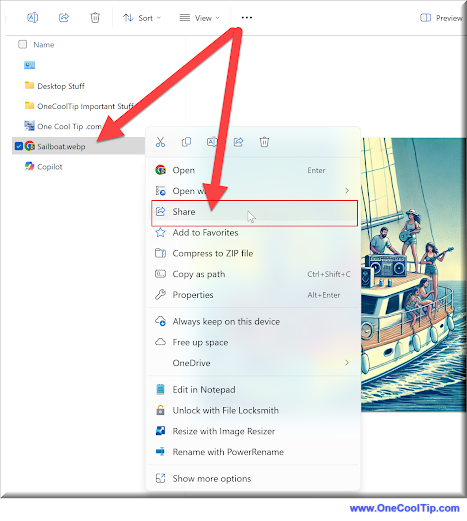
- Navigate to the file you wish to share.
-
Right-click on the file and select ‘Share’.
-
In the Share window, click the new ‘Copy’ button.
- The file is now on your clipboard, ready to be pasted in email or messaging app.
- Anyone with the link can edit the file.
-
In the Share window, click the "Anyone with the link can edit" link if you need to adjust who can view or edit the file.
-
Add specific people or groups and choose their access level (view or edit).
The feature offers a streamlined workflow, reducing the time spent on file management.
With this feature, they can copy the file directly from the Share window and paste it into a team chat or email, significantly speeding up the distribution process.
Learn more HERE.
| | |
❓Did you share this newsletter with three friends yet?
😎 Cool Facts
- Over 90% of ransomware attacks are delivered via disguised file types like .exe or .js. Source.
- Windows supports over 200 file extensions, from .docx to .flac. Source.
- The .docx format reduces file size by up to 75% compared to .doc. Source.
- More than 1 billion PCs run Windows globally, making this tip universally relevant. Source.
⌨️Today's Cool Keyboard Shortcuts
-
Windows + E: Open File Explorer.
-
Windows + L: Lock your device.
-
Ctrl + Shift + N: Create a new folder.
-
F2: Rename selected file.
-
Alt + Enter: View file properties.
😜 Tech Joke of the Day 😅
I renamed my file “final.docx.”
Now it’s on version 37.
🔎 Do you have a Cool Tip or tech question? Email us at onecooltip.com@gmail.com.
| | |
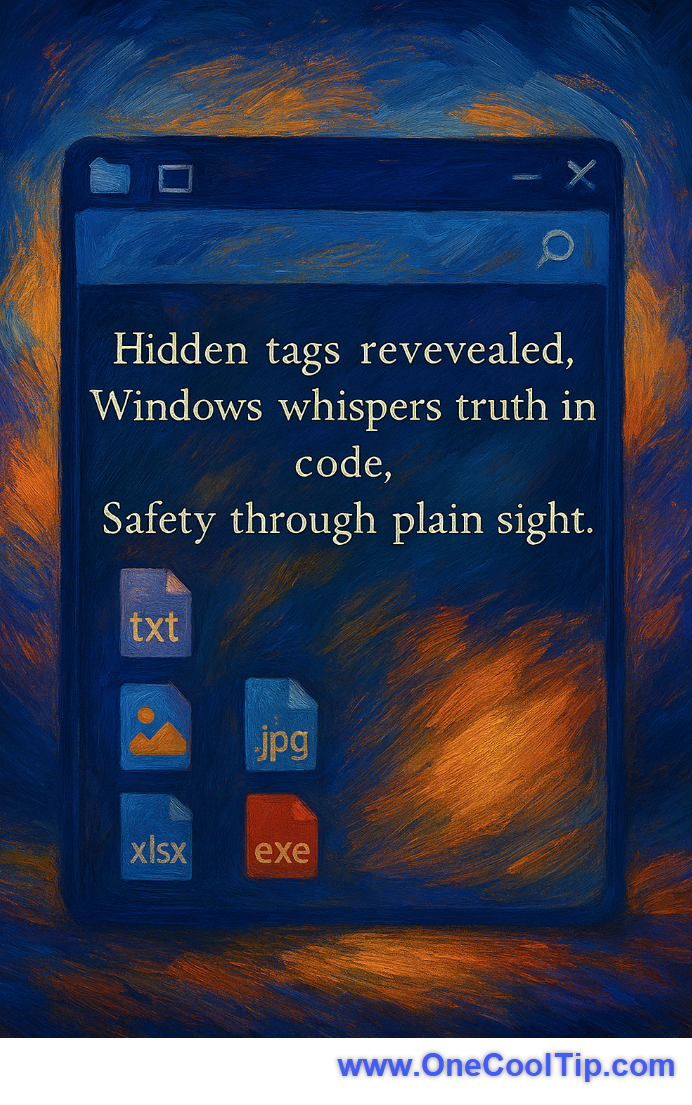
Hidden tags revealed,
Windows whispers truth in code,
Safety through plain sight.
| |
| 🤔 How do you usually identify a file’s type? | | | |
Did You See These Cool Tips This Week?
| | | | Meta Vibes: Meta’s New Playground for AI-Generated Videos | Meta just dropped Vibes, a dedicated feed inside the Meta AI app (and at meta.ai) where every video is AI-generated. You can browse, remix, or build videos and share them across Facebook/Instagram. This Cool Tip cuts through the hype to show what’s real, what’s experimental, and what’s useful (or not) for everyday creators. | | | | OpenAI Prompt Packs: ChatGPT for Every Role at Work | OpenAI’s new Prompt Packs give professionals in every field a running start. These curated prompt collections help people in sales, marketing, HR, and other jobs work faster and think smarter with ChatGPT. | |
ICYMI - In Case You Missed It ...
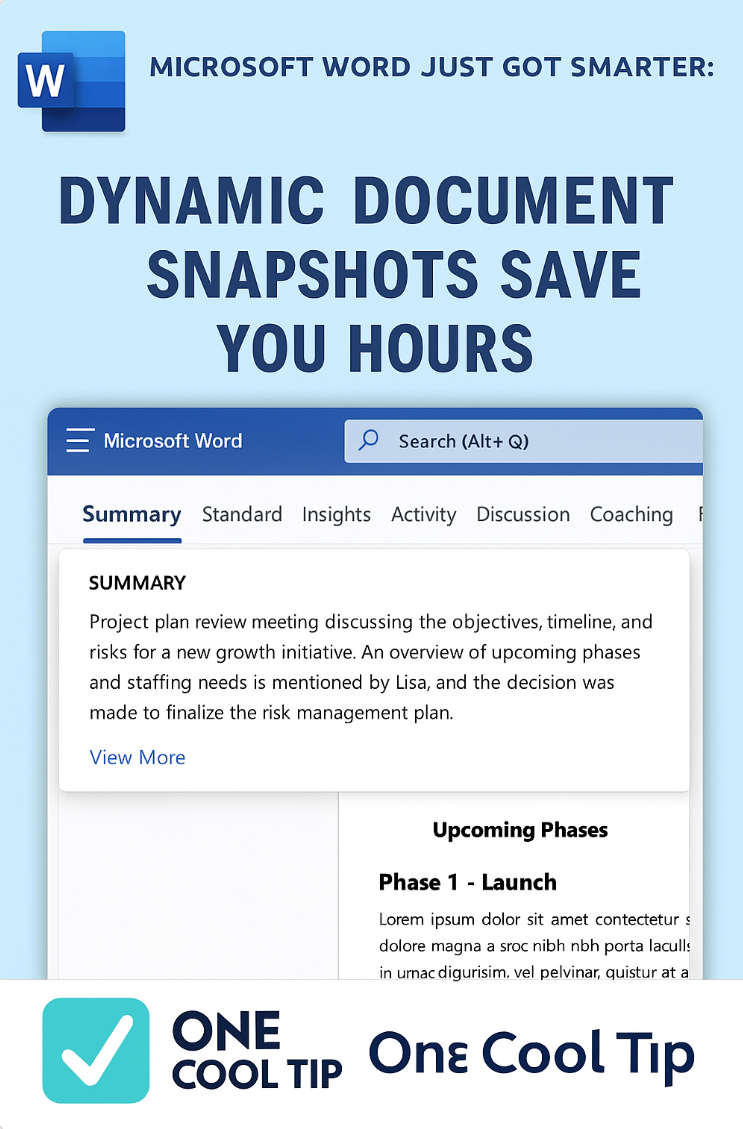
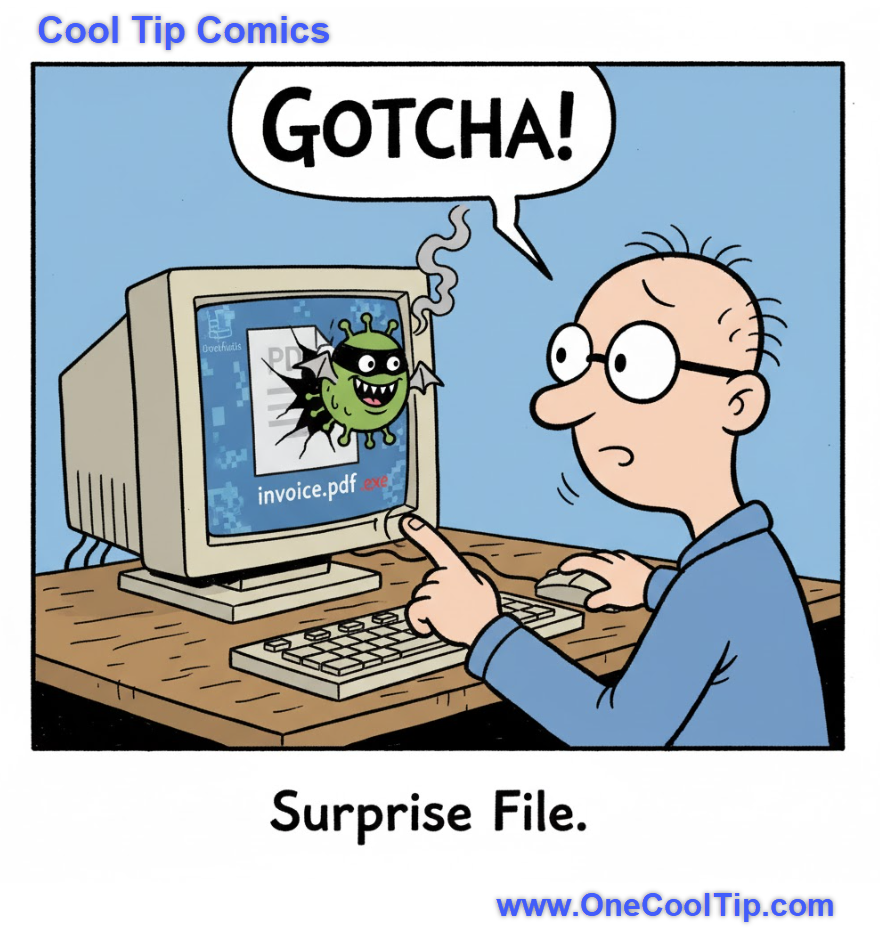
| | | | Microsoft Word Just Got Smarter: Dynamic Document Snapshots Save You Hours | Microsoft 365 Copilot’s new Dynamic Document Snapshot feature in Word delivers instant, AI-generated summaries, so you can skip the scroll and get straight to what matters. | | When your “invoice.pdf” turns out to be less about billing and more about villainy. Proof that even your files have a sense of humor (and a dark side). | | |
Trivia Answer: B) .COM, .EXE, .BAT
.COM, .EXE, and .BAT were the primary three-character file extensions used in the early days of MS-DOS, the operating system that defined the original IBM PC era. This three-character length was a limitation imposed by the 8.3 file naming convention, where a filename could have up to eight characters followed by a period and a three-character extension.
.COM (Command), .EXE (Executable), and .BAT (Batch) files are all different types of executable programs that the operating system could run. Their prominence established the critical role of the file extension in signaling a file's function, especially identifying potential security risks, a lesson still relevant when dealing with modern, hidden extensions. The use of these extensions was fundamental to how programs and commands functioned on early personal computers.
----------
Tomorrow's Cool Tip is waiting to amaze you.
Until then, go forth and conquer the tech world with your newfound knowledge!
Be sure to visit www.OneCoolTip.com for Cool Tech Tips for a Cooler Life!
And if you Like One Cool Tip, please support with TipJar!
Enjoy!
Rodger
Chief Cool Tipper
onecooltip.com@gmail.com
| |
| What do you think of today's OneCoolTip newsletter? | | | |
Please Share the One Cool Tip Newsletter!
You asked for it. You got it. There is now a One Cool Tip Newsletter archive. Did you delete a newsletter and want to read it again? Check it out HERE.
Want to help One Cool Tip grow? Please forward this email using the link above. And if you see an OCT social media post, please LIKE, COMMENT and SHARE!
Have you subscribed to the One Cool Tip YouTube channel? Subscribe HERE.
| | Connect with One Cool Tip!! | | |
|
As an Amazon Associate, One Cool Tip may earn a small commission from qualifying purchases.
Our media content is intended solely for informational purposes only. Please do not construe anything here as legal, tax, investment, financial, marital or other advice.
Copyright © 2025 | www.OneCoolTip.com | All Rights Reserved
|
| | | |