|
One Cool Tip Newsletter
July 16, 2026
| Your daily dose of tech-savvy brilliance! | |
😀Greetings! Happy Apple Thursday, Cool Tipper!
Get ready to streamline your digital life with simple, actionable tips delivered straight to your inbox.
Cool Tip Theme: iPhone Assistive Access
New here? Subscribe to the One Cool Tip Newsletter for daily updates. It's FREE!
| |
3️⃣
If you enjoy the One Cool Tip newsletter, please forward this newsletter to THREE friends or colleagues or share it on social media using the links below.
Leave a $$$ Tip!
Share this One Cool Tip Newsletter!
| | |
🚨 Apple Social Engineering Scam🚨
Apple warns that social engineering scams use impersonation, deception, and manipulation to trick people into revealing personal information or sending money.
Scammers may pose as Apple Support through emails, text messages, phone calls, pop-up alerts, or fake websites that appear legitimate.
They often create a sense of urgency by claiming there is a problem with your Apple account, device, or finances.
Their goal is to obtain passwords, security codes, financial details, or access to your accounts.
Apple states that it will never ask for your password, verification codes, or request that you disable security features.
If you receive a suspicious message or call, Apple recommends ending contact and reaching out to Apple through its official support channels.
And in Other News...
Apple’s $250 Million AI iPhone Settlement: Are You Eligible?
Apple has agreed to a $250 million settlement tied to claims that some Apple Intelligence features were advertised before they were fully available on certain iPhone models.
Eligible customers who purchased select iPhone 15 Pro or iPhone 16 devices during the covered period could receive between $25 and $95 per device.
If you think you qualify, there is no action required just yet.
Apple is expected to provide eligible customer information to the settlement administrator, and claim instructions will be shared once the official process begins.
Apple Opens New AI-Powered Siri to Public Beta Users
Apple has released the iOS 27 public beta, giving everyday iPhone users their first chance to try its redesigned AI-powered Siri before the official launch later this year.
The upgraded assistant can access information from emails, photos, and messages, understand what’s on your screen, and answer questions in a more conversational way.
Siri is also more deeply integrated across the iPhone and now includes a standalone app experience.
As with any beta software, users should expect some bugs and performance issues while testing new features.
| | |
Fun with Siri
-
Create location-based reminders: Say, “Siri, remind me to buy milk when I leave work.” Siri can alert you when you arrive at or leave a location.
-
Type instead of talking: In a quiet room, double-tap the bottom of your iPhone screen to type a Siri request. This feature requires Apple Intelligence.
-
Set several timers by name: Say, “Siri, set a pasta timer for 10 minutes,” then create another timer for the garlic bread. Naming timers makes them easier to track.
-
Have Siri read notifications aloud: Turn on Announce Notifications to hear messages and selected alerts through compatible AirPods or Beats headphones. You can even reply without touching your iPhone.
-
Run shortcuts with your voice: Create or add an automation in the Shortcuts app, then say “Siri” followed by the shortcut’s name to run several actions at once.
| | |
Help support One Cool Tip. Use this Amazon link when you shop online.
Check out these Cool Deals:
| | |
🖐️ PopSockets Phone Grip for MagSafe: The removable magnetic grip provides a larger holding point and can also support the phone as a stand.
Save 33%. $19.99. 4.5 Stars. Check it out on Amazon!
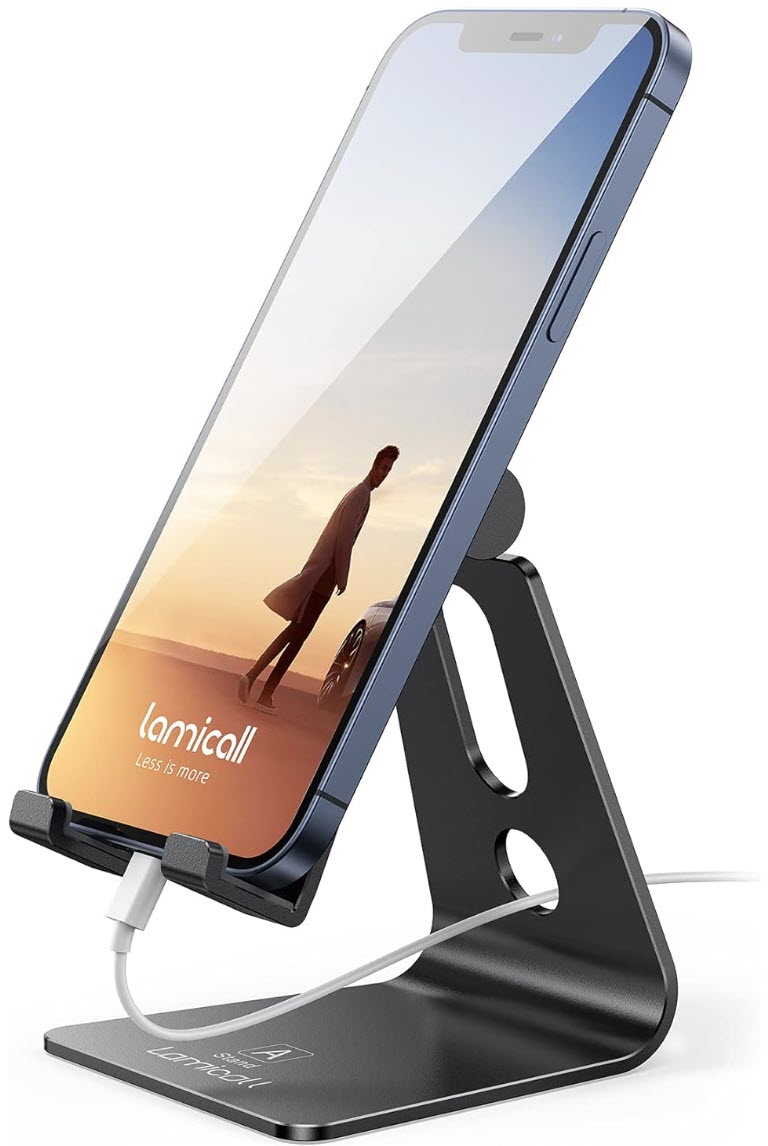
📱 Lamicall Adjustable Phone Stand: A stable stand can make video calls, FaceTime conversations, and hands-free viewing easier.
$12.99. 4.7 Stars. Check it out on Amazon!
🔌 Apple 20W USB-C Compact Power Adapter: Keeping a dedicated charger in one familiar location can make the charging routine more predictable.
Save 21%. $14.99. 4.8 Stars. Check it out on Amazon!
🔋 Apple USB-C Woven Charge Cable: This USB-C cable is appropriate for current USB-C iPhones and has a woven exterior that may be easier to distinguish from other household cables.
Save 21%. $14.99. 4.7 Stars. Check it out on Amazon!
*Prices accurate when originally published.
One Cool Tip may earn a commission from qualifying purchases.
| | |
Simplify an iPhone with Assistive Access
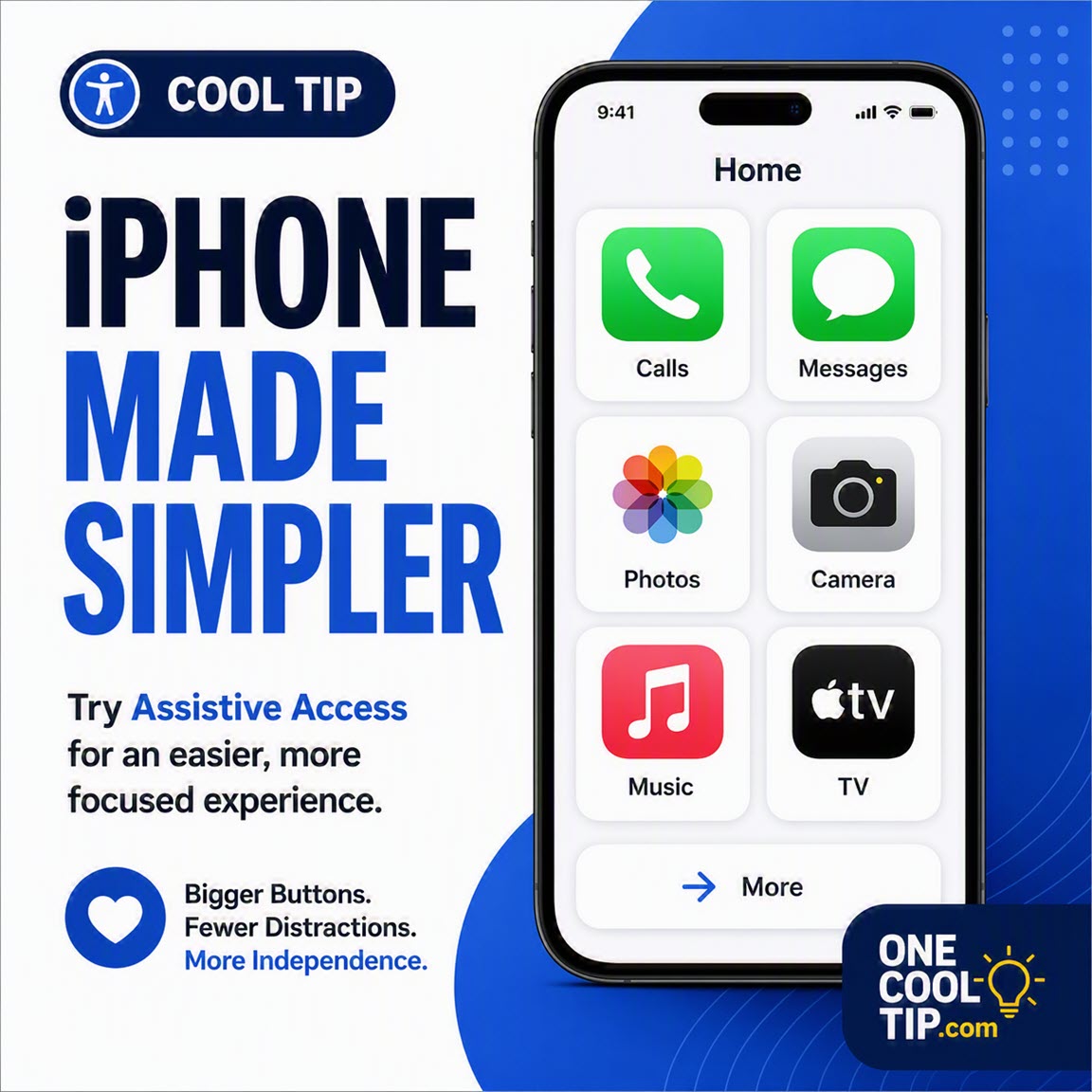
Assistive Access replaces the standard iPhone interface with larger controls, selected apps, and fewer onscreen choices. A family member or trusted supporter can customize the experience around the needs of the person using the phone.
An iPhone can be difficult to use when its Home Screen is crowded with apps, buttons are hard to identify, or too many choices appear at once.
Here’s a Cool Tip: Create a Simpler, More Focused iPhone.
Assistive Access offers a different approach. Instead of expecting someone to adapt to the standard iPhone interface, it lets a trusted supporter simplify the phone around that person’s needs.
The user can see a small selection of essential apps, larger buttons, recognizable contact photos, and fewer distractions. Calling and messaging can also be limited to trusted contacts.
Assistive Access is designed primarily for people with cognitive disabilities.
It is not simply a larger Home Screen or a general-purpose “senior mode,” although some older adults may benefit when cognitive load is a concern.
Apple introduced the feature with iOS 17 and continues to document it for iOS 26.
Feature Explanation
Assistive Access is a specialized iPhone experience with larger text and icons, more focused features, and a simplified navigation system.
It is intended to make an iPhone easier to understand and use independently.
A trusted supporter, such as a family member or caregiver, can choose which apps appear and configure how selected Apple apps operate.
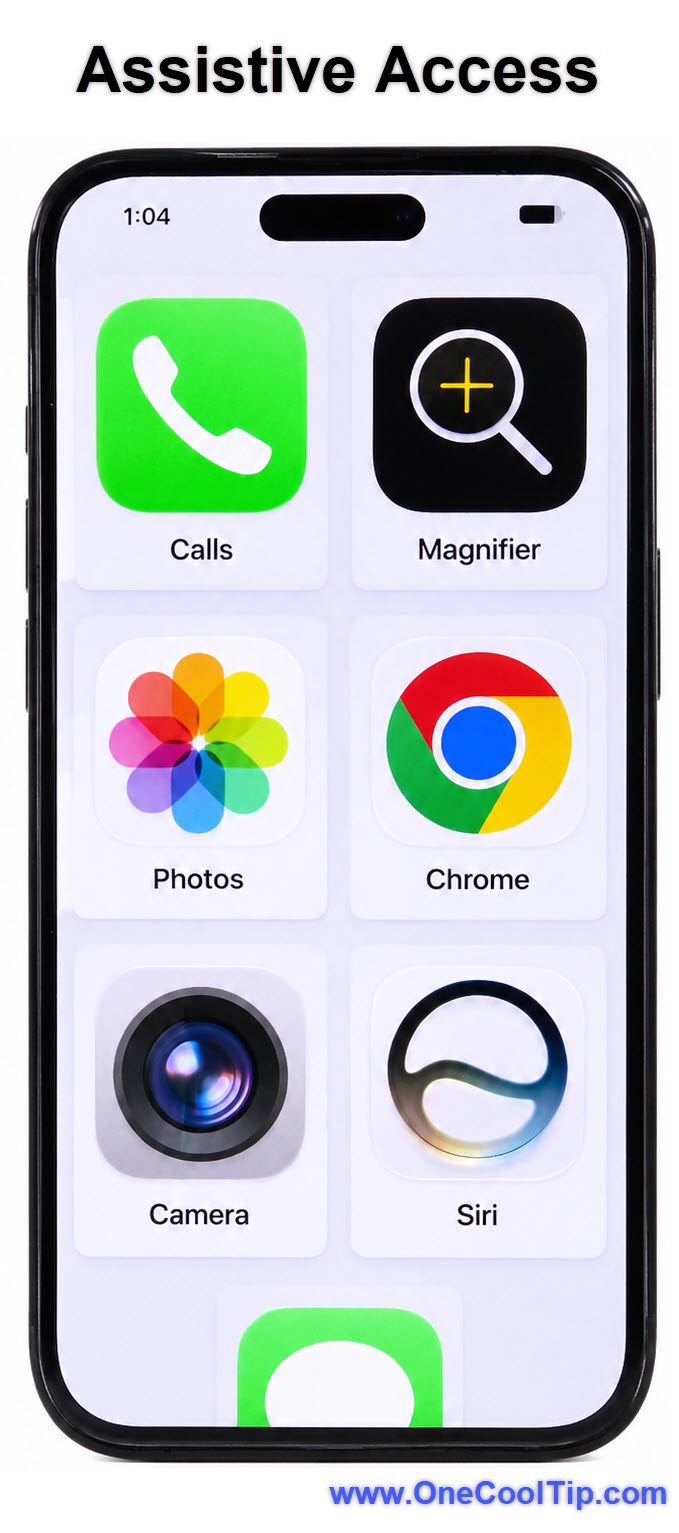
Apple provides customized Assistive Access experiences for Calls, Messages, Camera, Photos, Music, Magnifier, and the Apple TV app.
The Calls app combines regular phone calls and FaceTime video calls.
Most other iPhone apps can also be added, but they retain their standard interface and may still contain small buttons, complex menus, or distracting options.
Users can choose between two Home Screen layouts:
- Grid: Displays larger icons and emphasizes images.
- Rows: Displays apps in a readable vertical list.
Messages can use a standard keyboard, an emoji-only keyboard, or video messages for people who prefer visual communication.
What You’ll Gain
- Reduce confusion by showing only essential apps.
- Make contacts and controls easier to recognize.
- Limit calls and messages to selected people.
- Create a more consistent and predictable iPhone experience.
Step-by-Step Instructions
Here's how to do it.
iPhone
-
Open Settings.
-
Tap Accessibility.
-
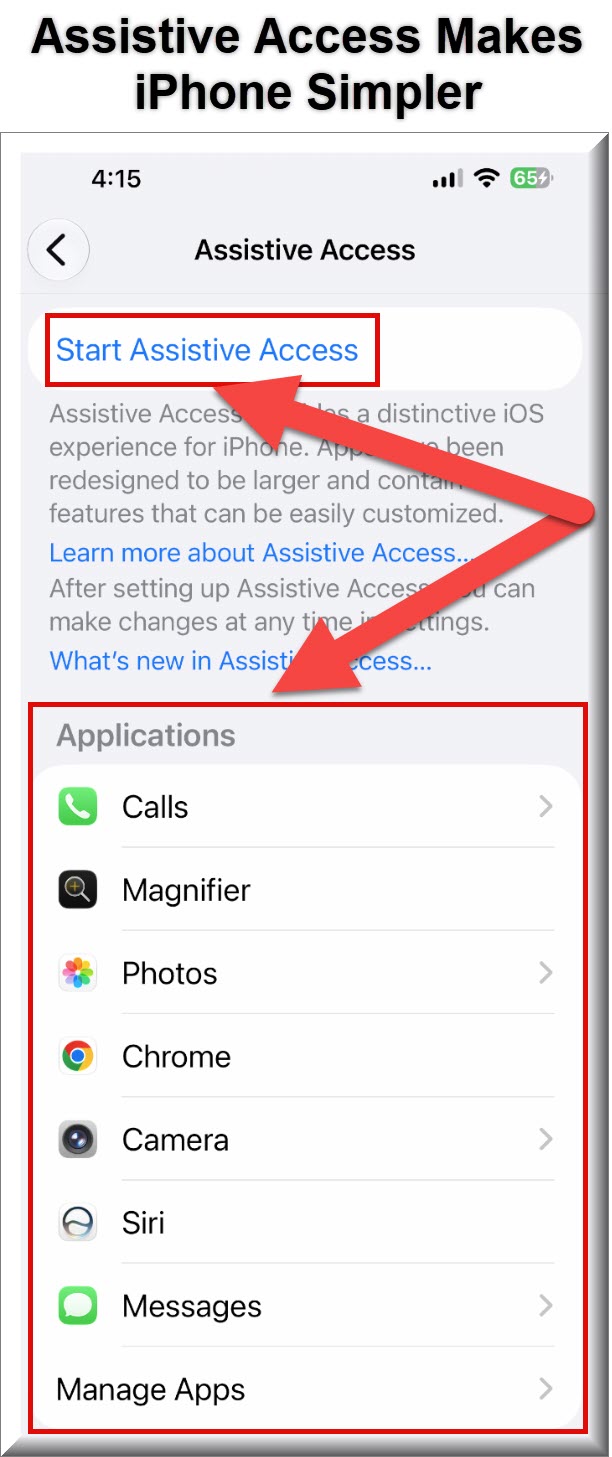
Scroll down and tap Assistive Access.
-
Tap Set Up Assistive Access, then tap Continue.
-
Confirm that the Apple Account shown belongs to the person who will use the iPhone. If the phone is not signed in to an Apple Account, you can skip this step.
-
Choose Rows or Grid for the Home Screen layout.
-
Add the apps the person needs and configure the available options for each app.
-
Confirm the regular iPhone device passcode. Set up Face ID or Touch ID when appropriate.
-
Create a separate Assistive Access passcode.
-
Add a recovery Apple Account. This is strongly recommended because it can be used to reset the Assistive Access passcode.
-
Review the instructions for exiting Assistive Access.
-
Tap Start Using Assistive Access, then enter the Assistive Access passcode.
-
After setup, the iPhone displays only the selected apps in the chosen Rows or Grid layout.
| | fig. 1 - Assistive Access Makes iPhone Simpler | fig. 2 - Assistive Access | | |
Exit Assistive Access
-
On an iPhone with Face ID:
-
Triple-click the side button.
-
Tap Exit Assistive Access.
-
Enter the Assistive Access passcode.
-
On an iPhone with a Home button, triple-click the Home button instead.
iPad
- Assistive Access is also available on supported iPads.
- Setup follows the same general path: Settings > Accessibility > Assistive Access
- To exit on an iPad, triple-click the Home button on models that have one. On other iPads, triple-click the top button.
Cool Example:
A daughter setting up an iPhone for her father might add Calls, Messages, Camera, Photos, Music, Weather, and a medication-reminder app.
She could place close relatives in Favorites, enable contact photos, restrict incoming calls to known contacts, show the battery level, and enable one-tap unlocking.
Pros and Cons
Pros:
-
Focused interface: Only selected apps appear on the Home Screen.
-
Larger controls: Grid view makes icons, photographs, and buttons more prominent.
-
Communication controls: Calls and messages can be limited to Favorites, contacts, or anyone.
-
Visual messaging: Users can communicate with emoji or video messages instead of typing.
-
Flexible customization: Supporters can control Siri, notification badges, battery display, time, wallpaper, and text size.
Cons:
- Most configuration changes require leaving Assistive Access.
- Third-party apps retain their regular interfaces.
- The App Store cannot be placed on the Assistive Access Home Screen.
- Some status icons, privacy indicators, and system notifications are hidden.
- Software updates must be started after exiting Assistive Access.
People who comfortably use the regular iPhone interface may find Assistive Access too restrictive.
It may not be suitable for someone who frequently downloads apps, changes system settings, switches among many applications, or needs immediate access to advanced iPhone features.
Assistive Access also should not be enabled solely because someone is older.
The decision should be based on the person’s abilities, preferences, and daily needs.
Organizations should test business, healthcare, education, and device-management apps before deploying Assistive Access on a managed iPhone.
Configuration Guide
- Most controls are located under:
- Settings > Accessibility > Assistive Access
- Available settings include:
- Manage Apps: Add, remove, reorder, and customize apps.
- Rows or Grid: Change the Home Screen layout.
- Wallpaper: Select a Lock Screen background.
- Notifications: Display badges and play notification sounds.
- Siri: Permit Siri while Assistive Access is active.
- Battery Level: Show the battery level on the Home Screen.
- Date and Time: Show the date or time.
- Accessibility Shortcut: Use other enabled accessibility features.
- Unlock with One Tap: Open the Lock Screen with a single tap.
- Hide Back Button for Unoptimized Apps: Hide the Assistive Access Back button in standard apps.
While Assistive Access is active, triple-click the side or Home button and select Settings to adjust brightness, Dark Mode, volume, text size, Airplane Mode, and certain other options.
The Assistive Access passcode is required.
Assistive Access is off by default and does not require a separate subscription.
An Apple Account is not required for the basic setup.
However, Apple recommends using the account belonging to the person using the phone.
A recovery Apple Account can also prevent a forgotten Assistive Access passcode from forcing a complete iPhone reset.
Feature Access
-
Who Gets It: Users with compatible iPhones or iPads.
-
Supported Versions: iOS 17 or later and corresponding supported iPadOS versions.
-
Current Documentation: Apple provides instructions for iOS 17, iOS 18, and iOS 26.
- Subscription Requirement: None.
-
Apple Account Requirement: Optional for basic use.
-
Recovery Account: Strongly recommended.
-
Region or Language Limits: Core functionality is built into supported devices, although individual communication and accessibility options may vary by language or region.
-
Release Status: Generally available, not beta.
-
Business and Education Devices: Device-management policies and required apps may affect how practical the mode is.
Score
Criterion | Score (0–10) | Justification
Value | 9
Assistive Access addresses a meaningful usability barrier by adapting the iPhone around the person using it.
Usability | 8
The simplified interface is approachable, although setup requires careful configuration and testing.
Wow Factor | 8
The redesigned apps, communication controls, and visual layouts create a noticeably different iPhone experience.
Total: 25/30 | 🌟 Excellent
Assistive Access is one of Apple’s most useful accessibility tools when it is configured around the needs of a specific person.
Guided Access serves a different purpose.
It temporarily restricts an iPhone to one app, while Assistive Access creates an ongoing simplified environment containing several selected apps.
Key Takeaways
Assistive Access can reduce cognitive load by limiting choices, enlarging controls, and placing essential people and apps at the center of the iPhone experience.
The best results come from involving the person who will use the phone, testing common tasks, and adjusting the configuration as their needs change.
Cool Tip Snapshot
-
Feature Name: Assistive Access.
-
Platform(s): iPhone and iPad.
-
Quick Benefit: Creates a simpler, customizable interface.
-
Best For: People with cognitive disabilities and their trusted supporters.
-
Access Type: Free.
-
Difficulty: Moderate.
Try It Yourself
Set up Assistive Access and test a phone call, message, photo, emergency procedure, and essential third-party app before putting it into daily use.
Share your experience in the comments, and send this article to family, friends, and coworkers who may benefit.
READ MORE
Read the Full Cool Tip.
| | |
Check Out These Cool Tips & Tricks
-
Start Small: Add only the apps needed for everyday communication and essential activities. Open Settings > Accessibility > Assistive Access > Manage Apps to choose them.
-
Use Photos: Add clear photographs to important contacts so each person is easier to recognize. Edit the photographs in the regular Contacts app before starting Assistive Access.
-
Choose Favorites: Place frequently called people at the top of the Calls screen. Open the Calls configuration and select each person under Favorites.
-
Limit Contacts: Reduce confusing or unwanted communication by restricting calls and messages to Contacts or Favorites. Review the available communication settings for both Calls and Messages.
-
Simplify Messages: Enable only the message-input methods the user needs. Turn off text, emoji, or video options that create unnecessary choices.
-
Show Battery: Display the battery level so the user knows when the phone needs charging. Turn on Battery Level in Assistive Access settings.
-
Enable One Tap: Remove the swipe gesture from the unlocking process when it causes difficulty. Turn on Unlock with One Tap.
-
Test Emergencies: Practice opening the Emergency keypad before it is needed. Review the steps without completing an emergency call.
-
Review Permissions: Check camera, microphone, contacts, photos, and location access after adding apps. Exit Assistive Access and open Settings > Apps.
-
Schedule Reviews: Revisit the configuration after software updates or changes in the user’s needs. Review apps, contacts, permissions, and the recovery account.
| | ICYMI - In Case You Missed It ... | | | | |
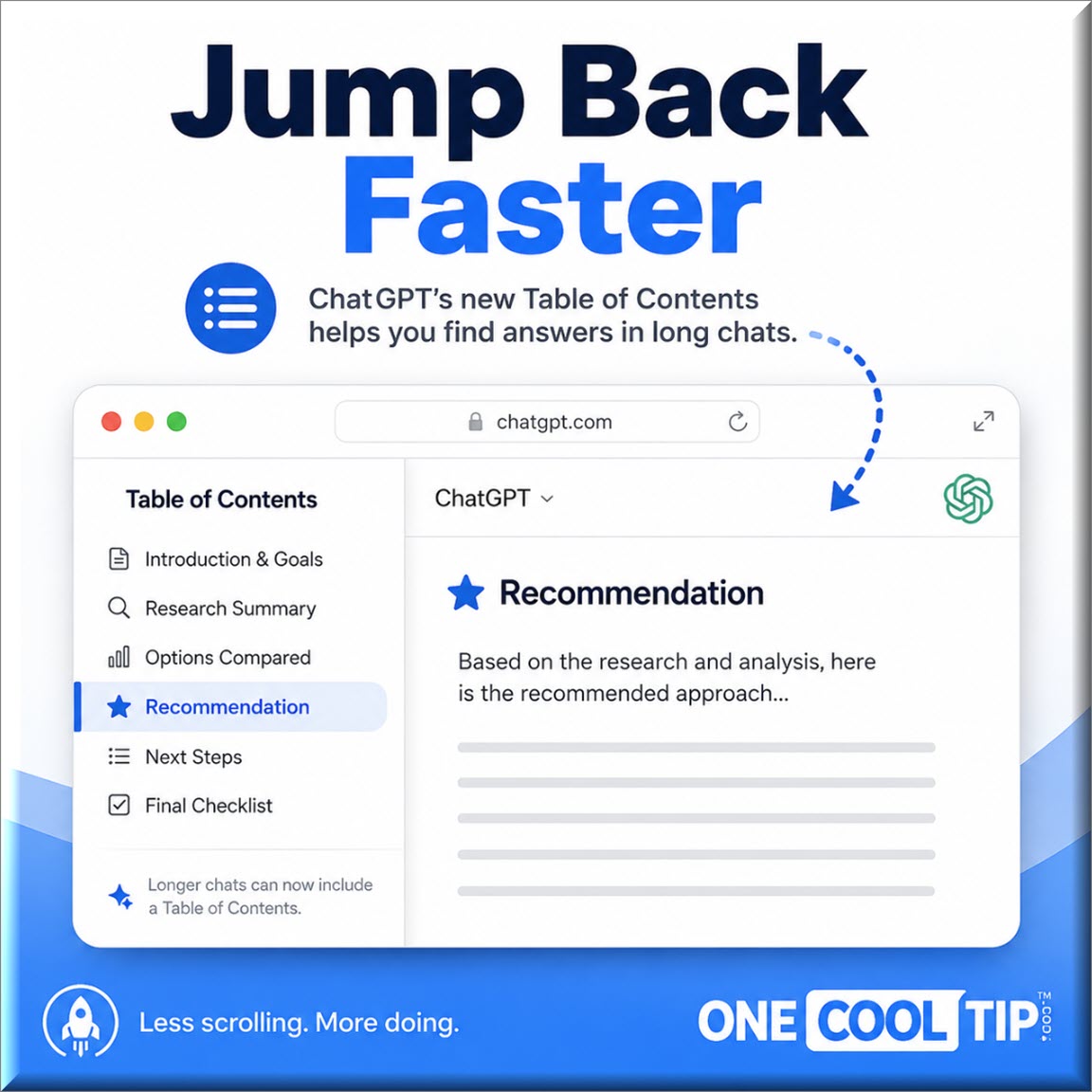
Find Your Place Faster in Long ChatGPT Chats
ChatGPT can now show a Table of Contents in longer conversations on the web, making big chats easier to scan and reuse. It is a small interface improvement with a real productivity payoff for anyone who uses ChatGPT for research, planning, writing, troubleshooting, or work notes.
Read the Full Cool Tip.
Read the Newsletter Version.
| | |
Tomorrow's Cool Tip is waiting to amaze you.
Until then, go forth and conquer the tech world with your newfound knowledge!
Be sure to visit www.OneCoolTip.com for Cool Tech Tips for a Cooler Life!
And if you Like One Cool Tip, please support with TipJar!
Enjoy!
Rodger
Chief Cool Tipper
onecooltip.com@gmail.com
| |
| What do you think of today's OneCoolTip newsletter?
| | | | Connect with One Cool Tip!! | | |
|
As an Amazon Associate, One Cool Tip may earn a small commission from qualifying purchases.
Our media content is intended solely for informational purposes only. Please do not construe anything here as legal, tax, investment, financial, marital or other advice.
Copyright © 2026 | www.OneCoolTip.com | All Rights Reserved
|
| | | |