TECH TIP: HOW TO TAKE A WINDOWS 11 SCREENSHOT

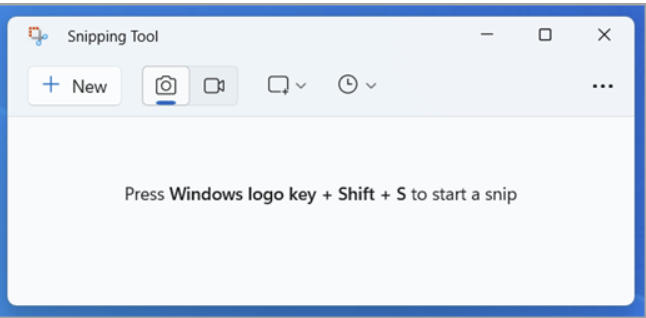
Learn how to take screenshots on Windows 11 quickly and easily. This video covers everything from basic shortcuts to advanced Snipping Tool features. No need for extra apps – it's all built-in and free! You now have the ability to add emojis in the Snipping tool. You can add arrows and shapes. You can also use the ruler using the shortcut keys Control R. It can also be found in more options (the three dots).


Note: You might not see all the new features in your version of Windows yet. Some are still in the Windows insider program.


Quick Methods:

⩥ Windows Key + Print Screen: Saves screenshot to the clipboard and your "Screenshots" folder (in your Pictures folder). Paste with ⩥ Ctrl + V.


⩥ Windows Key + Shift + S: Opens the Snipping Tool for easy snipping. Copy using the icon and Paste with ⩥ Ctrl + V. You can also Save using the icon in the Pop-Up. Editor's Note: I use the Snipping Tool regularly, so it is pinned to my Taskbar as a shortcut. (From the Start menu or apps list, search for Snipping Tool, press and hold (or right-click) an app, then select Pin to taskbar.)


⩥ Print Screen Button: Also Opens Snipping Tool. Capture area and save. NOTE: I find using Windows Key + Shift + S is easier to understand the icons.


Snipping Tool Features:

⩥ Screenshot Modes: Rectangular, Window, Full-Screen, Free-Form.

⩥ Annotations: Add arrows, shapes, emojis, and text.

⩥ Delay Timer: Capture disappearing elements.

⩥ Text Actions: Extract text, black out sensitive information and open QR code links.


Thanx to XELPLUS

REGISTER FOR HUNTINGTON LAB CLASSES

FSL SeniorNet at Family Service League, Olsten Family Center

790 Park Avenue, Huntington, NY 11743 1-631-470-6757

Refer to the webpage for additional class dates and times.

iPhone: What's Next (2 lessons) Starts Aug 14

PC Computing Basics 2 (4 lessons) Starts Sept 3

Where are My Photos? (3 lessons) Starts Sept 11

Internet Security (1 lesson) on Sept 12


Available for Solve Your Technical Problem

BAY SHORE ANNEX

FSL SeniorNet at Family Service League, South Shore Iovino Family Center

1444 Fifth Avenue, Bay Shore, NY 11706 1-631-647-3100

Available for Solve Your Technical Problem

BLUE POINT COTTAGE

Town of Brookhaven, FSL SeniorNet @ Henrietta Acampora Cottage

39 Montauk Highway, Blue Point, NY 11715 1-631-470-6922

Available for Solve Your Technical Problem

REGISTER FOR FREE WEBINARS & SEMINARS

Webinars are held over Zoom,

Seminars are at local libraries.

  • Google: More than a Search Engine on Aug 13
  • Windows 10: Survey of Settings & Desktop on Sept 11
  • iPhone: The Camera on Sept 16
SOLVE YOUR TECHNICAL PROBLEM
IMPORTANT STUFF TO KNOW!

ALL CLASSES:

Registration is open until 10 AM sharp one day before the start of a class.

To participate in our classes, register and pay online with a credit or debit card. If you prefer to pay by check or cash, contact the office at 631-470-6757, or register in person at Open House/ Registration Day in Huntington, Bay Shore, & Blue Point. Reminder emails are sent by fslseniornet@fsl-li.org ftwo days before the first class in a series.


ONLINE CLASSES:

To participate in our online courses, you need to download Zoom on your computing device*. The Zoom link will be included in the confirmation sent by ezregister.com. The teacher will also send the Zoom link and manual before the class.


WEBINARS ARE ONLINE:

Registration is open until one hour prior to the webinar's start time.

The Zoom link will be included in the confirmation sent by ezregister.com. Reminder emails are sent by fslseniornet@fsl-li.org five days before the webinar. Additionally, the teacher will also send the Zoom link and handout the day before the webinar. 


SEMINARS ARE IN-PERSON & LIBRARY HOSTED:

Registration is managed by our host library. Their registration link will be provided on their website, our email blasts, and our webpage.


SOLD OUT:

Please call 631-470-6757 or send an email to fslseniornet@fsl-li.org

to receive an email with information as to when the course (webinar, seminar, class or workshop) is offered again. Please include the name of the course you are interested in.


COMPUTING DEVICES:

Computing devices include Windows and Mac Desktops & Laptops,

iPads, and Android Tablets. It is NOT recommended to Zoom using your smartphone due to the smaller screen size.


ZOOM HELP IS AVAILABLE:

 If you need instructions on downloading and using Zoom, click here:

HOW TO JOIN A ZOOM CHAT. 


REGISTRATION INFORMATION
SeniorNet Community Programs
COMPUTER DONATION & REFURBISHMENT PROGRAM
TECH CONNECT LIBRARY / PUBLIC SERVICE ANNOUNCEMENTS / TECH TIPS
FSL SENIORNET WEBSITE
FAMILY SERVICE LEAGUE WEBSITE