β€Š

One Cool Tip Newsletter

August 26, 2026

Your daily dose of tech-savvy brilliance!

πŸ˜€Greetings! Happy Windows Wednesday, Cool Tipper!


Get ready to streamline your digital life with simple, actionable tips delivered straight to your inbox.


Cool Tip Theme: Disable Windows 11 Startup Apps

ο»Ώ

Learn how to disable startup programs in Windows 11 using Settings, Task Manager, and Startup folders to improve boot speed and performance.


New here? Subscribe to the One Cool Tip Newsletter for daily updates. It's FREE!

3️⃣

If you enjoy the One Cool Tip newsletter, please forward this newsletter to THREE friends or colleagues or share it on social media using the links below.


Leave a $$$ Tip!


Share this One Cool Tip Newsletter!

X Share This Email
LinkedIn Share This Email
Pinterest Share This Email

🚨Don't Let a Home Warranty Notice Fool You🚨


If you own a home, you've probably received an official-looking letter or email warning that your home warranty is about to expire.


According to the Better Business Bureau, some of these are designed to look like they come from your mortgage lender or are connected to your loan when they are not.


They often create a sense of urgency and encourage homeowners to call immediately to avoid losing coverage.


Before responding, carefully read the fine print and verify whether the company actually has a relationship with your mortgage provider.


Never assume that a notice is legitimate simply because it includes your loan information, address, or payment details.


A few minutes spent researching the company can help you avoid unnecessary costs and misleading sales tactics.


And in Other News...


  • Instagram Is About to Get Safer for Teens


Meta has reached a landmark settlement with states across the U.S. that will bring significant new safety measures to Facebook and Instagram for younger users.


As part of the agreement, the company will introduce stronger protections designed to limit excessive use and give parents more control over their children's social media experience.


The changes will include features such as daily usage limits, restrictions on nighttime access, enhanced age verification, and improved parental controls.


This is a good reminder to regularly review privacy settings, screen time tools, and family supervision features on the apps.


While technology companies continue to add safeguards, family conversations about healthy online habits remain just as important.


The changes could help create a safer and more balanced social media experience for millions of young users.

Cool Tip Poll

πŸ€” Poll: How Many Startup Apps Run on Your Windows 11 PC?

Cool Deals of the Day

Help support One Cool Tip. Use this Amazon link when you shop online.


Check out these Cool Deals:

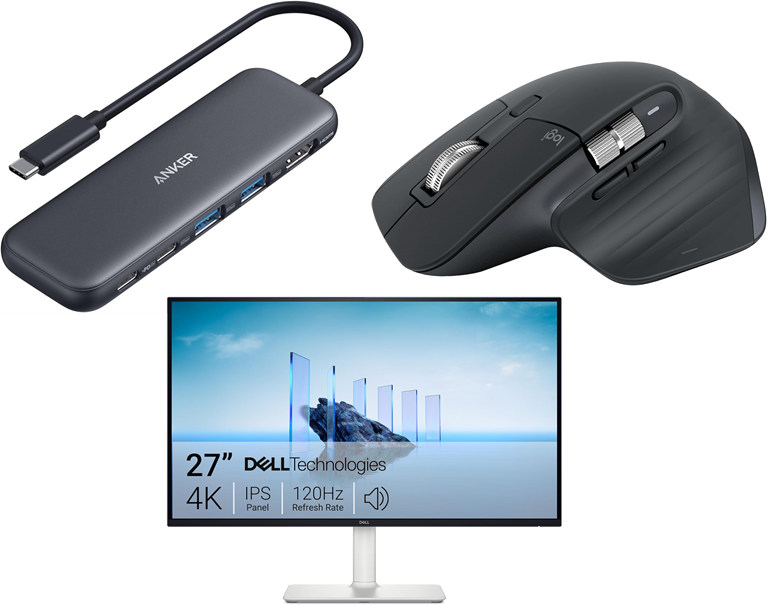
πŸ”Œ Anker USB-C Hub: Useful for connecting multiple monitors, accessories, and charging through a single cable.

Save 28%. Now $19.99. 4.4 Stars. Check it out on Amazon!


πŸ–±οΈ Logitech MX Master 3S Mouse:  A productivity-focused wireless mouse designed for multitasking and customization.

Save 15%. Now $84.99. 4.5 Stars. Check it out on Amazon!


πŸ’» Dell S2725QC 27-Inch 4K Monitor:  A versatile display that provides extra workspace for productivity and remote work.

Save 10%. Now $268.99. 4.4 Stars. Check it out on Amazon!


ο»Ώ*Prices accurate when originally published.

One Cool Tip may earn a commission from qualifying purchases.

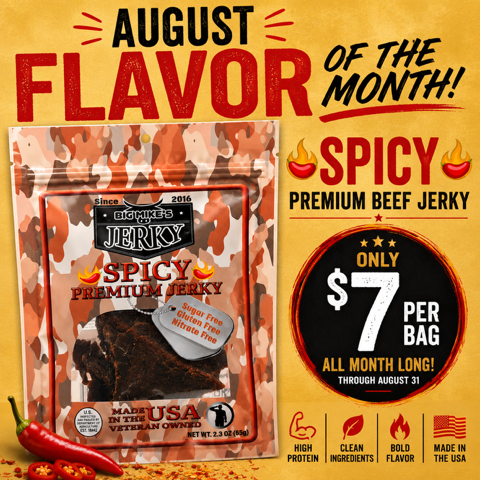
Fuel Your Adventure

Try Big Mike's Jerky!ο»Ώ


bigmikesjerky.com


Now on TikTok!


Today's Cool Tipο»Ώ

Speed Up Windows 11: 3 Easy Ways to Disable Startup Apps


Too many startup apps can slow down your PC before you even begin working. Here are three simple ways to stop unnecessary programs from launching automatically in Windows 11 and improve startup performance.


You turn on your PC expecting to get to work, but Windows spends the next few minutes launching apps you didn't even open. 


If your computer feels sluggish immediately after sign-in, startup programs may be the reason.


Many applications automatically configure themselves to launch whenever you log into Windows. 


While some are genuinely helpful, others consume memory, processor resources, and storage activity before you've even opened a browser.


Here's a Cool Tip: Disable high-impact startup apps you rarely use.


Startup applications can affect both startup speed and overall system performance. 


By managing which apps launch automatically, you can reduce unnecessary background activity and create a cleaner, faster experience.


The good news is that Windows 11 includes several built-in tools that make startup management easy.


Feature Explanation


Startup programs are applications configured to launch automatically when you sign into Windows.


Typical startup apps include:


  • Microsoft Teams
  • Spotify
  • Discord
  • Adobe Creative Cloud
  • Game launchers
  • Cloud sync utilities


While some startup apps provide important background services, others simply use resources while sitting idle in the background.


Windows 11 currently supports configuring startup applications through:


  • Settings
  • Task Manager
  • Startup folders for applications that are not listed in standard startup controls


Startup management has been part of Windows for years, but many users never revisit these settings after installing new software. 


Windows 11 makes the process easier by displaying startup impact ratings in Task Manager and offering simple on/off controls in Settings.


This feature is especially valuable for:


  • Home users with aging PCs.
  • Students using budget laptops.
  • Remote workers.
  • Small businesses.
  • Anyone frustrated by slow boot times.


What You'll Gain


  • Start Windows faster by reducing unnecessary background launches.
  • Free up memory and processor resources.
  • Improve laptop battery life by limiting background activity.
  • Make it easier to focus on the apps you actually use.


Step-by-Step Instructions


Here's how to do it.


Windows


Method 1: Disable Startup Programs from Settings

ο»Ώ

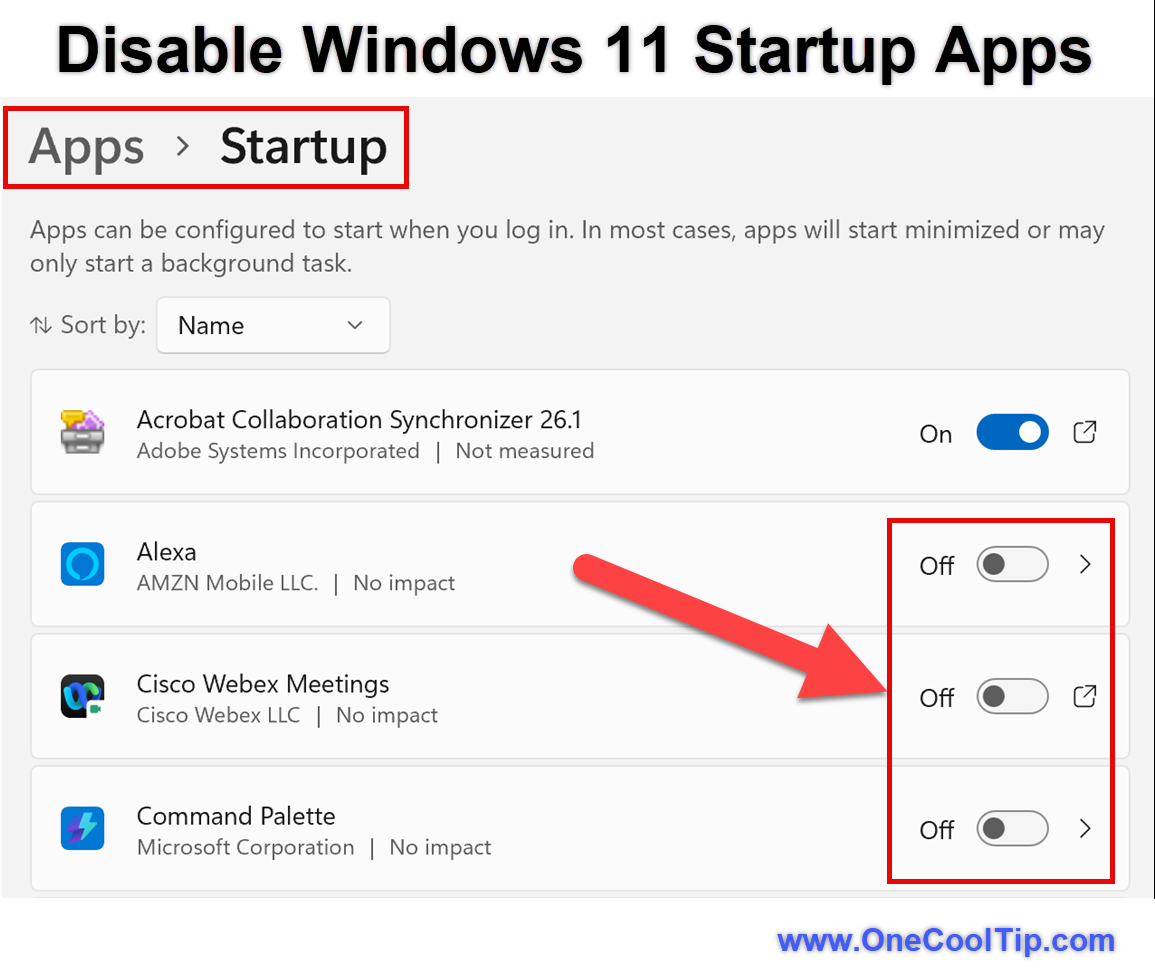
  1. Open Start > Settings.
  2. Select Apps.
  3. Click Startup.
  4. Review the list of startup applications.
  5. Toggle Off any application you do not want launching automatically.
  6. After completing these steps, Windows will no longer launch those apps when you sign in.


fig. 1 - Disable Windows 11 Startup Apps

Method 2: Disable Startup Programs from Task Manager


  1. Right-click the Start button.
  2. Select Task Manager.
  3. Open the Startup apps tab.
  4. Review each application's Startup Impact rating.
  5. Select an app.
  6. Click Disable.


Task Manager provides additional information about each application's effect on startup performance, making it easier to identify resource-heavy startup items.


Method 3: Remove Startup Shortcuts from the Startup Folder


  1. Some applications may not appear in the Startup Apps list.
  2. Press Windows + R.
  3. Type: shell:Startup
  4. Press Enter.
  5. The current user's Startup folder opens.
  6. Remove shortcuts for programs you do not want launching automatically.


For all-user startup items:


  1. Press Windows + R.
  2. Type: shell:common startup and press Enter.
  3. Remove unwanted shortcuts. Administrator permissions may be required.


Pros and Cons


Pros:


  • Can reduce startup delays, especially on older systems and laptops with numerous startup applications.
  • Easy to manage through Windows Settings.
  • Task Manager highlights startup impact ratings.
  • May help reduce unnecessary resource usage and background activity.
  • Useful for home users, students, professionals, and small businesses.


Cons:


  • Some apps provide useful background services that you may want running automatically.
  • Certain applications may re-enable startup settings after updates.
  • Startup folders may require administrator permissions.
  • Disabling the wrong utility could reduce convenience or delay notifications.


Feature Access


  • Who gets it: Windows 11 users.
  • Platforms: Windows 11.
  • Supported versions: Available in supported Windows 11 releases.
  • Account requirement: Local account or Microsoft account.
  • Subscription required: No.
  • Business and enterprise support: Available unless restricted by organizational policy.
  • Region restrictions: Microsoft's published documentation does not identify any region-specific limitations for Startup Apps management.
  • Availability: Broadly available in Windows 11, though startup behavior depends on how individual applications register with Windows.


Score

Criterion | Score (0–10) |  Justification
Value |  9
Improves startup speed and reduces unnecessary background activity for many users.
Usability |  8
Built into Windows and easy to access through multiple management tools.
Wow Factor |  5
Helpful and practical, though not a new feature.
Total: 22/30  |  πŸ‘ Good
One of the simplest Windows optimization techniques available, offering meaningful benefits with very little effort. Unlike third-party PC optimization utilities, Windows' built-in startup management tools are free and already included with the operating system.


Key Takeaways


Managing startup applications is one of the easiest ways to improve the Windows 11 experience without installing additional software. 


The Settings app, Task Manager, and Startup folders provide multiple ways to control what launches automatically. 


Even disabling a handful of unnecessary startup apps can make Windows feel less cluttered and more responsive.


Cool Tip Snapshot


  • Feature Name: Startup Apps Management.
  • Platform(s): Windows 11.
  • Quick Benefit: Faster startup and reduced background clutter.
  • Best For: Home users, students, professionals, and small businesses.
  • Access Type: Free.
  • Difficulty: Easy.


Try It Yourself


Take five minutes today to review your Windows 11 startup apps and disable anything you do not regularly use. 


Then let us know whether your PC starts faster, subscribe to the One Cool Tip newsletter, share this article with family, friends, and coworkers, and join the conversation in the comments.


READ MORE


Read the Full Cool Tip.

Check Out These Cool Tips & Tricks


  • Startup Scan: Review startup apps every month to help keep Windows running efficiently. Open Settings > Apps > Startup and disable programs you no longer use.


  • Quick Search: Find Windows settings faster with built-in search. Press the Windows key and type the name of the setting you need.


  • Pin Favorites: Keep frequently used apps within easy reach. Right-click an app and select Pin to Start or Pin to Taskbar.


  • Keyboard Boost: Save time with common Windows shortcuts. Press Windows + E for File Explorer and Windows + I for Settings.


  • Update Often: Software updates often improve performance and security. Check Settings > Windows Update regularly.


  • Storage Cleanup: Remove temporary files that consume valuable disk space. Open Settings > System > Storage and review cleanup recommendations.


  • Night Light: Reduce eye strain during evening work sessions. Turn on Settings > System > Display > Night Light.


  • Focus Mode: Reduce interruptions while concentrating on important tasks. Use Focus Sessions in the Windows Clock app.


  • App Permissions: Review which apps can access sensitive features. Open Settings > Privacy & Security and manage permissions as needed.


  • Regular Restart: Restart Windows periodically to clear temporary issues and refresh system resources. Select Start > Power > Restart when performance begins to feel sluggish.

ICYMI - In Case You Missed It ...

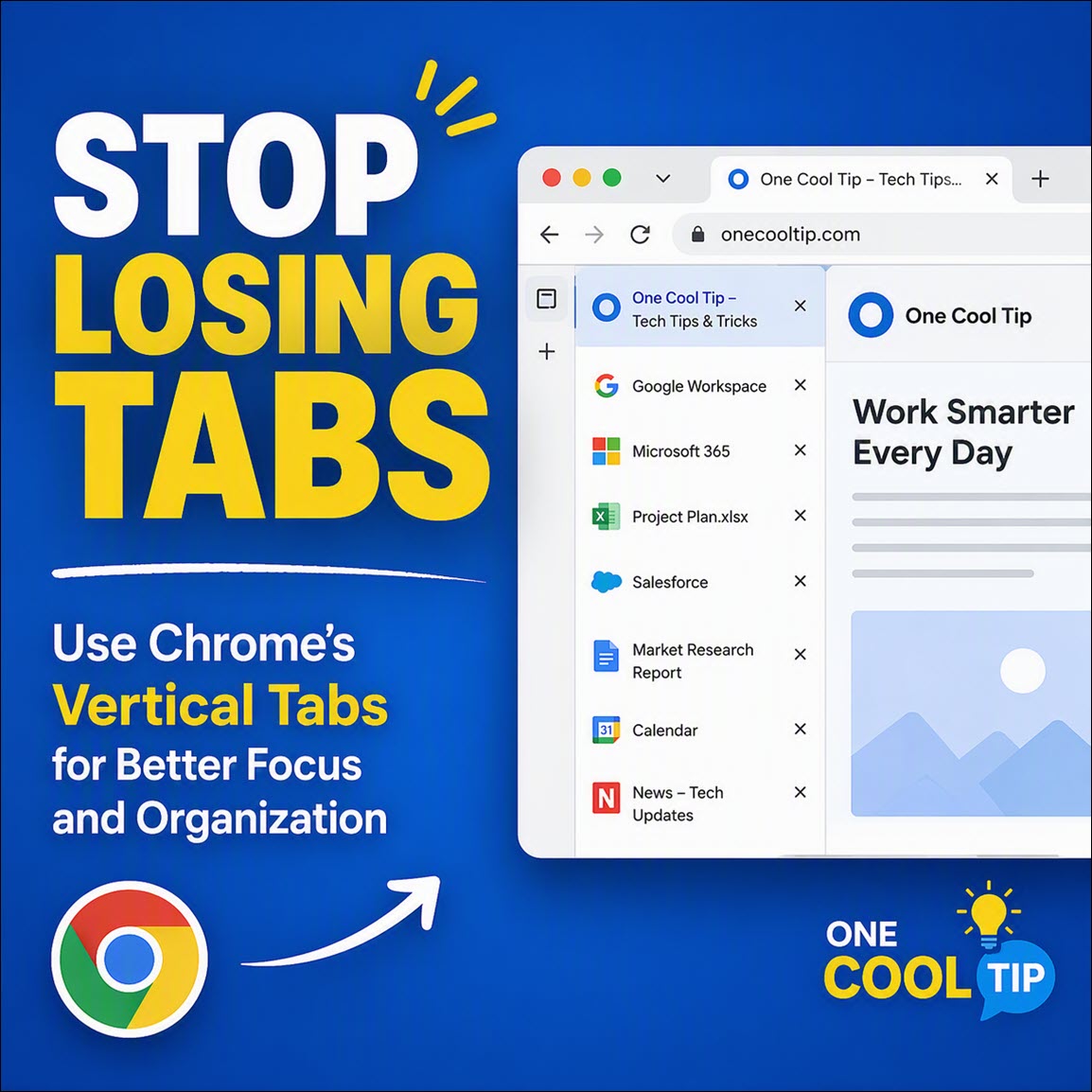
How to Organize Your Web Browser with Chrome Vertical Tabs


Google Chrome now lets you arrange open tabs along the side of your screen instead of crowding them across the top. Moving your tabs vertically keeps full page titles visible and helps you manage large research projects without losing your place.


Read the Full Version.


Read the Newsletter Version.

Looking for your next adventure?


Call Denise at Travel For You.

314.660.3039


Sign Up for the Monthly Newsletter


http://www.travelforyouvacations.com/


https://www.facebook.com/TRAVEL.FOR.U/


See You Tomorrow

Tomorrow's Cool Tip is waiting to amaze you.


Until then, go forth and conquer the tech world with your newfound knowledge!


Be sure to visit www.OneCoolTip.com for Cool Tech Tips for a Cooler Life!


And if you Like One Cool Tip, please support with TipJar!


Enjoy!

ο»Ώ


Rodger

Chief Cool Tipper

onecooltip.com@gmail.com


What Do You Think?

What do you think of today's OneCoolTip newsletter?
Positive        Neutral        Negative
X Share This Email
LinkedIn Share This Email

Connect with One Cool Tip!!

Facebook  X  Instagram  Web  Pinterest  YouTube  LinkedIn
β€Š

As an Amazon Associate, One Cool Tip may earn a small commission from qualifying purchases.


Our media content is intended solely for informational purposes only. Please do not construe anything here as legal, tax, investment, financial, marital or other advice.


Copyright Β© 2026 | www.OneCoolTip.com | All Rights Reserved


β€Š